How to Turn a TV Into a Digital Sign (Step-by-Step)
Turning a TV into a digital sign means adding a small computer or app that shows a scheduled playlist automatically, without anyone touching a remote. You can do it this weekend with hardware you probably already have or can buy for the price of a nice dinner out. There are two practical routes: a small dedicated player like a Raspberry Pi, or the TV's own browser. Both work; which one is right depends on how many screens you're managing and how much control you want.
If you're setting up more than one screen, or you want scheduling, remote monitoring, and content that updates itself, you'll want signage software behind whichever hardware you pick, see our Raspberry Pi digital signage setup for the specific installer and steps. If it's a single TV and you want something simple running today, the browser-only route further down covers that.
The three ways to turn a TV into a digital sign
Before picking hardware, here are the options, roughly in order of setup effort:
- A small computer plugged into the HDMI port (Raspberry Pi is the most common and best-documented choice) running a kiosk browser that loads your signage dashboard.
- The TV's built-in browser (most smart TVs, Android TV boxes, Fire TV Sticks with a browser app) pointed at a signage player URL: no extra hardware.
- A laptop or old PC in kiosk mode: works, but it's bulkier, draws more power, and is overkill unless you already have a spare machine gathering dust.
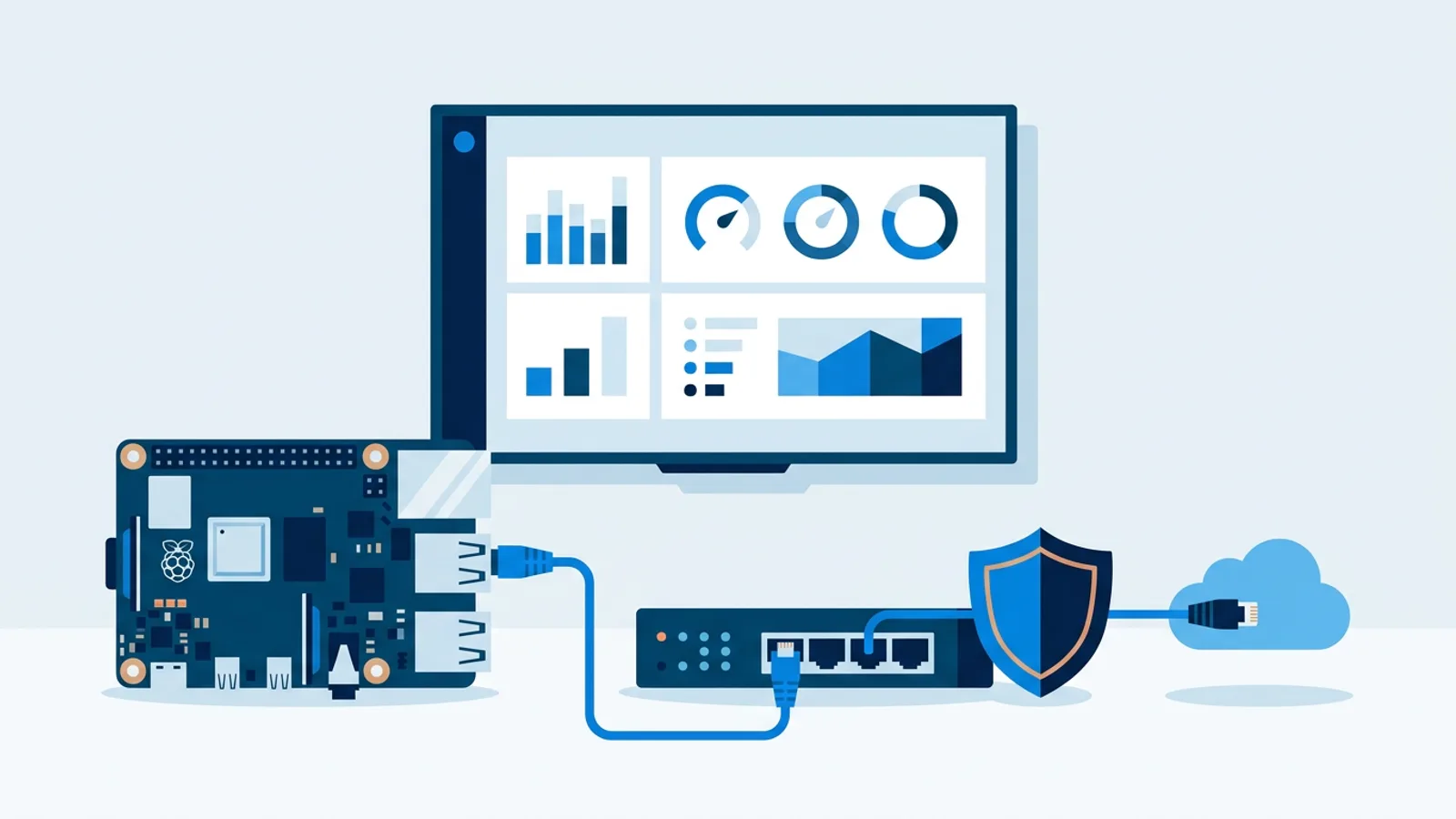
All three need something to manage: a playlist, a schedule, and ideally a way to check the screen is still online without walking over to look at it. That's the software half of the job, and it matters more than the hardware choice.
Turn a TV into a digital sign with a Raspberry Pi
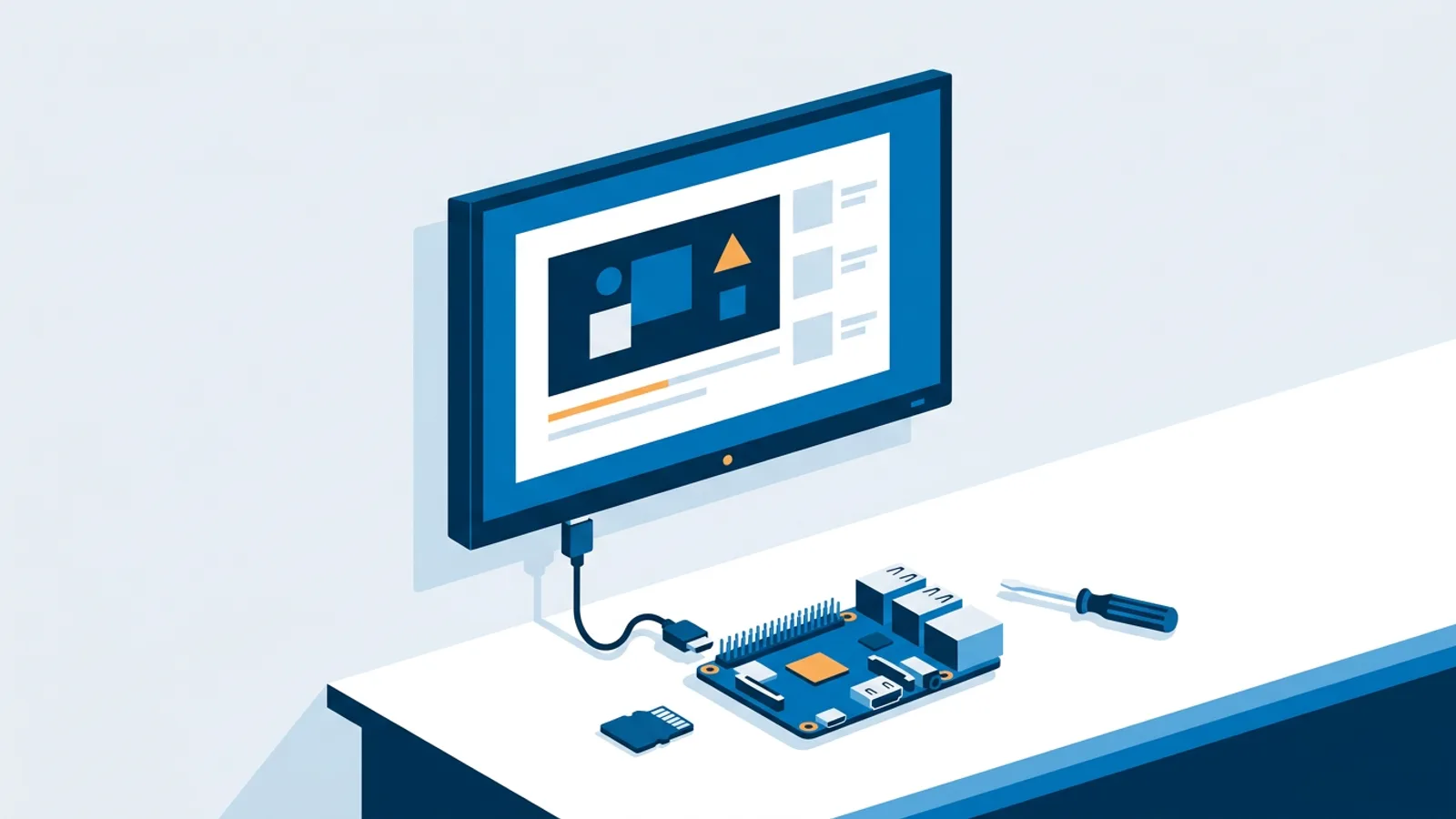
A Raspberry Pi is the most reliable dedicated-hardware way to turn a TV into a digital sign, mainly because it's cheap, low-power, and well documented. See the Raspberry Pi Foundation's own setup guides if you want the hardware basics from the source.
What you need
- A Raspberry Pi (4 or 5 recommended for smooth video playback)
- A microSD card and, ideally, a case
- A power supply and an HDMI cable
- A TV with a free HDMI port
A Pi 4 or 5 kit with SD card and case is a modest one-time hardware purchase, check current local pricing, as it varies by region and retailer. Treat that as a ballpark for budgeting, not a quote.
Setting it up
- Flash Raspberry Pi OS (the desktop version) onto the SD card.
- Boot the Pi, connect it to Wi-Fi or Ethernet, and let it update.
- Install signage software that runs the browser in kiosk mode, auto-starts on boot, and restarts itself if it crashes. Writing that watchdog logic yourself is doable but is exactly the kind of chore that eats a Saturday.
- Point the Pi at your playlist/dashboard and mount it behind the TV.
That's the general shape of it. If you want the full command-by-command walkthrough for getting Chromium into a locked-down kiosk mode with auto-restart and a systemd service, we've written that up separately in the Raspberry Pi kiosk mode guide, worth reading even if you end up using signage software that handles most of this for you.
This is where TVpilot's Pi installer fits: from the dashboard you generate a one-command install script (with a 6-character claim code), run it on the Pi, and it sets up Chromium kiosk mode, auto-start on boot, a self-healing watchdog that restarts the player within about 10 seconds if it crashes, quiet boot, and a hidden cursor. It also checks for player updates daily at 03:00 and lets you push remote updates or reboots from the dashboard, so you're not SSH-ing into a TV mounted eight feet up a wall. If the Pi also supports HDMI-CEC, TVpilot can switch the TV itself on and off via CEC on a schedule, checked every minute: no smart plug required.
Turn a TV into digital signage without a Raspberry Pi
If buying and configuring extra hardware isn't appealing, you can skip it. Any device with a modern browser (a smart TV, an Android TV box, a Fire TV Stick with a browser app, even an old laptop) can act as a player: you open a browser, navigate to your signage player URL, and set it to full screen. TVpilot supports this route the same way; there's no dedicated native app for Android TV or Fire TV yet, so those run through the browser rather than an installed app.
The tradeoff is resilience. A purpose-built Pi setup with a watchdog will recover from a crash or a browser hiccup on its own. A smart TV's browser left running for months at a time is generally fine but doesn't have that same self-healing layer, so it's worth a manual check-in occasionally, especially on a TV you don't walk past daily.
What to actually put on the screen
Hardware is the easy half. The screen still needs content that's worth looking at and that updates itself instead of going stale. Common uses for a converted TV:
- Rotating promotions, hours, and announcements
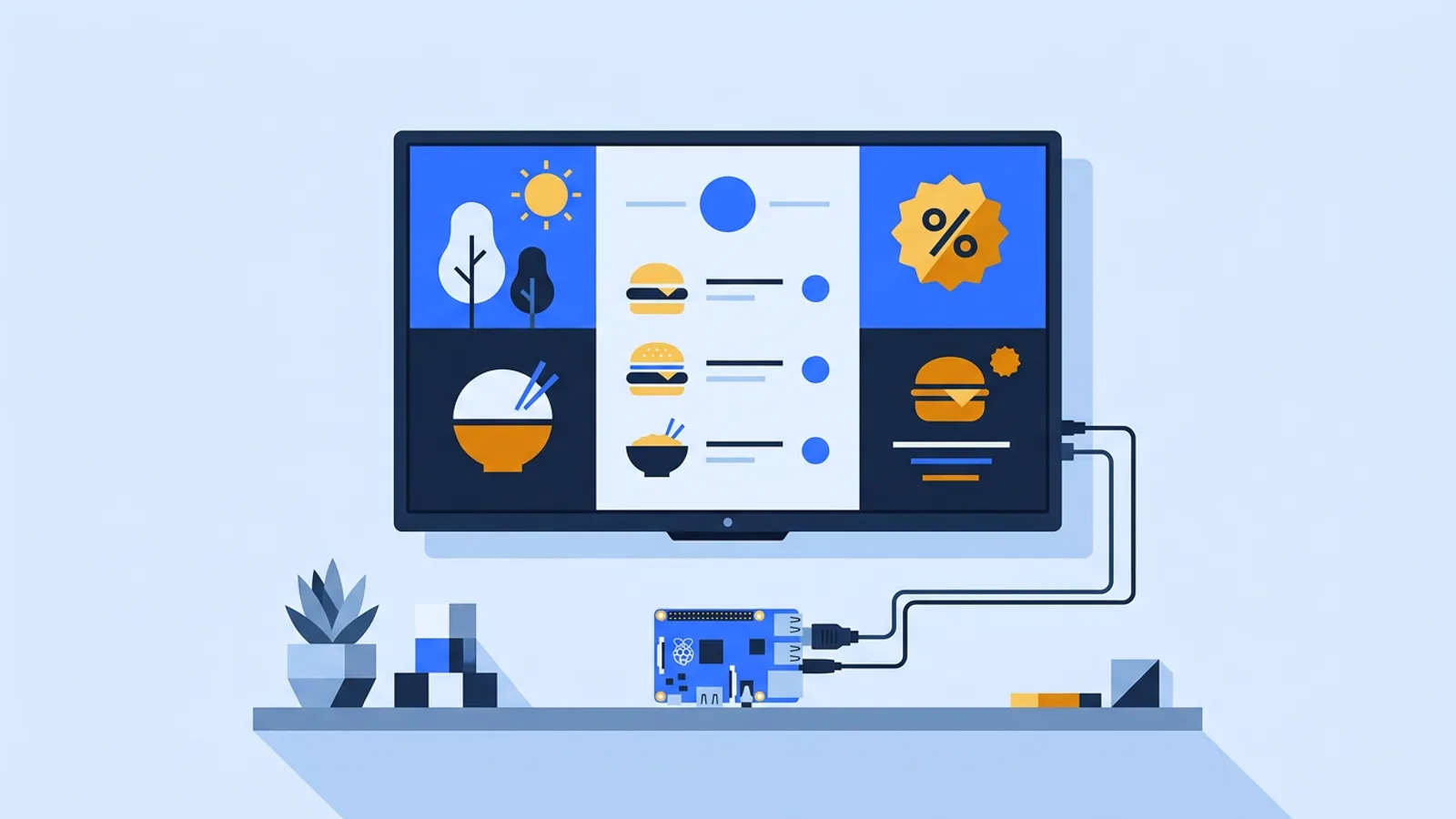
- A menu board (if that's your use case, our digital menu board guide covers layout and update workflow in detail)
- Live feeds: weather, or for estate agents, auto-syncing property listings from an XML feed
- Welcome screens or wayfinding in an office lobby
A basic playlist of images and videos with day/time scheduling covers most small businesses. If design isn't your thing, tools like TVpilot's AI Studio can generate a designed screen (a promo, a menu, an opening-hours board) from a short written brief, which saves the step of opening a design tool from scratch.
Comparing the two main routes
| Raspberry Pi player | Smart TV / browser only | |
|---|---|---|
| Upfront cost | Modest one-time hardware purchase | None if TV already has a browser |
| Setup effort | Moderate: flash OS, install player | Low: open browser, load URL |
| Reliability | Watchdog auto-restarts the player | Depends on TV's own browser stability |
| TV power control | Possible via HDMI-CEC on supported Pi setups | Not available through the browser route |
| Best for | Multiple screens, unattended locations | One or two screens, quick setup |
When TVpilot is (and isn't) the right fit
TVpilot is hosted software: you don't self-host it, and there's no open-source version to run on your own server. If that's a hard requirement, look elsewhere. Players also need an internet connection to pull content updates. The Pi player is built to recover automatically once connectivity comes back, but it's not designed as an offline-first system, so a location with unreliable internet needs that factored in.
Where it fits well: a shop, office, or reception area with one to dozens of screens where you want a single dashboard to schedule content, monitor which screens are online, and push updates without physically touching any device. The free plan (one screen, 250 MB storage, no card required) is enough to try the whole workflow before deciding whether to pay for more screens.
Getting started
Whichever route you pick (Pi or plain browser), converting a TV into a digital sign takes an afternoon. Start with one screen, get a playlist and schedule running, and expand once you've seen it hold up for a week. If you want to try the dashboard and Pi installer yourself, sign up free and connect your first screen.
Frequently asked questions
Do I need a Raspberry Pi to turn a TV into a digital sign?
No. Any TV with a modern built-in browser, or an Android TV box or Fire TV Stick with a browser app, can act as a signage player by loading a player URL in full-screen mode. A Raspberry Pi is popular because it adds auto-restart and remote management, but it's an option, not a requirement.
How much does it cost to convert a TV into digital signage?
Hardware costs vary by route. Using a smart TV's own browser can cost nothing extra. A Raspberry Pi setup (Pi board, SD card, case, power supply) is a general market cost that typically runs in the tens of euros depending on region and retailer. Treat any figure as a rough estimate, not a fixed price. On top of hardware, signage software plans range from free (one screen) to paid tiers for more screens and storage.
Does the screen need to stay connected to the internet all the time?
For content updates, yes, the player needs connectivity to pull new playlists, schedules, or media. If the connection drops, a Raspberry Pi player set up with TVpilot is designed to recover automatically once the connection returns, without needing a manual restart.
Can I control when the TV turns on and off automatically?
On a Raspberry Pi with HDMI-CEC support, TVpilot can switch the TV on or into standby based on a power schedule you set in the dashboard, checked roughly every minute: no smart plug needed. This CEC-based scheduling isn't available through the plain browser-only route on a smart TV.