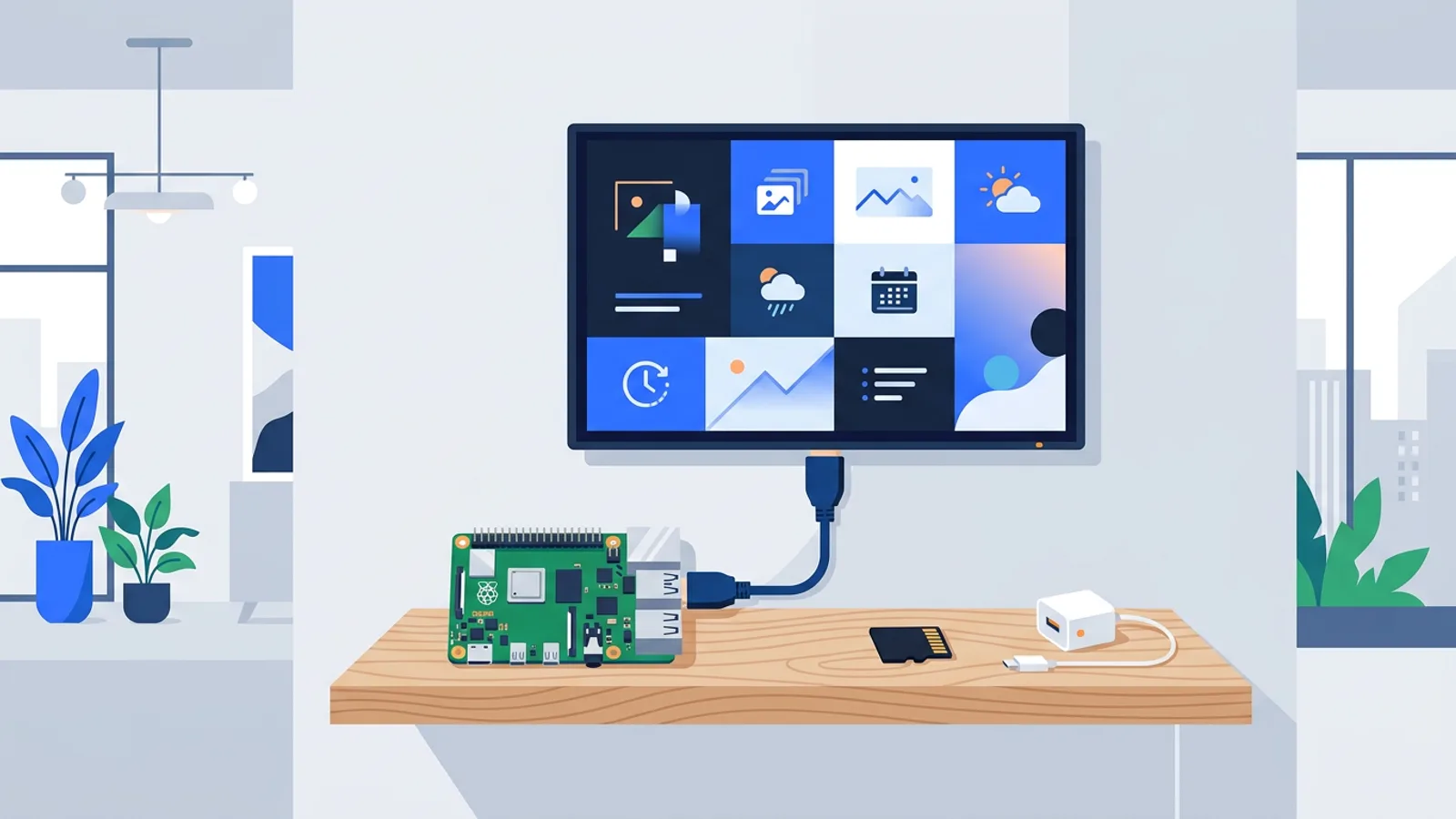
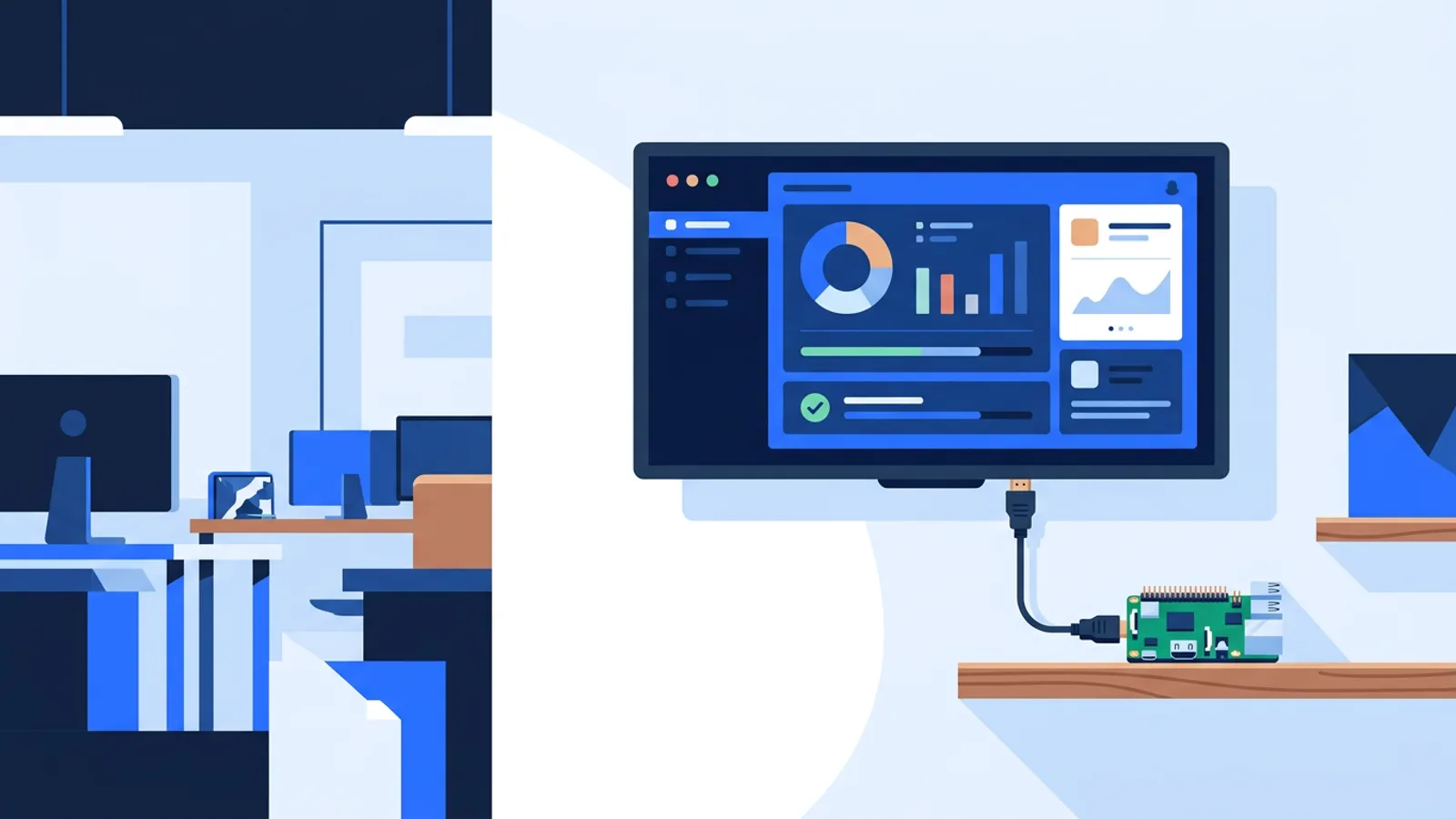
Chromium Kiosk Mode: Full-Screen Browser on Any Device

If you need a browser window that fills the screen, hides every toolbar, and never lets a visitor accidentally close it, chromium kiosk mode is the standard way to get there. It's a built-in Chromium feature, free, and works on Windows, Linux, and Raspberry Pi with no extra software, though it does require you to babysit updates, crashes, and reboots yourself.
This guide covers what chromium kiosk mode does, which command-line flags still work in current releases (a few popular ones you'll see in old tutorials no longer function), and where a managed alternative saves you time if you're running more than one screen. If you're weighing kiosk mode against other ways to run a browser-based sign, our overview of running a browser as the signage engine on a smart TV covers the broader landscape.
What chromium kiosk mode actually does
Launching Chromium (or Google Chrome, which shares the same flags) with --kiosk does three things:
- Removes the address bar, tabs, and window frame
- Forces the browser into full-screen, filling the entire display
- Opens directly to a URL you specify, with no new-tab page or bookmarks bar
What it does not do on its own is stop a user from pressing Alt+F4, unplugging the machine, or waiting for a crash-recovery dialog to pop up. For a genuinely locked-down kiosk you combine --kiosk with a handful of other flags, disable OS-level shortcuts, and usually run the browser under a process supervisor that restarts it if it dies. Most DIY guides skip that last part, and it's the difference between a sign that runs for a weekend and one that runs for a year.
Verified chromium kiosk flags (2026)
Chromium's flags change between releases, and several flags that circulate in older tutorials have been deprecated or never existed as documented consumer switches. Below is a set that is current and does what it claims. Test on your actual Chromium version before deploying, since flag support can shift between stable channel updates.
| Flag | What it does |
|---|---|
--kiosk |
Full-screen, no browser UI, opens the given URL |
--noerrdialogs |
Suppresses error dialogs (e.g. "Chromium didn't shut down correctly") |
--disable-session-crashed-bubble |
Prevents the "restore pages?" bubble after a crash |
--no-first-run |
Skips first-run setup screens and welcome tabs |
--autoplay-policy=no-user-gesture-required |
Lets videos autoplay without a click, useful for signage loops |
--disable-pinch |
Disables pinch-to-zoom on touch displays |
--overscroll-history-navigation=0 |
Stops swipe gestures from triggering back/forward navigation |
--disable-features=TranslateUI |
Hides the translate prompt for non-English pages |
A note on two flags you'll still see recommended widely: --disable-infobars was removed from modern Chromium and no longer suppresses infobars, so leaving it in your launch command is harmless but does nothing. And there's no standard consumer flag for controlling the browser's own update interval. That's an enterprise policy setting configured through a managed policy file or platform-specific admin templates, not something you pass on the command line. If you need to control update timing on unmanaged devices, you're better off scripting your own restart and update cycle than hunting for a flag that isn't there.
On Linux, a typical launch command looks like:
chromium-browser --kiosk --noerrdialogs --disable-session-crashed-bubble --no-first-run --autoplay-policy=no-user-gesture-required https://example.com/signage
Making it survive reboots and crashes
A kiosk browser that only runs until the next crash or power cut isn't much use for a sign that's meant to run unattended. On Linux this usually means:
- An autostart entry (or a systemd service) that launches Chromium with your flags on boot
- A watchdog process that checks if the browser is still running and relaunches it if not
- Disabling the desktop's screen blanking and power-save settings, since those will black out your display
We cover the exact commands for Raspberry Pi OS, including the systemd unit file and watchdog script, in the Raspberry Pi kiosk mode setup guide. It's the same underlying chromium kiosk flags described above, wired into a boot sequence that recovers on its own.
On Windows, the equivalent is a scheduled task or a shortcut in the Startup folder pointing at chrome.exe with the same flags, plus something like Task Scheduler to relaunch the process if it exits. Windows doesn't make crash recovery as clean as a proper watchdog service, so if uptime matters, Linux or a Pi is usually the less fiddly path.
Where DIY kiosk mode runs into trouble
Raw browser kiosk mode is genuinely fine for a single screen you can walk up to occasionally: a reception display, a personal project, a one-off event screen. Where it gets tedious is:
- Content updates. Changing what's on screen means editing the URL, redeploying a local HTML file, or SSHing into the device. There's no dashboard, so every update is manual.
- Multiple screens. Managing kiosk flags, autostart scripts, and content across five or twenty devices individually doesn't scale. You end up building your own fleet-management scripts, which is a project in itself.
- Crash recovery. A watchdog script helps, but you'll typically only find out a screen is dark when someone walks past it and tells you.
- Scheduling. Turning the TV on and off on a schedule, or swapping content by day of week, means writing and maintaining your own cron jobs.
None of this is impossible to build yourself, and for a single hobby screen it's a reasonable Saturday-afternoon project. If you want the step-by-step for pointing any browser at a persistent URL, see how to display a website on a TV 24/7.
Where a managed layer is worth it
This is the gap TVpilot fills. It's hosted digital signage software that sets up chromium kiosk mode for you and then manages it from a web dashboard, rather than replacing the browser with something proprietary.
On a Raspberry Pi, the installer is a one-command script (generated with a 6-character claim code in the dashboard) that configures Chromium kiosk mode, sets up auto-start on X11 or Wayland with a systemd service, hides the cursor, and quiets the boot sequence. A self-healing watchdog restarts the player within about 10 seconds if it crashes, and the player checks for its own updates daily at 03:00, with remote update and reboot available from the dashboard at any time. If the Pi has HDMI-CEC support, TVpilot can also switch the TV on and off on a schedule directly, no smart plug needed.
For screens that aren't a Pi, TVpilot works through any modern browser: point a smart TV's browser, an Android TV box, a Fire TV Stick with a browser app, or an old laptop at a player URL and it behaves as a managed kiosk. There's no dedicated native app for Android TV or Fire TV yet, so those run through the browser route rather than an installed app.
Content comes from playlists of images, videos, web pages, and PDFs with drag-and-drop ordering and transitions, scheduling per time slot and day of week, and an AI Studio that generates designed screens (promos, menus, hours, welcome screens) from a short brief if you don't want to build layouts by hand. Screen monitoring shows online/offline status and heartbeats so you know a screen is dark before a customer tells you.
When TVpilot is the right fit, and when it isn't
If you're running one screen for a personal project and you're comfortable maintaining scripts, plain chromium kiosk mode costs nothing and works fine. If you're running multiple screens, need scheduling, want remote content updates without SSH, or want the TV to power itself on and off automatically, a managed layer saves real time. Worth knowing upfront: TVpilot is hosted SaaS, not open source and not self-hostable, and offline playback is limited since players need an internet connection to receive content updates (the Pi player does recover automatically once connectivity returns). If self-hosting or fully offline operation is a hard requirement, raw kiosk mode is the better match.
The free plan covers one screen with 250 MB of storage and no credit card required, which is enough to test the whole setup before deciding whether to pay for more screens.
Wrapping up
The flags in the table above will get you a clean full-screen display without the deprecated tricks floating around older tutorials, and for a single browser-based sign that may be all you need. Once you're managing more than one screen, or you want scheduling and remote updates without maintaining your own scripts, try a hosted layer on top. You can sign up and get your first screen running in a few minutes.
Frequently asked questions
Does --disable-infobars still work in Chromium kiosk mode?
No. That flag was deprecated and removed in modern Chromium releases, so including it in a launch command is harmless but has no effect. Infobars in current Chromium are largely gone or handled differently, and the flags that still matter for a clean kiosk are things like --noerrdialogs and --disable-session-crashed-bubble.
Can I control Chromium's update interval with a command-line flag?
Not with a documented consumer flag. Update timing is normally controlled through enterprise policy files, not something you pass on the command line. If you need predictable update behavior on unmanaged devices, it's more reliable to script your own restart and update cycle, or use a signage platform like TVpilot that checks for player updates on a fixed daily schedule automatically.
How do I make Chromium kiosk mode survive a crash or reboot?
You need an autostart entry (a systemd service on Linux, a Startup folder shortcut or scheduled task on Windows) that relaunches Chromium with your kiosk flags on boot, plus a watchdog process that checks whether the browser is still running and restarts it if not. The Raspberry Pi kiosk mode guide walks through the exact systemd setup for this.
Is chromium kiosk mode enough for a business sign, or do I need signage software?
For a single low-maintenance screen, plain kiosk mode is enough. Once you're managing several screens, need scheduled content changes, remote updates, or want to know immediately if a screen goes offline, a managed dashboard like TVpilot removes the need to maintain your own scripts for those tasks.