How to Display a Website on a TV 24/7 (2 Methods)
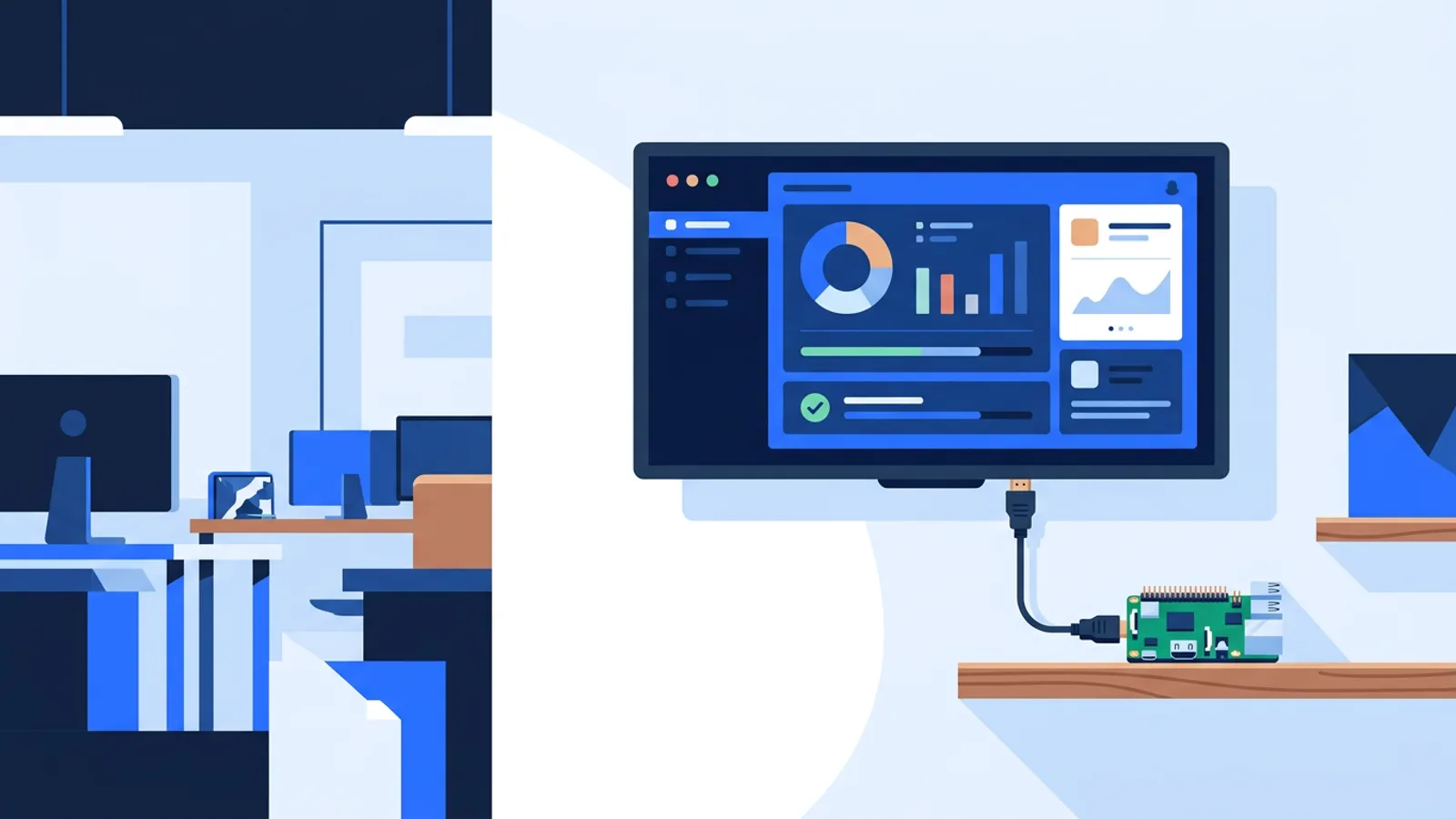
If you want to display a website on a TV 24/7, whether that's a live dashboard, a status page, a booking calendar, or a set of rotating announcements, opening the page once is easy. The hard part is keeping that browser tab alive, error-free, and on-screen for weeks or months without someone walking over to refresh it. A regular laptop or a smart TV's built-in browser will get you through an afternoon demo. Getting through a quarter without babysitting it is a different problem.
There are two practical routes: build it yourself with cheap hardware, or use signage software that handles the fragile parts for you. This guide walks through both, using a Raspberry Pi as the DIY example since it's the cheapest and most flexible option, then compares it against a managed alternative.
What keeping a webpage on screen 24/7 actually requires
Before picking a method, know what you're solving for. A TV that shows a website nonstop needs:
- A device to run the browser. A TV's own browser app, a mini PC, or a Raspberry Pi.
- Kiosk mode. The browser needs to open full-screen with no address bar, tabs, bookmarks bar, or cursor, and it needs to do this automatically after a reboot or power cut, not just the first time you launch it.
- Recovery from crashes. Browsers occasionally freeze or a page throws a JavaScript error. Something needs to notice and restart it, otherwise you end up with a blank or stuck screen until someone walks over.
- A way to change what's displayed without physically touching the TV, especially if it's mounted somewhere awkward.
- Power control, ideally, so the screen isn't burning electricity (and backlight life) at 3 a.m. when nobody's looking at it.
How you cover each of those points is where DIY and managed software differ. The next two sections go into the specifics.
How to display a website on a TV 24/7: two practical routes
Option 1: DIY with a Raspberry Pi
This is the classic approach and it works well if you're comfortable with a bit of Linux and don't mind maintaining it. Rough outline:
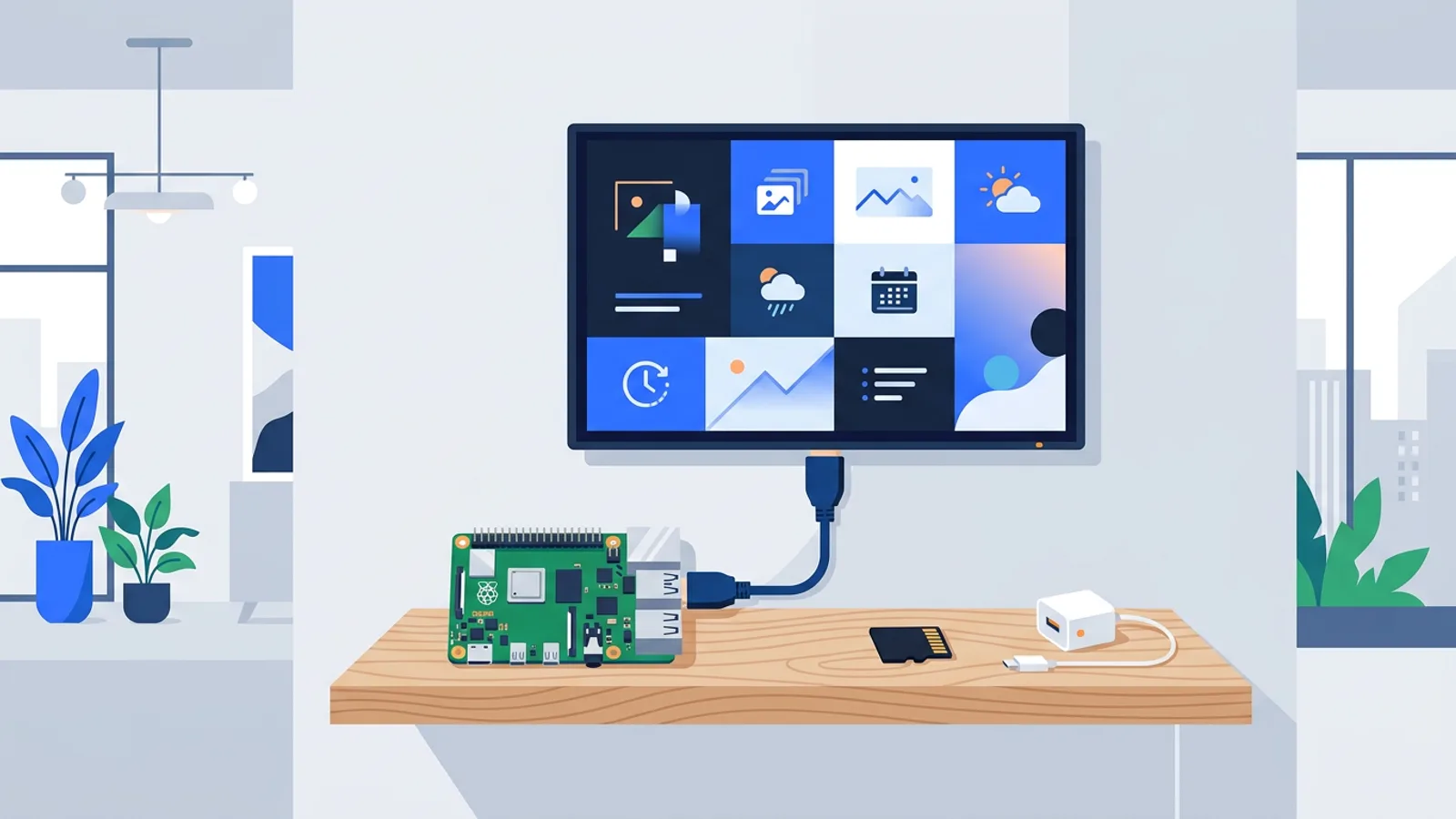
- Flash Raspberry Pi OS (with desktop) to an SD card and boot the Pi.
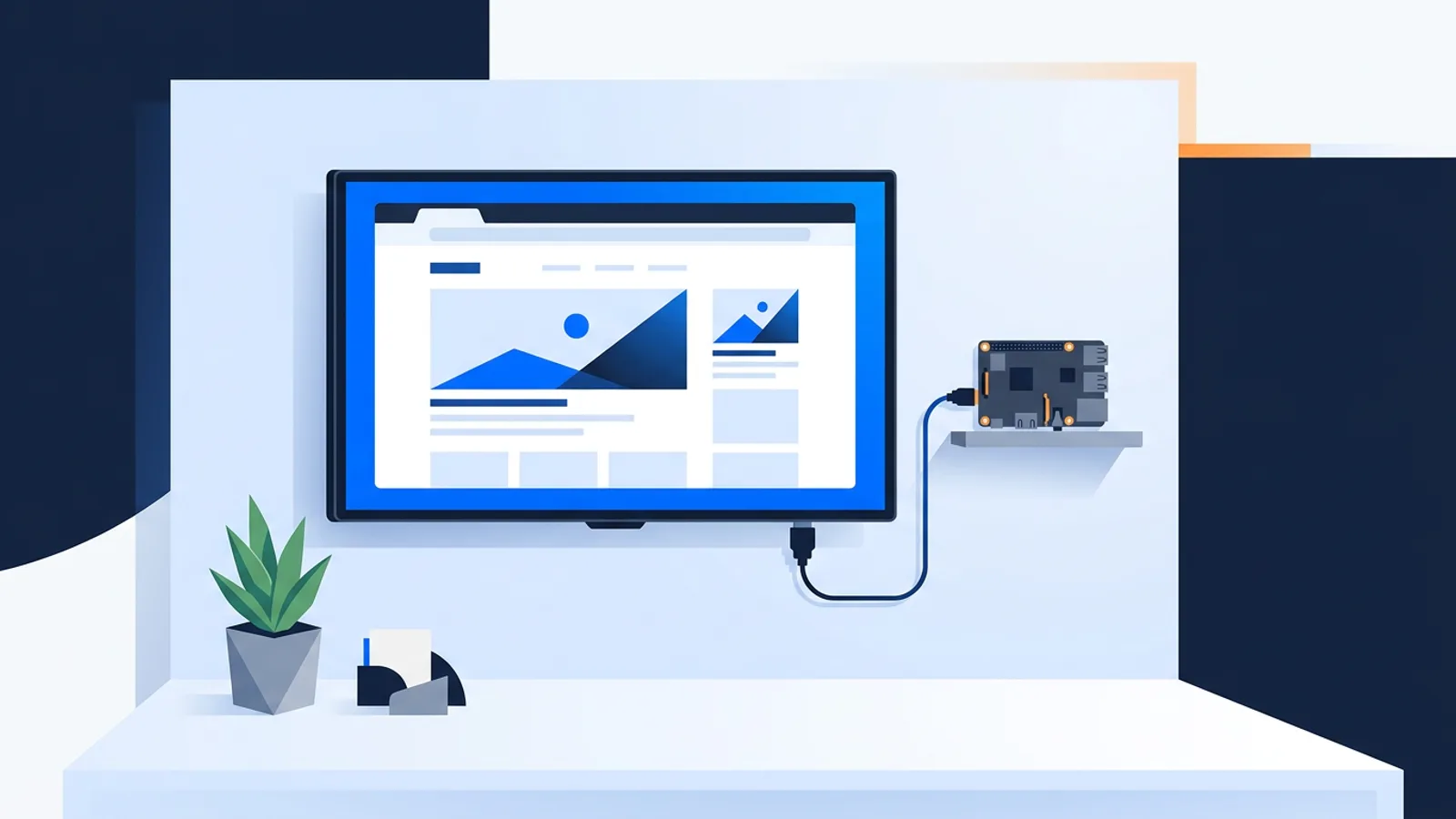
- Install Chromium and configure it to launch in kiosk mode pointed at your URL, using flags like
--kioskand--noerrdialogs. - Set up autostart so the browser launches on boot, on either X11 or Wayland depending on your OS version.
- Write a watchdog script or systemd unit that restarts the browser if it crashes or the process disappears.
- Disable screen blanking and hide the mouse cursor.
- Decide how you'll control TV power, since the Pi itself doesn't switch the TV on or off without extra configuration (HDMI-CEC libraries, a smart plug, or a cron job that's aware of your schedule).
Each of those steps is doable, and we've written a full walkthrough in the Raspberry Pi kiosk mode guide if you want to go this route. The tradeoff is that you're the one who maintains it: when Chromium updates and a flag stops working, or the SD card gets corrupted, or you want to swap in a different URL for a week, you're doing that yourself, typically over SSH.
For a lot of hobby projects, a single dashboard in a home office, a status board for a small workshop, this is fine. It's cheap, it's yours, and there's nothing to subscribe to.
Option 2: Managed signage software
The other route is to let dedicated software handle the kiosk setup, crash recovery, and remote control, and just manage the actual content from a browser yourself. This is the category TVpilot.App sits in.
With TVpilot, you generate a one-command installer from the dashboard (a curl … | bash command tied to a six-character claim code), run it on a Raspberry Pi, and it configures Chromium kiosk mode, sets up auto-start on X11 or Wayland, installs a systemd service, and adds a self-healing watchdog that restarts the player within roughly 10 seconds if it goes down. Any Pi running Raspberry Pi OS with a desktop works, though a Pi 4 or 5 is recommended if you're also showing video.
On top of that, TVpilot adds a few things that are hard to build yourself in an afternoon:
- TV power scheduling over HDMI-CEC, so the Pi switches the TV on and standby on a schedule you set, no smart plug required.
- Remote updates and reboots from the dashboard, plus a daily automatic update check at 03:00.
- Playlists, so the screen isn't limited to one static URL: you can mix in images, videos, PDFs, and other web pages, with scheduling per time slot and day of week.
- Screen monitoring, showing you online/offline status and heartbeats for every screen you manage.
If your device is a smart TV, Android TV box, or Fire TV Stick rather than a Pi, you can point its browser at a TVpilot player URL directly, since there's no dedicated native app for those platforms yet.
DIY vs managed: a fair comparison
| DIY (Raspberry Pi + scripts) | Managed (TVpilot) | |
|---|---|---|
| Setup time | A few hours, more if you're new to Linux | One command, a few minutes |
| Crash recovery | You write and maintain the watchdog | Built in, restarts within ~10 seconds |
| TV power scheduling | Extra wiring: smart plug or manual CEC scripting | Built in via HDMI-CEC, set in the dashboard |
| Changing content | Edit config files or scripts, redeploy | Drag-and-drop in a browser dashboard |
| Multiple screens | You script and repeat per device | One dashboard, up to 100 screens on Pro |
| Cost | Hardware only, no subscription | Free for one screen, paid tiers from €5/month |
| Best for | One-off, hobby, full control | Multiple screens, less time to maintain it |
Neither column is objectively better. If you enjoy tinkering and have one screen, DIY costs nothing but your time. If you're rolling this out across a shop, office, or several locations, or you just don't want to be the person who gets a message that a screen went dark, a managed layer starts to pay for itself in saved troubleshooting.
Common uses: dashboards, menus, and status pages
Most requests to show a webpage on TV 24/7 fall into a few buckets:
- Business dashboards. Sales numbers, support queue length, or a project board pulled up in an office.
- Real-time maps or status pages. Delivery tracking, server status, flight boards.
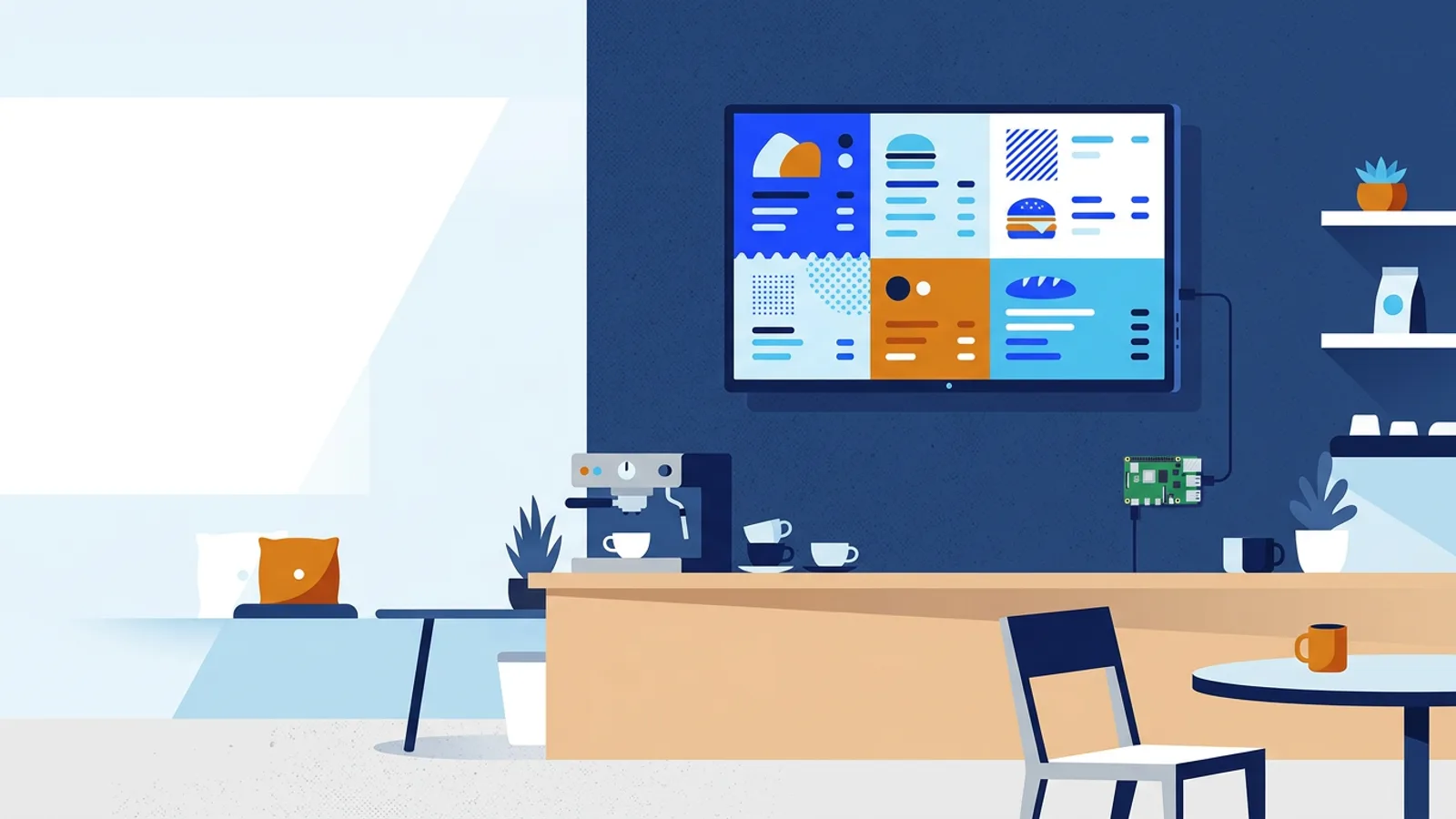
- Menu boards and pricing pages. If that's your use case specifically, our digital menu board guide covers layout and update workflow in more depth.
- Reception and lobby screens. Company updates, welcome messages, meeting room schedules.
For a dashboard on a TV screen specifically, the main extra consideration versus a static webpage is that dashboards often auto-refresh their own data via JavaScript, so you don't need the signage software to reload the page, just to keep the browser tab alive and pointed at the right URL. That's exactly the kiosk-mode-plus-watchdog combination described above.
When TVpilot is, and isn't, the right fit
TVpilot is a good fit if you want a Pi-based (or browser-based) sign running unattended, you'd rather manage content from a dashboard than SSH into a device, you need TV power scheduling without extra hardware, or you're running more than one screen and want them all visible in one place.
It's not the right fit if you need a fully offline, self-hosted system: TVpilot is hosted SaaS, not open source, and players need an internet connection to receive content updates (though the Pi player does recover automatically once connectivity returns). It's also not the right fit if your target device is Android TV or Fire TV and you specifically want a native app rather than a browser-based player, since that's not available yet.
If none of that matters for your setup and you just want one screen showing one page, the DIY route from our turning a TV into a digital sign guide will get you there without a subscription.
Getting started
Build the kiosk yourself on a Raspberry Pi if you want full control, or set it up in a few minutes with TVpilot if you'd rather skip the maintenance. You can sign up for free and get a screen running today with one screen and 250 MB of storage, no credit card required, and upgrade later if you add more displays.
Frequently asked questions
Can I just leave a browser tab open on a smart TV to show a website 24/7?
You can try it, but most smart TV browsers aren't built for unattended kiosk use: they may reload, show update prompts, sleep, or crash without recovering. It can work for short periods, but for weeks or months without maintenance, a dedicated kiosk setup (Raspberry Pi or signage software) is far more reliable.
Do I need special hardware to show a dashboard on a TV screen?
No. Any TV with an HDMI port and either a browser built in or a small computer attached (like a Raspberry Pi) will work. A Raspberry Pi 4 or 5 is recommended if the dashboard includes video or heavy animation, but a basic dashboard runs fine on most Pi models.
How do I stop the screen from staying on all night if I only need it during business hours?
You need a way to schedule power, since a browser alone can't turn the TV off. Options include a smart plug on a timer, manual HDMI-CEC scripting, or signage software with built-in power scheduling, such as TVpilot's HDMI-CEC scheduling on Raspberry Pi, which switches the TV on and standby automatically based on a schedule you set in the dashboard.
What happens if the website I'm displaying goes down or throws an error?
That depends on the page itself, not the signage software, since the browser will simply display whatever the page returns. To reduce risk, it helps to have a watchdog that restarts the browser if it crashes entirely, and to build the webpage so it fails gracefully (showing a fallback message) rather than a raw error.