Amazon Signage Stick Netherlands: Ordering and Setup
You can buy the Amazon Signage Stick in the Netherlands and Belgium, but not from a Dutch or Belgian Amazon store: buyers in both countries order it from amazon.de. This guide covers what that means for shipping, VAT, returns and warranty, and then walks you from unboxing to a working screen with TVpilot as the content management system.
If you landed here searching for "amazon signage stick nederland kopen" and found nothing on amazon.nl, that is expected. Amazon sells the Signage Stick in the US, UK, Germany, France, Spain, Italy and Canada. For the Benelux, Germany is the store to use.
One quick check before you order: if you already own a regular consumer Fire TV Stick, you may not need new hardware at all. The TVpilot app is in the Amazon Appstore and runs on Fire TV devices too, as described on our Fire TV Stick signage page. The Signage Stick is the better pick when you want a device built for unattended screens, which starts straight into your signage on every boot.
Signage Stick, consumer Fire TV Stick or Raspberry Pi?
Pick the hardware before you start clicking through amazon.de, because the three options solve slightly different problems.
| Situation | Pick | Why |
|---|---|---|
| One or a few TVs, nobody technical on site, power gets cut at night | Amazon Signage Stick | TVpilot starts in kiosk mode on every boot, also after a power cut |
| You already have a Fire TV Stick in a drawer | Consumer Fire TV Stick | Install the TVpilot app from the Amazon Appstore, no purchase needed |
| You want the TV itself switched on and off on a schedule | Raspberry Pi 4 or 5 | The TVpilot Pi player controls TV power via HDMI-CEC, checked every minute |
If "nobody should ever have to touch this screen" is your main requirement and you are fine ordering from Germany, get the Signage Stick. If you want to spend nothing, try a device you already own first.
Ordering the Amazon Signage Stick in the Netherlands and Belgium
Finding the right listing
Search amazon.de for "Amazon Signage Stick". The site opens in German; look for the language selector near the search bar if you would rather browse in another language. If you already shop on amazon.nl, try signing in with that account first, and create an account on amazon.de if it does not work.
The most common mistake at this step is buying the wrong device. Consumer Fire TV Sticks appear in the same search results and look almost identical. Check that the product title explicitly says Signage Stick before adding it to your basket.
We do not quote a euro price here because Amazon sets the price per listing and changes it over time. Look at the listing on the day you order.
Shipping to the Netherlands and Belgium
At checkout, enter your Dutch or Belgian delivery address and check two things before you pay: that the item can be delivered to that address, and what delivery costs. If checkout says the item cannot be delivered, compare the other offers on the listing, because different sellers can have different delivery options. Do not assume delivery to NL or BE until checkout confirms it.
VAT and invoices
The price on the product page is not necessarily the price you pay. Treat the order summary at checkout, after you have entered your Dutch or Belgian address, as the number to trust for the final amount including VAT and delivery.
For businesses:
- Before ordering, check in your amazon.de account or order history whether and how an invoice is made available for this order, and confirm it shows your company name and address.
- If you use Amazon Business on amazon.de, check whether your company VAT number is on the account before you order, so it can appear on the invoice.
- If you are unsure how a cross-border invoice should be booked, ask your accountant before you buy, not after.
Returns and warranty
Returns and warranty claims for an amazon.de order go through your amazon.de account and that order. Read the return conditions on amazon.de's help pages before ordering, so you know the return window and how a return from the Netherlands or Belgium works.
Within the EU, consumers get a legal guarantee of at least two years on goods. Keep the order confirmation and invoice somewhere you can find them, because a warranty claim starts with the order, not the device.
Unboxing and physical setup
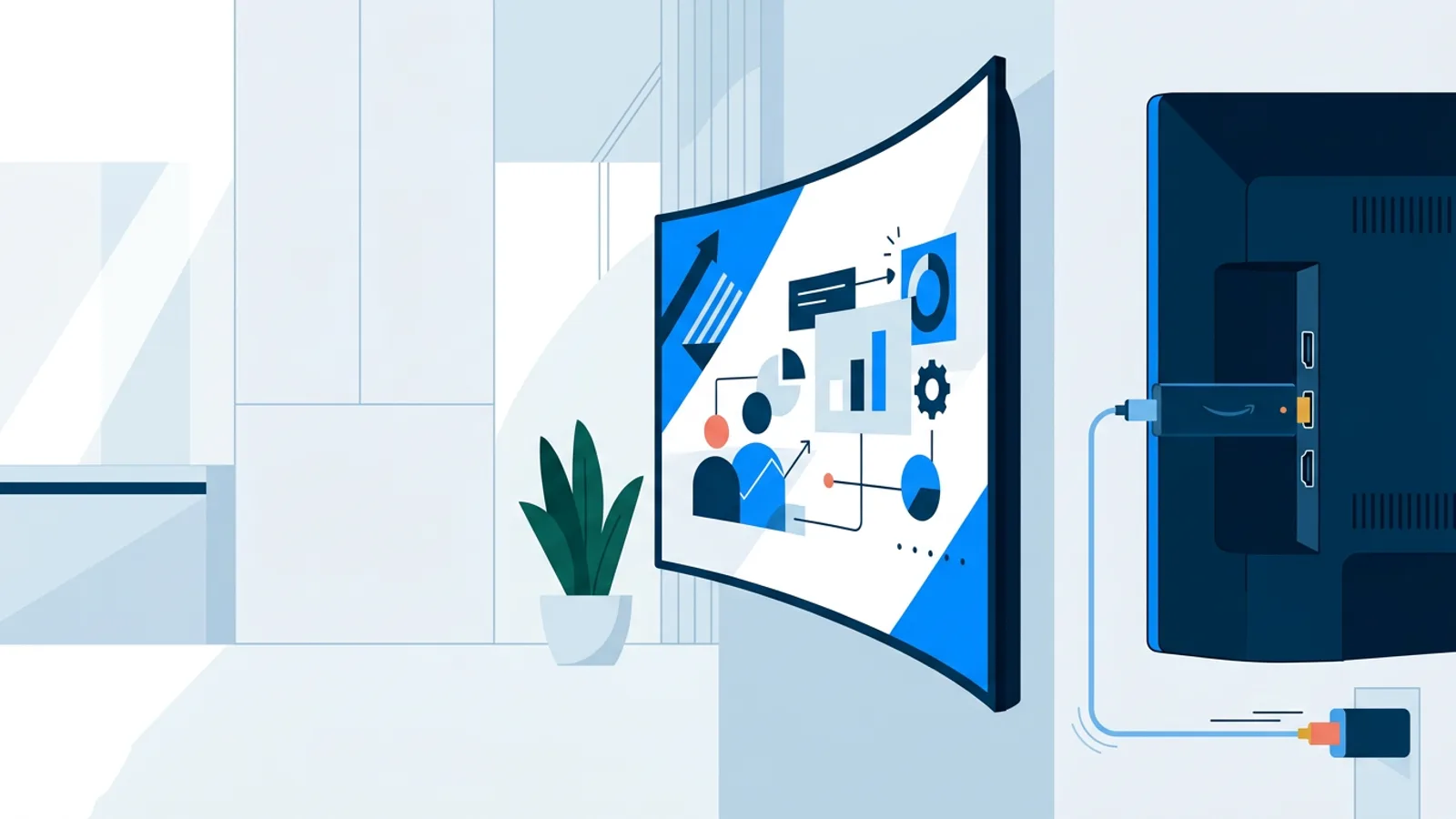
Three things matter when you mount the Stick behind a TV:
- Power it from a wall socket or power strip, not from the TV's USB port. A TV's USB port often does not deliver enough power for a streaming stick, and an underpowered stick reboots at random, which looks like a software problem but is not.
- If the TV's HDMI ports sit close to the wall or to each other, a short HDMI extension cable gives the Stick room and stops it pressing against the wall mount.
- Set the TV to the correct HDMI input and, if the TV has the option, make it start on the last-used input. Otherwise the TV comes back on showing its own home screen instead of your signage.
Before you go further, find out which Wi-Fi network the Stick will use. Guest networks with a login page (captive portal) are a frequent cause of screens that refuse to connect. A plain WPA2 network with a password is the easiest route.
Setting up with the Amazon Signage app and TVpilot
TVpilot is available on the Amazon Signage Stick in collaboration with Amazon Signage, and the Amazon Signage Stick page has the device overview (TVpilot also has a Dutch-language version of that page to forward to a colleague or client). Setup takes two halves: one in the TVpilot dashboard, one on your phone.
Step 1: create a screen in TVpilot
- Create a free TVpilot account. The dashboard is available in English, Dutch and German, so Dutch and Belgian teams can work in their own language (German too, for Belgian colleagues in the east).
- Add a new screen. The dashboard shows a claim code for that screen. Keep this page open.
- Create a first playlist so there is something to show once the Stick connects. A few images or a PDF are enough for testing.
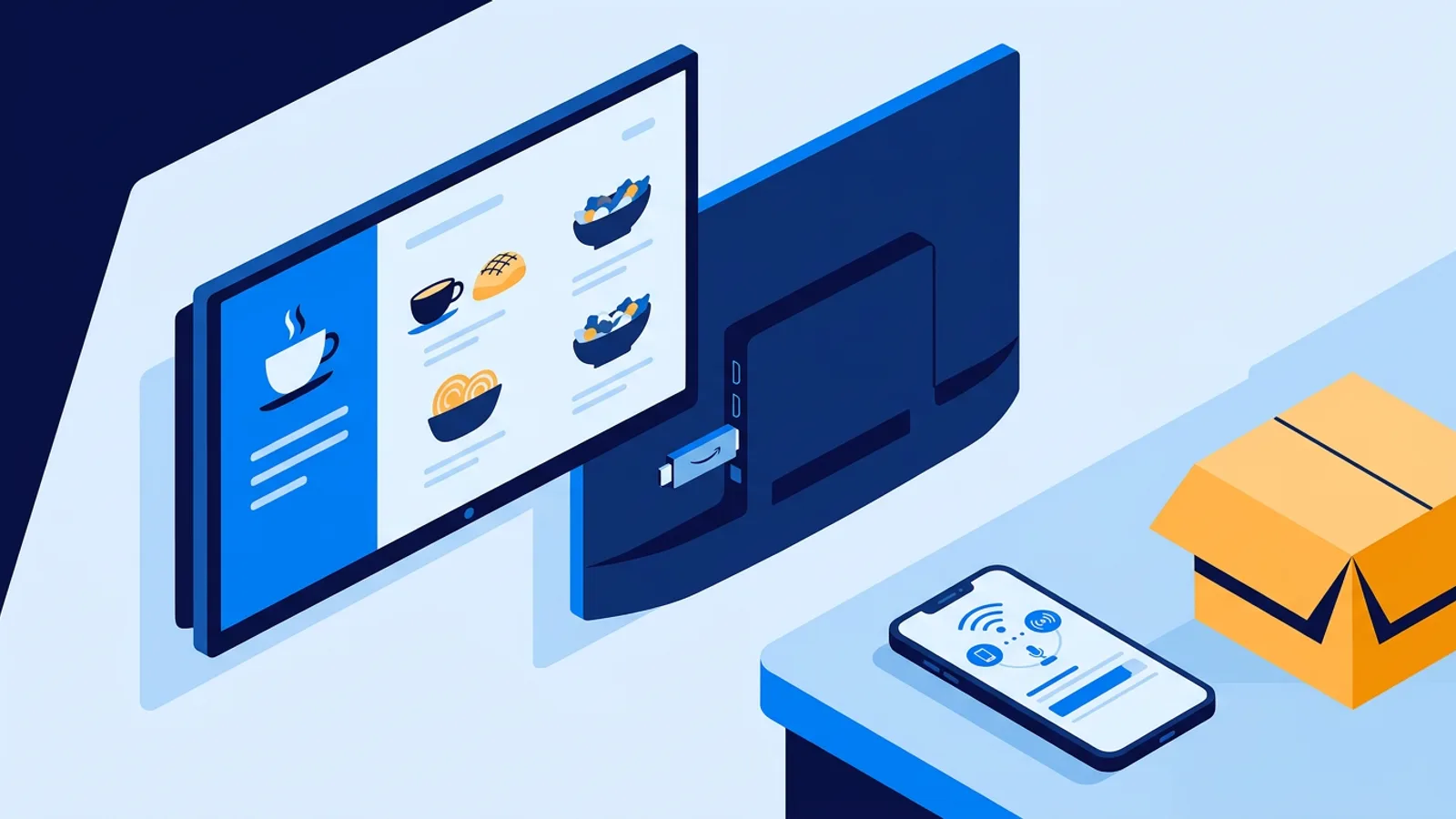
Step 2: set up the Stick with the Amazon Signage app
- Install the free Amazon Signage mobile app on your phone and sign in.
- Plug in the Stick and follow the app's instructions to add the device and connect it to Wi-Fi.
- When the app asks for a content management system, choose TVpilot.
- Enter the claim code from the TVpilot dashboard.
The Stick then pairs with your TVpilot account and starts showing the screen's content in kiosk mode. From then on TVpilot starts on every boot, also after a power cut, so a café that switches everything off at the fuse box at night gets its menu back in the morning without anyone touching a remote.
Step 3: assign content and push
Assign your playlist to the new screen. Edits in TVpilot save as a draft, and the screen keeps playing the last version until you press "Push to screen". This catches people out on day one: they edit, look at the TV, see no change, and assume the Stick is broken, when all they needed to do was press "Push to screen".
Worked example: a bakery in Utrecht with one TV
Say you run a bakery in Utrecht with one TV above the counter, and you want to test whether a digital menu is worth the effort before committing.
- Hardware: one Amazon Signage Stick ordered from amazon.de, delivered to the shop address. You check the final amount on the order summary and keep the invoice for the bookkeeping.
- Software: TVpilot Free, €0, 1 screen, 250 MB storage, no credit card.
- Content: a playlist with five slides (morning pastries, lunch sandwiches, coffee prices, a Google reviews slide, opening hours), each on screen for 10 seconds, so one full loop takes 50 seconds. The sandwich slide uses per-slide scheduling to appear only between 11:00 and 14:00.
- Power: the TV and Stick share a power strip that the last person to leave switches off. When it comes back on in the morning, the Stick starts straight into TVpilot.
Your total cost for the test is the price of the Stick. If, three months later, you add a second TV in the window, you move to Starter at €5/month for up to 5 screens and order a second Stick the same way.
Now say you manage a small office in Antwerp with three screens: reception, kitchen and the sales floor. The ordering steps are identical: amazon.de, delivery to a Belgian address, final amount checked on the order summary. Three screens fit within Starter at €5/month. Ordering all three Sticks in one go means one order to check and one set of paperwork for your accountant.
When TVpilot on the Signage Stick fits, and when it does not
It fits well if you want a small number of screens that run unattended, you are comfortable with hosted software, and you value starting free on one screen. It also fits Dutch businesses specifically because TVpilot has plugins for things like NS departures, Buienradar, bol.com and Moneybird dashboards, all included on every plan.
It is a weaker fit in these cases:
- You need self-hosted or open-source software. TVpilot is hosted SaaS and cannot be self-hosted.
- Your screen has no reliable internet. Players need a connection for content updates; offline playback is limited.
- You need the TV's own power switched on a schedule without a person or a power strip timer. The Raspberry Pi player does that via HDMI-CEC; on the Signage Stick, rely on the TV's own settings or a timer.
- You would rather buy locally from a Dutch shop with a Dutch invoice and counter. In that case a Raspberry Pi from a local reseller is the more practical route.
Get your first screen running
Order the Signage Stick from amazon.de, confirm delivery and the final amount on the order summary, keep the invoice for warranty, and set it up with the Amazon Signage app by choosing TVpilot and entering your claim code. Because TVpilot is free for one screen, the only money you risk on a test is the Stick itself. Create your free TVpilot account, add a screen, and have the claim code ready before the parcel arrives.
Frequently asked questions
Can I buy the Amazon Signage Stick on amazon.nl?
No. Amazon sells the Signage Stick in the US, UK, Germany, France, Spain, Italy and Canada. Customers in the Netherlands and Belgium order it via amazon.de and have it delivered to their Dutch or Belgian address. Confirm at checkout that the listing delivers to your address.
What price and VAT do I pay when ordering from amazon.de?
The product page price is not always the final amount. Enter your Dutch or Belgian delivery address and use the order summary at checkout as the figure to trust, including VAT and delivery. Business buyers should check the invoice details before ordering and ask their accountant if unsure how to book a cross-border purchase.
Does the warranty still apply if I live in the Netherlands or Belgium?
Within the EU, consumers get a legal guarantee of at least two years on goods. Returns and warranty claims for an amazon.de order go through that order in your amazon.de account. Read amazon.de's help pages on returns before ordering and keep your order confirmation and invoice.
Do I need a paid TVpilot plan to use the Signage Stick?
No. TVpilot is free forever for one screen, with 250 MB storage and no credit card required, which is enough to test a single Signage Stick. For up to 5 screens, Starter costs €5 per month; Pro is €19 per month for up to 25 screens.