The Complete Digital Signage Guide
What is digital signage?
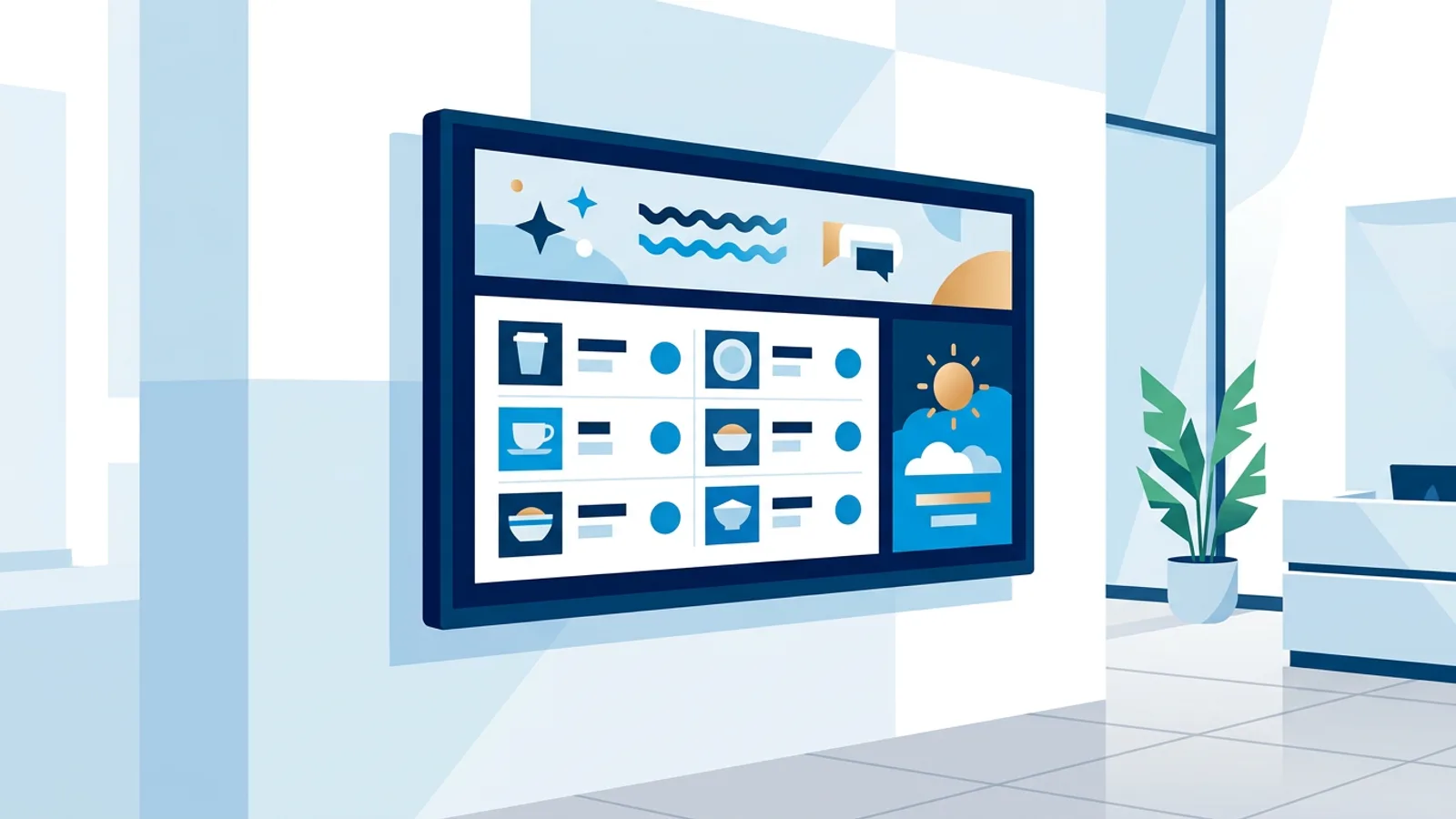
Digital signage is the use of screens to show information to the people around them: menus in a cafe, a welcome message in a lobby, safety notices on a factory floor, or today's specials in a shop window. Instead of printing posters and swapping them by hand, you update the content from a dashboard and every screen changes within seconds.
If you want the full backstory, our article what is digital signage, explained simply goes deeper into the history and the terminology. This guide is the practical version: what you need, what it costs, and how to get your first screen live today.
The short answer to "what do I need" is three things: a screen, a small device that drives it (the player), and software that tells the player what to show. That is the whole system. Everything else in this guide is detail on those three parts.
How digital signage works: the three parts
The screen. Any modern TV or monitor works. You do not need a special "commercial display" to get started, a consumer TV you already own is fine. Commercial displays matter once you run screens 24/7 for years or need portrait mounting, but for a first screen they are optional.
The player. This is the small computer that renders your content and sends it to the screen over HDMI. The most popular choice is a Raspberry Pi, a credit-card sized computer that costs less than a night out and runs for years. Alternatives include Android TV boxes, Amazon Fire TV Sticks, or no extra hardware at all if your smart TV has a browser.
The software. The software (often called a CMS, content management system) is where you upload images, build playlists, and decide which screen shows what and when. The player fetches its instructions from the software, so you manage everything remotely: change a price in the dashboard and the screen in your other location updates on its own.
That remote part is the real difference between digital signage software and just plugging a USB stick into a TV. A USB slideshow works until you need to change something, and then you are driving to the store with a new stick. Managed signage means the screen is never out of date.
Choosing your hardware
There is no single best player, there is a best player for your situation. This is how the common options compare:
| Player | Typical cost | Best for |
|---|---|---|
| Raspberry Pi | 40 to 80 euros | Reliability, 24/7 use, full control |
| Fire TV Stick | around 40 euros | Cheapest quick start on any TV |
| Android TV box or smart TV | 0 to 50 euros | TVs that already run Android TV |
| Browser on a smart TV | free | Zero-hardware pilots and tests |
A few honest rules of thumb:
- If the screen must run all day, every day, pick a Raspberry Pi. It boots to your content by itself, recovers from power cuts, and has no batteries, fans, or moving parts to fail.
- If you want to test the idea this afternoon, point your smart TV's browser at a player URL and you have signage with no extra hardware.
- If you have an unused TV gathering dust, that is your pilot screen. We wrote a guide on turning a spare TV into a live screen that takes you from dusty to live in under an hour.
What content can digital signage display?
More than most people expect. Anything a browser can render, a modern signage player can show. The usual content types:
Images and slides. The workhorse. Product photos, promotional posters, menus exported as images. Upload, drop into a playlist, set a duration per slide, done.
Video. Short looping clips work brilliantly on silent screens. Keep them under a minute and design them to work without sound, nobody turns the volume up in a waiting room.
PDF documents. Price lists, schedules, and menus often already exist as PDFs. Good signage software renders each page as a slide so you skip the conversion step.
Live websites. Dashboards, booking calendars, social walls, anything with a URL. Our guide on displaying a website on a TV around the clock covers the details, including what to do about logins and screen burn-in.
Menu boards. Restaurant menus are signage's oldest use case and still its best. A digital menu board lets you change prices instantly, switch from breakfast to lunch automatically at 11:00, and keep five locations in sync from one dashboard.
Widgets and live data. Weather, news tickers, clocks, social media feeds, RSS. This is the content that keeps a screen feeling alive between your own messages, and it updates itself so the screen never goes stale.
A good playlist mixes these: a few slides about your business, the weather for context, a news ticker for movement. Screens that show one static image forever train people to stop looking.
Choosing software, and what free really means
Signage software pricing is a minefield of "per screen per month" plans that look cheap until you multiply. Three questions cut through most of it:
- Does the free plan actually work? Some free tiers watermark your screens or cap you at a handful of slides. Read what you actually get with free digital signage before you invest setup time, the differences between free plans are bigger than the differences between paid ones.
- Does it manage the player, or just the content? The painful part of signage is not uploading images, it is the screen that silently froze on Tuesday. Look for software that monitors the player, restarts it when it hangs, and tells you when a screen goes offline.
- Can you leave? If your content lives in a proprietary player format, switching costs you everything. Browser-based players keep you portable.
TVpilot's answer, for transparency: the free plan runs one screen with no watermark, and paid plans start when you add more screens. But whichever software you choose, ask those three questions first.
Setting up your first screen, step by step
The exact clicks differ per platform, but the shape of a first setup is always the same, and it fits in an afternoon:
- Create an account and add your first screen in the dashboard. You get a pairing code or a player URL.
- Prepare the player. On a Raspberry Pi this means flashing the OS and running one install command; our Raspberry Pi kiosk mode guide walks through every step, including the parts everyone forgets like disabling screen blanking. On a spare PC or laptop, Chromium's kiosk mode does the same job with the browser you already have.
- Pair the screen. Enter the code, and the TV shows your content. This is the moment the project becomes real to everyone who walks past.
- Build a playlist. Start with three to five slides. A welcome message, your opening hours, one promotion, the weather. You can refine forever, but launch small.
- Set the schedule so the right content shows at the right time, and the TV itself switches off when the building is empty.
The most common first-timer mistake is skipping the kiosk-mode step and leaving a normal desktop behind the content. One power cut later, the screen greets your customers with a login prompt. Kiosk mode is what makes a computer boot straight back into your content, unattended.
Design: make it readable from across the room
Signage design has one rule that beats all others: a screen is not a website. People read it from meters away, in a few seconds, while walking. That changes everything about sizing and layout.
- Text size. What looks comfortable on your laptop is illegibly small on a wall. Our font size guide for digital signage has the numbers per viewing distance, but the short version is: at least twice as big as your instinct says.
- One message per slide. A slide with six announcements delivers zero. Split them.
- Contrast and calm. Light text on dark backgrounds survives cheap TVs and bright rooms best. Skip the spinning transitions.
- First impressions. If the screen hangs in your entrance, treat it as your digital receptionist. We collected patterns for welcome screens in lobbies and receptions that you can copy directly.
For the complete checklist, from image formats to layout grids, see our digital signage design best practices.
Scheduling and automation
A screen that shows the same loop at 8:00 and 20:00 is doing half its job. Scheduling is where signage starts to feel effortless:
- Dayparting. Breakfast menu until 11:00, lunch after, happy hour from 16:00. Set it once, it happens every day.
- Campaigns with an end date. The January promotion that is still on screen in March is the digital equivalent of a faded poster. Give temporary content an expiry and it removes itself.
- TV power control. Screens that run all night waste power and shorten their lifespan. Modern players can switch the TV on and off automatically via HDMI-CEC, matching your opening hours, no remote control needed.
What does digital signage cost?
A realistic first-screen budget, using hardware you buy new:
- Screen: 0 euros (the TV you have) to about 300 euros for a new 43 inch model
- Player: about 40 to 80 euros for a Raspberry Pi with power supply and case
- Software: 0 euros on a real free plan, typically 5 to 25 euros per month as you add screens
- Cables and mounting: 20 to 50 euros
So a first screen lands between 60 and 450 euros once, plus optionally a few euros per month later. Compare that with what a print shop charges for one round of posters and the math usually settles itself. For a deeper cost breakdown per business type, our small business signage guide runs the numbers.
Where to go from here
The best way to learn digital signage is to put one screen on the wall. Pick the TV, pick a player from the table above, and give yourself an afternoon. Start with a free account, or if you want to read further first, the blog has hands-on guides for every step you just read about: kiosk setup, design, scheduling, and hardware deep dives.
One screen, three slides, live today. That is the whole secret. Everything else is iteration.
Frequently asked questions
What do I need to start with digital signage?
Three things: a screen (any TV works), a player device such as a Raspberry Pi or Fire TV Stick that drives the screen, and signage software where you manage playlists and schedules. A first screen is typically live within an afternoon.
What content can digital signage display?
Images, video, PDF documents, live websites and dashboards, menu boards, and self-updating widgets such as weather, news tickers and social feeds. Anything a browser can render, a signage player can show.
How much does digital signage cost?
Using a TV you already own, a first screen costs roughly 60 to 120 euros once for a player like a Raspberry Pi, plus software. Real free plans exist for a single screen; paid plans typically run 5 to 25 euros per month as you add screens.
Can I use a normal TV for digital signage?
Yes. A consumer TV is fine for a first screen and for most small business use. Commercial displays only become worth it for 24/7 operation over many years, very bright environments, or portrait mounting.