Digital Signage for Bars: Happy Hour and Event Screens
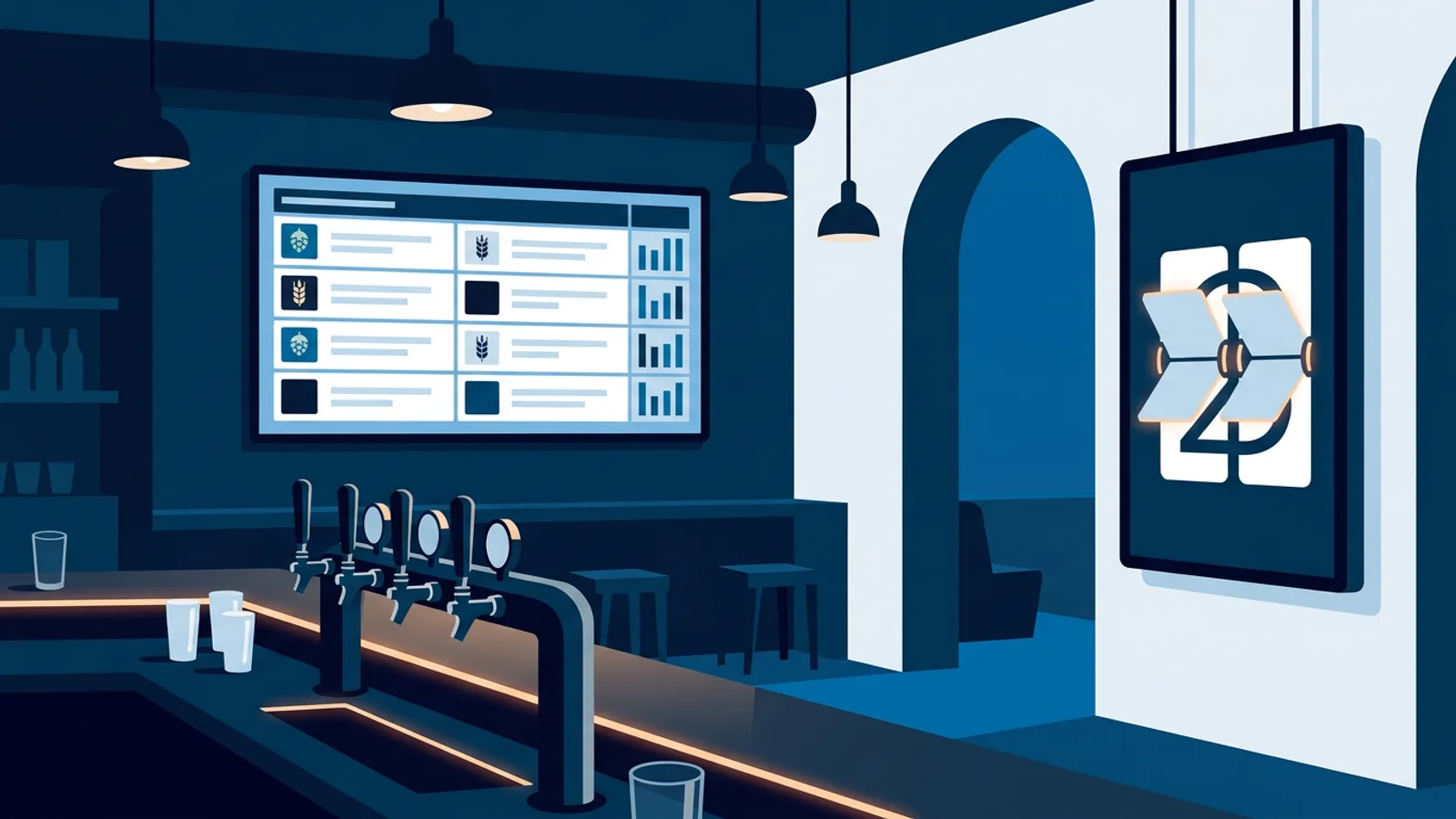
Digital signage for bars comes down to three jobs: a drinks board that is always correct, a happy hour countdown that runs itself, and an event screen that changes on the right night without anyone touching it. You can do all three with ordinary TVs, one small player per screen and a dashboard with scheduling, and this guide walks through each one with a worked taproom example.
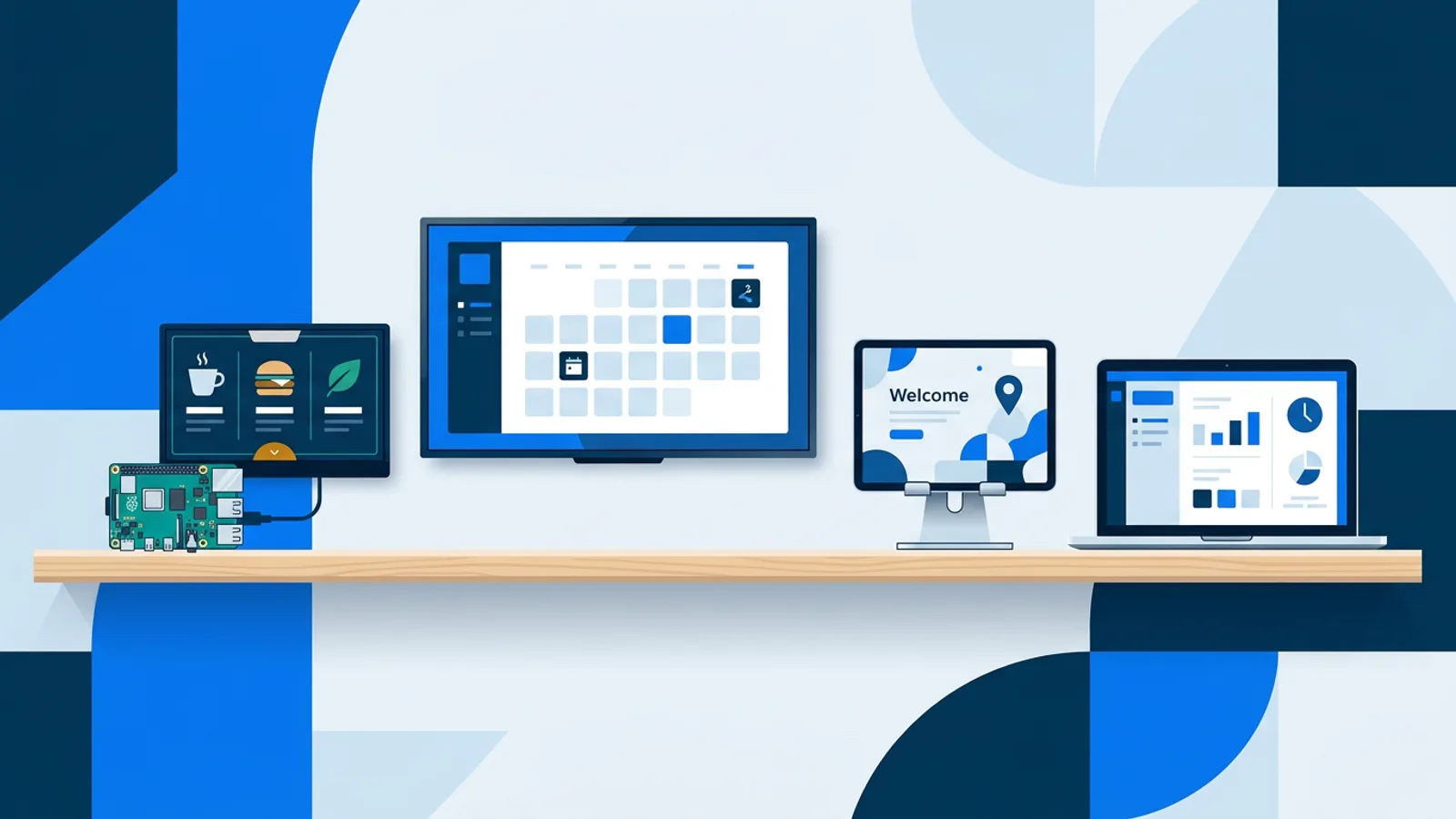
The hardware is the easy part. A TV with an HDMI port plus a Raspberry Pi signage player gives you a screen that boots straight into your content, restarts itself if the player crashes, and can switch the TV on and off on a schedule. A Fire TV Stick, an Amazon Signage Stick or a smart TV browser also work if you would rather not touch a Pi.
The harder part is the content logic: what shows at 16:55, what shows at 17:05, and what happens on quiz night. That is where most bar screens fall apart, because someone has to remember to change them during a busy shift. The setup below removes that step.
What digital signage for bars should actually do
A bar screen competes with dim light, noise and people who glance at it for two seconds while waiting to order. That rules out a lot of what works in a shop or office. Long slideshows, small text and anything that needs sound will be ignored.
A useful decision rule: if guests need the information to order (prices, taps, specials), it belongs on a fixed board near the bar with no rotation, or with very slow rotation. If it is promotional (events, merchandise, Instagram), it can rotate on a screen guests see while seated or walking in. Mixing the two on one screen means someone at the bar waits 40 seconds for the price slide to come back.
The happy hour countdown screen, step by step
A happy hour countdown screen works because it gives people a reason to stay for one more round or arrive earlier tomorrow. The trick is making it switch states on its own. Here is the setup in TVpilot, using a happy hour from 17:00 to 19:00.
- Add a countdown timer set to count to the same time every day: 17:00. Pick the flip, digital or minimal style; flip reads best from across a room.
- Set the message for when time is up, for example "Happy hour is on: all house beers half price".
- Add a second countdown that counts to 19:00 every day, with the red warning state switched on for the final minutes. That turns into a natural last-call signal.
- In the playlist, use per-slide scheduling. Show the first countdown only between 14:00 and 17:00, and the happy hour price slide plus the second countdown between 17:00 and 19:00.
- Limit both slides to the weekdays you actually run happy hour.
The result: in the afternoon the screen says "happy hour starts in 1:42:10", at 17:00 it flips to prices, in the final minutes before 19:00 the clock goes red, and after 19:00 both slides drop out and the regular playlist carries on without anyone touching the screen.
One thing to check before you build this: some places have licensing rules about how drink discounts may be advertised. Read your local rules first, since a countdown is a promotion like any other.
A brewery TV menu board that stays correct
The main failure of a brewery TV menu board is staleness. A keg kicks at 21:00, the board still lists it, and staff explain it twenty times. Pick your editing workflow based on who updates the list and from where.
- If one person updates taps from a phone or laptop and already designs in Canva, paste the Canva share link as a slide. Edits in Canva appear on screen automatically, with no re-uploading.
- If several staff need to edit, build the board in the built-in Designer and give them editor roles. Changes save as a draft until someone presses "Push to screen", so a half-edited list never shows to guests.
- If you have no design skills or time, AI Studio can generate a menu screen from a short brief, which you then adjust.
For a tap list, keep each beer to one line: name, style, ABV, price. A QR code in the corner (the Designer has a QR element) can link to full tasting notes so the board itself stays readable. Use high contrast, light text on a dark background, because white backgrounds glow uncomfortably in a dim room after 20:00.
If you run food service at set hours, a weekly repeating calendar slot can swap the food menu playlist in and out, for example kitchen menu from 12:00 to 21:00, snacks only afterwards.
Event screens: quiz nights, live music and match days
Events are where calendar scheduling earns its keep. On the Schedule page you assign whole playlists to time slots instead of individual slides.
- Weekly repeating slots cover recurring nights: quiz playlist every Thursday from 19:00 to 23:00.
- One-off items cover special dates: the brewery anniversary, a tap takeover, a festival weekend. One-off items beat weekly ones, so the anniversary overrides quiz night without you deleting anything.
- When nothing is planned, the screen falls back to its default playlist.
- You can plan months ahead, so the whole autumn event program can go in on one quiet Monday.
For an "upcoming events" slide, the Calendar widget shows a Google, Outlook or Apple calendar live via its iCal link. Keep your event calendar there and the screen updates itself when you add a gig.
For spontaneous moments, such as a band arriving early or a promo you want on now, "Show now" pushes a playlist to chosen screens for 30 minutes, 1 hour, 2 hours or until a set time, then returns them to the schedule automatically, so nobody has to remember to switch it back.
Worked example: a three-screen taproom
Say you run a taproom with 12 taps, open Wednesday to Sunday from 15:00 to 23:00, with happy hour Wednesday to Friday from 17:00 to 19:00, a quiz every Thursday and live music most Saturdays.
| Screen | Location | Content | Schedule |
|---|---|---|---|
| 1 | Behind the bar | Tap list (Canva link), no rotation | Always on during opening hours |
| 2 | Entrance wall | Happy hour countdown, events calendar, Instagram feed | Countdown slides Wed to Fri 14:00 to 19:00 |
| 3 | Seating area | Default promo playlist; quiz playlist Thursdays; music night playlist Saturdays | Calendar slots plus one-off items |
Three screens fit the Starter plan at €5 per month (up to 5 screens, 1 GB storage). The Free plan covers one screen forever, so start with the tap list board before buying the other players. The calendar needs here, one weekly quiz slot, one weekly music slot and a handful of one-off events, sit well inside Starter's limit of 5 calendars and 20 scheduled items.
Power: on each Pi, set a power schedule in the dashboard. The player checks it every minute and switches the TV on at 14:45 and to standby at 23:30 over HDMI-CEC, so no smart plugs and no one hunting for remotes at closing. On Monday and Tuesday the TVs stay off.
For content, screen 2 runs its countdown slides with the Instagram feed in between (enter your handle and it shows your latest posts). Screen 3 has a backup playlist with a simple logo slide, so if a playlist is ever empty it shows that instead of a black screen.
Bar TV screen ideas worth the wall space
If you want more bar TV screen ideas beyond the basics, these work in a bar setting because they are glanceable:
- Your Instagram feed, which also gets guests to tag you.
- Your Google, Tripadvisor or Yelp rating and best reviews on rotation. If you collect Trustpilot reviews, you can filter by minimum rating so only strong ones show.
- A countdown to a launch: new seasonal beer, the opening of a beer garden, a festival.
- A full-screen clock near the door, useful for people catching the last train.
- Your own brewing videos from YouTube or Vimeo, muted and looping. Use Vimeo or your own uploads if ad-free matters; YouTube decides whether a video carries ads.
Skip anything that needs audio or more than ten seconds of reading.
What goes wrong in bars
Most bar signage problems come from the environment and the workflow.
- The sports TV doubles as the signage TV. When staff switch to the match, the HDMI input changes and the player goes unseen for the evening. Give signage its own screen, or accept that match nights mean no signage on that TV.
- Screens on the guest Wi-Fi. A captive portal login page can block the player. Put screens on the staff network or a separate one.
- Text sized at the desk. A tap list that reads fine on a laptop is unreadable from a bar stool four metres away. Test from the farthest seat that needs it.
- Glare from windows or spotlights. Check the screen at both 15:00 and 21:00; the light is completely different.
- Wrong time on the countdown. If the player shows the wrong time zone, happy hour starts an hour off. Check it on day one.
- Nobody owns the tap list. Assign one person per shift to update it when a keg kicks.
When TVpilot fits, and when it does not
TVpilot fits a bar or brewery with one to a few dozen screens that wants scheduling to do the remembering: daily countdowns, weekly event nights, one-off overrides and timed TV power. The free plan for one screen is enough to judge it on a real board. If players lose internet during service, they keep following the schedule, and the Pi player recovers on its own after an outage.
It is a weaker fit if you need fully offline playback for weeks, want something self-hosted or open source (TVpilot is hosted SaaS), or plan to run on Android TV expecting a Google Play app; there is none, so Android TV uses the browser route. And if all you want is one static price list that changes twice a year, a printed board or a USB stick in the TV is honestly fine.
Start with the screen that causes the most daily friction, usually the tap list or the happy hour board, get it running on one TV, then add the event screens once the schedule works. You can set up that first screen for free at TVpilot and have the countdown running before tonight's happy hour.
Frequently asked questions
How do I put a happy hour countdown on a bar TV?
Use a countdown widget that counts to the same time every day, for example 17:00, and set a message for when time is up, such as your happy hour prices. Add a second daily countdown to the end of happy hour with a red warning state for the final minutes, then use per-slide scheduling so each countdown only shows in its own time window and on the weekdays you run happy hour.
What hardware do I need for a brewery TV menu board?
Any TV with an HDMI port plus a small player is enough. A Raspberry Pi 4 or 5 is a reliable choice because it boots straight into the content and can switch the TV on and off via HDMI-CEC. A Fire TV Stick, an Amazon Signage Stick or a smart TV with a browser also work.
Can I use the sports TV in my bar for digital signage too?
You can, but when staff switch the TV to the match the HDMI input changes and your signage disappears for the evening. If menus or event promos matter on match nights, give signage its own screen.
Should bar signage run on the guest Wi-Fi?
It is better not to. Guest networks often use a captive portal login page, which can block the player from loading content. Put signage players on the staff network or a separate network for devices.