Turn Off Digital Signage at Night: Cut Power and Glow
A street-facing screen that keeps running full brightness after closing is a common source of noise complaints, wasted electricity, and awkward conversations with neighbors above the shop. If you want to turn off digital signage at night without someone remembering to flip a switch, you either power the TV down completely or tone down what plays on it during off hours. Both are things you can schedule once and forget.
Most shops and offices end up here by accident. Someone installs a screen for daytime promos, nobody thinks about what happens at 11pm, and eventually a resident above the storefront asks why a bright, looping ad reel is glowing through their curtains. The screen is also just burning power for nobody's benefit: no customers are walking past to see it.
There are two separate levers worth understanding before you pick a fix: powering the TV off completely, and dimming down the content while the TV stays on. If you're running your player on a Raspberry Pi, you actually get both, and they can work together.
Why "just unplug it" doesn't scale
Manually switching a screen off at closing works for exactly as long as someone remembers to do it. Staff forget, closing times shift on a Friday, and holidays throw the routine off entirely. A screen that's meant to go dark at 10pm but stays lit until whoever locks up notices is the same complaint-generating problem you started with, just less often.
The alternative is a schedule the screen itself follows, independent of a person's memory. That's true whether you're solving for energy use, light pollution, or both.
How to turn off digital signage at night with HDMI-CEC
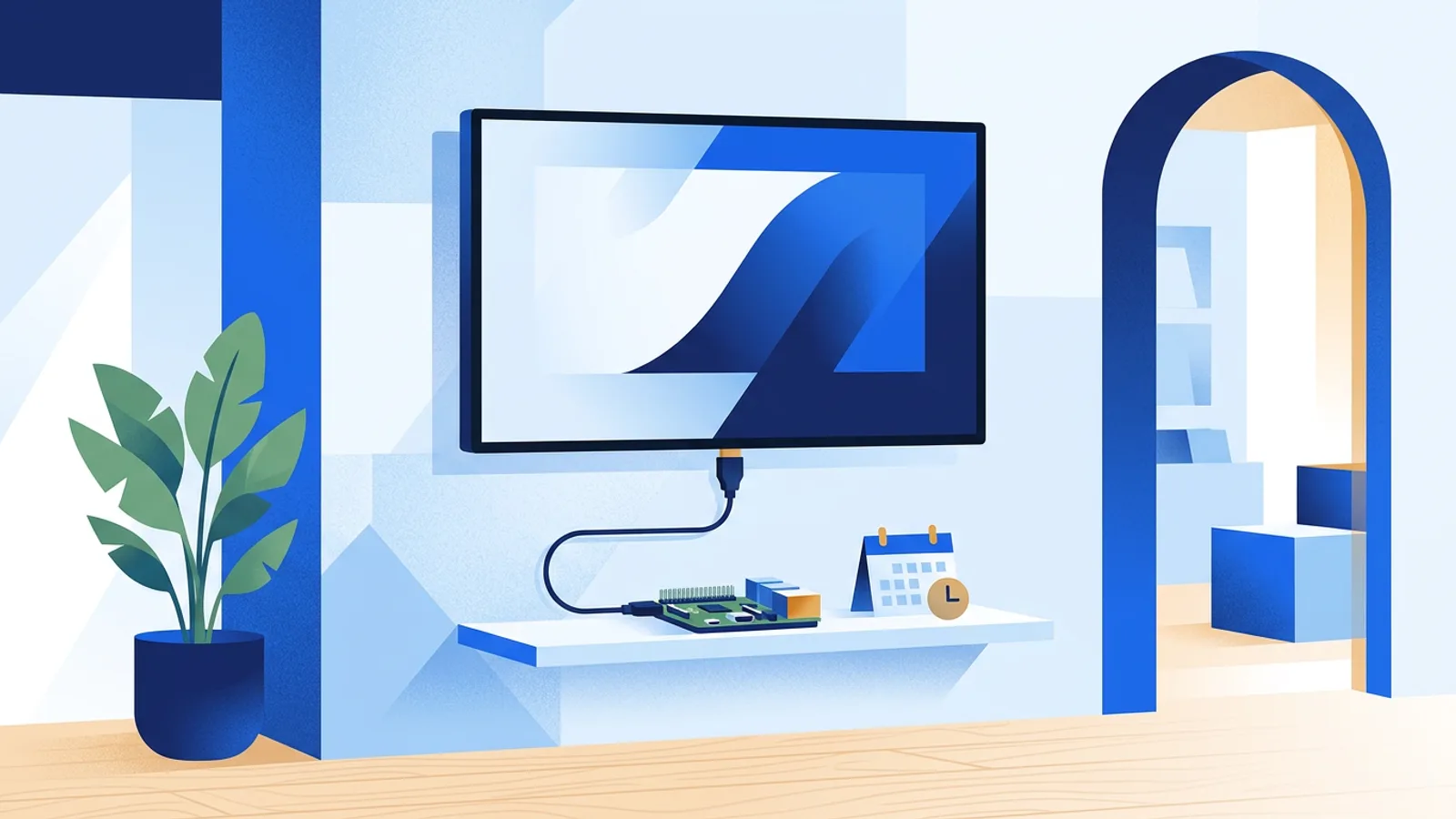
If you're using a Raspberry Pi as your signage player, TVpilot can switch the TV itself on and off using HDMI-CEC, the same signal your TV remote uses for "turn on connected devices." The player checks the dashboard's power schedule every minute and sends the TV to standby or wakes it back up. There's no smart plug to buy, no extra hardware to wire in, and no separate app to configure on the TV. You set the on/off times once in the dashboard and the screen follows them.
This kills the backlight entirely, which is what actually stops a screen from glowing into a window at night. Dimming brightness helps a little; switching the panel to standby removes the light source altogether, and it also means the screen isn't drawing anywhere near as much power overnight.
A few practical notes on this approach:
- It only works on the Pi player today. If your setup is a smart TV's built-in browser, a Fire TV Stick running a browser app, or any other browser-only device, TVpilot has no native app there to issue the CEC command, so this scheduling option doesn't apply. You'd need the TV's own built-in sleep timer, or a smart plug on a timer, to get the same effect on those setups.
- HDMI-CEC support and naming varies by TV brand (Samsung calls it Anynet+, LG calls it SimpLink, Sony calls it BRAVIA Sync). Most modern TVs support it, but very old or budget sets sometimes have a flaky implementation. If CEC standby doesn't reliably wake the TV back up, a smart plug is a reasonable fallback even on a Pi setup.
- Rebooting a screen from standby still works the same day: the schedule wakes the TV at the configured time and picks the playlist back up.
If you're setting this up for the first time, our guide on scheduling a TV to turn on and off automatically walks through the mechanics in more detail.
Night mode for digital signage: dayparting instead of a full shutdown
Full power-off isn't always what a business wants. A hotel lobby, a 24-hour pharmacy, or a shop that likes showing its hours and a night doorbell number might prefer the screen to stay lit but calm. This is where per-slide scheduling (sometimes called dayparting) does the work.
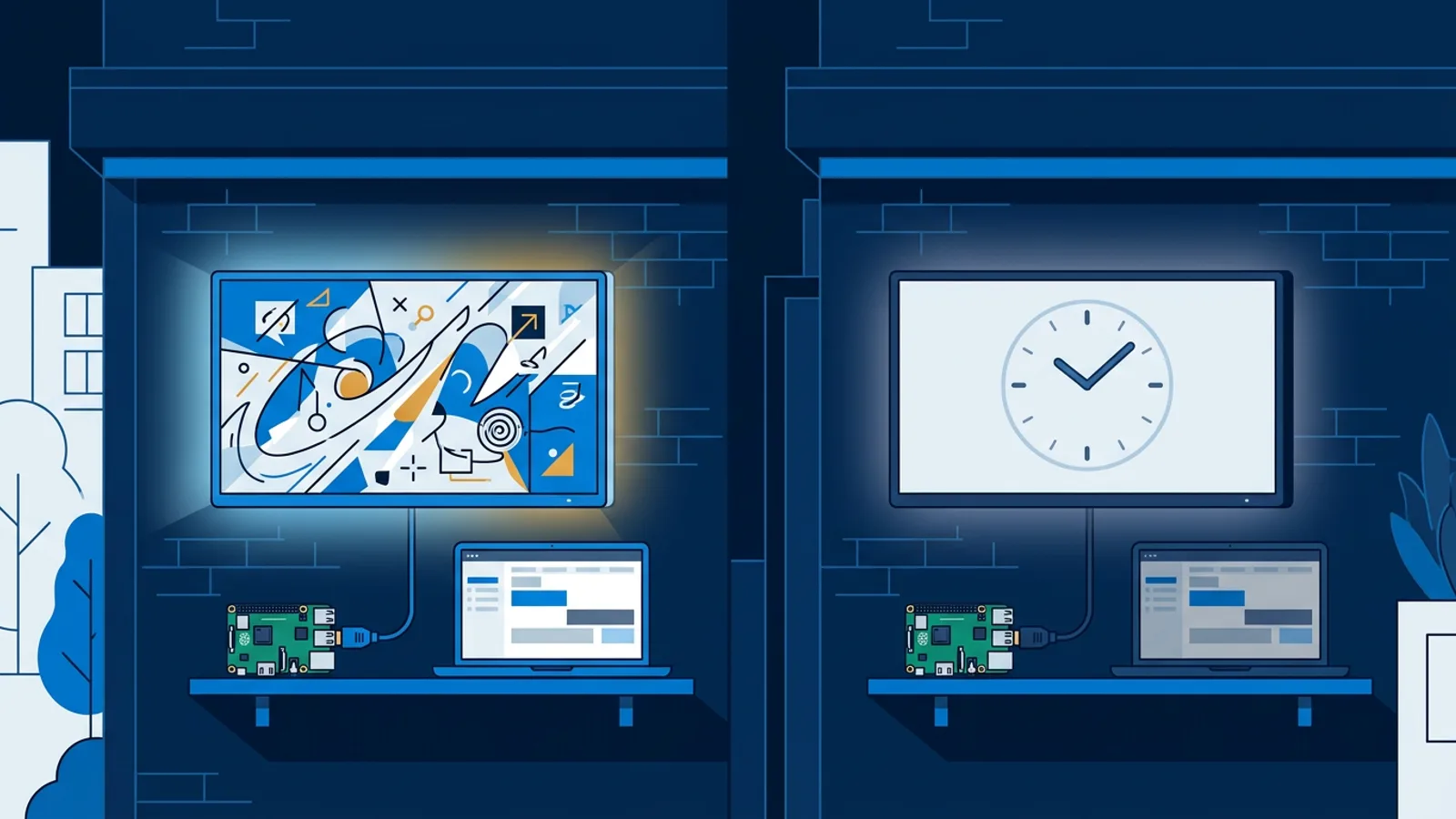
Each slide in a TVpilot playlist can be set to show only on chosen weekdays and between chosen times. So a bright promo video or an animated sale banner can be scheduled to disappear after 8pm, while a static welcome slide, a clock widget, or an opening-hours design stays on screen overnight. The screen never goes black or shows an error; it just switches to something quieter.
This is a genuinely good option if:
- Full standby isn't appropriate (you want the screen visible as a landmark or for safety/wayfinding).
- You want moving video and flashing promos gone after hours but don't want to lose the display entirely.
- Different slides need different "quiet hours" than each other, for example a lunch menu that should vanish at 3pm regardless of what happens at closing.
Dayparting and CEC power scheduling aren't mutually exclusive. A common pattern: dim the content to a calm fallback an hour before closing, then let CEC put the TV into standby once the shop is actually locked.
Handling holidays and irregular hours
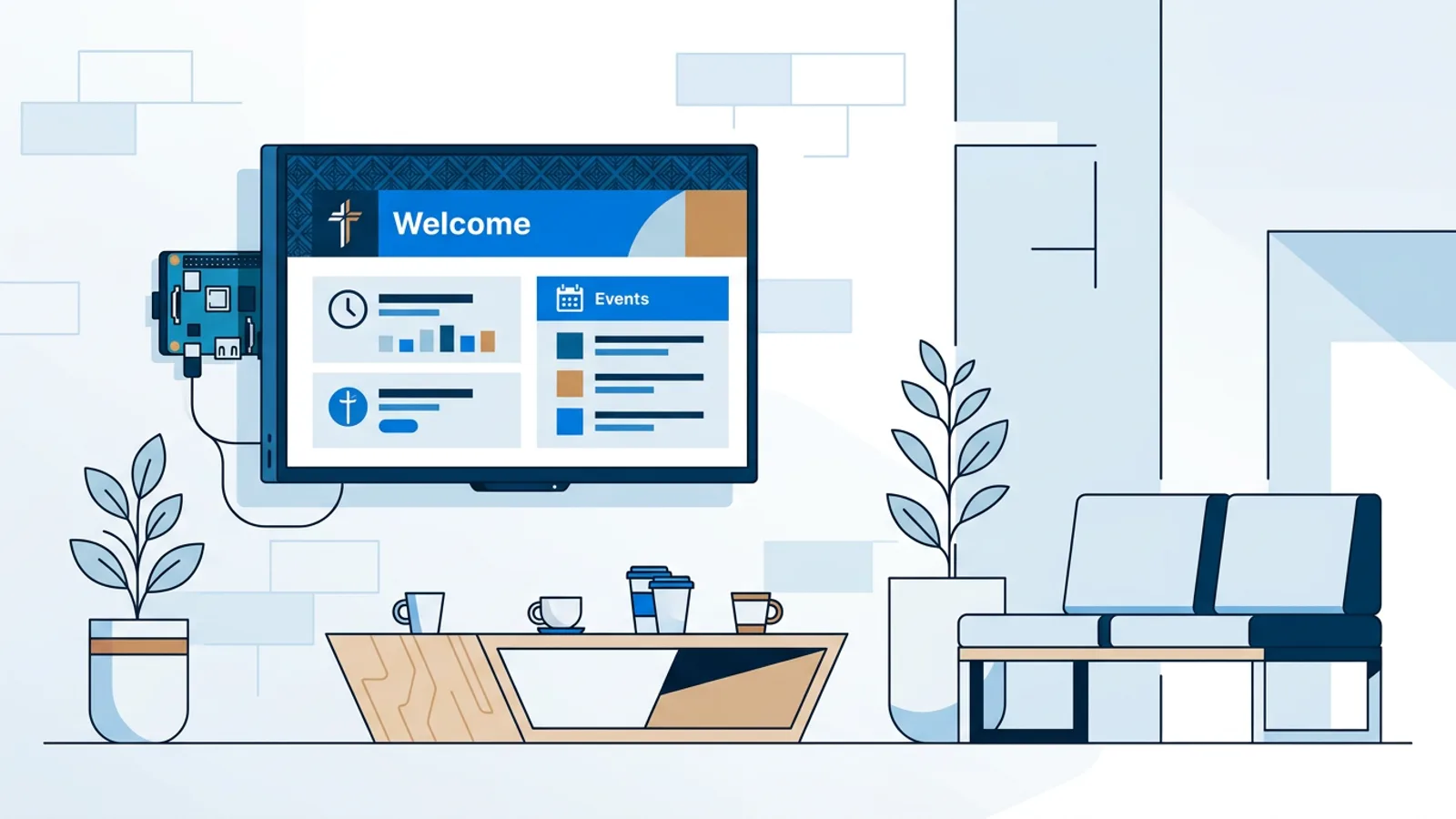
A fixed weekly schedule breaks down around holidays, sale weekends, or a shop that occasionally closes early. TVpilot's calendar scheduling lets you plan which playlist plays on a screen, including one-off items for a specific date and repeating weekly time slots. On Pro and Business plans you can add blackout dates, including Dutch holiday presets, so you don't have to remember to override the normal schedule every time the calendar says "closed." Free and Starter plans have lower limits on how many calendar items you can queue up, so if you're planning a full year of exceptions in advance, check the plan limits in our digital signage software pricing breakdown before committing to one tier.
It's also worth setting a backup playlist on each screen. If the assigned content for a given moment is missing, expired, or misconfigured, the screen falls back to the backup instead of going black or showing a broken slide, which matters for the quiet overnight slide just as much as for daytime content.
For a broader look at scheduling mechanics beyond just off-hours, see digital signage scheduling.
When TVpilot is (and isn't) the right fit for this
TVpilot's CEC power scheduling is a good fit if you're running, or are willing to run, a Raspberry Pi player. It's inexpensive hardware, the schedule is set once in the dashboard, and there's nothing extra to install or wire. If you already have a Pi signage setup and just want the screen dark overnight, this is close to a five-minute change.
It's not the right fit if your screen runs off a smart TV's own browser, a Fire TV Stick app, or another browser-only device. TVpilot has no native app on those platforms, so it can't send the CEC signal itself. In that case your options are the TV's built-in sleep/wake timer (most modern TVs have one buried in the settings menu) or a smart plug on a schedule. Dayparting still works fine on browser-only setups, since that's a content-level schedule handled by the dashboard, not a hardware power command.
If light pollution is the bigger concern and full power-off feels excessive, dayparting alone, without touching CEC at all, solves most of the complaint. A calm, static slide is a different problem from a screen playing a bright looping ad reel at midnight, even at the same brightness setting.
Getting it set up
Start by deciding which lever actually solves your complaint. If a neighbor is bothered by light, and full darkness is acceptable to the business, CEC standby on a Pi player is the cleanest fix and also gets you the power savings. If the screen needs to stay visible for wayfinding, safety, or just because it's a landmark, dayparting down to a quiet fallback slide is the better call. Many businesses end up using both: quiet content in the evening, full standby overnight.
Set the schedule once, add a backup playlist so nothing goes black by accident, and add blackout dates for holidays if your hours change often. If you're not running TVpilot yet, sign up and try the Free plan on one screen to see how the schedule behaves before rolling it out further.
Frequently asked questions
Can I turn off digital signage at night without buying a smart plug?
Yes, if your player is a Raspberry Pi running TVpilot. The dashboard's power schedule uses HDMI-CEC to switch the TV to standby and back on, checked every minute, so no smart plug or extra wiring is needed. Browser-only setups like a smart TV app or Fire TV Stick app don't support this, since TVpilot has no native app there to send the CEC signal.
Does turning the screen off overnight actually stop it from glowing into windows?
Standby removes the light source entirely, which is more effective than just dimming brightness. If you don't want the screen to go fully dark, dayparting can swap bright promo videos for a calm static slide instead, which cuts the glow and motion even with the TV still on.
What happens to the schedule during a power outage or internet dropout?
Players keep following their existing schedule during internet outages, and the Raspberry Pi player's watchdog restarts it automatically after a disruption. Content updates still need an internet connection to sync, but the on/off timing itself doesn't depend on a live connection to run.
How do I handle holidays or early closing days without editing the weekly schedule every time?
Use TVpilot's calendar scheduling to add one-off items for specific dates, and on Pro or Business plans add blackout dates (including Dutch holiday presets) so exceptions apply automatically instead of overriding the regular schedule by hand each time.