CrossFit Box Class Schedule Signage: A Screen Per Room
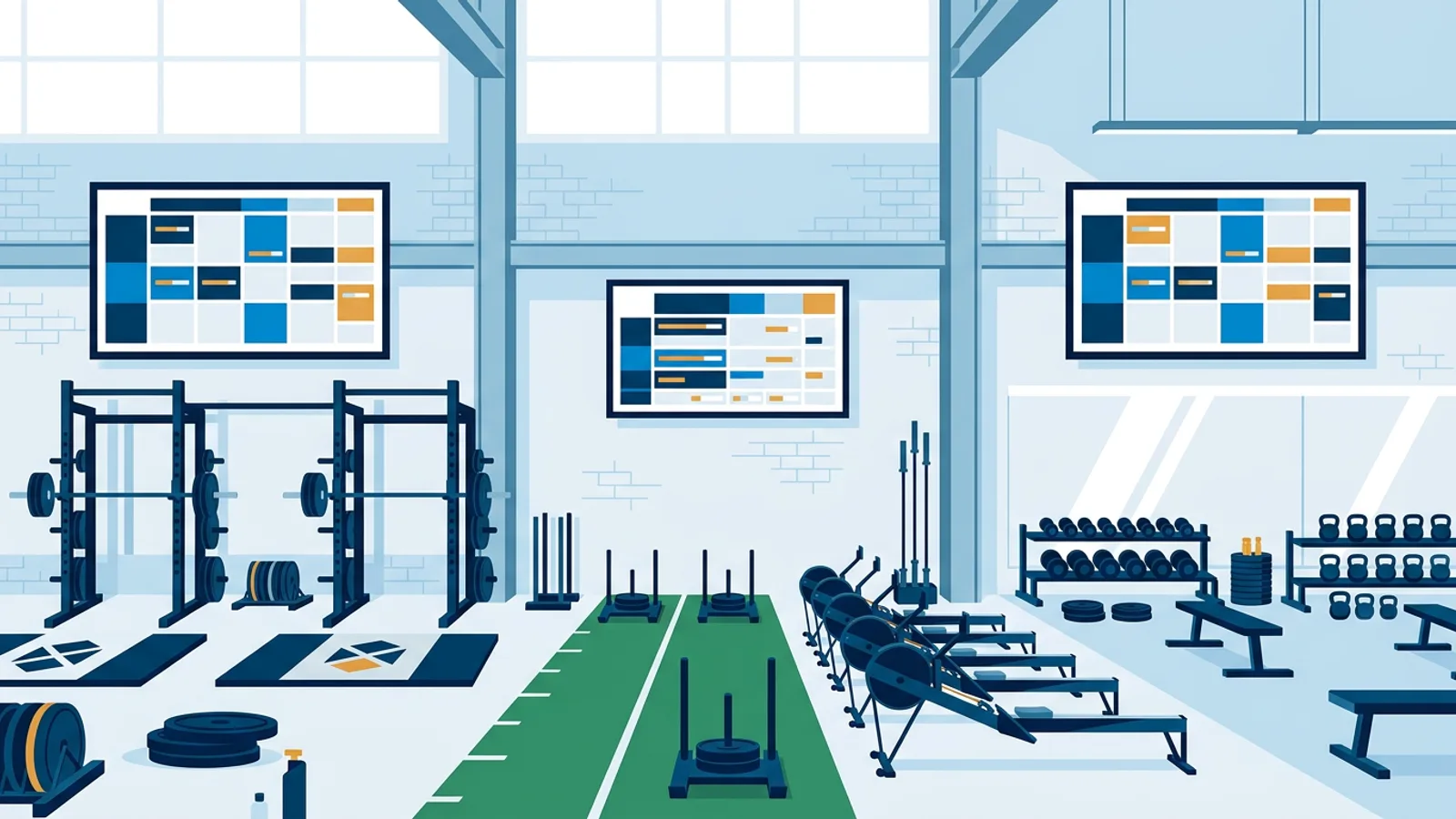
A CrossFit or HYROX box that runs different class types in different rooms needs a schedule screen per room, each showing only the classes that happen there, fed live from the booking system so nobody retypes the weekly board. This guide shows how to build digital signage for CrossFit box class schedule boards that way, with one live data source, a filter per screen, and a weekly calendar that swaps content between training blocks.
The mechanism is the Trainin class schedule plugin, one of the plugins in the TVpilot integrations catalog. It reads your public Trainin schedule and shows time, class, trainer and free spots on any screen you point it at. The rest of this article is about deciding which screen shows what, and when.
If you want the motivation-screen and promo side of gym signage, read our guide to digital signage for gyms. Here the problem is routing: the right timetable on the right wall at the right hour.
Why one gym TV breaks down in a multi-room box
Functional fitness boxes rarely run a single timetable. A typical week mixes CrossFit WODs on the main floor, HYROX simulation blocks on the sled track and erg row, a strength or Olympic lifting class in a side room, and open gym slots in between. Formats like AthX or XENOM-style sessions add another class type with their own coaches.
Put the full week on one TV at the entrance and three things happen. The text gets too small to read from the rower. Members in the HYROX zone have to walk to the door to see whether the 18:00 is full. And when a coach swaps a class in the booking app, the TV still shows last week's photo of the whiteboard, because somebody has to remember to update it.
Narrowcasting for gyms, in plain terms
In a box, narrowcasting works on two axes:
- Place: the HYROX zone screen shows HYROX classes, the WOD floor screen shows WODs, the entrance shows everything for today and tomorrow.
- Time: the same screen shows the HYROX block content at 06:30 and open gym information at 14:00.
Digital signage for CrossFit box class schedule screens: how the feed works
The Trainin schedule plugin needs one thing: your Trainin address, in the form yourstudio.trainin.app. There is no API key and no login. Once it is added, the screen shows the coming classes with:
- time, class name and trainer
- free spots, with an occupancy bar and labels for almost full, full and waiting list
- the activity colours and logo you already set in Trainin
The plugin refreshes every few minutes, so when a coach cancels the 07:00 or a member grabs the last spot, the screens follow without anyone touching the TV. Other gym-related plugins are grouped on the sports and fitness integrations page.
Settings that matter per room
Three settings turn one data feed into a narrowcast:
- View: today, today and tomorrow, or the week in columns. Use today on room screens (big text, readable from across the floor) and the week view only where people stand still, like the entrance or changing room corridor.
- Class filter: pick which classes a widget shows. Make one Trainin widget per room, each filtered to that room's class types.
- Hide full classes: useful on the entrance screen, where people decide on the spot whether to book something later today. Leave full classes visible on room screens so the waiting list status stays readable.
Worked example: a three-zone box on four screens
Say you run a box with a main WOD floor, a HYROX zone with a sled lane, ski ergs and rowers, and a small strength room that becomes open gym in the afternoon. You book everything in Trainin.
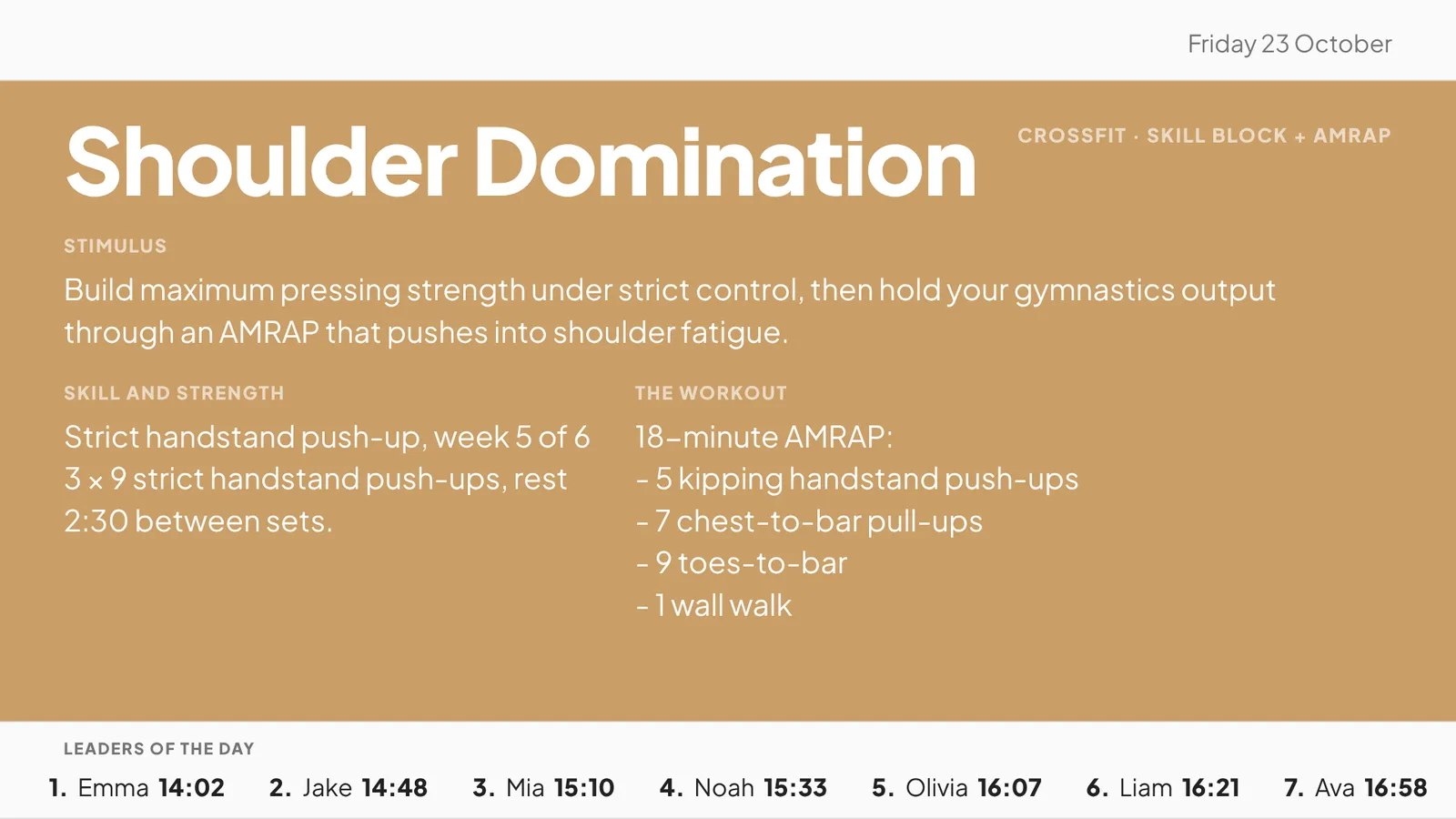 The WOD floor screen: today's workout and the leaderboard of the day from WODStats, shown as a web page slide in the playlist.
Screens and hardware
| Screen | Default content | View and filter |
|---|---|---|
| Entrance | All classes | Today and tomorrow, full classes hidden |
| WOD floor | CrossFit and WOD classes | Today |
| HYROX zone | HYROX classes | Today |
| Strength room | Strength and Oly classes | Today |
Each TV gets a Raspberry Pi 4 or 5 (installed with the one-command installer and a 6-character claim code from the dashboard) or a Fire TV Stick with the TVpilot app. In a warehouse box with thin Wi-Fi at the back wall, run an ethernet cable to the Pi in the HYROX zone. The Pi can also switch the TV on and to standby through HDMI-CEC on a power schedule, so the screens are on for the 06:00 class and off after the last one without a smart plug.
The weekly timetable in the calendar
The HYROX zone screen needs different content per block. In the Schedule page you give that screen a calendar with two weekly repeating slots:
- Monday to Friday, 06:00 to 09:30: a HYROX block playlist with the Trainin widget plus a slide showing the station order for this week's simulation.
- Monday to Friday, 13:00 to 16:30: an open gym playlist with lane rules and equipment booking info.
Outside those slots the screen falls back to its default playlist, the filtered Trainin schedule. The strength room gets one weekly slot for its afternoon open gym block. That is three scheduled items across two calendars.
For a one-off, like a Saturday throwdown, add a one-off item on the entrance calendar. One-off items beat weekly ones, so you do not have to delete the regular Saturday slot.
Cost
Four screens fit the Starter plan at €5 per month (up to 5 screens, 5 calendars, 20 scheduled items). The plugin is included. If you only want to test one room screen first, the Free plan covers 1 screen with 1 calendar and 2 scheduled items, free forever, which is exactly enough for the HYROX zone setup above. Pro at €19 per month makes sense once you pass 5 screens or want blackout dates for holidays.
Calendar scheduling or per-slide dayparting: which to use
Both handle recurring weekly timetables, and boxes often mix them up.
If the whole screen should change for a block (HYROX mornings versus open gym afternoons), use calendar scheduling, because you swap a complete playlist and the screen returns to its default by itself.
If one or two slides should appear inside an otherwise fixed playlist, use per-slide dayparting. Example: a "Team WOD this Saturday, bring a partner" slide that only shows on Thursday and Friday between 16:00 and 21:00, with an expiry date after the event so it removes itself.
For spontaneous changes, "Show now" pushes any playlist to chosen screens for 30 minutes, 1 hour, 2 hours or until a set time, then the screens go back to their planning. A coach can put a heat schedule on every screen for a two-hour in-house competition and forget about it.
Running several rooms side by side with a video wall
Some boxes have one long wall at the entrance and want every room's schedule visible there. Two options:
Separate TVs, separate playlists. Mount three TVs in a row and give each its own room-filtered Trainin widget. This is the simplest setup and each screen can follow its own calendar.
One video wall. Give every screen in a grid (up to 4x4) the same playlist and each shows its own tile, synchronised. The week view in columns spread over two TVs side by side gives a wide timetable that reads like a printed board. Pick this when you want one big schedule; pick separate TVs when each room needs its own content changes during the day.
Where box schedule screens go wrong
- Week view on a room screen. Seven columns on a 50-inch TV are unreadable from 5 metres. Keep week view for screens people walk up to.
- A private schedule. The plugin reads the public Trainin schedule. If your schedule is not public, the Trainin iCal link works, but free spots and waiting list status disappear, which is the most useful part for members.
- Renamed class types. If you rename a class in Trainin, check the filters on your room screens so the new name still lands on the right TV.
- Edits that never reach the screen. Plugin and playlist edits save as a draft until you press "Push to screen". This protects live screens from half-finished changes, but a forgotten push looks like a broken TV.
- Black screens when a playlist is empty. Set a backup playlist per screen (your logo and opening hours) so a misconfigured slot never shows nothing.
- Wi-Fi drops. Players keep following the schedule during an outage, but live class data needs a connection to refresh.
If you don't book in Trainin
This guide uses Trainin because its plugin shows free spots, occupancy and waiting list status. If your box books in another tool, first check the integrations catalog for a plugin for that platform. If there is none, and your booking tool exports an iCal feed, the Calendar widget can show those classes as an agenda, day or week view. You get class times and names, but no free spots, occupancy bar or waiting list. That is fine for a fixed timetable; for a box where classes fill up and members decide based on spots left, it is a real downgrade.
Either way, you set up the connection yourself in the TVpilot dashboard. For Trainin that means entering your address and choosing filters, which takes a couple of minutes.
When TVpilot fits your box, and when it doesn't
It fits if you book in Trainin, run two or more class types in parallel, and want screens that update themselves. It also fits if you already have spare TVs and want to start with one room on the Free plan.
It is a weaker fit if you mainly need a workout clock or heart-rate leaderboard on the wall; a dedicated gym timer or heart-rate system is the better tool there. A single-room box with one class at a time can honestly keep its whiteboard. And because TVpilot is hosted SaaS, it is not an option if you require self-hosted software.
Getting your first room screen live
Start with the room where members ask "is the next class full?" most often, usually the HYROX zone or the main floor. Add your Trainin address, filter it to that room's classes, set the view to today, and add one weekly calendar slot for the block that differs. Once that screen runs a week without anyone touching it, copy the setup to the other rooms. You can create a free account and have the first screen showing live classes today.
Frequently asked questions
Can a gym TV show how many spots are left in each class?
Yes, if you book in Trainin and your schedule is public. The TVpilot Trainin class schedule plugin shows time, class, trainer and free spots with an occupancy bar and almost full, full and waiting list labels, refreshed every few minutes. If your schedule is private, the Trainin iCal link still shows classes but without free spots.
Do I need a separate widget for each room's schedule?
Yes. Create one Trainin widget per room and use the class filter so each widget shows only the class types held in that room. The entrance screen can use an unfiltered widget with the today and tomorrow view and full classes hidden.
Which TVpilot plan does a box with four schedule screens need?
The Starter plan at €5 per month covers up to 5 screens, 5 calendars and 20 scheduled items, which is enough for a four-screen box with weekly HYROX and open gym blocks. The Free plan covers 1 screen with 1 calendar and 2 scheduled items if you want to start with one room. Pro at €19 per month covers up to 25 screens.
What if my box uses a booking system other than Trainin?
Check the TVpilot integrations catalog for a plugin for your booking platform. If there is none and your booking tool exports an iCal feed, paste that link into the Calendar widget to show classes as an agenda, day or week view. You get class times and names, but not free spots, occupancy or waiting list status.