What Is Narrowcasting in Digital Signage? Explained
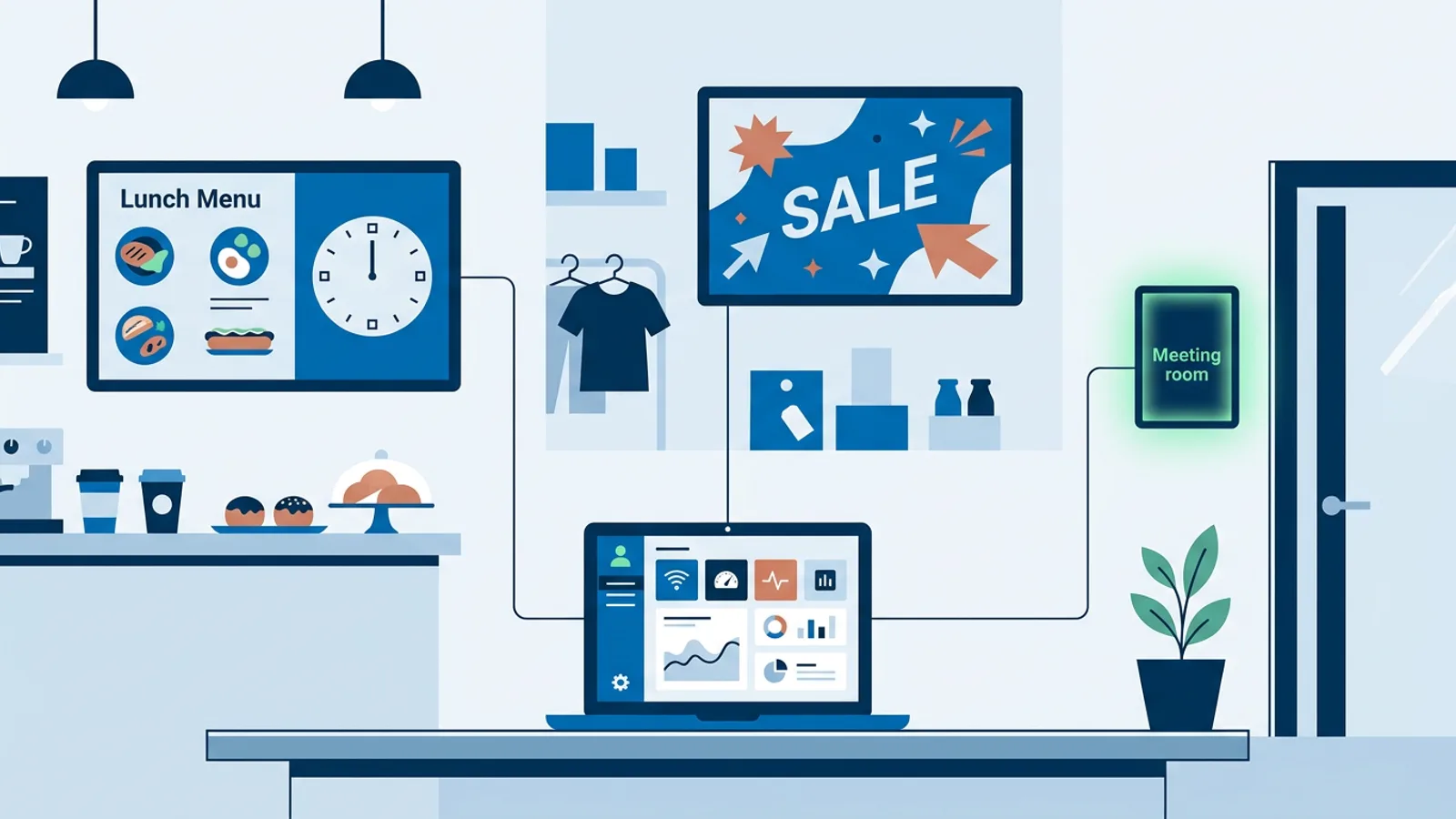
If you have ever wanted your lunch menu to disappear at 2pm, or one store to show a different promo than another, you already understand narrowcasting, even if you've never heard the word. Narrowcasting in digital signage means sending tailored content to specific screens, locations or time slots instead of pushing one broadcast-style feed to everyone. It's the opposite of a TV channel playing the same thing to every viewer at once.
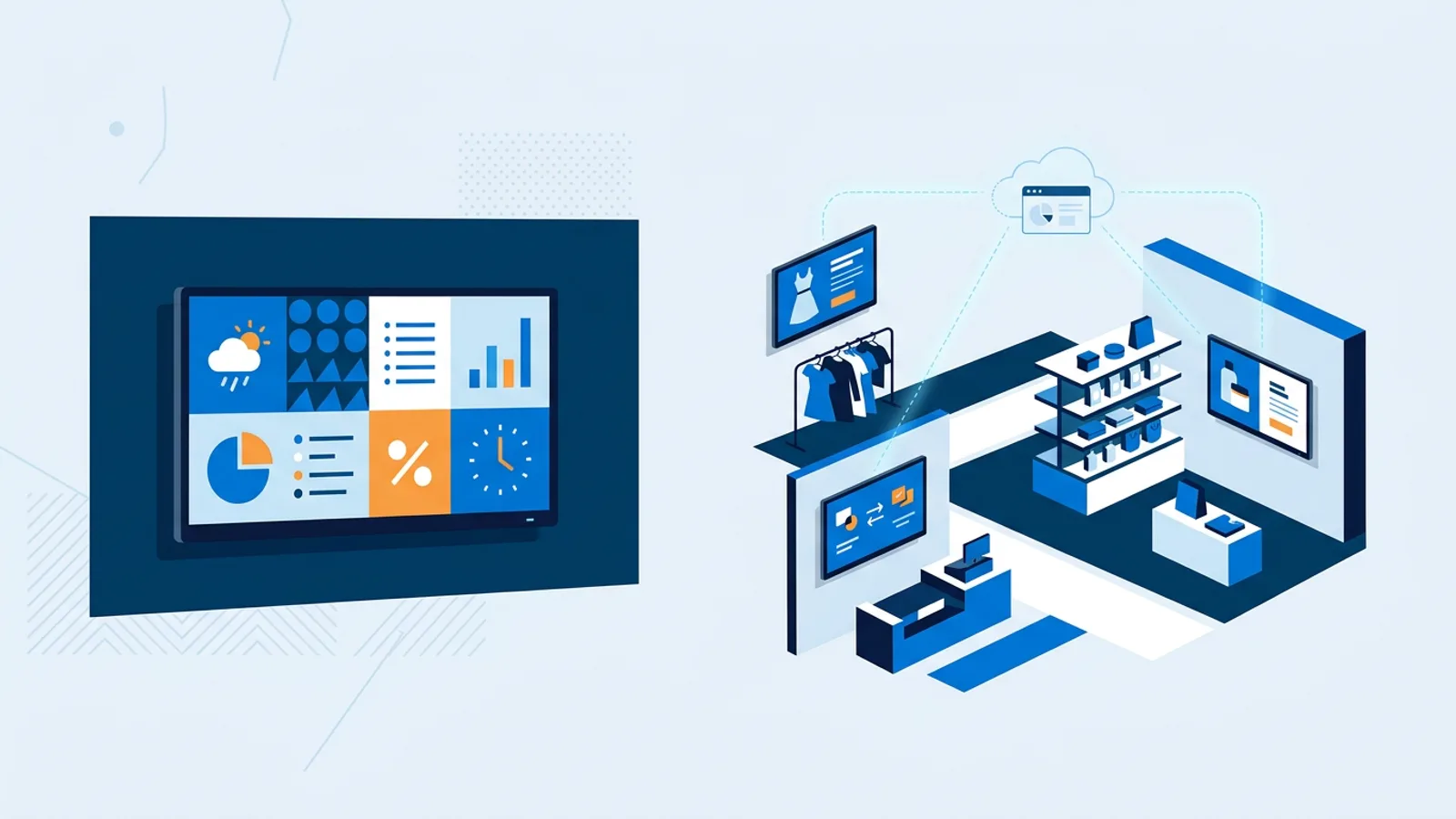
Most small businesses start with broadcasting by accident: one playlist, looping all day, on every screen. That works for a single TV showing opening hours. It stops working the moment you have a lunch rush, a second location, or a meeting room panel that should reflect actual bookings. Signage software lets you split content by time, day and screen, and live plugins such as weather, reviews and calendars keep each screen locally relevant without manual swaps.
What is narrowcasting in digital signage vs broadcasting
Broadcasting is one message, one audience, no targeting: think terrestrial TV or radio, where everyone tuned in gets the same thing at the same time. Narrowcasting flips that. The audience is narrow on purpose (a specific screen, a specific time window, a specific branch) and the content is built for that slice.
In practice this shows up as three separate axes you can control independently:
- Time: what plays changes by hour, day of week, or date.
- Location: what plays changes by which physical screen or branch it is.
- Context: the screen includes live local data (weather, reviews, departures) that refreshes itself without anyone editing the slide.
A single screen can combine all three. A bakery's front window might show the pastry case photo all day, switch to a coffee promo from 7 to 10am, and keep a weather widget in one corner showing today's local forecast.
Narrowcasting examples you'll recognize
A few concrete setups make the concept click faster than a definition does.
The lunch menu that knows when it's lunch. A sandwich shop sets its lunch board to appear only Monday through Friday, 11:00 to 14:00. Outside that window the screen falls back to the regular menu. Nobody logs in at 2:01pm to switch it manually, and nobody forgets to change it back on Saturday.
Different promo per store. A three-location retail chain runs the same base playlist everywhere, but each branch has its own promo slide, one store clearing winter stock, another pushing a new arrival, because each branch manager knows their own foot traffic. Head office still controls the shared brand content.
A meeting room panel tied to real bookings. A coworking space mounts a screen next to a meeting room door. Reading the room's calendar, it shows whether the room is free or busy right now, the current booking and what's next. It turns red during the 10:00 to 11:00 reservation and green again once the room is free.
A happy hour countdown that resets itself. A bar's screen shows regular drink prices all day, then a countdown to happy hour appears at 4pm and the promo board takes over at 5pm sharp, with no one touching the dashboard.
In each case the same screen (or network of screens) shows different content to different slices of time or location, deliberately. That is narrowcasting.
How TVpilot handles each type of narrowcasting
TVpilot covers narrowcasting with four tools, each suited to a different job.
Per-slide dayparting controls individual slides inside a playlist. Each slide can be set to show only on chosen weekdays and/or between chosen times, with an optional expiry date so a slide removes itself after a promotion ends. This is the right tool when one playlist needs some slides that are always on and others that only show up during a window, like the lunch menu example above living inside a bigger "all day" playlist.
Calendar scheduling controls which whole playlist plays on a screen, via a calendar on the Schedule page. You can set one-off items for a single event day and weekly repeating slots for recurring windows (lunch menu weekdays 11:00 to 14:00 is a textbook weekly repeat). When nothing is scheduled, the screen falls back to its default playlist, so you're never left with a blank screen because a calendar entry ended. One-off items override weekly repeats, and if two items overlap, the most recently started one wins. Pro and Business plans can also set blackout dates, including Dutch holiday presets, so the Monday lunch slot skips a bank holiday automatically.
Locations with per-member access handle narrowcasting across branches. Locations group screens by branch, and team members get access per location, so a branch manager can update their local promo slide without touching another store's content and without full admin rights across the whole account. This is the backbone of the "different promo per store" example, and it's covered in more depth in the guide to running a signage system across multiple locations.
Plugins add context without a schedule. A weather widget, a Google reviews feed or a Trainin class schedule refreshes itself with live data, so the same slide stays current for whoever is standing in front of it without a human editing it. That's narrowcasting by context rather than by clock or location.
A worked example: one screen, three narrowcasting layers
Say you run a two-location coffee shop. On each shop's screen you want: the brand loop running by default, the breakfast menu swapping in before 11am, a location-specific promo slide only one shop is running this month, and a live weather widget in one corner.
In TVpilot that breaks down like this:
| Layer | Tool | Setting |
|---|---|---|
| Brand loop | Default playlist | Plays whenever nothing else is scheduled |
| Breakfast menu | Per-slide dayparting | Mon to Sun, 06:00 to 11:00, no expiry |
| Shop-specific promo | Per-slide dayparting + location access | Only added to that branch's playlist by that branch's editor |
| Weather | Widget box in Designer | Always on, shows the live local forecast |
Nothing here needs a calendar entry, because all the timing is recurring and slide-level. If this coffee shop later wants a one-off "closed for staff training, back at 2pm" screen for a single Tuesday, that's where calendar scheduling's one-off items come in, overriding the weekly planning for that day only.
Two screens means the Free plan (1 screen) is not enough here; Starter at €5/month covers up to 5 screens.
Plan limits to know before you build a big schedule
Narrowcasting by calendar has ceilings, and they matter if you're planning more than a handful of recurring slots. The Free plan allows 1 calendar and 2 scheduled items, enough for a single lunch-window rule on one screen. Starter raises that to 5 calendars and 20 scheduled items. Pro and Business go up to 25 calendars and 200 scheduled items, which is where a multi-location chain running weekly repeats plus holiday blackouts across a dozen screens will want to sit. Count your recurring windows per screen before you pick a plan: a shop with a breakfast slot, a lunch slot and a weekend brunch slot on three screens already needs more than Free offers.
When TVpilot fits, and when it doesn't
TVpilot is a good fit if you want narrowcasting without building it yourself. Plugins are included on every plan, calendar scheduling works on Free within its limits, and once you run several screens or branches a paid plan adds the screen capacity that locations with per-member access are built for. If your needs are genuinely simple (one screen, one playlist, no time rules), you don't need any of this: a plain looping playlist is fine and you can skip scheduling entirely.
TVpilot is hosted SaaS, not open source and not self-hostable, so if your business requires running signage entirely on infrastructure you control, look elsewhere. It's also a single platform rather than a patchwork of specialized engines, which suits most small businesses (one dashboard, one login) but limits you if you need something beyond what the narrowcasting overview describes.
Getting started with your own narrowcasting rules
Start small: pick the one screen and one time-based rule that's annoying you right now, the lunch menu that never gets changed or the promo that's stale by evening, and set a single dayparted slide or calendar entry for it. Once that's working, add locations or plugins as the need shows up, rather than designing the whole system on day one. The Free plan covers exactly this kind of first step: one screen, one calendar, two scheduled items, no credit card required.
Frequently asked questions
What is narrowcasting in digital signage?
Narrowcasting in digital signage is showing tailored content to specific screens, locations or time slots instead of one identical feed everywhere. Examples are a lunch menu that only plays on weekdays from 11:00 to 14:00, or a different promo slide in each branch of a chain.
What is the difference between narrowcasting and broadcasting?
Broadcasting sends one message to a mass audience at the same time, like TV or radio. Narrowcasting targets a narrow audience on purpose: a particular screen, a particular branch or a particular time window, with content made for that slice.
Do I need narrowcasting software for a single screen?
Not always. If one screen shows one looping playlist with no time rules, any basic player works. Scheduling becomes useful once content should change by time of day or day of week, for example breakfast and lunch menus, and TVpilot's Free plan includes 1 calendar with 2 scheduled items for one screen.
Can different locations show different content in TVpilot?
Yes. TVpilot groups screens into locations (branches) and gives team members access per location, so a branch manager can edit their own promo without touching other stores. Running several screens requires a paid plan: Starter covers up to 5 screens and Pro up to 25.