Emergency Alert Digital Signage: Target the Right Screens
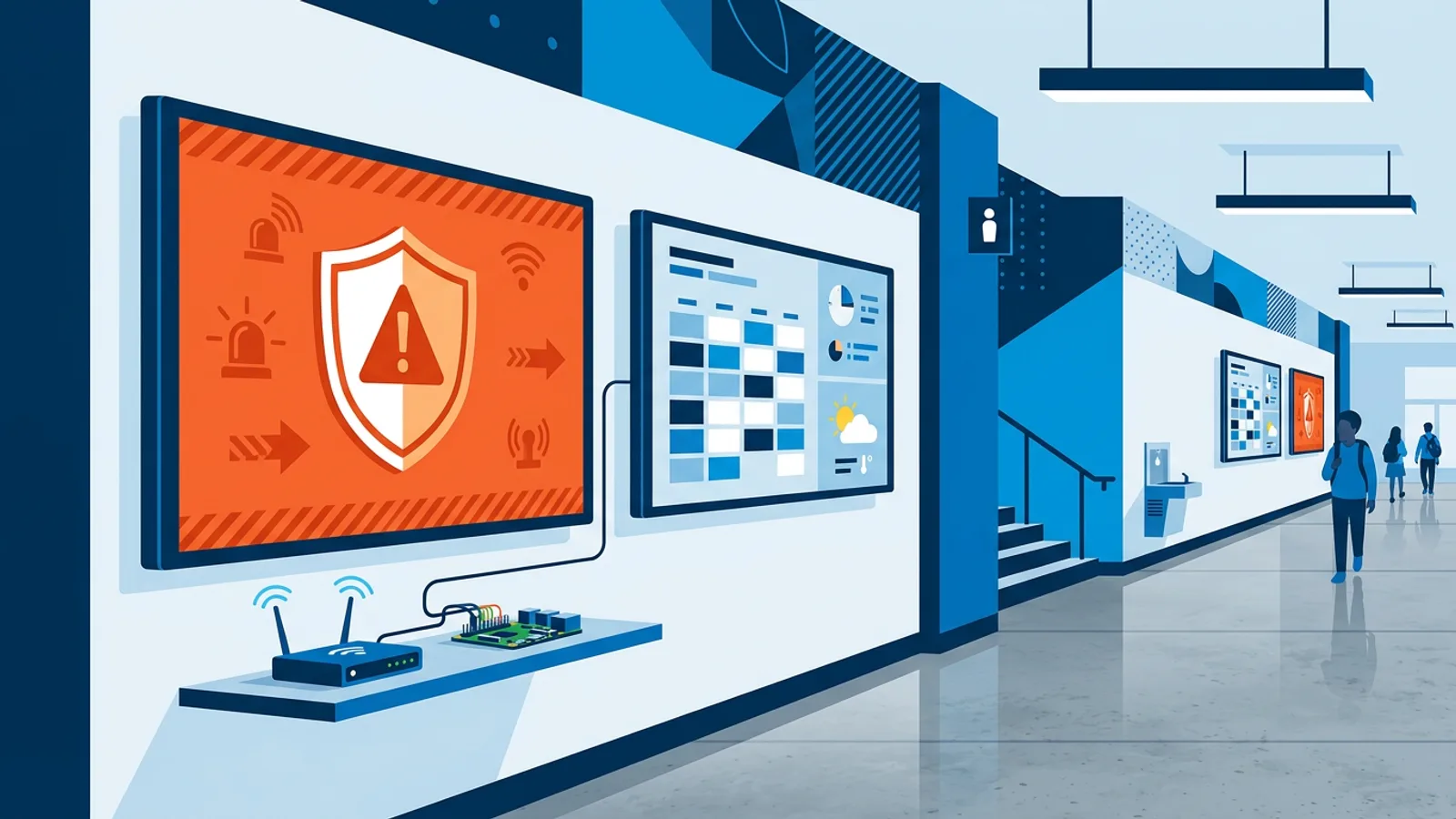
Emergency alert digital signage puts one urgent message full screen on the displays you choose, over whatever they were playing, within seconds. The useful part is the choosing: a burst pipe in the sports hall should change the screens in the sports hall, not every screen on the campus.
This guide is for the person who already runs a few screens (a facilities manager, an office manager, a school's IT coordinator) and wants to know how alerts actually work, how to target them, and what to prepare so the button does the right thing on a bad day. Normally those screens rotate playlists, menus and the live widgets and plugins you set up once and forget. An alert has to cut through all of that without anyone editing a playlist under pressure.
One boundary up front: signage alerts are a visual layer on top of your screens. They do not replace a certified fire alarm, a public address system or a dedicated mass notification platform. They add a clear instruction on the screens people are already looking at.
Why emergency alerts need narrowcasting, not broadcasting
A TV channel's emergency broadcast goes to everyone watching in a region. That makes sense for a storm warning, because the broadcaster cannot know which viewers are affected and the message is the same for all of them.
Your building is different. You know exactly where each screen hangs, and most incidents are local:
- A lift is out of order in the east wing.
- One shop branch closes early because of a power cut.
- The canteen is closed for a cleaning incident while classes carry on.
- A fire drill covers only the main building, not the annex across the road.
If every screen shows the same alert, people in unaffected areas get the wrong instruction. Worse, they learn that the red screen often does not apply to them, and the next real alert gets ignored. Sending a message only to the screens that need it is called narrowcasting, and for emergency messaging it decides whether the alert is trusted.
If the instruction is the same for everyone (evacuate the whole site), send it everywhere. If the instruction depends on where you stand, send it only to that location, wing or floor, and let the other screens keep playing normally.
How emergency alert digital signage works in TVpilot
TVpilot's Emergency alert is a red button in the dashboard. Pressing it puts one message full screen on the screens you pick, over whatever is playing, within seconds. The full feature page is at Emergency alerts; here are the mechanics that matter in practice.
What you send
You pick a ready-made message or write your own:
- Evacuate
- Fire
- Temporarily closed
- Disruption
- A custom message, with your own icon and colour
The ready-made messages exist so nobody has to type under stress. Custom messages are for situations you can predict but that need specific wording, such as "Lift out of order, use the stairs by reception".
Where it goes
You target in one of four ways: all screens, per location, per tag, or individually chosen screens. Which one fits depends on how you set up your screens, which the table below covers.
| Target | Use it when | Example |
|---|---|---|
| All screens | The instruction applies to everyone | Whole-site evacuation |
| Location | You have separate branches or buildings | One store closes, the others stay open |
| Tag | You need a zone inside a location | "floor-2", "sports-hall", "canteen" |
| Chosen screens | A one-off, very local issue | The screen next to a broken entrance door |
How long it stays
An alert runs for 15 minutes, 1 hour, 4 hours or 24 hours and then ends by itself, after which screens return to what they were scheduled to play. You can extend it or stop it any time. The expiry also works offline: once a screen has the alert, it ends on time even if its internet connection drops in the meantime.
What you skip
No playlist edit, no upload and no approval step. That matters if you normally use an approval workflow for content: alerts bypass it, so a hallway screen does not wait for a second pair of eyes during an evacuation.
Who can press it
Editors and up can start an alert. Owners and admins get an email when one starts, so the person responsible knows about it even if a colleague pressed the button.
Waking screens that are off
An alert is useless on a black TV. With the Turn TVs on option, a Raspberry Pi player switches a TV in standby on, using HDMI-CEC (the same mechanism the Pi uses for power schedules). This only works on Raspberry Pi players, and only if HDMI-CEC is enabled on the TV. If your test shows the TV staying dark, the HDMI-CEC troubleshooting guide covers the usual causes, such as CEC being switched off in the TV menu or a brand-specific name for it.
Worked example: a school campus with 18 screens
Say you run IT for a secondary school with 18 screens across three spaces:
- Main building: 10 screens (entrance, hallways, staff room, canteen)
- Sports hall: 3 screens
- Annex across the street: 5 screens
Eighteen screens fits within the Pro plan (up to 25 screens, €19 per month), which is the plan where Emergency alert starts. Twelve screens run on Raspberry Pi 4 players; the six in the annex are smart TVs pointed at a player URL in their browser.
Preparation, done once on a quiet afternoon:
- Create two locations: "Main campus" (main building plus sports hall) and "Annex".
- Add tags for zones you might need separately: "sports-hall", "staff-room", "canteen". Give the "sports-hall" tag to the three sports hall screens and also to the main entrance screen, because visitors and students pass it on the way to the hall.
- Write two custom messages in advance: "Sports hall closed, PE moves to room 104" and "Canteen closed, lunch in the auditorium". Pick a colour that differs from the red of the Fire and Evacuate messages, so nobody mistakes a closure for an evacuation.
- Turn on Turn TVs on for alerts, and test it after hours on two Pi screens with the TV in standby.
Now three situations play out over a term:
- A water leak in the sports hall at 08:40. Target the tag "sports-hall" (the three hall screens plus the entrance screen), send the prepared custom message, duration 4 hours. The 14 other screens keep showing the timetable changes and announcements.
- A fire drill in the main building. Target the location "Main campus", message Evacuate, duration 15 minutes. The annex keeps teaching as planned, which is exactly what the drill schedule says.
- An early closure because of a storm. Target all screens, message Temporarily closed, duration 24 hours, stopped manually the next morning when school reopens.
One gap shows up in testing: the six annex smart TVs cannot be woken by the alert, because only Raspberry Pi players switch a standby TV on. The fix is either to keep those TVs on during school hours or to move them to Pi players.
Emergency alerts in offices, shops and apartment buildings
The same pattern carries over to other buildings, with different targeting habits.
Offices usually target by floor or wing. Tag screens per floor, and prepare custom messages for predictable disruptions: a closed lift, a closed car park entrance, a planned power outage.
Retail chains target by location. If one branch has a power cut or a flooded entrance, Temporarily closed on that branch's window screen tells passing customers what is going on, while the other branches keep their promotions running.
Apartment buildings tend to have one or two screens in the lobby and perhaps one per entrance. Targeting by chosen screens is often enough. A Disruption message about a water shut-off, set for 4 hours, ends by itself when the work is done, so nobody has to remember to remove it.
Failure modes to plan for
Most targeting problems come from setup, not from the button itself.
- Untagged screens. If a new screen was added without a tag, a tag-targeted alert silently skips it. Tag screens when you install them, and recheck the tag list every term or quarter.
- Offline screens. A screen that is already offline when you press the button cannot receive the alert until it reconnects. Screen monitoring with email alerts for offline screens tells you about a dead hallway screen before an incident does.
- Screens in standby. Browser-based TVs and sticks will not wake for an alert. If a screen matters for safety messaging, put it on a Raspberry Pi with HDMI-CEC working, or keep it on during opening hours.
- Too many alerts. Using the red button for routine notices (a parcel at reception) trains people to ignore it. Routine notices belong in a normal playlist slide or the Messages bar.
- Wrong duration. A 24-hour alert for a two-hour disruption leaves a stale message on screen. Pick the shortest duration that covers the situation and extend if needed.
- Nobody knows who can press it. Make sure at least two editors per site know where the button is, and tell owners and admins to expect the email.
Is TVpilot the right fit for emergency alerts?
TVpilot fits if you already run, or plan to run, regular signage on 2 to 25 screens and want an override for urgent messages without a separate system. The alert lives in the same dashboard as your playlists, so there is nothing extra to maintain. It is a Pro plan feature and up (€19 per month for up to 25 screens, Business for more); the Free and Starter plans do not include it.
It is the wrong choice if you need a certified life-safety or mass notification system, integration with your fire alarm panel, or guaranteed delivery figures. TVpilot does not offer those, and a signage screen should never be the only way people learn about a fire. Use it alongside your alarm and PA system, as the screen that tells people which exit or which room.
It is also a weaker fit if most of your screens are browser-based smart TVs that sit in standby, because the wake-up feature needs Raspberry Pi players.
Set it up before you need it
Targeted alerts only work if locations, tags and messages exist before the incident: spend an hour tagging screens per zone, write two or three custom messages, and run one after-hours test with a TV in standby. If you want to try the rest of the dashboard first, create a free TVpilot account with one screen, then move to Pro when you are ready to add the emergency alert button across your building.
Frequently asked questions
Which TVpilot plans include the emergency alert button?
Emergency alert is a Premium feature on the Pro plan (€19 per month, up to 25 screens) and the Business plan. The Free and Starter plans do not include it, although you can use them to set up your screens and playlists first.
Can I send an emergency alert to only some of my screens?
Yes. You can target all screens, one location, one tag, or individually chosen screens. Tags are the usual way to reach a zone inside a building, such as one floor or a sports hall, so tag your screens when you install them.
What happens if a screen loses its internet connection during an alert?
Once a screen has received the alert, it keeps showing it and ends it on schedule (after 15 minutes, 1 hour, 4 hours or 24 hours) even while offline. A screen that was already offline when you pressed the button only gets the alert after it reconnects.
Will an emergency alert turn on a TV that is in standby?
Only on Raspberry Pi players with the Turn TVs on option enabled, which switches the TV on via HDMI-CEC. HDMI-CEC must be enabled in the TV's settings. Browser-based smart TVs and streaming sticks cannot be woken this way, so keep those screens on during opening hours if they matter for alerts.