Digital Signage for Coworking Spaces: Room Panels & Screens
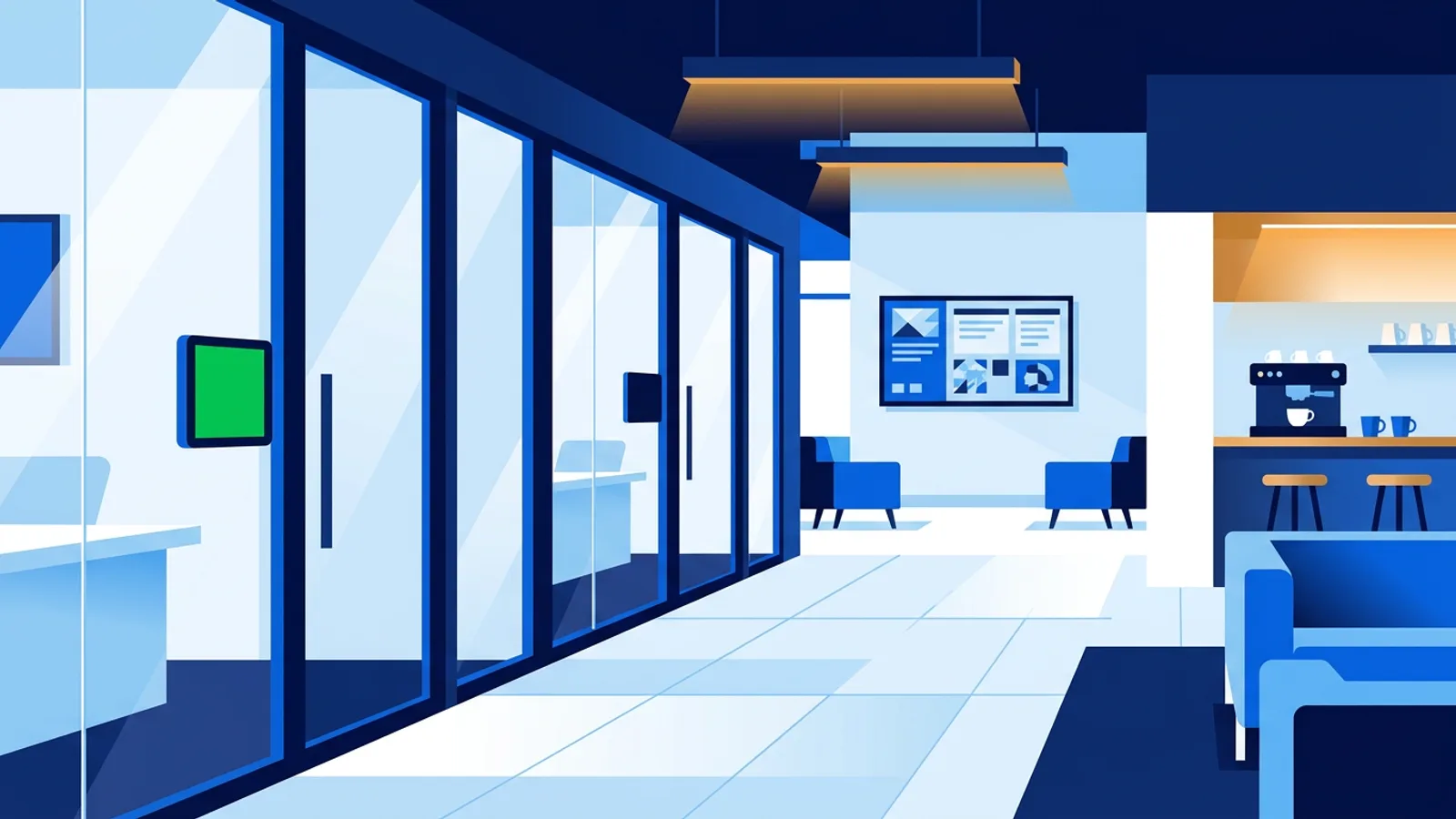
Digital signage for coworking spaces comes down to two jobs: door panels that show whether a meeting room is free right now, and one or two community screens that tell members what is happening today. Both can run from one dashboard on cheap hardware, and the room panels read straight from the room calendars your members already book in.
A TV or small monitor with a Raspberry Pi signage player behind it covers almost every spot in a shared office, and devices with a browser (an old iPad, a smart TV, a Fire TV Stick) fill the gaps where a Pi is awkward.
Below is a screen-by-screen plan, how the meeting room booking screen gets its data, a costed example for a 60-desk space, and the mistakes that make coworking screens go stale or wrong within a few months.
Digital signage for coworking spaces: which screens go where
Most spaces need three kinds of screen. Each has a different audience and a different refresh rhythm, so plan them separately.
| Location | Who looks at it | What it shows | Typical hardware |
|---|---|---|---|
| Meeting room door | Someone walking past, for 2 seconds | Free or busy, current booking, next booking | Small monitor + Pi, or a mounted iPad |
| Lobby or entrance | Members and visitors arriving | Welcome, today's events, Wi-Fi QR code, house rules | 43 to 55 inch TV + Pi 4 or 5 |
| Kitchen or lounge | Members on a break, for a few minutes | Events, member news, Instagram, weather, departures | TV with a Pi, Fire TV Stick or built-in browser |
The door panel has to be readable from across a corridor and correct to the minute. The lobby screen has to look good and stay current. The kitchen screen can be looser and more social, because people actually stand and read it while the coffee runs.
How a meeting room booking screen gets its data
The TVpilot meeting room panel works from the iCal link of a room calendar in Google Workspace or Outlook/Microsoft 365. Paste the link and the screen shows free or busy right now, the current booking and what is next, in the classic door-panel style: green when free, red when busy.
The panel only displays. Members still book the room the way they do today, in Google Calendar, Outlook or whatever booking tool writes to the room calendar. If your members expect to walk up and tap the panel to grab the room, this setup does not do that (more on that in the fit section below).
Getting the iCal link
- Google Workspace: open the room's calendar settings, scroll to Integrate calendar and copy the secret address in iCal format. If the option is missing, your Workspace admin has turned off external sharing for resource calendars.
- Microsoft 365: publish the room calendar from Outlook on the web (calendar sharing settings) and copy the ICS link. For room mailboxes your Microsoft 365 admin may need to allow publishing first.
- A booking platform: many coworking management tools sync bookings to Google or Outlook room calendars. Take the iCal link from that synced calendar.
One link per room, one panel per door. Test by booking a 15-minute slot and watching the panel turn red.
Decide what the hallway is allowed to read
An iCal feed contains whatever the calendar shares. If members title their bookings "Investor call: Series A terms" and the feed includes full details, that title is now on a screen in a public corridor. In a shared office the people walking past are often from other companies.
Fix this in the calendar's sharing settings. Publish the room calendar with free/busy only, or ask members to use neutral titles. Do this before the panels go live, because changing it afterwards can mean a new iCal link and re-pasting it on every panel.
Picking hardware for door panels and lobby TVs
Use these rules rather than buying one device type for everything:
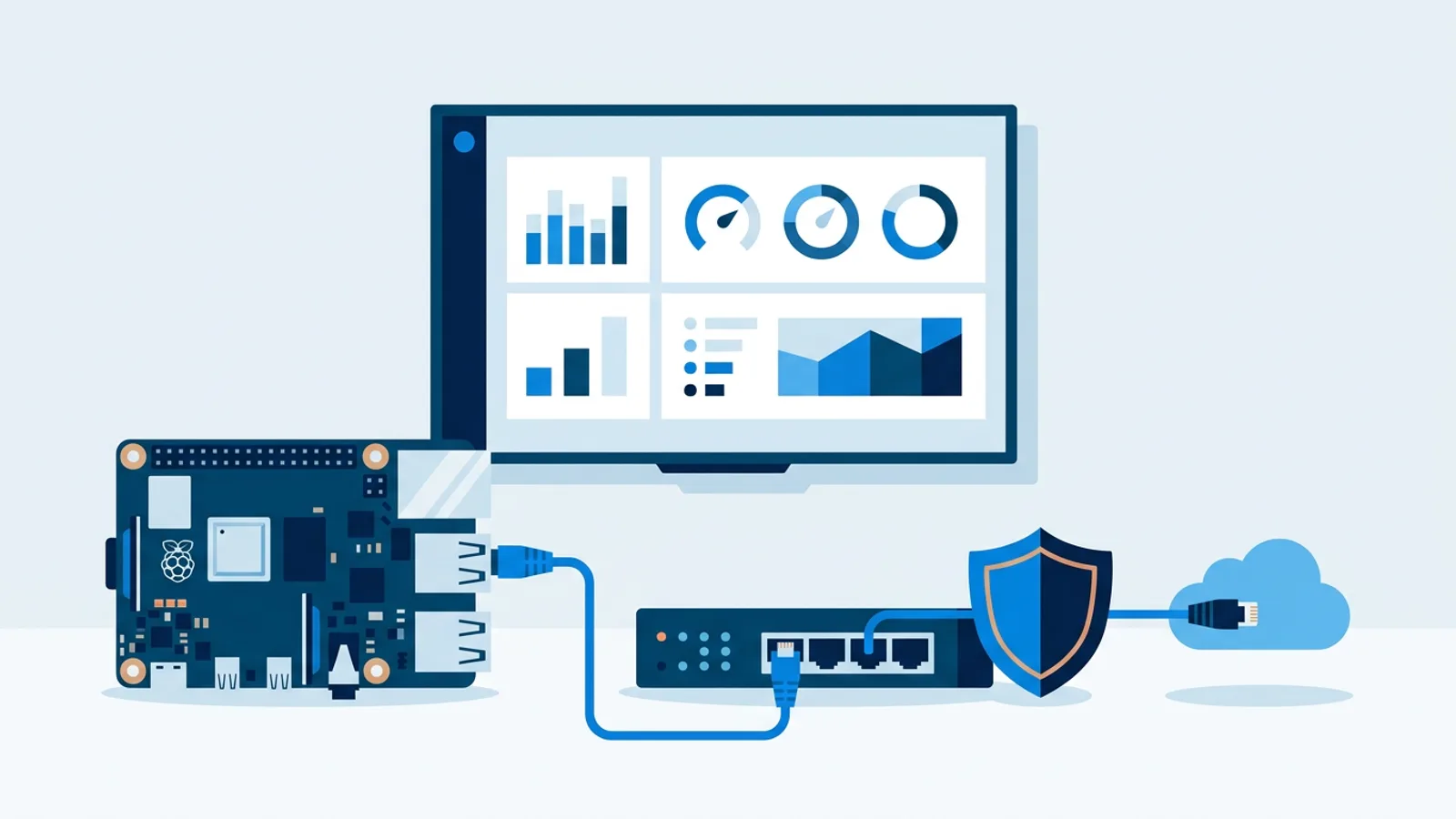
- If there is a power socket and wall space next to the door, use a small HDMI monitor with a Raspberry Pi. The TVpilot installer is one command with a 6-character claim code, it boots straight into kiosk mode, and a watchdog restarts the player within about 10 seconds if it crashes. A Pi 4 or 5 is recommended; for a static door panel an older Pi with Raspberry Pi OS desktop also works.
- If the room has a glass wall or no socket behind the panel position, mount an iPad and open the player URL in the browser. Tablets run on a thin cable from a nearby outlet and the screen looks clean on glass.
- For the lobby TV, use a Pi 4 or 5. You get smooth video, HDMI-CEC power scheduling (the Pi checks the dashboard schedule every minute and switches the TV on or to standby, no smart plug), and daily automatic updates at 03:00.
- For the kitchen TV, use whatever is easiest. A smart TV browser, a Fire TV Stick with the TVpilot app from the Amazon Appstore, or an Amazon Signage Stick are all fine for a screen that mostly shows images and widgets.
One catch with door panels: many computer monitors do not support HDMI-CEC, so scheduled standby may not work on them. Check the monitor spec, or accept that a small panel stays on, which is reasonable for a screen people check outside office hours too.
Put every screen on the staff or IoT network, never on the member guest Wi-Fi. A captive portal that asks for a login will leave a screen stuck on a sign-in page after the next router reboot.
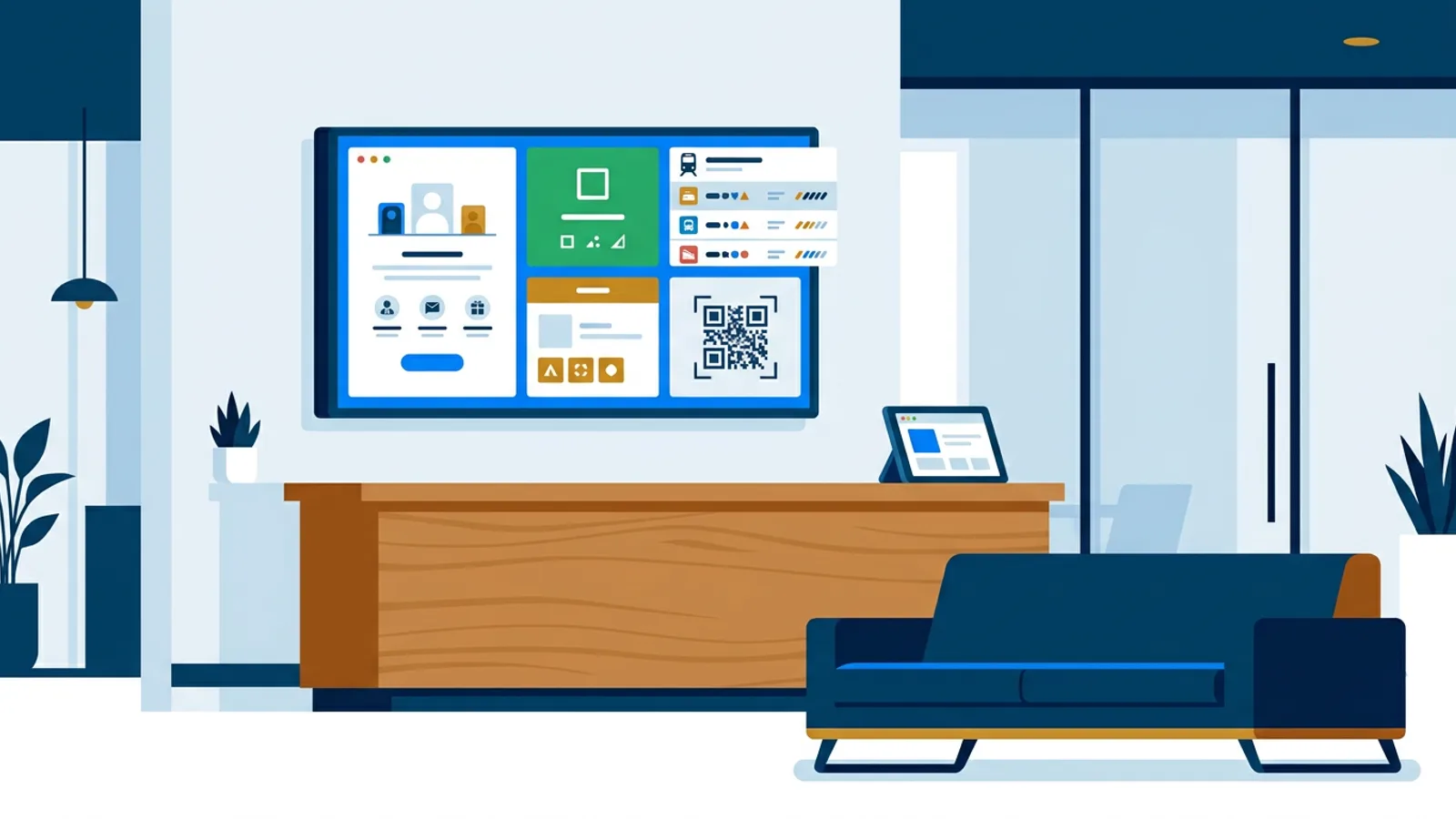
Coworking space TV screens: what to show on the community screen
The community screen earns attention when it tells members something they did not know at breakfast. Content that works in shared offices:
- Today's events from your events calendar via the calendar widget (paste the iCal link, show it as an agenda, day or week view). Lunch talks, workshops and Friday drinks appear on screen as soon as you add them to the calendar.
- A Wi-Fi QR code built in the Designer, so visitors stop asking at the desk.
- Member news and welcomes made in Canva or with AI Studio from a short brief, like "welcome screen for new member Studio Noord, warm colours".
- Your Instagram feed as a live social wall, so event photos show up without extra work.
- Weather and public transport. Spaces in the Netherlands can add a live NS train or OV bus and tram departure board, which members genuinely check before leaving.
- Short notices in the Messages bar: "Kitchen deep clean Thursday 14:00" or "Meeting Room 2 projector out of order".
Timing matters more than volume. Per-slide scheduling lets a slide appear only on chosen weekdays and times, with an expiry date after which it removes itself. A countdown timer that counts to the same time every day (17:00), scheduled to show only on Fridays from 15:00, turns into a Friday drinks countdown. The workshop poster gets an expiry date of the workshop day, so it never hangs around for a week afterwards.
For one-off moments, "Show now" pushes a playlist to chosen screens for 30 minutes, 1 hour, 2 hours or until a set time, then the screens go back to their normal planning. Useful for a fire drill notice or a sponsor slide during an event evening.
Worked example: a 60-desk space with six screens
Say you run a 60-desk coworking space with four meeting rooms, a lobby and a kitchen.
Screens: four door panels, one lobby TV, one kitchen TV. That is six screens. The Starter plan (€5/month) covers up to 5 screens, so six screens puts you on Pro at €19/month, which covers up to 25 screens and 10 GB storage. If one meeting room is really a phone booth that nobody books, dropping that panel keeps you on Starter.
Hardware:
- Three meeting rooms with solid walls: a small HDMI monitor and a Pi 4 each, mounted at eye height beside the door.
- One glass-walled room: a spare iPad on the glass, running the player URL in the browser.
- Lobby: a 55-inch TV with a Pi 5.
- Kitchen: the existing smart TV, pointed at its player URL.
Content setup:
- Each panel gets one meeting room plugin with that room's iCal link. Set this once and leave it.
- Lobby playlist: welcome slide, Wi-Fi QR code, today's events (calendar widget), house rules, at 10 seconds per slide.
- Kitchen playlist: events, Instagram wall, weather, departure board, plus the Friday drinks countdown with per-slide scheduling.
- Power schedule for the lobby TV: on at 07:30, standby at 20:00 on weekdays, standby at weekends.
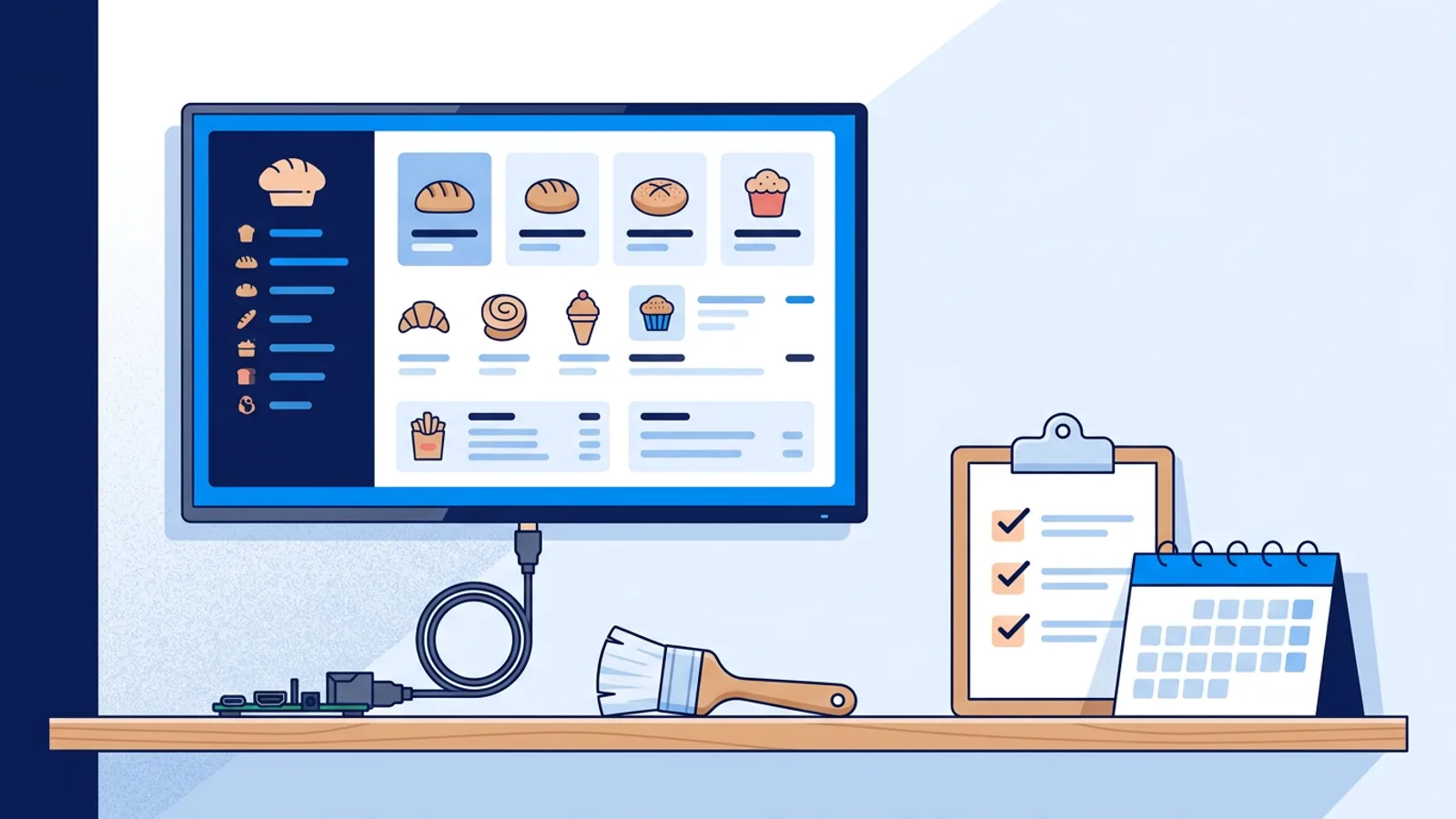
Weekly upkeep: whoever runs community adds events to the shared calendar, which updates both community screens. New posters go in with an expiry date. Expect around 10 to 15 minutes a week once the playlists exist.
A sensible rollout is to start on the Free plan with one door panel (free forever, 1 screen, no credit card), check that bookings show correctly and that meeting titles stay private, then upgrade and add the rest.
Shared office signage ideas that go wrong, and how to avoid them
- Squatters on a "free" room. The panel is only as accurate as the calendar. If people use rooms without booking, the panel says green while the room is occupied. Make "book it even for 10 minutes" a house rule and put it on the lobby screen.
- Ghost bookings. A recurring meeting nobody attends keeps the room red. Panels make these visible, so use them as a reason to clean up recurring bookings once a quarter.
- Stale posters. Last month's workshop on screen tells members nobody maintains it. Set an expiry date on every event slide.
- A dead panel nobody notices. Screen monitoring shows which screens are offline, and email alerts can tell you when a panel drops off so you fix it before a member complains.
- Too much text on the door panel. Leave the panel on the room plugin only. Promotions belong on the community screens.
When TVpilot fits, and when it doesn't
TVpilot fits if you want door panels and community screens in one dashboard, on mixed hardware, at small-business prices. All plugins, including the room panel, calendar widget, Instagram wall and departure boards, are included on every plan, including Free.
It does not fit if you need members to book or check in at the panel itself, or automatic release of rooms when nobody shows up. Dedicated room booking systems with touch panels do that, and if no-show release matters to you, buy one of those for the doors and use TVpilot for the lobby and kitchen. TVpilot is also hosted software only, so it is not an option if your policy requires self-hosting, and screens need internet to receive content updates.
Getting started
Pick one meeting room, get its iCal link, and put the panel on a monitor or tablet beside the door this week. Once bookings show up correctly and titles stay private, add the lobby and kitchen screens with your events calendar. You can create a free TVpilot account and run that first panel at no cost, then move to Starter or Pro when the rest of the space goes live.
Frequently asked questions
Can members book a meeting room by tapping the door panel?
Not with TVpilot. The meeting room panel reads the room calendar's iCal link and displays free or busy, the current booking and the next one. Members keep booking in Google Calendar, Outlook or the booking tool that writes to the room calendar. If you need tap-to-book or automatic release of no-show bookings, use a dedicated room booking system with touch panels for the doors.
Will meeting titles show up on the door panel for everyone to see?
The panel shows whatever the room calendar's iCal feed shares. If the feed includes full event details, booking titles appear on the screen. Publish the room calendar with free/busy only, or ask members to use neutral titles, and do this before going live, because changing sharing settings afterwards can mean a new iCal link that you then have to paste into every panel.
How many screens does a typical coworking space need, and what plan covers that?
A common setup is one panel per bookable meeting room plus a lobby screen and a kitchen or lounge screen. TVpilot's Free plan covers 1 screen, Starter (€5/month) covers up to 5 screens and Pro (€19/month) covers up to 25 screens, so a space with four meeting rooms, a lobby and a kitchen (six screens) lands on Pro.
Should coworking screens use the member guest Wi-Fi?
No. Put signage players on the staff or IoT network. Guest Wi-Fi often uses a captive portal that asks for a login or terms acceptance, and after a router reboot the screen can get stuck on that sign-in page instead of showing content.