Raspberry Pi Digital Signage Network Security Guide
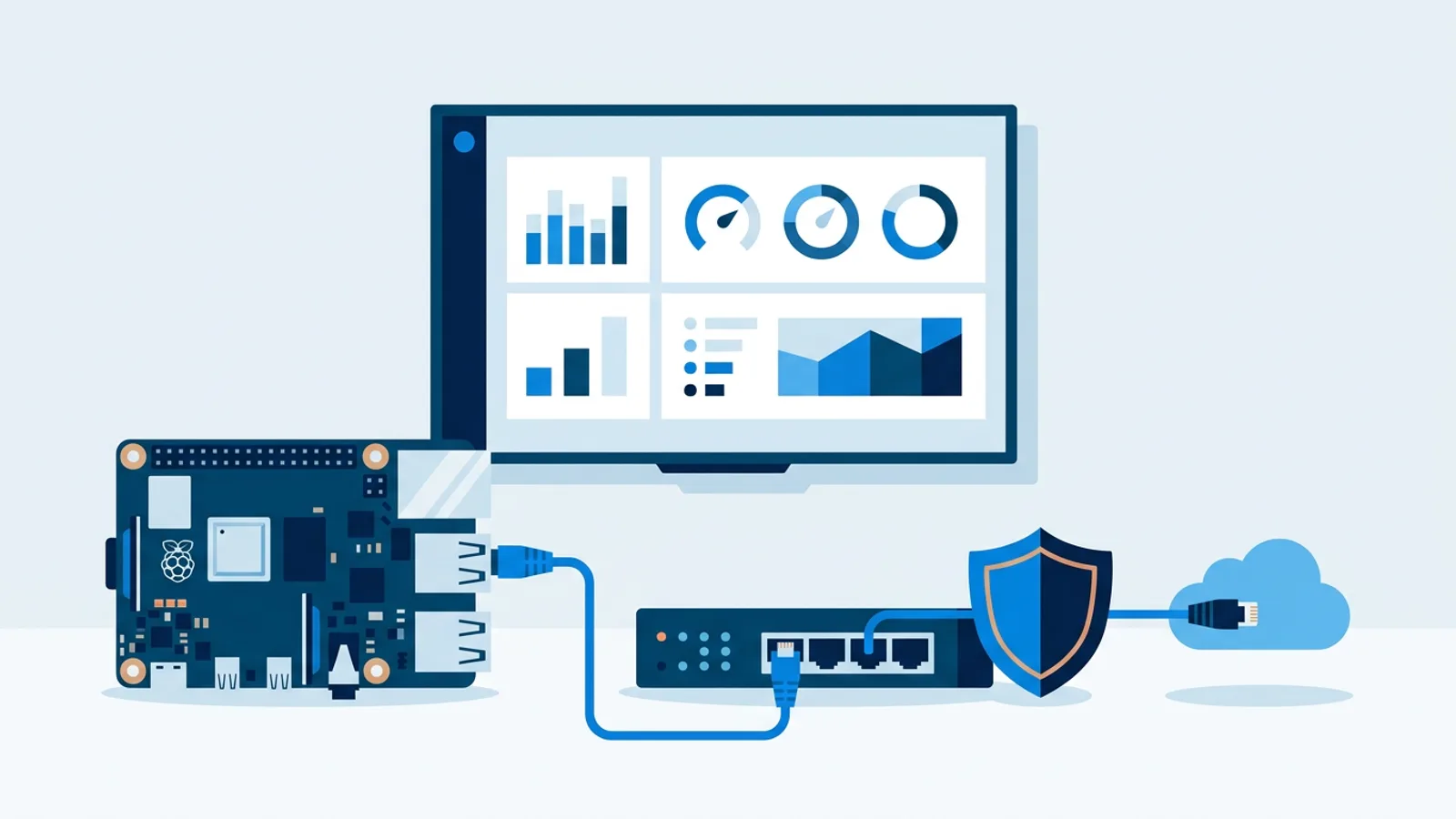
Raspberry Pi digital signage network security comes down to one question an IT manager asks when a Pi player shows up on the corporate network: what does this thing need to talk to, and can I lock it down without breaking it? The short answer is that a signage player needs outbound HTTPS to a handful of domains, nothing inbound, and its own network segment, separate from staff laptops and guest Wi-Fi. The rest of this guide covers how to set that up without the screen going dark every time someone tightens a firewall rule.
If you haven't picked hardware yet, the Raspberry Pi signage setup guide covers the installer and supported models. This article assumes you already have a Pi running a signage player and need to get it through corporate security review.
Raspberry Pi digital signage network security: why IT flags it
A bare Raspberry Pi running Raspberry Pi OS looks, from a network scanner's point of view, like an unmanaged Linux box with a desktop environment and a browser running full-screen. That's a reasonable thing to flag. Three things usually trigger the conversation: the device isn't in the asset management system, nobody can say what ports it needs, and it sits on the same subnet as finance laptops because someone plugged it into the nearest wall jack.
None of that means the Pi is actually risky. A signage player in kiosk mode has a browser pointed at one URL, no keyboard input reaching the OS, and no listening services an attacker could reach from outside. The risk sits almost entirely in what the device is allowed to talk to. Treat it like any other single-purpose network device: give it a narrow lane, log what goes in and out, and add it to the asset register like everything else on the wire.
What a signage player actually needs outbound
A cloud-managed signage player needs three kinds of outbound traffic:
- A connection over HTTPS (TCP 443) to the signage platform's API/dashboard domain, to pull playlists, schedule changes, and remote commands like reboot or cache clear.
- HTTPS connections to whatever content sources the playlists reference: a CDN for uploaded media, YouTube or Vimeo if video slides are used, and any third-party APIs behind widgets (weather, review sites, a Shopify store, an NS departure feed).
- NTP (UDP 123) to keep the clock correct, which matters for dayparting and scheduled slide changes.
It does not need any inbound ports open. There's no reason for anything on the network to initiate a connection to the Pi, so a firewall rule that blocks all inbound traffic to the signage VLAN is the correct default.
Firewall rules: a worked example
Say you're rolling out five Raspberry Pi players across a two-floor office: one in reception, two in meeting rooms, two on wallboards showing support numbers. Your firewall admin wants a concrete rule set before sign-off. This is the one to hand over:
| Direction | Protocol/Port | Destination | Purpose |
|---|---|---|---|
| Outbound | TCP 443 | signage platform domain | dashboard sync, remote commands |
| Outbound | TCP 443 | CDN / media storage domains | playlist images, video, fonts |
| Outbound | TCP 443 | widget/API domains in use (e.g. review sites, payment dashboards) | live widget data |
| Outbound | UDP 123 | NTP pool or internal time server | clock sync |
| Inbound | none | n/a | not required |
In practice most firewalls can't enumerate every CDN edge node a video or review widget might hit, so the workable rule is "allow outbound 443 to any, from this VLAN only, logged." An exact allow-list tends to break the day a vendor changes a hostname. If your security policy requires a strict allow-list, start broad, watch the logs for two weeks, then tighten to the domains that actually appear. Repeat that log review whenever someone adds a new widget type to a playlist, because a new widget usually means a new API domain.
The failure mode here is blocking outbound 443 entirely and only opening specific IPs. Cloud services change IPs behind CDNs regularly. An IP-based allow-list will work on day one and break silently a month later: the screen stops updating but keeps showing yesterday's content, because the player keeps playing the last pushed version during exactly this kind of outage. Nobody notices until someone asks why the lunch menu is a week old.
Put the players on their own VLAN
Keep signage players off the staff VLAN, and keep them off guest Wi-Fi too. Staff VLANs usually allow broader internal access (file shares, printers, internal tools) that a signage player has no business reaching. Guest Wi-Fi often sits behind a captive portal that expects a human to click "accept," which a kiosk browser can't do on its own; see our guide to fixing captive portals for signage if that's the network you're stuck with.
A dedicated signage VLAN, reachable from the main LAN only for management (SSH or the device's own remote-management features) and otherwise isolated, keeps the blast radius small if a Pi is ever compromised. It also makes the firewall rule in the table above trivial to apply consistently across every screen you add later: plug the new Pi into a signage port, and it inherits the same policy.
If your switches don't support VLANs, a separate SSID on a VLAN-capable access point with client isolation enabled gets you most of the way for Wi-Fi players. Wired is still the better choice for wallboards that sit in one place for years.
Locking down the Pi itself
Network rules handle the perimeter; a few local settings handle the device:
- Change the default password immediately, or better, disable password SSH login and use key-based auth only.
- Disable SSH entirely on players you don't need to shell into regularly, and re-enable it temporarily when you do.
- Keep Raspberry Pi OS updated. TVpilot's Pi installer sets up a systemd service with a self-healing watchdog that restarts the player within about 10 seconds if the browser process dies, and checks for player updates daily at 03:00. OS-level security patches remain the administrator's job, so schedule them like you would for any other Linux host.
- Use a static DHCP reservation or a fixed IP per player so the firewall rules and monitoring dashboards don't have to chase a moving address.
- Record each player's MAC address, location and hostname in your asset system on the day you install it.
If a Pi goes missing from a meeting room (it happens), an isolated VLAN with no access to internal systems keeps the loss to a hardware replacement. Revoke the screen in the dashboard, remove any SSH keys that were authorised on it, and pair a replacement.
Bandwidth and content considerations
Security reviews often fold bandwidth questions into the same conversation. A signage player is light on bandwidth day to day: it downloads new media when a playlist changes, and most of the remaining traffic is small API calls checking for schedule updates. Video-heavy playlists are the exception; see our bandwidth requirements breakdown if you're planning several screens on a single office uplink. None of that changes the firewall rules above. It only affects how much headroom you give the signage VLAN.
When TVpilot fits this setup, and when it doesn't
TVpilot is hosted software: the dashboard lives in the cloud, and the Pi player talks outbound to it over HTTPS, which is exactly the traffic pattern described above. The one-command installer sets up kiosk mode, the watchdog, and the HDMI-CEC power schedule without needing inbound access from anywhere. If your security team is comfortable with a managed cloud service handling schedules and remote commands, this is a straightforward fit. You also get screen monitoring (online/offline status, Wi-Fi signal, device logs, remote restart) from the same dashboard that handles content, so IT doesn't need a separate tool to check if a screen died overnight. On the account side, two-factor authentication, session management and team roles (owner, admin, editor, viewer) let you limit who can push content or reboot players.
It is the wrong fit if your policy requires self-hosted infrastructure with no outbound cloud dependency at all: TVpilot isn't open source or self-hostable, and the player needs internet connectivity to receive content updates. It keeps playing its last content during an outage, but won't pick up new playlists until the connection returns. If that's a hard requirement, you're looking at an on-premises signage server instead, which is a different project with its own tradeoffs.
If the cloud model works for your network policy, claim codes and the installer script are generated in the dashboard. Start on the free plan, one screen, no credit card, and test the firewall rules above against a real player on your signage VLAN before rolling out the rest of the fleet.
Frequently asked questions
What firewall ports does a Raspberry Pi digital signage player need?
A cloud-managed signage player needs outbound TCP 443 (HTTPS) to the signage platform, its media CDN and any widget APIs, plus outbound UDP 123 for NTP time sync. It needs no inbound ports, so you can block all inbound traffic to the signage network segment.
Can I put signage players on our existing printer or IoT VLAN?
You can if that VLAN allows outbound HTTPS to the internet and cannot reach staff subnets or file shares. Many printer VLANs have no internet access or are reachable from every staff laptop, and in that case a dedicated signage VLAN with outbound 443 and NTP only is the cleaner option.
What happens to the screen if the firewall blocks the player?
The player keeps showing the last content it received, so the screen does not go black, but it stops picking up new playlists and schedule changes. In TVpilot the screen will show as offline in the dashboard monitoring, which is the quickest way to spot a firewall change that cut it off.
Do I need inbound access to reboot or update a Pi player remotely?
No. With TVpilot the Pi player connects outbound to the dashboard, and remote reboot, remote update and cache clear are triggered from the dashboard without opening any inbound ports on your network.