Reception Digital Signage: What to Show Behind the Desk
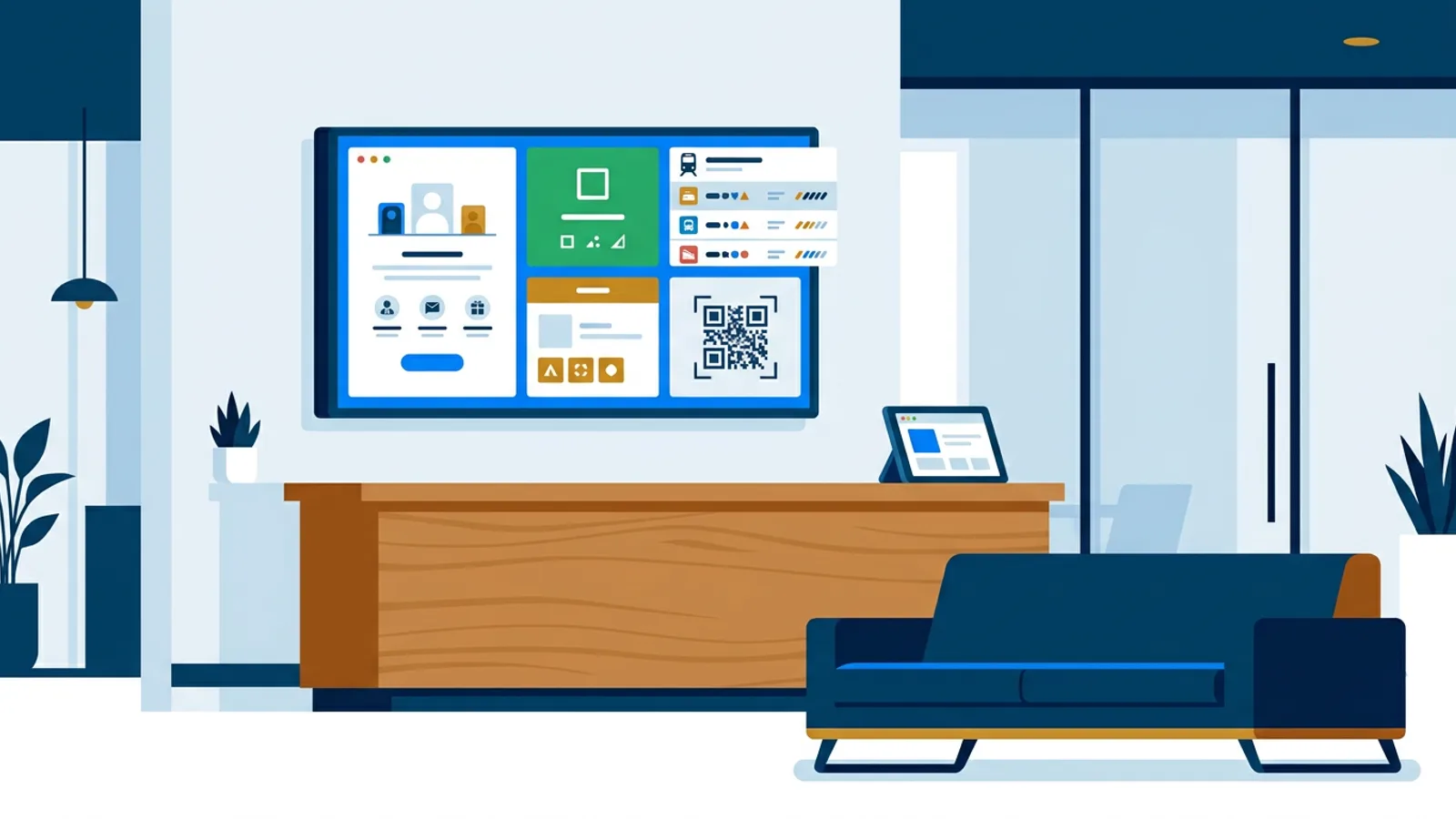
The screen behind your front desk should answer the questions people ask the receptionist: am I expected, is my meeting room free, what is the Wi-Fi, and when does my train leave. Good reception digital signage puts those answers in a 60-second loop, so a visitor waiting a few minutes sees each one at least twice without asking.
A loop of brochure slides gives a visitor nothing to act on, so it gets one glance. Slides whose content changes during the day (room status, the next train, today's guest) give people a reason to look up again, and the brand slides placed between them get seen on the way.
This guide walks through each slide worth putting on a reception TV screen, a sample loop with exact durations, and the mistakes that make visitors ignore the screen. The live parts (room status, departures, weather) come from plugins, such as the meeting room panel that reads a room calendar and shows whether it is free or busy.
Who looks at a reception screen, and for how long
Plan the content around three groups of people:
- Arriving visitors wait for their host. They want confirmation they are expected and the Wi-Fi password.
- Staff walking past glance for a second or two. They care about room availability and company news.
- People leaving want the next train or bus, and whether they need a coat.
A visitor sitting down sees the full loop several times, so a single slide can be short. Someone walking past sees one or two slides. That is why the most time-sensitive information (rooms, departures) belongs in short slides that come around often.
The reception digital signage playlist, slide by slide
Welcome slide with the visitor of the day
This is the first slide in the loop and the one that tells a visitor they are expected. Put the guest's name or company, the host, and the time. Keep it to three lines of text at a size readable from the waiting chairs.
The practical problem is that the name changes every day and somebody has to update it. Two habits make it manageable:
- Give each welcome slide an expiry date. TVpilot's per-slide scheduling lets a slide show only on chosen weekdays and between chosen times, and an expiry date takes it off screen by itself. Yesterday's guest never greets today's guest.
- Keep a generic welcome slide underneath that always plays. On days with no named visitor, the loop still opens with a welcome.
If you do not want to design the slide yourself, AI Studio drafts a welcome screen from a short description ("welcome slide for an architecture firm, dark green, logo top left, space for a guest name"). You then edit the name in the built-in Designer each morning.
Meeting room panel
The meeting room panel reads the iCal link of a room calendar from Google Workspace or Outlook/Microsoft 365. It shows green when the room is free and red when it is busy, plus the current booking and what comes next. Staff stop asking the receptionist whether "the big room" is taken.
Add one panel per room calendar. With two or three rooms, give each panel its own slide of five or six seconds. With more rooms, pick the ones visitors actually use (usually the ones near reception) and leave internal rooms on their own door panels. If you would rather show the whole day's bookings at a glance, the calendar widget displays any iCal feed as an agenda, day or week view.
Check what your room calendar exposes before you put it in a lobby. If people title meetings with client names or sensitive subjects, those titles can end up on a screen strangers read. Agree on neutral titles for room bookings, or check whether your calendar system lets the room publish free/busy only.
The same panel on a tablet next to the meeting room door is the classic door panel, and it uses the same iCal link.
Departure times for people leaving
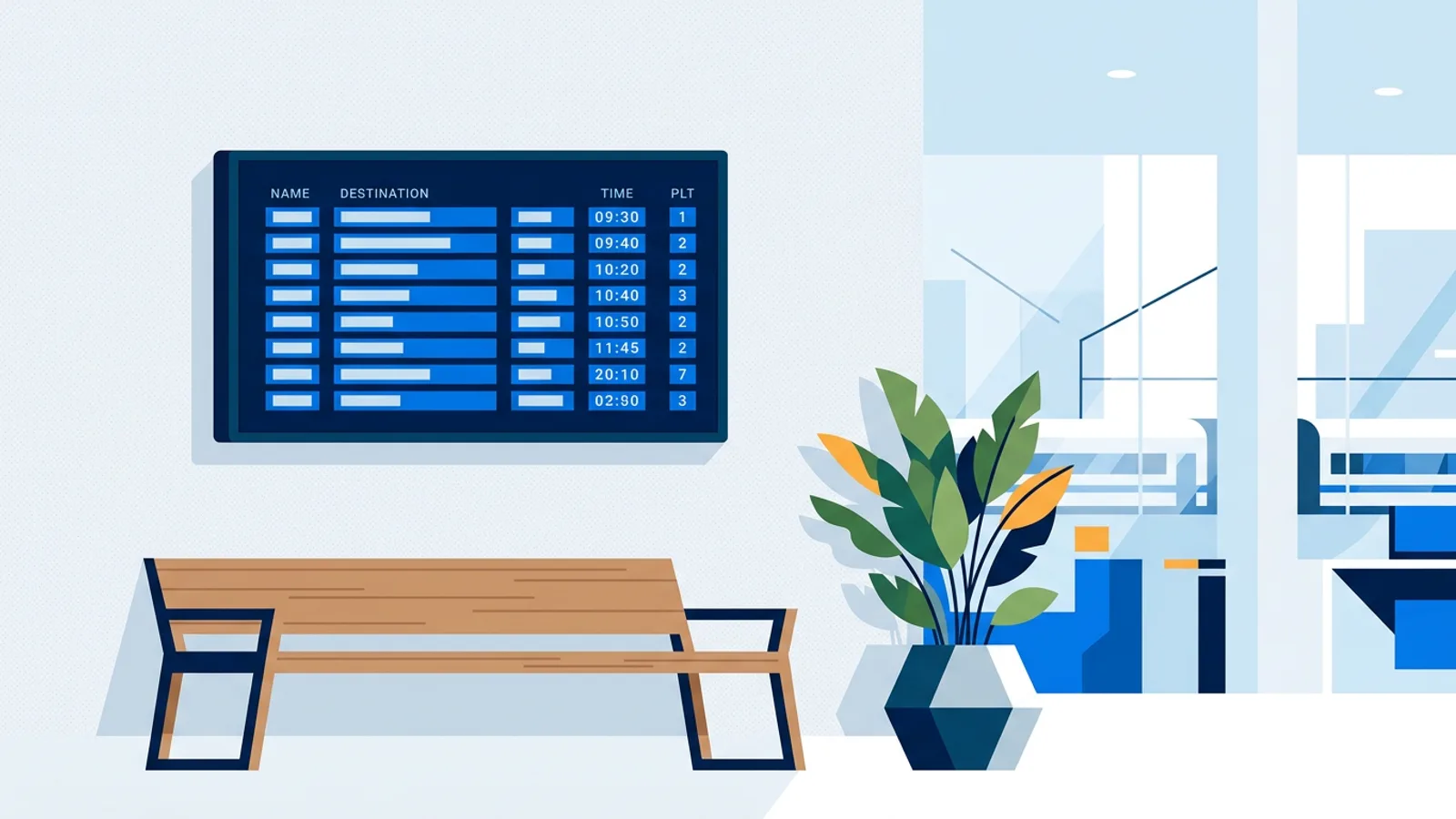
People leaving check this slide on their way to the door, so place it where they pass it last. TVpilot's NS and OV board shows live departures for any Dutch station with delays, platform and destination. Train departures need your own free NS API key; bus, tram and metro departures come from OVapi and need no key. Pick the nearest station and the stop outside your building. The departure board guide covers the setup and design choices in detail.
If your office is outside the Netherlands, this plugin does not cover your transport operator. A Google Slides deck with a static timetable is a weak substitute; you are better off skipping this slide.
Weather
One slide, five or six seconds. People leaving decide on a coat or an umbrella; people arriving have just been outside and do not need it. The weather widget earns its place because it is short and always current.
Company news
New hires, a project that went live, the Friday lunch. Two or three items at most, and replace them every week. Stale news is worse than none, because regular visitors notice the same slide for a month. Use expiry dates here too.
If your marketing team already keeps news in Canva or Google Slides, paste the share link and the slide updates when they edit the design. Nobody has to re-upload.
Wi-Fi QR code for guests
Receptionists answer the Wi-Fi question many times a day. A QR code that joins the guest network in one scan saves everyone typing a long password. Build the slide in the Designer, which can place a QR code on any slide next to your logo and a one-line instruction ("Scan to join the guest Wi-Fi"). A code that is part of the slide itself stays sharp at any screen size, where a pasted screenshot of a code often turns blurry on a large TV. The QR and Wi-Fi page shows the options for putting a guest network code on screen.
The catch is distance. A screen mounted high behind the desk puts the code too far away for many phone cameras. Plan for roughly a 10:1 scan distance to code width, so a code 25 cm wide works from about 2.5 metres. If the sofa is further away than that, make the Wi-Fi slide full-screen with the code as large as possible, or put the same code on a tablet or printed card at the desk.
House rules in a message bar
Sign-in at the desk, visitor badges visible, no entry past the glass door without your host. Put these in an on-screen message bar instead of a full slide. Keep the text to one short line that someone walking past can read in a couple of seconds.
Reviews or social wall (customer-facing receptions)
If the people at your desk are customers (a clinic, a car dealer, a hotel, an agency with walk-in clients), reviews do more than company news. Trustpilot reviews show as a rotating, grid or summary view and can be filtered by minimum rating. Tripadvisor and Yelp show your rating and best reviews from the public business page, and a Google reviews widget puts your Google reviews on screen. An Instagram handle turns into a live social wall. For a purely internal office reception with suppliers and candidates, skip this slide.
A sample 60-second reception loop
Say you run an office of 40 people with one TV behind the front desk and two meeting rooms near reception. Here is a loop that fits everything above into one minute:
| Order | Slide | Duration | Source |
|---|---|---|---|
| 1 | Welcome slide, visitor of the day | 12 s | Designer or AI Studio, expires tonight |
| 2 | Meeting room "Amstel" | 6 s | Meeting room panel, room iCal link |
| 3 | Meeting room "IJssel" | 6 s | Meeting room panel, room iCal link |
| 4 | Departures, station and bus stop | 10 s | NS and OV board |
| 5 | Guest Wi-Fi QR code | 8 s | Designer slide with QR code |
| 6 | Weather | 6 s | Weather widget |
| 7 | Company news | 12 s | Canva link or Designer slide |
| Extra | House rules | no slide time | On-screen message bar instead of a full slide |
Total: 60 seconds. A visitor who waits four minutes sees the welcome and the Wi-Fi code four times each.
For a customer-facing reception, swap slide 7 for a reviews slide of 12 seconds. If departures matter more than anything else (a building next to a station), split them into two 6-second slots at positions 2 and 6 so they come around every 30 seconds.
Two timing rules hold for every reception loop. Text-heavy slides need about a second per short line plus two seconds to find the start, so a departure board with eight rows gets ten seconds, never five. And no single slide should run longer than 15 seconds, or people walking past miss everything else.
Hardware for a reception TV screen
Any TV works. What matters is the player behind it:
- Fire TV Stick: plug it in, open the Silk browser with the player URL. Cheapest route for one screen. The Fire TV Stick setup page walks through it.
- Raspberry Pi 4 or 5: a one-command installer sets up kiosk mode, and HDMI-CEC power scheduling switches the TV on before reception opens and to standby at night, with no smart plug. The better choice if the screen should run unattended for years; see the Raspberry Pi signage page.
- Tablet: an iPad or other tablet in a browser works for the meeting room door panel.
Use a wired network or the staff Wi-Fi for the player. Guest networks with a login page are a common reason reception screens show an error instead of content.
Mistakes that make visitors ignore the screen
- Text too small. Test every slide from the visitor chairs, not from your desk. If you cannot read it from there, cut words.
- A loop longer than two minutes. Visitors leave before the welcome slide comes back.
- Out-of-date names and news. Nothing looks worse than greeting last Tuesday's guest. Expiry dates fix this.
- Meeting titles that should not be public. Check the room calendar before it goes on a lobby screen.
- Screen on at 22:00 for an empty lobby. Schedule power off outside office hours.
When TVpilot fits, and when it does not
TVpilot fits a small or mid-sized office that wants live room status, Dutch departures, weather and its own slides on one or a few screens without building anything. The Free plan covers one screen at €0 with AI Studio included; Starter at €5 a month covers up to five screens, enough for a reception TV plus door tablets.
It is the wrong tool if you need visitor registration (sign-in, badge printing, host notifications); use a dedicated visitor management system for that and keep the screen for information. It is also wrong if your IT policy requires self-hosted software, because TVpilot is hosted only, or if your office is outside the Netherlands and departures are the main reason for the screen.
Set up your reception screen this week
Start with three slides: a welcome slide, one meeting room panel, and the Wi-Fi QR code, with house rules in the message bar. Add departures, weather and news once the first version has run for a few days and you have checked readability from the chairs. You can build the whole loop on the Free plan and have it playing on your reception TV the same afternoon: create your free TVpilot account.
Frequently asked questions
What should I put on a reception TV screen?
Show what visitors would otherwise ask the receptionist: a welcome slide with the visitor of the day, meeting room status, a guest Wi-Fi QR code, departures from the nearest station, the weather and two or three current company news items. Put house rules in an on-screen message bar instead of a full slide. Customer-facing receptions can swap the news for reviews.
How long should a reception digital signage loop be?
Around 60 seconds works well. A visitor waiting a few minutes then sees every slide several times. Keep single slides between 6 and 15 seconds, and give text-heavy slides such as a departure board about ten seconds so people can read every row.
Can a reception screen show whether meeting rooms are free?
Yes. TVpilot's meeting room panel reads the iCal link of a room calendar from Google Workspace or Outlook/Microsoft 365 and shows green when the room is free, red when it is busy, plus the current booking and what comes next. Check that meeting titles are safe for strangers to read before putting the panel in a lobby.
How big should a Wi-Fi QR code be on a lobby screen?
Use a rough 10:1 ratio of scan distance to code width. A code 25 cm wide scans from about 2.5 metres. If visitors sit further away, make the Wi-Fi slide full-screen with the code as large as possible, or put the same code on a printed card or tablet at the desk.