Digital Signage Maintenance: Weekly to Yearly Checklist
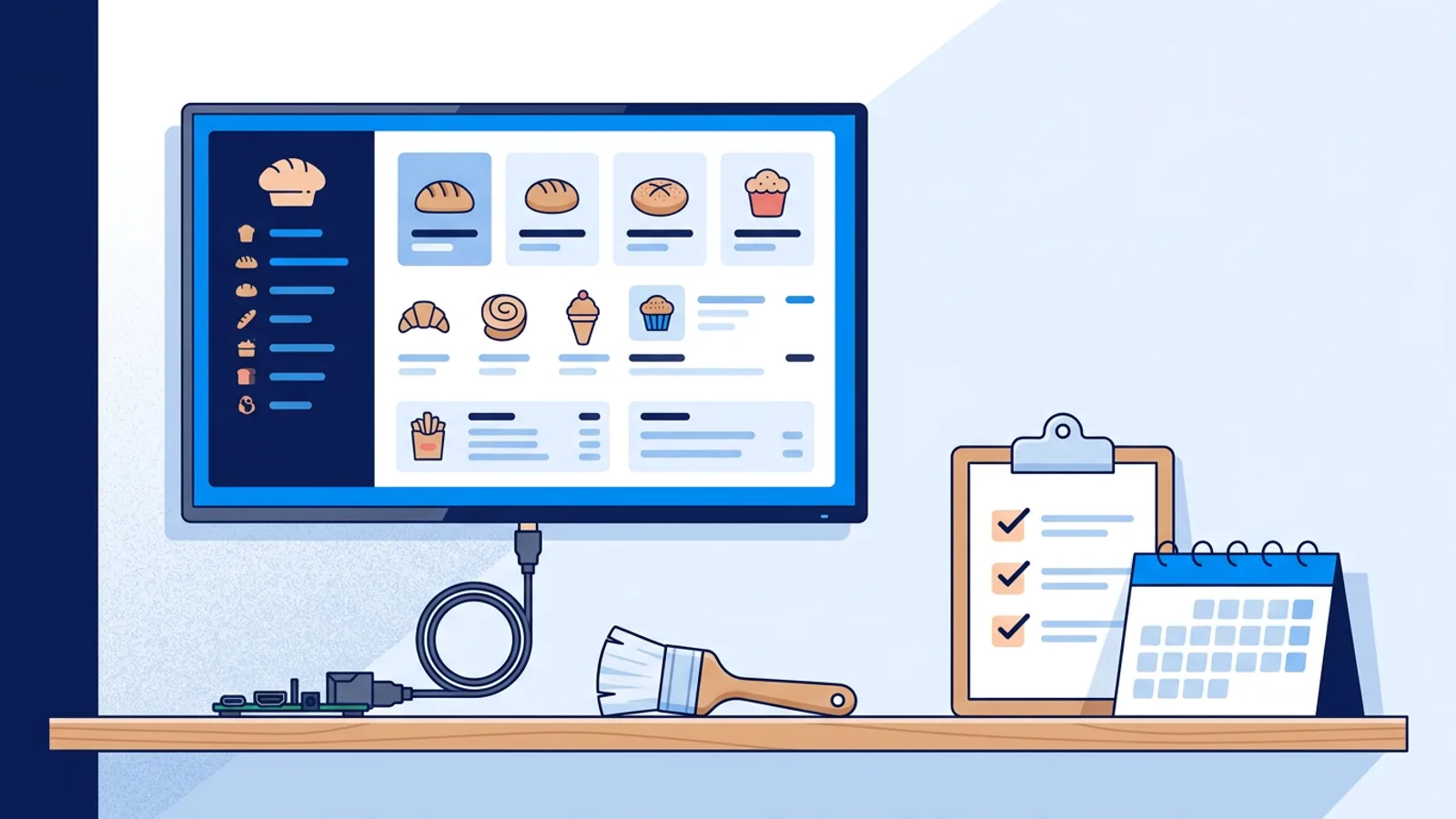
Digital signage maintenance comes down to three routines: a ten-minute weekly check of what is actually on screen, a thirty-minute monthly pass over hardware, software and schedules, and a yearly physical inspection. The checklist below covers each routine, with time estimates for a three-screen setup and a note on how they scale up to ten screens.
Most signage failures are mundane problems that nobody spotted in time. A promotion that ended two weeks ago is still running. A player dropped off the Wi-Fi on Friday night and nobody noticed until Monday. A TV stopped switching on by itself after a firmware update. None of these need a technician, but all of them need someone to look on a schedule.
If your screens run on a Raspberry Pi signage player, a lot of this can be automated, and the sections below say which parts. The rest is a short habit you put in the calendar.
What actually goes wrong between checks
Before the checklist, it helps to know what you are checking for. In small setups, problems fall into five groups:
- Stale content. Expired offers, last season's menu, an event poster for a date that has passed. Customers notice this before you do, and it makes the whole screen look unattended.
- Silent offline screens. The player loses its network connection, crashes, or the TV switches to another input. The screen shows a frozen slide, a black image or a "no signal" box.
- Software drift. The player, the browser or the operating system falls behind on updates, or a cache fills with old files and playback starts to stutter.
- Physical wear. Dust in the player's vents, a loose HDMI cable behind a wall mount, a cheap power adapter that causes random reboots, an SD card that starts to fail.
- Power schedule problems. Screens that stay on all night, or stay off in the morning, after a clock change, a TV firmware update or someone pressing a button on the remote.
Each item on the checklist targets one of these.
The weekly digital signage maintenance checklist (10 minutes)
Do this on the same day every week. Monday morning works well because weekend problems surface then.
- Look at every screen, in person or by screenshot. Confirm it shows the playlist you expect, not a frozen frame. A remote screenshot from the dashboard counts if you cannot walk past.
- Scan the playlist for anything that ends this week. Offers, opening hours for a holiday, event slides. Set an expiry date on them now so they remove themselves.
- Check which screens went offline since last week. One short dropout is normal. The same screen dropping out several times points to Wi-Fi or power trouble you should fix in the monthly pass.
- Confirm the screens switched on and off on schedule. If a screen was on at 23:00, the power schedule is not working.
If a screen is down when you check, start with the cheapest fix: a remote restart, then a cache clear, then a physical look at the cable and power. Our Raspberry Pi signage troubleshooting guide walks through the specific error states.
The monthly checklist (30 minutes)
The monthly pass is where you catch slow problems before they turn into a black screen.
Content
- Delete slides that have expired or are paused and no longer needed. A long playlist of hidden slides makes the next edit slower and error-prone.
- Check that every screen has a backup playlist, so it shows something sensible if its main content is empty or unavailable.
- Look at the next month's calendar: holidays, events, menu changes. Schedule them now instead of the morning of.
Software and players
- If a screen was switched off or unplugged for a while, trigger a remote update from the dashboard, or schedule a reload of every screen tonight at 03:00, so no player keeps running an old session.
- Clear the cache on any screen that has shown stuttering video or slow slide changes.
- Review the device logs or uptime history for each screen. A screen that reboots every night at random times usually has a power supply problem.
Network
- Check Wi-Fi signal strength per screen. A player at the edge of coverage works most of the day and drops out when the shop fills up with phones. If a screen is weak, move the access point, add one, or run an Ethernet cable.
- If the screens sit on a guest network, confirm the captive portal has not started intercepting the players again after a router change.
Power schedule
- Compare actual on/off times with the schedule, especially in the months with a daylight saving change.
- If the TV ignores the schedule, check that HDMI-CEC is still enabled in the TV menu. TV firmware updates sometimes switch it off.
The yearly checklist (1 to 2 hours)
Once a year, preferably during a quiet week, do the physical work.
- Clean ventilation. Blow dust out of the player case and the TV's rear vents. A Raspberry Pi tucked behind a TV in a kitchen or bakery collects grease and flour faster than one in an office.
- Reseat and inspect cables. Pull and reconnect HDMI and power. Replace any cable with a kinked connector or one that is held in place by tape.
- Check the power supply. Use the official adapter for your Pi model. Under-powered adapters cause the random reboots that are hard to diagnose remotely.
- Plan for SD card wear. Cards in always-on players can fail after long use. Keep a spare card in the drawer. With a one-command installer and a new claim code, reinstalling is a short job, not a project.
- Inspect the panel for burn-in or image retention (see below).
- Review the whole setup. Does each screen still have a job? A screen nobody looks at is worth moving or switching off.
At a glance
| Cadence | Task | Time for 3 screens | Catches |
|---|---|---|---|
| Weekly | Check screenshots, upcoming expiries, offline history, power on/off | 10 min | Stale content, silent offline screens |
| Monthly | Clean up playlists, verify backups, remote update, cache, Wi-Fi, CEC | 30 min | Software drift, weak network, schedule drift |
| Yearly | Dust, cables, power supplies, spare SD card, burn-in inspection | 1 to 2 hours | Physical wear |
The times scale with screen count. For each screen beyond three, add roughly a minute to the weekly check, two to three minutes to the monthly pass and 15 to 20 minutes to the yearly inspection. A ten-screen setup lands around 15 to 20 minutes a week and about 50 minutes a month.
Worked example: a bakery with three screens
Say you run a bakery with three screens: two menu boards behind the counter and one in the window. Each runs on a Raspberry Pi 4 with TVpilot on the Starter plan (€5 per month, up to 5 screens).
Setup, once. You set an expiry date on every seasonal slide (the Easter specials end on Easter Monday, the summer iced-coffee promo ends 31 August). You assign a backup playlist with the standard menu and opening hours to all three screens. You set a power schedule from 06:30 to 18:30 on the menu boards and 06:30 to 21:00 on the window screen, and turn on email alerts for offline screens and expiring content.
Weekly, Monday 07:00, about 10 minutes. You open the dashboard. The online/offline status and the Health page show the window screen went offline twice on Saturday. You look at screenshots of all three screens and see they are playing correctly now. You check the expiring-content alert: the weekend croissant deal ends Wednesday and already has an expiry date, so nothing to do.
Monthly, first Monday, about 30 minutes. You open the Health page and see the window screen has the lowest uptime of the three, and its Wi-Fi signal is weak. That explains Saturday. You move the router's access point a metre closer and plan an Ethernet cable for next month. You delete four expired slides, schedule a reload of all three screens tonight at 03:00, and schedule next month's menu change on the Schedule page.
Yearly, in the quiet January week, about 90 minutes. You take the Pis off their mounts, blow out flour dust, replace one kinked HDMI cable and put a spare SD card in the drawer.
Total over a year is roughly 9 hours of weekly checks, 6 hours of monthly passes and 1.5 hours of physical work: 16.5 hours, or just under 20 minutes a week on average.
Burn-in and image retention
Static elements that stay in the same spot for months, like a logo in the corner, a clock or a ticker bar, can leave a faint ghost on some panels. OLED TVs are the most sensitive. LCD panels usually show temporary image retention that fades, but it is still worth preventing.
Three habits reduce the risk:
- Switch screens off outside opening hours. Fewer hours of the same image means less wear, and it saves power.
- Vary the layout. Rotate slides with different designs instead of one fixed template with a permanent logo position. Shuffle helps if the order does not matter.
- Avoid all-day static screens on OLED. If a screen must show one image all day, an LCD panel is the safer choice.
On your yearly check, show a plain grey or white full-screen slide and look for ghost shapes. If retention is temporary, a night with the screen off usually clears it.
What to automate so the checklist stays short
Every item you automate removes a way for the checklist to fail when you are busy. In TVpilot, these are the parts that run without you:
- Offline alerts. Online/offline status per screen with optional email alerts when a screen goes offline and when it recovers, plus a signed webhook if you want the alert in Slack or Teams.
- Expiring content. A per-slide expiry date takes a slide off screen on its own, and an email alert warns about expiring content.
- Player recovery. The Pi player has a self-healing watchdog that restarts it within about ten seconds if it crashes, and it recovers automatically after internet outages.
- Updates. Pi players check for updates daily at 03:00. You can also trigger a remote update or reboot from the dashboard.
- Power. The Pi checks the dashboard power schedule every minute and switches the TV on or to standby over HDMI-CEC, so no smart plug is needed.
- Remote fixes. Remote restart, cache clear, screenshots, device logs and Wi-Fi signal strength are in the dashboard, so most weekly checks happen from your phone.
The Health page shows uptime per screen and fleet charts. Reading it takes about five minutes of the thirty-minute monthly pass; the rest goes to playlist cleanup, Wi-Fi fixes and planning next month's content.
When TVpilot fits, and when it does not
TVpilot fits if you have one to a few dozen screens, want monitoring and alerts without running your own server, and are happy using a Raspberry Pi, an Amazon Signage Stick or a browser as the player. The Free plan covers one screen with no credit card, so you can test the alerts and power schedule on a real TV first.
It does not fit if you need a self-hosted or open-source system: TVpilot is hosted SaaS only. It is also a weaker choice for screens with no reliable internet, because players need a connection for content updates. And if you have a single screen showing one fixed image that never changes, a USB stick in the TV and a yearly dust-off is honestly enough maintenance.
Put the first check in your calendar
Block ten minutes every Monday and thirty minutes on the first Monday of the month, then automate everything that can send you an email instead. If you want offline alerts, expiry dates, automatic updates and an HDMI-CEC power schedule working before your next check, create a free TVpilot account and connect your first screen today.
Frequently asked questions
How often should digital signage be maintained?
A practical rhythm for small setups is a ten-minute weekly check of what is on screen and which screens went offline, a thirty-minute monthly pass over playlists, player software, Wi-Fi and power schedules, and a one to two hour yearly physical inspection of vents, cables, power supplies and the panel itself.
Why does my digital signage screen keep going offline?
The usual causes are weak Wi-Fi at the screen's location, an under-powered or cheap power adapter causing reboots, a captive portal on a guest network blocking the player, or the TV switching to another input. Check Wi-Fi signal strength and device logs first, then try a remote restart and cache clear before inspecting cables and power on site.
Can digital signage screens get burn-in?
Yes. Static elements like a fixed logo, clock or ticker that stay in the same place for months can leave a ghost image, especially on OLED TVs. LCD panels usually show temporary retention that fades. Switching screens off outside opening hours and rotating varied slide layouts reduce the risk.
How long does an SD card last in a Raspberry Pi signage player?
There is no fixed lifespan, but cards in always-on players can wear out after long use. Keep a spare card on hand. With TVpilot's one-command installer and a new claim code from the dashboard, reinstalling a Pi player on a fresh card is a short job.