Digital Signage TV Software: What Runs on Your Screen
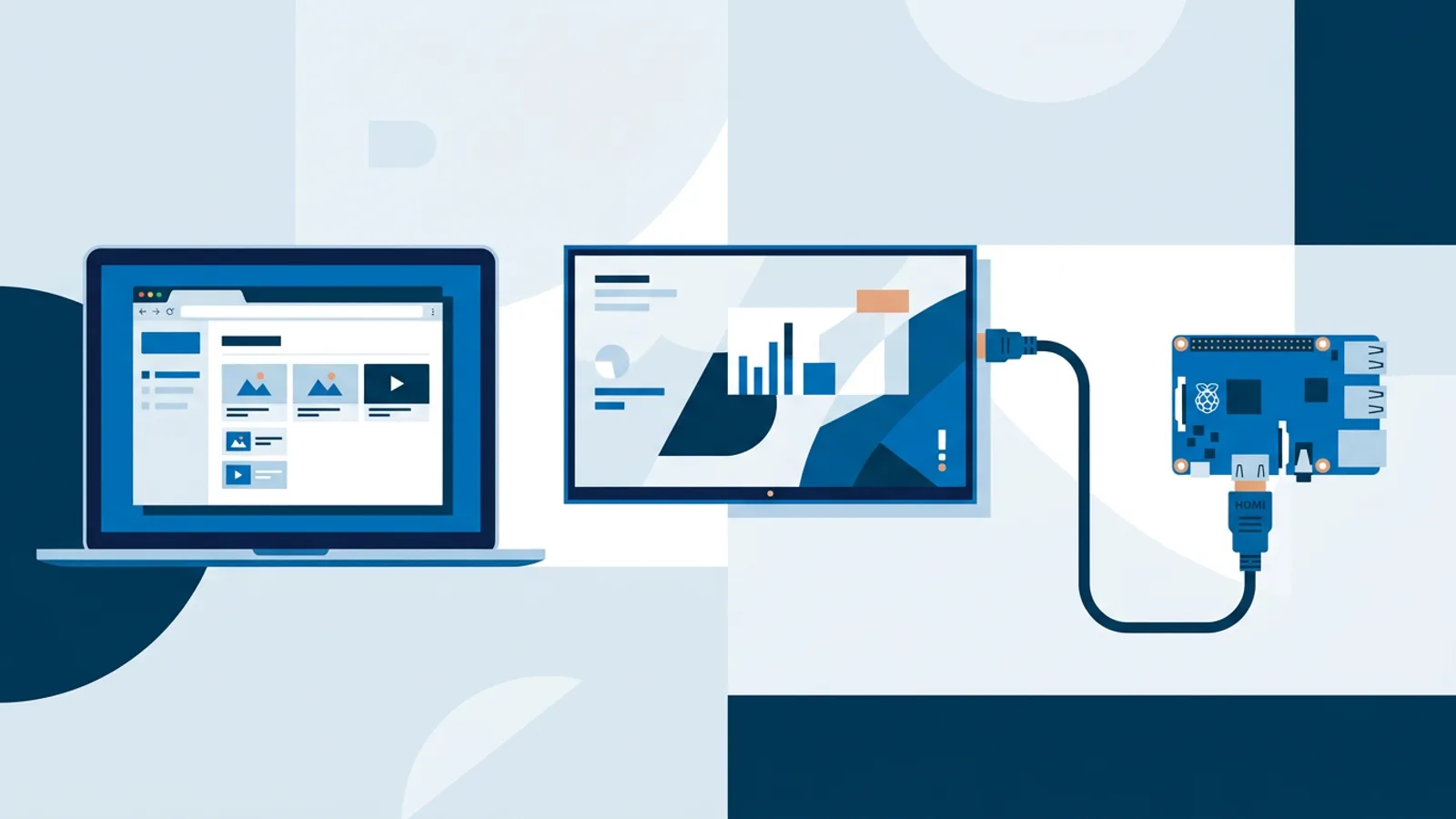
Digital signage TV software has three parts: the TV itself, a player that opens your content full-screen, and a web dashboard where you build playlists and schedules. Choose the player by how unattended the screen has to run, then choose the dashboard by how much scheduling and monitoring you need.
Most people searching for this already own the TV and want to know what to install on it. Often the answer is nothing, because many smart TVs can open a player URL in their built-in browser, as our guide to signage on a smart TV browser shows. Whether that is good enough depends on what happens when the power cuts out at night and nobody is there with the remote.
Below you'll find what each part does, a decision rule per situation, and a two-screen example with real plan prices.
The three parts of digital signage TV software
The TV is the display
For signage, the TV needs an HDMI input and a picture you're happy with. Its own operating system only matters if you plan to use its built-in browser as the player.
Two settings matter more than the brand. First, does the TV come back on the last-used input after a power cut? Second, is HDMI-CEC switched on? Manufacturers give it their own names (Anynet+ on Samsung, SimpLink on LG, Bravia Sync on Sony). CEC lets a connected player switch the TV on and back to standby, which is how you get a screen that turns itself off at closing time.
The player shows the content
The player is the device or app that loads your content full-screen and keeps it running. The common options are:
- The TV's built-in browser
- A Fire TV Stick with the Silk browser
- A Chromecast with Google TV with a browser such as TV Bro
- A Raspberry Pi running Chromium in kiosk mode
With TVpilot, all of these open the same kind of player URL in a modern browser. There is no TVpilot app in the Amazon Appstore or Google Play yet, so Fire TV and Android TV devices use the browser route: Silk, TV Bro or Fully Kiosk Browser pointed at the player URL.
The dashboard manages what plays
The dashboard is a website you log into from a laptop or phone. It holds your media, playlists and schedules, and the player fetches whatever you assign to it. This is the part people compare when they compare signage vendors. For even a single TV, check three things: can it change content by time of day, can it tell you the screen is offline, and can you update content without walking over to the TV.
Which player should run on your TV?
| Situation | Player | Why |
|---|---|---|
| Testing, or one screen you walk past every day | TV browser | No extra hardware, live in minutes |
| TV browser is slow or outdated, budget is tight | Fire TV Stick or Chromecast with Google TV | Plugs into HDMI, runs a current browser |
| Screen must run unattended, switch on and off by schedule, play video smoothly | Raspberry Pi 4 or 5 | Kiosk setup, watchdog, HDMI-CEC power schedule |
| Several screens you can't visit often | Raspberry Pi | Remote reboot, remote update, automatic recovery |
Use the TV browser if a manual restart is acceptable
If the TV sits next to the till and you see it every morning, the built-in browser is a fine start. Open the player URL, go full-screen, done. The weak spots are well known. Some TV browsers lag far behind current Chrome and struggle with video or heavier web pages. Some TVs jump to a screensaver or the home screen after hours without remote input. Very few reopen a web page after a power cut.
The test takes one night: open the player URL, leave it running overnight, then pull the plug in the morning and plug it back in. If your content comes back without touching the remote, keep it. If you get the TV's home screen, add a player device.
Use a Fire TV Stick or Chromecast with Google TV for a cheap upgrade
A streaming stick gives an older TV a current browser for little money. On a Fire TV Stick, open Silk, enter the player URL and set the screensaver start time to never in the display settings. On a Chromecast with Google TV, install a browser such as TV Bro and do the same.
The catch is the same as with the TV browser: after a reboot, a stick usually lands on its home screen. A kiosk browser such as Fully Kiosk Browser can be set to open the player URL at startup, which closes most of that gap. Sticks also cannot switch the TV on and off through the signage schedule, so you rely on the TV's own timer for that.
Use a Raspberry Pi when nobody should touch the screen
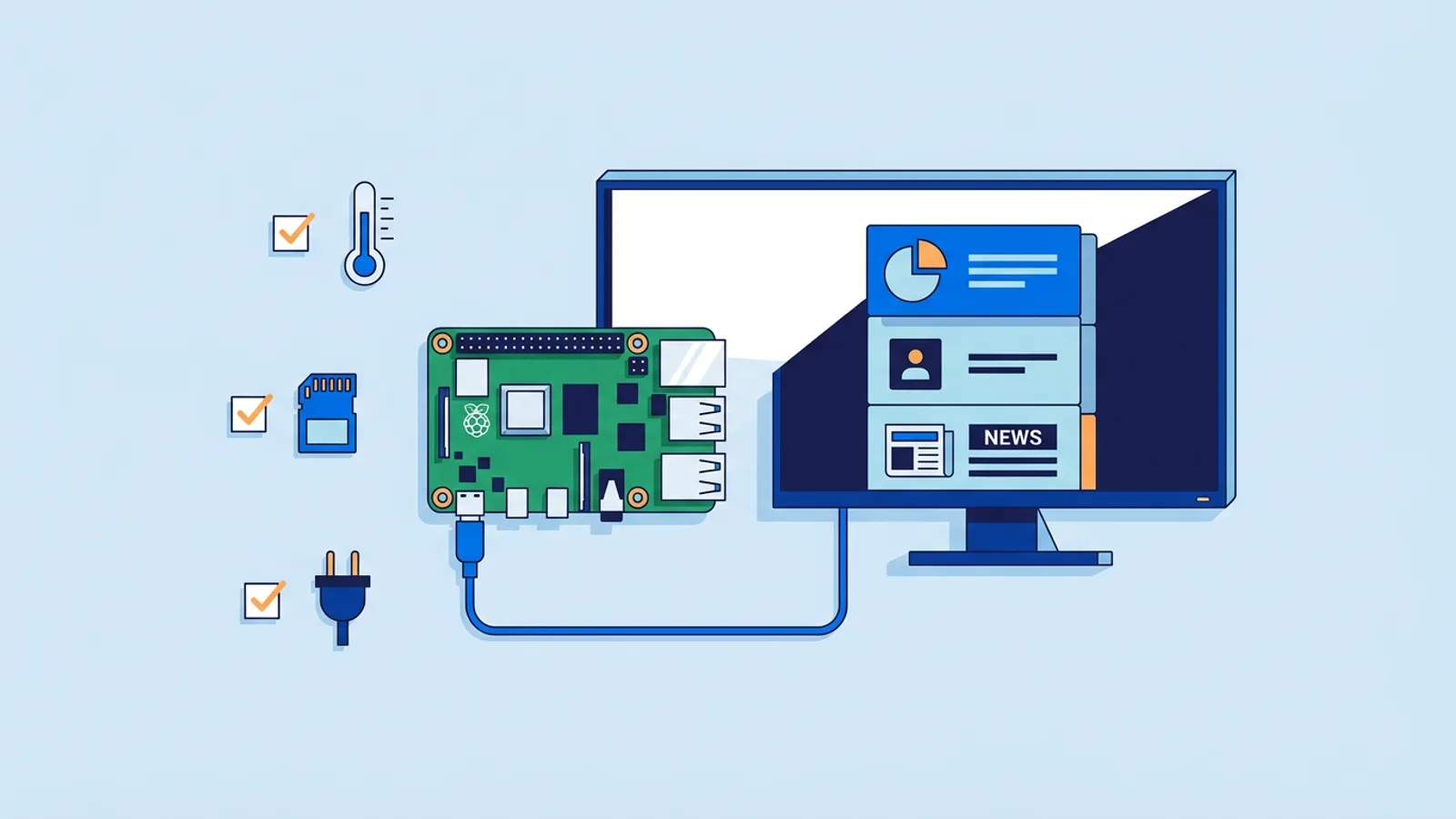
A Raspberry Pi is the player we built TVpilot around, because it can be fully controlled from the dashboard. You generate a one-command installer in the dashboard (a curl command with a 6-character claim code), paste it into the Pi's terminal, and it sets up Chromium in kiosk mode, auto-start, a quiet boot and a hidden cursor. A watchdog restarts the player within about 10 seconds if it crashes.
The Pi also handles TV power. It checks the dashboard power schedule every minute and switches the TV on or to standby over HDMI-CEC, no smart plug needed. It checks for player updates daily at 03:00, and you can trigger a remote update or reboot from the dashboard. Any Pi running Raspberry Pi OS with a desktop works; a Pi 4 or 5 is recommended for smooth video.
Worked example: a bakery with two screens
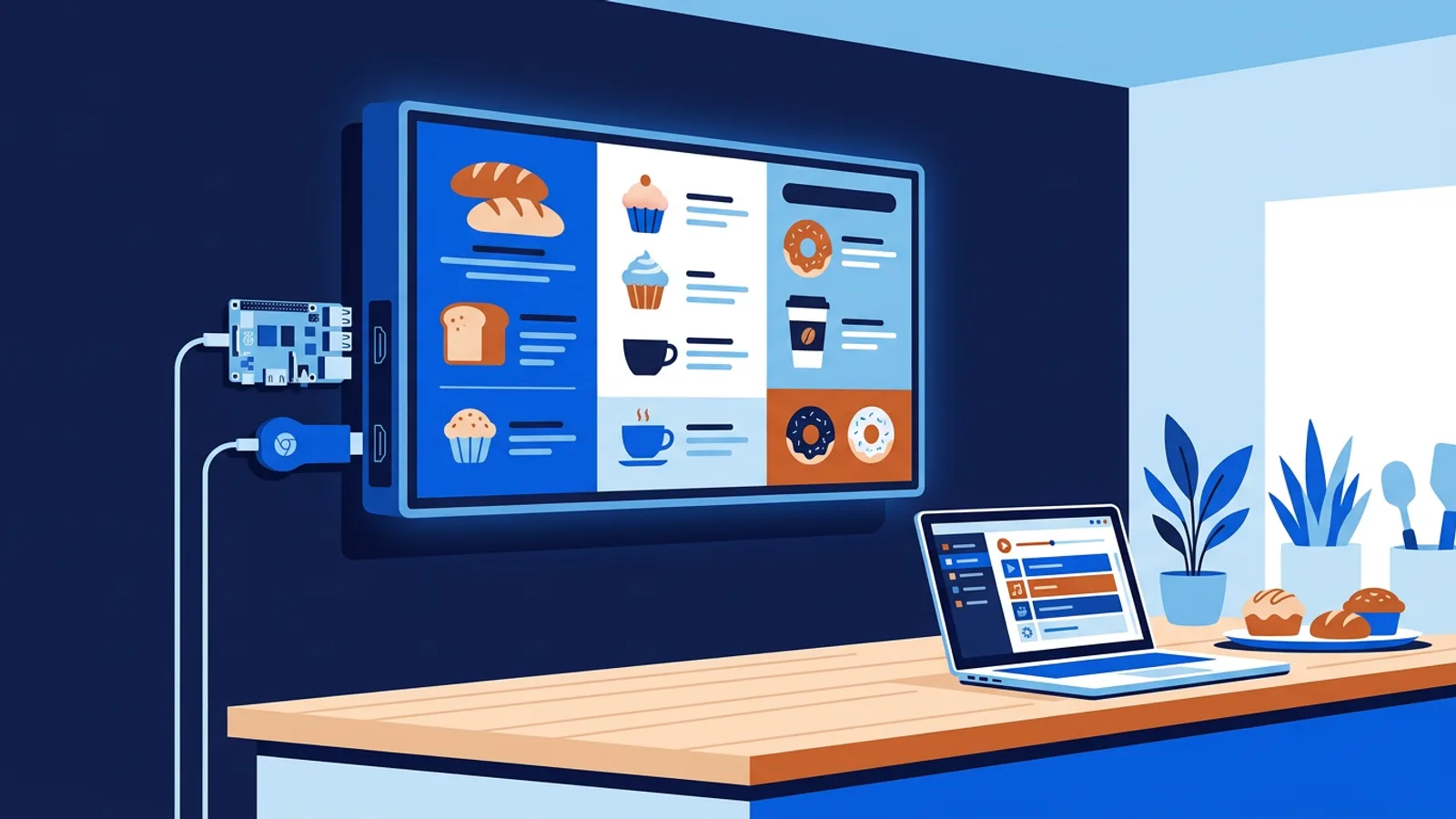
Say you run a bakery with a menu TV above the counter and a second TV in the window facing the street.
- Hardware. The counter TV gets a Raspberry Pi 5, because it should switch itself on before opening and off after closing. The window TV has a weak built-in browser, so it gets a Fire TV Stick.
- Plan. The Free plan covers one screen. Two screens means Starter at €5 per month, which allows up to 5 screens and 1 GB of storage.
- Pair the Pi. In the dashboard, add a screen, copy the generated install command and paste it into the Pi's terminal. After the reboot it shows the screen's content full-screen.
- Pair the stick. Open Silk on the Fire TV Stick, type the player URL for the window screen and turn off the screensaver.
- Playlists. Build a "Breakfast" playlist (coffee and pastry photos, opening hours) and a "Lunch" playlist (sandwich menu). Set Breakfast as the default for the counter screen.
- Schedule. On the Schedule page, add a weekly slot for Lunch on weekdays from 11:00 to 14:00. Outside that slot the screen falls back to Breakfast. Starter allows 5 calendars and 20 scheduled items, so this uses a fraction of it.
- One-off promotions. Add a "Friday sourdough" slide with per-slide scheduling set to Fridays only and an expiry date at the end of the month, so it removes itself.
- Power. Set the counter screen's power schedule to on at 06:45 and standby at 18:15. Within a minute of each time, the Pi sends the CEC command. For the window TV, use the TV's own on/off timer if it has one.
Running cost: €5 per month for software plus the one-off hardware. Daily effort after setup: none, unless the menu changes.
Failure modes to check before you mount the TV
Most signage problems on TVs come from the same handful of causes.
- Black or home screen after a power cut. Happens with TV browsers and sticks without a kiosk browser. Run the plug-pull test before you go live.
- Eco settings. Many TVs have an energy-saving option that switches the TV off after a period without remote input. Turn it off, or the screen goes dark mid-afternoon.
- Guest Wi-Fi with a login page. A player cannot click through a captive portal. Put the screen on a network without one, or on a cable.
- Video the screen can't play. TVpilot refuses uploads in formats screens cannot play, such as HEIC photos and HEVC/H.265 video, with a clear message. Videos above 1080p can be converted in the browser before upload.
- Internet outages. Players need a connection for content updates. They keep following the schedule during an outage, and the Pi player recovers by itself when the connection returns.
- Half-finished edits going live. In TVpilot, edits save as a draft and screens keep the last version until you press "Push to screen".
- No one notices the screen is down. The dashboard shows online and offline status, screenshots and TV power state, and can send an email when a screen goes offline.
When TVpilot fits and when it doesn't
TVpilot fits if you have between one and roughly 25 screens, want to mix players (a Pi here, a smart TV browser there) and prefer hosted software you don't maintain. The Free plan is 1 screen forever with no credit card, so you can run a real screen before paying anything. There is no trial because there's nothing to expire. Starter is €5 per month for up to 5 screens, Pro €19 per month for up to 25.
It is the wrong fit in a few cases. If you need to host the software on your own server or want open source, TVpilot is hosted only and cannot be self-hosted. If your screens must run for long stretches with no internet at all, offline playback is limited. If your IT policy requires an app from the Amazon Appstore or Google Play, there isn't one yet. And if all you want is the same five photos looping forever, a USB stick in the TV's built-in media player costs nothing and is honestly enough.
Getting your first TV running
Start with the TV you already have: open a player URL in its browser, run the overnight plug-pull test, and add a Fire TV Stick or Raspberry Pi only if the test fails or you want scheduled power. Create a free TVpilot account to get a player URL for one screen, no credit card required, and have your first playlist on the wall today.
Frequently asked questions
Do I need to install an app on my smart TV to use it for digital signage?
Not always. Many smart TVs can open a signage player URL in their built-in browser, which is enough for a screen you check daily. The limitation is that most TV browsers do not reopen the page after a power cut, so screens that must run unattended usually get a small player device such as a Raspberry Pi or a streaming stick with a kiosk browser.
Can I use a Fire TV Stick as a digital signage player?
Yes. Open the Silk browser on the Fire TV Stick, enter your player URL and set the screensaver to never start. For automatic startup after a reboot, a kiosk browser such as Fully Kiosk Browser can open the player URL at boot. TVpilot works this way through the browser, since there is no TVpilot app in the Amazon Appstore yet.
Is there free digital signage software for one TV?
TVpilot's Free plan covers one screen forever with 250 MB of storage and no credit card. It is not a trial, so it does not expire. You only need to upgrade for more screens or storage, starting with Starter at €5 per month for up to 5 screens.
What happens to my signage TV if the internet goes down?
With TVpilot, players need an internet connection to receive content updates, but they keep following the schedule during an outage. The Raspberry Pi player recovers automatically when the connection returns. If your screens must run for long periods completely offline, a hosted system is not the best fit.