Supported Content for Digital Signage: Formats Explained
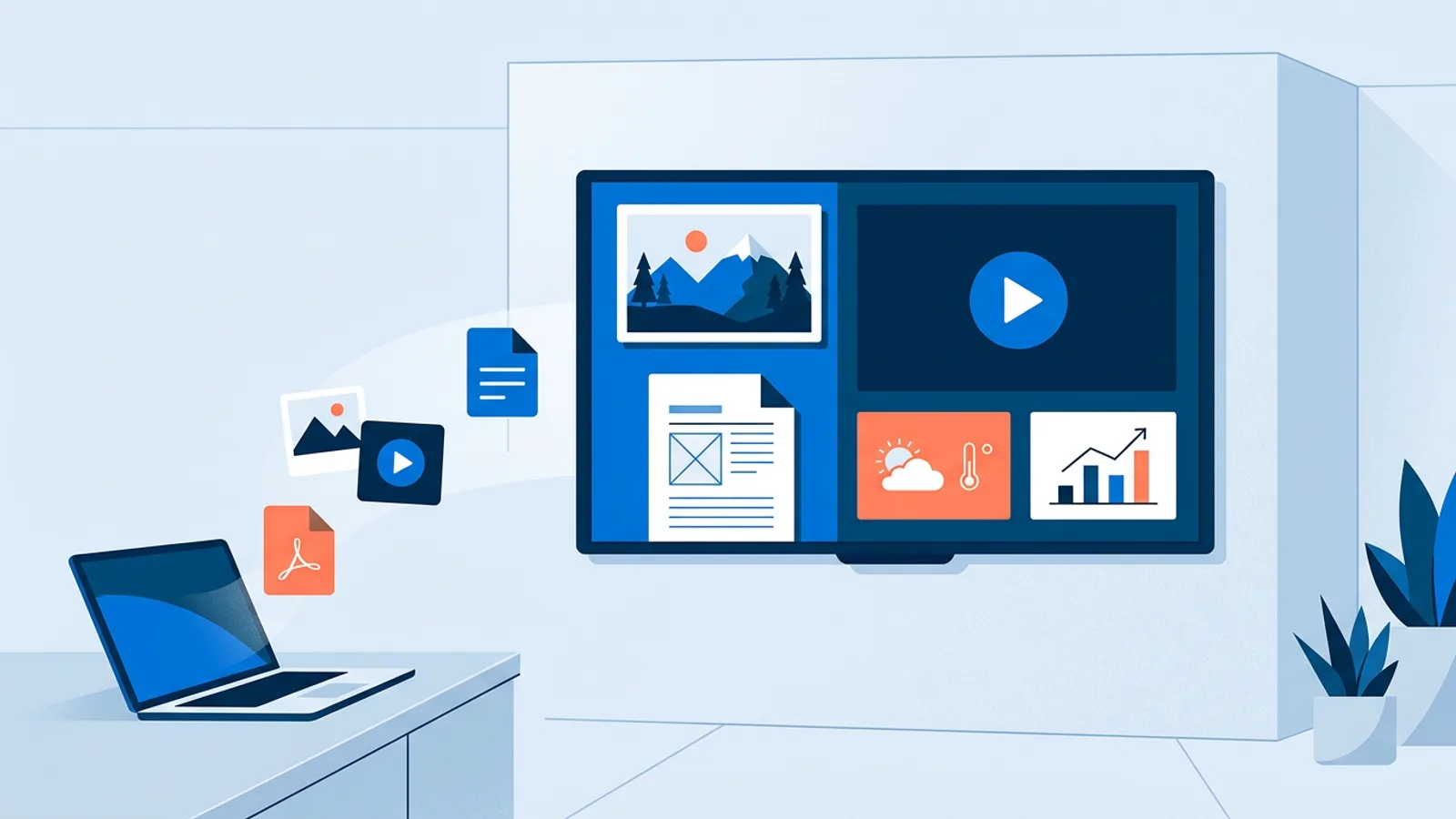
Supported content for digital signage covers still images, video files, PDFs, public web pages and live data sources such as weather, reviews, calendars and business dashboards. Three failures account for most blank screens: an iPhone photo saved as HEIC, a video encoded in H.265, and a web page that blocks embedding or needs a login.
This guide goes type by type. For each one you get what to check before uploading, how it behaves on screen, and what happens when the internet drops. If you want the full list of live sources TVpilot can show, the integrations catalog has one page per plugin.
The rule of thumb before you start: files you upload are the most predictable, links to other services are the most convenient, and anything behind a login is the most likely to break.
Supported content for digital signage at a glance
The format lists below are general signage guidance that holds across most players. The TVpilot-specific rule is narrower: uploads refuse HEIC images and HEVC/H.265 video with a clear message.
| Content type | Generally safe choices | Avoid | What needs internet |
|---|---|---|---|
| Images | JPG, PNG, WebP, GIF | HEIC, TIFF | Receiving changes |
| Video | MP4, MOV, WebM, M4V with H.264 | H.265/HEVC, MKV, AVI, WMV | Receiving changes |
| Short documents, one idea per page | 60-page manuals | Receiving changes | |
| Web pages | Public URLs that allow embedding | Login pages, sites that block framing | Showing fresh content |
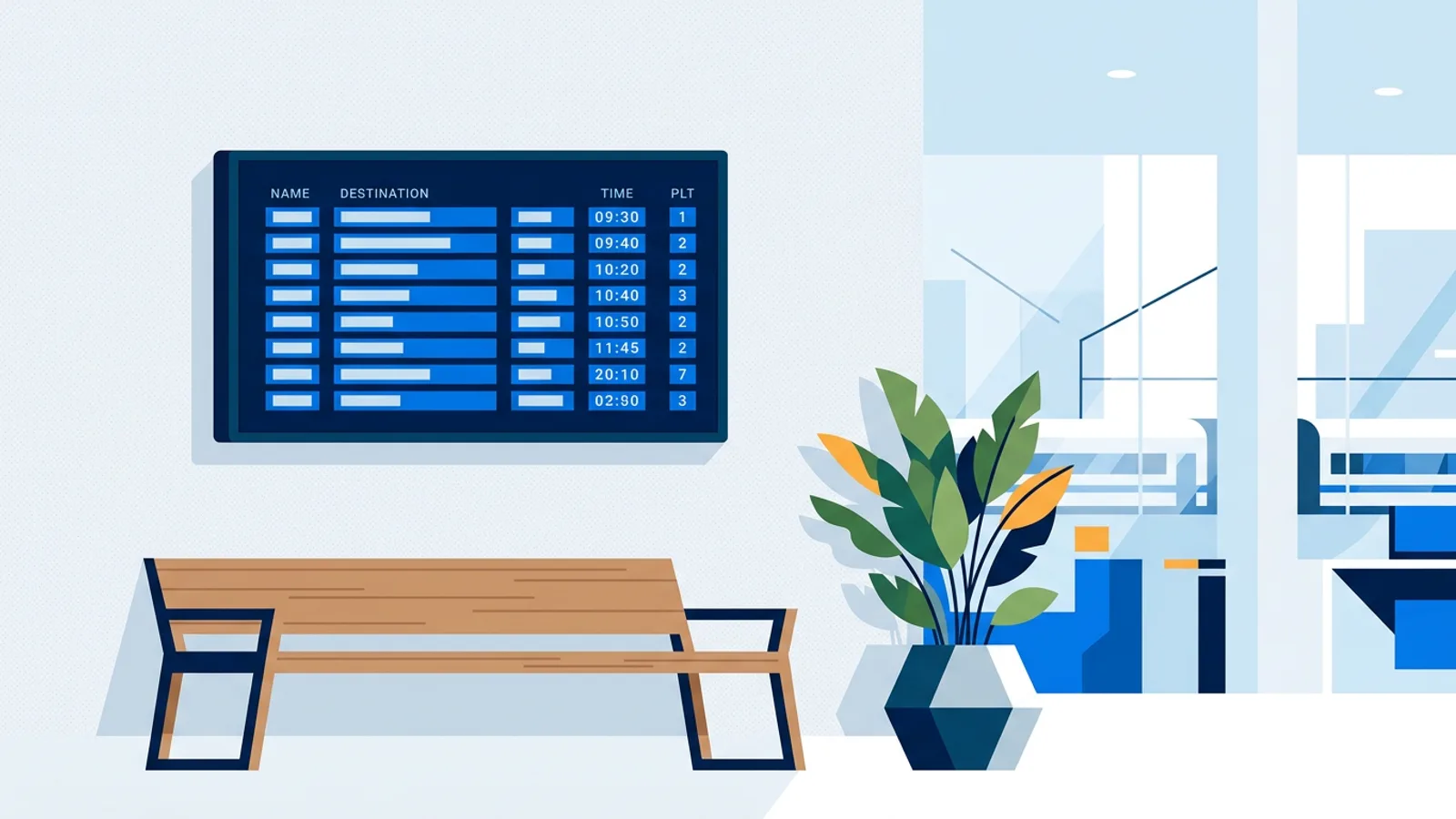
| Widgets | Weather, clock, news, countdown, calendar, QR | Showing fresh data | |
| Dashboards | Shopify, Stripe, Help Scout, Power BI (public) | Private, authenticated share links | Showing fresh data |
| Linked media | YouTube, Vimeo, Canva, Google Slides, PowerPoint, Figma | Private or deleted items | Showing the content |
Images: JPG, PNG, WebP and GIF
Menus, promos, opening hours and welcome slides are usually still images. As general guidance, JPG is fine for photos, PNG for graphics with sharp text or flat colour, and WebP for either at a smaller file size. GIFs work for short animations, though a short MP4 usually looks smoother at a fraction of the size.
Two formats cause most image problems on signage players in general. HEIC is the default photo format on recent iPhones, and many players cannot decode it. TIFF comes out of scanners and print workflows and is equally unreliable. TVpilot refuses HEIC at upload with a clear message, so you find out at your desk instead of in front of the TV. Convert by exporting as JPG from the Photos app, or set the iPhone camera to "Most Compatible".
Before uploading, check:
- Resolution matches the screen: 1920×1080 for a landscape Full HD TV, 1080×1920 for portrait. Smaller images get stretched and look soft.
- Text is large enough to read from where people stand. A line that looks fine on your laptop is often unreadable at four metres.
- Nothing important sits at the very edge, because some TVs crop a few pixels (overscan).
Video: why H.264 matters more than the file extension
The file extension tells you the container; the codec inside decides whether it plays. As a general rule, an MP4, MOV, WebM or M4V file encoded with H.264 plays on practically every signage player, from a Raspberry Pi to a smart TV browser. The same MP4 encoded with H.265 (also called HEVC) often shows a black screen or plays audio without picture, because many players lack the hardware or licence to decode it.
Modern phones and some editing apps export H.265 by default to save space, so this failure is common. TVpilot blocks HEVC/H.265 at upload for that reason. MKV, AVI and WMV are older or desktop-oriented containers; the general advice is to re-export them as H.264 MP4.
Resolution is the second thing to check. Videos above 1080p can be converted in the browser before upload in TVpilot, which saves storage and spares lower-powered players from decoding 4K. On a Raspberry Pi, a Pi 4 or 5 is recommended for smooth video. For export settings in detail (bitrate, frame rate, audio), see our guide to digital signage video formats.
Each video can be muted individually in a playlist, which matters in shops and waiting rooms where a single loud clip gets the screen switched off.
PDFs: one slide per page
Upload a PDF and each page becomes its own slide, which is the quickest way to put an existing price list or event programme on screen. It works best with documents designed as slides: landscape pages, large type, one topic per page.
Common mistakes are uploading a portrait A4 document to a landscape TV (you get a small page with wide black bars) and uploading a long report where nobody can read page 14 before it moves on. If your PDF has more than a handful of pages, split out the ones that matter.
Web pages: public URLs only
A web page slide shows a live URL, so the screen picks up changes without you re-uploading anything. It suits a status page, a booking overview or your own site's specials page.
The limits are set by the website. Many sites send headers that forbid being shown inside another page (a security measure against clickjacking), and those display blank on any signage system. Pages that need a login fail too, because the screen has no session and cannot type a password. Cookie banners and chat pop-ups also appear on screen exactly as they would for a first-time visitor.
Test the URL in a private browser window. If you see the content without logging in or clicking anything, it has a good chance of working. If you need data from a tool that sits behind a login, look for a dedicated plugin instead (see dashboards below).
Live widgets: weather, clock, news, countdown, calendar, QR
Widgets are built-in content that draws its own data, so there is nothing to upload. In TVpilot these include:
- Weather and a full-screen clock in four styles.
- News from RSS or Atom feeds, either as a full page or a scrolling ticker over all other content.
- A countdown to a date, or to the same time every day such as closing time, with an optional red warning state for the last minutes.
- A calendar from any iCal link (Google, Outlook, Apple) as agenda, day or week view, and a meeting room door panel that turns green or red.
- QR codes, including Wi-Fi codes, and an on-screen Messages bar.
The check here is about the source, not the file. An iCal link must be the shareable feed URL, not the calendar's web address, and an RSS feed must be public.
Dashboards from business tools
Dashboards connect to a tool through an API key or token and show only the numbers you choose. TVpilot has dashboards for Shopify, WooCommerce, Magento, Lightspeed, bol.com, Mollie, Stripe, SumUp, Moneybird, Picqer and Help Scout. SumUp, for example, refreshes every 10 minutes and can split today's takings per payment method.
Power BI works differently: you use Publish to web and paste the link. That makes the report viewable to anyone with the link, so use it only for data you would hang on a wall anyway. Authenticated Power BI share links cannot play on screens and are rejected with an explanation.
Review walls and social feeds
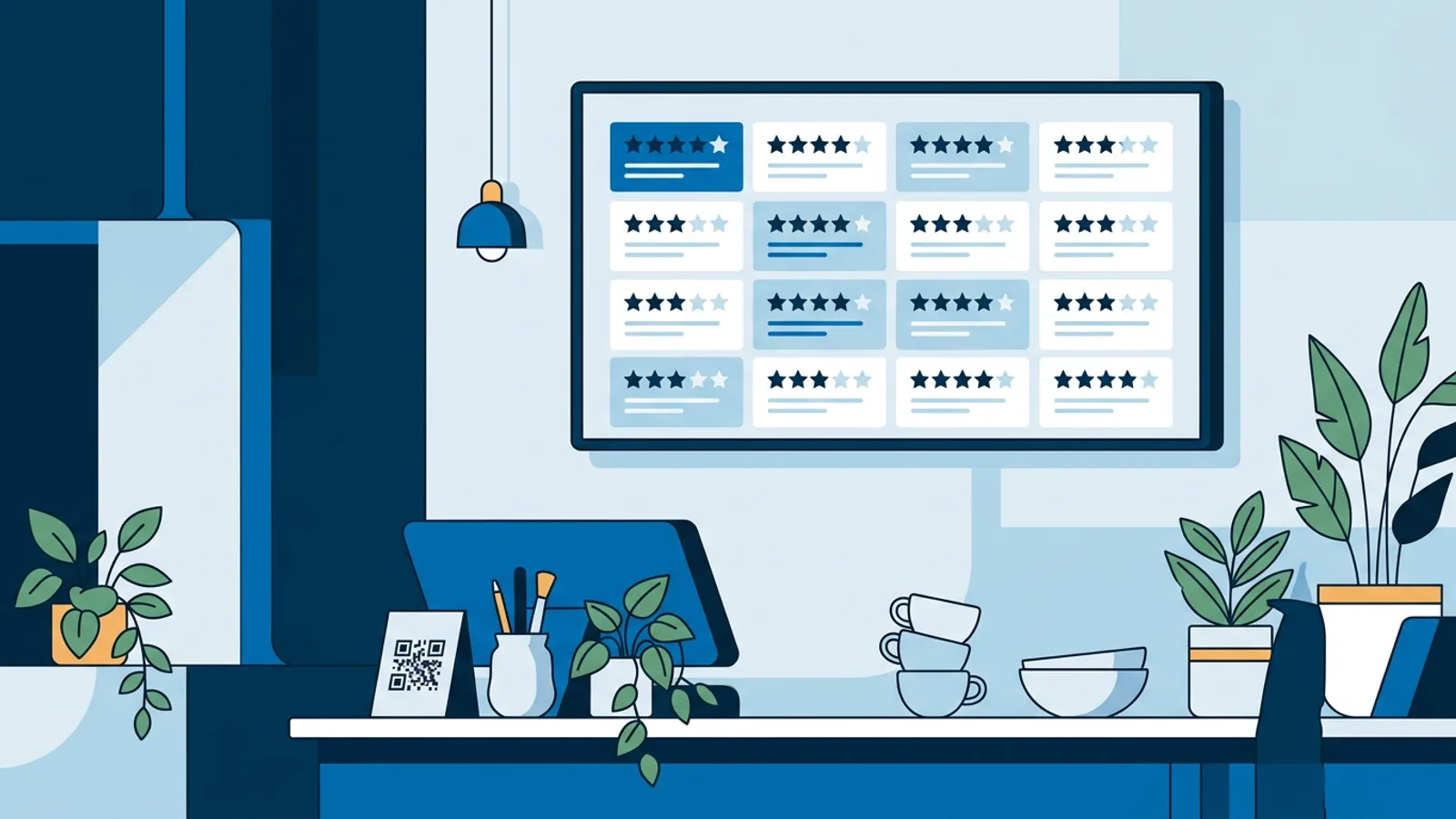
Review widgets show public ratings without exporting screenshots. Google reviews are available as a widget. Trustpilot (enter your domain, no account needed), Tripadvisor and Yelp (paste the public business page) show in rotating, grid or summary views. Kiyoh connects with the connector hash from your own Kiyoh account. The Instagram feed shows the latest posts from a handle; it is Instagram only for now.
YouTube, Vimeo, Slides, PowerPoint, Canva and Figma
Linked content stays in the tool where you made it. For Canva, Google Slides and PowerPoint, edits you make in the original show up on screens automatically.
- YouTube: any video, live stream, Short or playlist plays full-screen, muted and looping by default. YouTube decides whether ads run; your own ad-free videos play clean. On a Pi, the auto quality setting plays at 720p for smooth decoding. If a video is removed or blocks embedding, the screen shows a neutral fallback slide.
- Vimeo: public or unlisted links play without ads; with sound off and loop on there are no overlays at all.
- Google Slides and PowerPoint: paste a published or "anyone with the link" Google deck, or a OneDrive/SharePoint embed link. Google decks advance at a pace you set; PowerPoint follows the deck's own timings.
- Canva: paste the public share link. Multi-page designs show only their first page, so make one design per slide.
- Figma: frames can be shown as slides.
The failure mode for all of these is privacy settings. A deck shared only with colleagues looks fine to you because you are logged in, and blank to the screen.
Portrait or landscape?
Design for the way the screen hangs. A landscape TV wants 16:9 content (1920×1080); a TV mounted on its side wants 9:16 (1080×1920). Mixing them gives black bars or awkward cropping. Uploaded images, PDFs and Canva designs keep the shape you made them in. If you have one screen of each orientation, give each its own playlist rather than one compromise version.
What happens when the internet drops
Players keep following their schedule during internet outages, and a scheduled change downloads the new playlist in advance so the switch happens on time even with no connection at that moment. Offline playback is limited, though: players need an internet connection for content updates, and web pages, widgets, dashboards and linked videos need a connection to show fresh data. On a Raspberry Pi, the player recovers automatically once the connection returns.
Each screen can also have a backup playlist that plays when the assigned content is empty or unavailable, so the TV does not go black. Keep it simple, such as a logo slide and your opening hours.
Worked example: a bakery with two screens
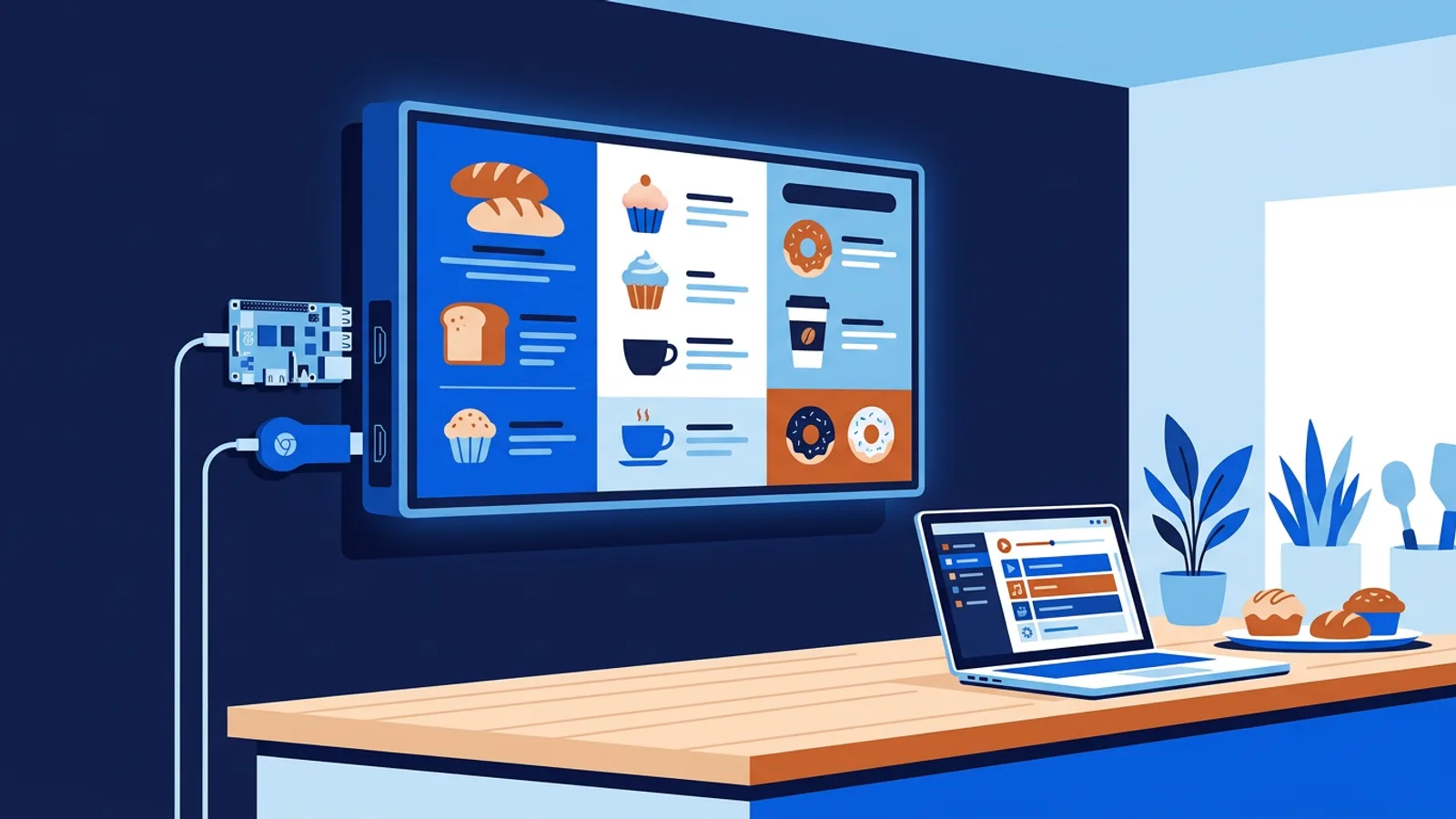
Say you run a bakery with a landscape menu TV behind the counter and a portrait screen in the window.
- Menu screen: six JPG menu slides at 1920×1080, plus a 20-second H.264 MP4 of bread coming out of the oven, exported at 1080p. Add the weather widget and a countdown to closing time that turns red in the last 15 minutes.
- Window screen: a portrait Canva design for the weekly special (edit it in Canva on Monday, the screen updates itself) and a Google reviews wall.
- Backup playlist on both: two uploaded JPGs with your logo and opening hours.
- Your phone shot the oven video in HEVC, so the upload is refused; you re-export as H.264 and it goes through.
Two screens fall outside the Free plan (1 screen), so this setup runs on Starter at €5/month with 1 GB of storage. Six images and one short 1080p clip use a small part of that; the Canva design, reviews, weather and countdown use no storage at all.
When TVpilot fits, and when it does not
TVpilot suits businesses that want uploaded media and live sources in one playlist, managed from a browser, on cheap hardware such as a Raspberry Pi, Fire TV Stick or the Amazon Signage Stick. All 43 plugins are included on every plan.
It is a poor fit if you need a self-hosted or open-source system, since TVpilot is hosted only. It is also the wrong choice if your screens must run for long stretches with no internet: players keep following their schedule during outages, but offline playback is limited, content updates need a connection, and live sources cannot refresh. And if all you will ever show is one looping video on one TV, a USB stick in the TV's media player costs nothing.
Getting your content on screen
Start by sorting what you already have: convert HEIC photos to JPG, re-export phone videos as H.264 MP4, set shared decks and designs to public, and test every URL in a private window. Then build one playlist and watch it on the actual TV from where customers stand. You can do all of that on the Free plan with one screen, no credit card: create a free TVpilot account and pair your first screen.
Frequently asked questions
What file formats can digital signage display?
As general guidance, most signage players handle JPG, PNG, WebP and GIF images, MP4, MOV, WebM and M4V video encoded with H.264, and PDFs. HEIC photos and H.265 (HEVC) video are the usual problem formats. TVpilot refuses HEIC and HEVC/H.265 at upload with a clear message, and turns each PDF page into its own slide.
Why does my video show a black screen on the signage TV?
The most common cause is the H.265 (HEVC) codec, which many players cannot decode even when the file is a normal-looking MP4. Phones and some editing apps export H.265 by default. Re-export the video as H.264 MP4 at 1080p and it will play on practically every player.
Can I show any website on a digital signage screen?
Only public pages that allow embedding. Sites that send headers forbidding display inside another page show blank, and pages that need a login fail because the screen has no session. Test the URL in a private browser window: if the content appears without logging in or clicking, it has a good chance of working. For data behind a login, use a dedicated dashboard plugin instead.
Does digital signage content keep playing without internet?
Partly. TVpilot players keep following their schedule during internet outages, and a scheduled playlist change is downloaded in advance so it switches on time even offline. Offline playback is limited, though: players need an internet connection to receive content updates, and web pages, widgets, dashboards and linked videos need a connection to show fresh data. A backup playlist per screen plays when assigned content is empty or unavailable.