Digital Signage Video Formats and Image Sizes That Work
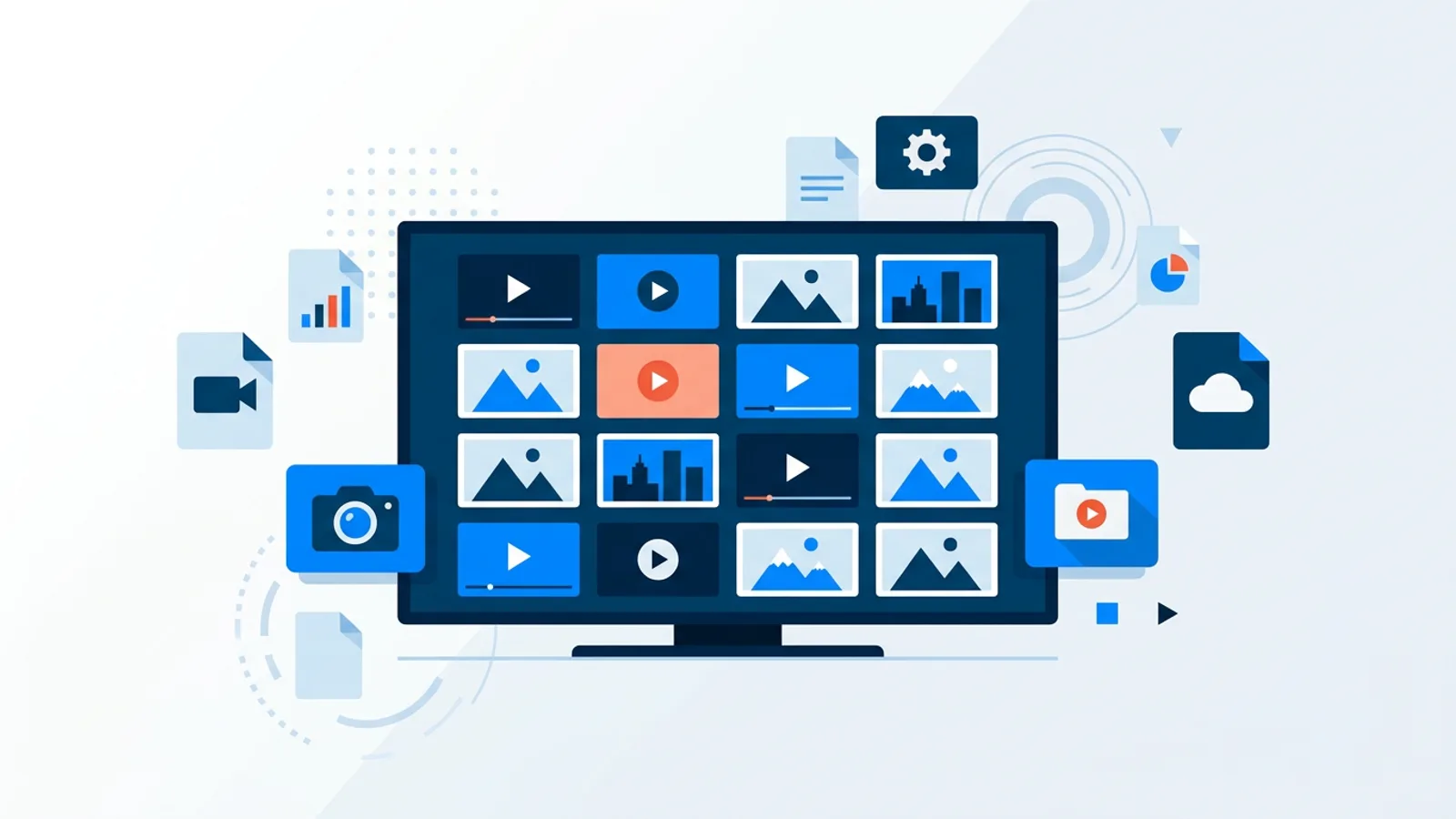
The safest of all digital signage video formats is MP4 with H.264 video at 1080p: export at 1920x1080, 25 or 30 fps, a bitrate of 6 to 10 Mbps, and AAC audio at 128 to 192 kbps if the clip needs sound. That combination plays on an old Android TV box, a browser tab on a lobby smart TV, or digital signage running on a Raspberry Pi. For images, use JPG for photos and PNG for logos, sized to the screen's pixel dimensions.
Get the format wrong and a playlist that looked fine on your laptop will stutter, drop frames, or refuse to play at all once it hits a real screen in a real shop.
Most of the pain in signage playlists has nothing to do with the software managing them. It comes from files that were never meant for a TV: a 4K ProRes export from a video editor, a 40 MB PNG screenshot, a vertical phone video stretched across a landscape screen. Fix the files and the rest tends to sort itself out.
Digital signage video formats: export settings to use
These settings work for a landscape 1080p screen and exist in every common editor:
- Container: MP4
- Video codec: H.264 (AVC), 8-bit, 4:2:0 colour (shown as yuv420p in some tools)
- Resolution: 1920x1080 (1080x1920 for a portrait screen)
- Frame rate: 25 or 30 fps, or keep the source frame rate if it is 24, 25 or 30
- Bitrate: 6 to 10 Mbps, variable bitrate is fine
- Audio: AAC, 128 to 192 kbps, stereo (or no audio track if the clip plays muted)
Where to find them in common tools:
- HandBrake (free): the "Fast 1080p30" preset already outputs MP4 with H.264 and AAC. Check that the video encoder says H.264 (x264), not H.265.
- DaVinci Resolve (free and paid): on the Deliver page, set Format to MP4 and Codec to H.264, then pick 1920x1080.
- Adobe Premiere Pro: export with Format set to H.264, which produces an MP4.
- Final Cut Pro: Share, Export File, and set the video codec to H.264 rather than ProRes or HEVC.
- Shotcut (free): the default export preset is H.264 in MP4; set the resolution to 1920x1080.
If you prefer the command line, this ffmpeg line produces a clean signage file:
ffmpeg -i input.mov -c:v libx264 -preset slow -crf 20 -maxrate 8M -bufsize 16M -vf scale=1920:1080 -r 30 -pix_fmt yuv420p -c:a aac -b:a 160k -movflags +faststart output.mp4
As for the best encoder: the x264 software encoder (inside HandBrake and ffmpeg) gives the best quality per megabyte. Hardware encoders such as NVIDIA NVENC, Intel Quick Sync or Apple VideoToolbox are much faster and produce slightly larger files at the same quality. Either is fine for signage, because the screen only cares about the result: H.264, 8-bit, 4:2:0.
Check colour depth: some editors default to 10-bit or 4:2:2 H.264 for high-quality exports, and many TV chips and the Pi 4's decoder cannot handle 10-bit or 4:2:2, so a file with a perfectly normal .mp4 name still stutters. If a clip plays on your laptop and judders on the screen, check this first. The yuv420p setting in the ffmpeg line above forces the compatible profile.
Video: container, codec and why the difference matters
A video file is two things stacked together: a container (the wrapper, like .mp4 or .mov) and a codec (how the picture data is compressed, like H.264 or H.265). People say "format" and mean either one, which is where confusion starts.
H.264 has been the default for over a decade, nearly every TV chip and streaming stick has dedicated hardware to decode it, and every modern browser plays it. H.265 (HEVC) compresses better at the same quality, so files are smaller, but hardware decoding support is patchier on older Android TV sticks, budget smart TVs and lower-end single-board computers, and browsers do not all play it. TVpilot refuses HEVC/H.265 uploads with a clear message for that reason, so re-export to H.264 before uploading.
Avoid ProRes, DNxHD, uncompressed AVI, or anything exported straight out of a professional editing timeline. Those are intermediate formats meant for editing, not for playback devices, and they are enormous for what they deliver on screen.
Resolution and player hardware
Most signage screens are 1080p (1920x1080) or occasionally 4K. There is rarely a reason to upload video larger than the screen it plays on: a 4K clip on a 1080p TV burns storage and decoding effort for no visible benefit. If you only have a 4K master, TVpilot can convert videos above 1080p in the browser before upload, so you do not need a separate editor for that step.
On a Raspberry Pi, decoding load matters more than on a powerful smart TV. A Pi 4 decodes 1080p H.264 in hardware, and a Pi 5, which has no H.264 hardware decoder, decodes 1080p H.264 in software on its faster CPU; both handle it comfortably. Pushing 4K footage onto older hardware is where you start seeing dropped frames or a player that falls behind on a busy playlist. If you are deciding between Pi models for a video-heavy playlist, read the Pi 4 vs Pi 5 comparison before you buy hardware.
Image formats and image size for TV screens
Images are simpler than video, but sizing still goes wrong constantly. The rules:
- JPG for photos and anything with gradients or lots of colour. It compresses well and files stay small.
- PNG for logos, text graphics, or anything that needs a transparent background. PNG files are bigger than JPGs at the same dimensions, so do not use PNG for photographic content.
- Avoid TIFF and BMP. They are print-era formats with little or no compression, and a BMP can be many times the size of an equivalent JPG with no visible quality gain on a TV.
- Convert HEIC photos from iPhones to JPG first. TVpilot refuses HEIC uploads with a clear message, because screens cannot reliably display them.
For image size for TV screens, match the pixel dimensions to the screen, not to print resolution. A 1920x1080 JPG is plenty for a full-screen slide on a 1080p landscape TV; dpi does not matter because a TV renders pixels. For a portrait screen, flip that to 1080x1920.
A photo straight off a modern phone camera is often 4000+ pixels wide and several megabytes. Resizing to roughly 1920 pixels on the long edge before upload keeps playlists loading fast and fits many more slides inside a storage plan's limit.
A quick compatibility reference
| Media type | Recommended format | Why |
|---|---|---|
| Video | MP4 (H.264 8-bit + AAC), 1080p, 6 to 10 Mbps | Universal decoding support, small enough files |
| Video already on YouTube or Vimeo | Link instead of uploading | No export or storage needed |
| Photo / promo image | JPG, 1920x1080 | Small files, good quality at viewing distance |
| Logo / graphic with transparency | PNG | Keeps sharp edges and transparent backgrounds |
| Avoid | H.265/HEVC, HEIC, ProRes, AVI, BMP, TIFF | Patchy decoding, or editing and print formats far too large for signage |
Where compatibility actually breaks down
The player matters as much as the file. A browser-based player (a smart TV's built-in browser, a laptop, most Android TV boxes) relies on whatever codecs that browser engine supports, which is reliably H.264 and only sometimes H.265. A Raspberry Pi running the TVpilot installer uses Chromium in kiosk mode, so the same rule applies: stick to H.264 and you are not gambling on codec support.
If you would rather not manage local video files at all, point a playlist slide at a link. YouTube links play full-screen without uploading anything, muted and looping by default. On a Raspberry Pi screen, the YouTube "auto" quality setting plays at 720p so the Pi decodes smoothly. One caveat: YouTube decides whether a video carries ads, while your own ad-free videos play clean. Vimeo links play full-screen without ads, and with sound off and loop on they use Vimeo's background mode, which shows no overlays at all. Either route suits owners who already keep marketing video online and do not want to re-export files every time something changes.
PDFs and web pages skip the video and image question altogether, since they are rendered rather than decoded frame by frame. That is why menu boards and price lists often work better as a designed slide or a PDF (one slide per page) than as an exported screenshot.
Storage limits and why file size still matters
Even with the right format, file size adds up across a playlist. Bitrate tells you the size directly: megabits per second divided by 8 gives megabytes per second.
Say you run a bakery with one screen on the Free plan, which has 250 MB of storage. A 30-second promo at 8 Mbps is about 30 MB (8 x 30 / 8). Add a dozen resized 1920x1080 JPGs at around 0.5 MB each and you have used roughly 36 MB, leaving room for several more clips. Upload the same promo as an unconverted 4K editing export and one file can exceed the whole allowance. Move to Starter (€5/month, 2 GB) and the same 30 MB clips fit by the dozens.
Re-encoding before upload keeps playback smooth and lets a modest plan hold a full week of rotating content instead of three clips. The storage requirements guide has more real file sizes per media type.
When TVpilot is the right fit, and when it isn't
TVpilot's playlists handle images, videos, web pages and PDFs, with drag-and-drop ordering, transitions, per-video mute and per-slide scheduling, so once your files are in a sane format, building the rotation is straightforward. Uploads that screens cannot play (HEIC, HEVC/H.265) are refused with a clear message instead of failing silently on a TV, and media imports straight from Google Drive or Dropbox. On a Raspberry Pi, the one-command installer sets up Chromium kiosk mode with a watchdog that restarts the player within about 10 seconds if something crashes.
Where it is not the right fit: TVpilot is hosted software, not open source and not self-hostable, and players need an internet connection for content updates (the Pi player recovers on its own once connectivity returns). If your setup requires a fully offline, air-gapped screen with no network dependency, a self-hosted product is a better match, as long as you budget the maintenance time that comes with it.
When your first files are exported, create a free TVpilot account, which includes one screen and needs no credit card, and build your first playlist in a few minutes.
Frequently asked questions
What is the best file format for digital signage video?
MP4 with H.264 video (8-bit, 4:2:0) and AAC audio is the most compatible choice. Export at 1920x1080, 25 or 30 fps, with a bitrate of 6 to 10 Mbps. It plays on smart TV browsers, Android TV boxes, Fire TV sticks and Raspberry Pi players without codec surprises.
Can I use H.265 (HEVC) video on signage screens?
It is risky. H.265 makes smaller files, but hardware and browser support is inconsistent on budget TVs, older streaming sticks and single-board computers. TVpilot refuses HEVC/H.265 uploads with a clear message, so re-export the clip to H.264 before uploading.
What image size should I use for a TV screen?
Match the screen's pixel dimensions: 1920x1080 for a landscape 1080p TV, 1080x1920 for a portrait screen. DPI is irrelevant on a TV. Use JPG for photos and PNG for logos or graphics that need transparency, and resize large phone photos before uploading.
Why does my video play on my laptop but stutter on the signage screen?
The most common cause is a 10-bit or 4:2:2 H.264 export, which many TV chips and the Raspberry Pi 4 decoder cannot handle smoothly. Other causes are 4K files on a 1080p player and very high bitrates. Re-export as 1080p, 8-bit 4:2:0 H.264 (yuv420p) at 6 to 10 Mbps.