Digital Signage System for Multiple Locations: A Setup Guide
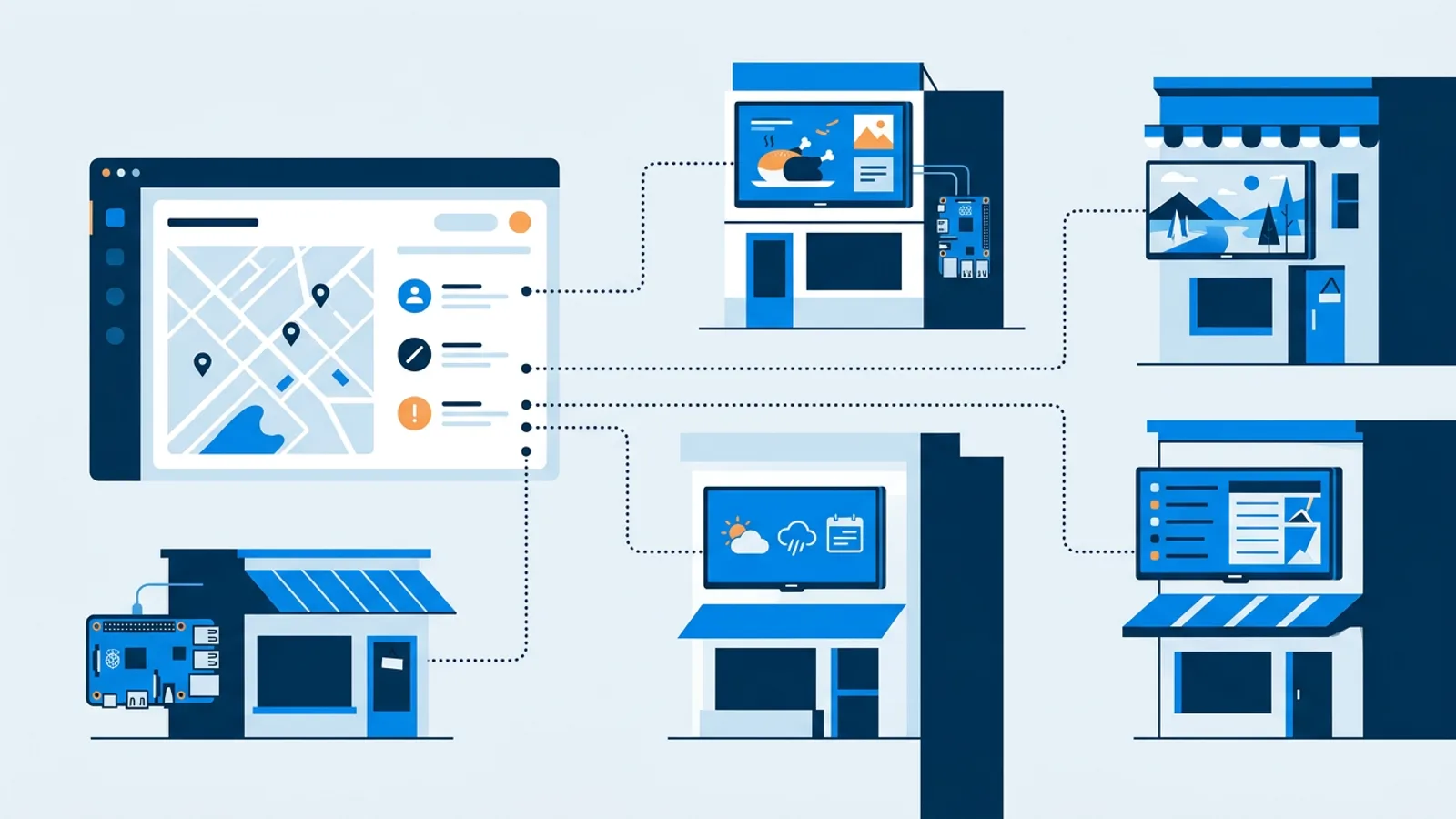
Running one screen and running twelve are different jobs. A digital signage system for multiple locations has to handle things a single-screen setup never forces you to think about: different content per site, different schedules, and screens that stop working without anyone in the building noticing until a customer says something.
This guide walks through what actually changes when you go from one screen to a fleet across a retail chain, a gym franchise, or a multi-branch salon, and how to set it up without babysitting every location by hand. If you're starting from a single existing TV and just need it online, see our guide to running signage from a browser on a smart TV first, since that's often the fastest way to bring a second or third site into the same system without buying new hardware.
What a digital signage system for multiple locations must do differently
With one screen, you build a playlist, push it, and check on it occasionally. With multiple locations, three problems show up that didn't exist before:
Content that needs to differ by site. A lunch special in one city isn't the same as the one three towns over. A gym franchise runs different class schedules per branch. A salon chain has different stylists and different promotions at each location.
Schedules that need to differ by site. Even if the content library is shared, the timing rarely is. One location's lunch rush is 11:00 to 14:00, another might run 11:30 to 13:30 because of local foot traffic.
Failure that you can't see happening. With one screen, you notice if it's off because you walk past it. With five locations, a screen can stall on a frozen frame or run an empty playlist for days before anyone in that building mentions it, usually only after a customer asks why the board still shows last month's promotion.
A system built for a single screen doesn't automatically solve any of these. It just happens to work because there's only one of everything.
Shared content vs per-screen playlists
The first design decision for a multi-site rollout is deciding what's shared and what's local. In practice most chains land on a mix:
- A shared playlist for brand-level content: logo screens, seasonal campaigns, safety notices, anything corporate wants consistent everywhere.
- A per-screen playlist for local content: today's specials, a local promotion, staff announcements, local events.
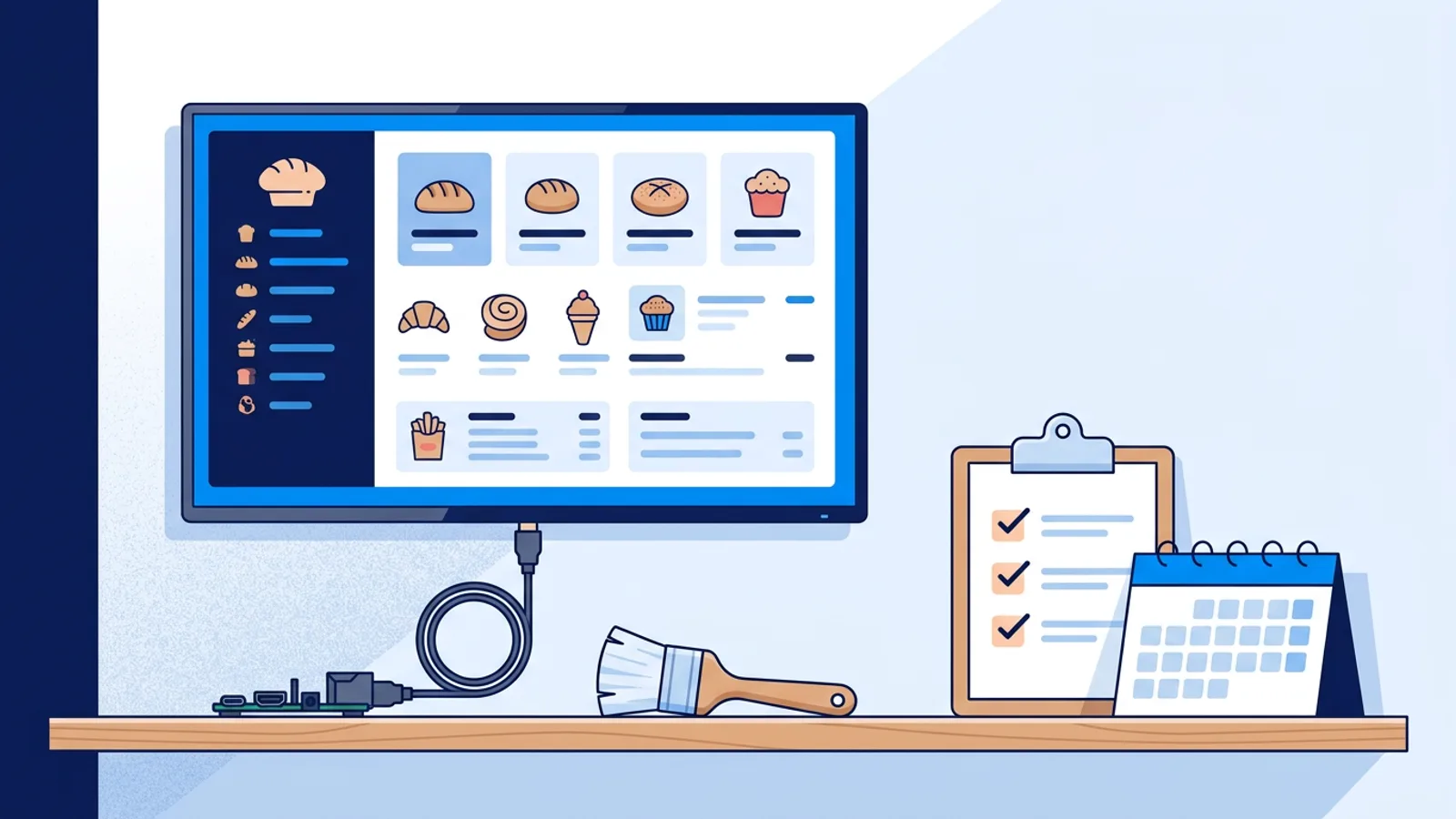
In TVpilot, each screen has its own assigned playlist, so you can build one master playlist and duplicate it as a starting point per site, then swap in the local slides. Per-slide scheduling lets a single slide show only on chosen weekdays or between chosen times, with an optional expiry date so a promotion falls off the screen automatically instead of running for a month after it should have ended.
If you want a deeper walkthrough of playlist mechanics, our scheduling guide covers day parting in more detail.
Calendar scheduling per site
Dayparting one slide is fine for small tweaks. When an entire playlist needs to change at a set time (breakfast menu swaps to lunch menu at 11:00, weekend hours differ from weekday hours), that's calendar scheduling, and it works per screen, not globally.
Each screen's calendar can hold one-off items (an event day, a one-time closure) and weekly repeating time slots (lunch menu on weekdays 11:00 to 14:00). You can plan a full year of promotions in advance, since one-off items simply override the weekly pattern on the days they land, and the most recently started item wins if two things overlap. When nothing is scheduled, the screen falls back to its default playlist, so an empty calendar doesn't mean an empty screen.
Pro and Business plans can add blackout dates, useful for holidays when a location closes or runs different hours, including Dutch holiday presets if that's relevant to your calendar.
One detail worth knowing before you plan a fleet-wide rollout: calendar limits scale by plan. Free gives you 1 calendar and 2 scheduled items, Starter gives 5 calendars and 20 scheduled items, and Pro and Business give 25 calendars and 200 scheduled items. If you're running lunch-and-dinner swaps plus weekend variants across ten locations, count your scheduled items before committing to a tier, not after.
Backup playlists: what happens when content fails
A screen showing nothing is worse than a screen showing something slightly stale. A flaky router, a content source that fails to load, or a playlist that's accidentally emptied can all leave a screen blank at exactly the wrong moment, like during a lunch rush.
A backup playlist assigned per screen solves this directly: if the assigned content is empty or unavailable, the screen falls back to the backup instead of showing nothing. Set it once per location, generic branded content is a safe default, and stop worrying about the edge case where a manager's local playlist accidentally ends up empty.
Monitoring across sites without a site visit
The practical failure mode of multi-location signage isn't dramatic, it's slow: a screen quietly drops offline on a Tuesday, and nobody thinks to check the TV until a customer asks why the specials board hasn't changed in a week.
Screen monitoring across the fleet should tell you, from one dashboard, which screens are online, when each last checked in (heartbeat), whether the TV itself is on or in standby, and roughly how strong its Wi-Fi signal is. An optional email alert when a screen goes offline means you find out before the manager calls, which is the point of managing more than one location remotely.
A realistic mixed-hardware setup
Most multi-location rollouts aren't uniform. One site has a spare Raspberry Pi and a technical manager, another has an existing smart TV and nobody who wants to plug in new hardware.
A workable mix looks like this:
- Sites with a Raspberry Pi player: run the one-command installer from a claim code generated in the dashboard. It sets up Chromium in kiosk mode with a systemd auto-start and a watchdog that restarts the player within about 10 seconds if it crashes. A Pi 4 or 5 is recommended for smooth video; see the hardware list if you're buying new. HDMI-CEC lets the Pi turn the TV itself on and off on a schedule, no smart plug needed.
- Sites with an existing smart TV and no appetite for new hardware: point the TV's browser at the player URL, as described in the browser and smart TV setup. This is also the practical route for Fire TV Stick or Android TV devices right now: TVpilot doesn't have a dedicated native app for Android TV or Fire TV yet, so those run through a browser app on the device instead of a store-installed app. It works, but it's worth knowing going in rather than discovering it after a rollout.
Both types of players show up in the same dashboard, get the same calendar scheduling, and follow the same backup-playlist logic. From a management standpoint, mixed hardware across sites isn't a real obstacle once it's set up.
Picking a plan by location count
| Plan | Screens | Storage | Calendars | Good for |
|---|---|---|---|---|
| Free | 1 | 250 MB | 1 | Testing with one location before rolling out |
| Starter | 3 included, up to 10 | 2 GB | 5 | A small chain, 2 to 10 sites managed as 1 location by 1 user |
| Pro | 10 included, up to 100 | 10 GB | 25 | A franchise or multi-branch business with up to 3 users and 3 locations |
| Business | 25 included, up to 100 | 100 GB | n/a | Larger fleets with up to 25 users and unlimited locations; more than 100 screens, contact hello@tvpilot.app |
There's no free trial on any of these; Free is free forever within its limits and doesn't require a card, so testing the calendar and backup-playlist behavior on one screen before you commit budget to a full rollout costs nothing. For a broader breakdown of how signage pricing works per screen, see digital signage software pricing.
Where TVpilot fits, and where it doesn't
TVpilot is a fit if your locations run a mix of Raspberry Pi players and browser-based smart TVs, you need per-site calendars and backup playlists rather than one identical playlist everywhere, and you want offline alerts without deploying a separate monitoring tool. It's hosted software, not self-hosted, so if a compliance requirement mandates on-premise infrastructure, look at our self-hosted signage checklist instead.
It's not the right fit if you specifically need a native Android TV or Fire TV app rather than the browser route, since that's not built yet. And if your fleet is genuinely large with complex approval workflows across regional teams, compare it against managed service options too, since a managed provider may take more of the day-to-day scheduling burden off your plate than self-serve software will.
Evaluating a multi-location system, beyond the sales pitch
Screen, calendar, and storage limits are the numbers to check first, but a handful of concrete details decide whether a rollout actually works day to day.
Per-screen assignment matters most: can each screen run its own playlist and its own calendar, or is everything forced to match everywhere? In TVpilot every screen has its own playlist and its own schedule by default, so a change at one branch never touches the others unless you push it there deliberately.
Fallback behavior matters next: when a feed fails or a playlist ends up empty, does the screen show something else automatically, or does someone have to notice and fix it manually? A backup playlist per screen is the mechanism to look for, and it's worth testing before go-live rather than trusting it will just work when you need it.
Offline visibility is the third piece: does the dashboard show per-screen heartbeats and Wi-Fi signal on its own page, and can it email you the moment a screen drops, rather than requiring someone to open the dashboard daily and check?
Hardware fit is worth confirming against your actual sites, not a generic spec sheet: Raspberry Pi at some locations, an existing smart TV's browser at others, and no dedicated Android TV or Fire TV app if that's part of your mix. If a platform only supports one device type, that's a real constraint, not a footnote.
Finally, do the plan math against your fleet: count screens, storage, and scheduled items (weekly slots plus one-off events) per location, then check that against the tier you're about to pay for, not the one in the pricing page screenshot.
If you're managing more than one location, start on the Free plan with a single screen to test calendar scheduling and backup playlists, then move to Starter or Pro once you're ready to add sites. Sign up and set up your first screen; it takes less time than the phone call you'll get if that screen stops working.
Frequently asked questions
Can I run different content on each screen in a multi-location digital signage system?
Yes, in TVpilot each screen has its own assigned playlist and its own calendar, so a branch can run local specials and a local schedule while still sharing brand-level content like logo screens or seasonal campaigns that corporate wants consistent everywhere.
What happens if a screen loses its internet connection at one location?
On the Raspberry Pi player, the screen keeps following its existing schedule and playlist during an outage and reconnects automatically once the connection returns. Content updates and new schedule changes need an internet connection to sync, so a location with unreliable internet will keep showing what it already has rather than going blank.
Does TVpilot support Android TV or Fire TV devices for multi-location rollouts?
There is no dedicated native app for Android TV or Fire TV yet. Both work through the device's browser pointed at the player URL, the same approach used for existing smart TVs. It's a practical workaround rather than a store-installed app, and worth confirming against your hardware before rolling out to a site that only has those devices.
How do I know which TVpilot plan fits a chain with, say, 8 locations?
Starter includes 3 screens and goes up to 10, so 8 screens fit on Starter: 3 included plus 5 extra screens at €2/month each comes to €15/month. Starter does include only 1 user, 1 location and 5 calendars, though. If you want each site set up as its own location with per-member access, Pro gives you 3 locations, 3 users and 25 calendars for €29/month (10 screens included), and Business gives unlimited locations for €99/month (25 screens included). Count your actual schedules first, weekly time slots plus one-off events across all 8 sites, since a chain running multiple daily menu swaps per location can use up calendar limits faster than the screen count alone suggests.