Zermelo Schedule on TV Screen: Show the Rooster in Halls
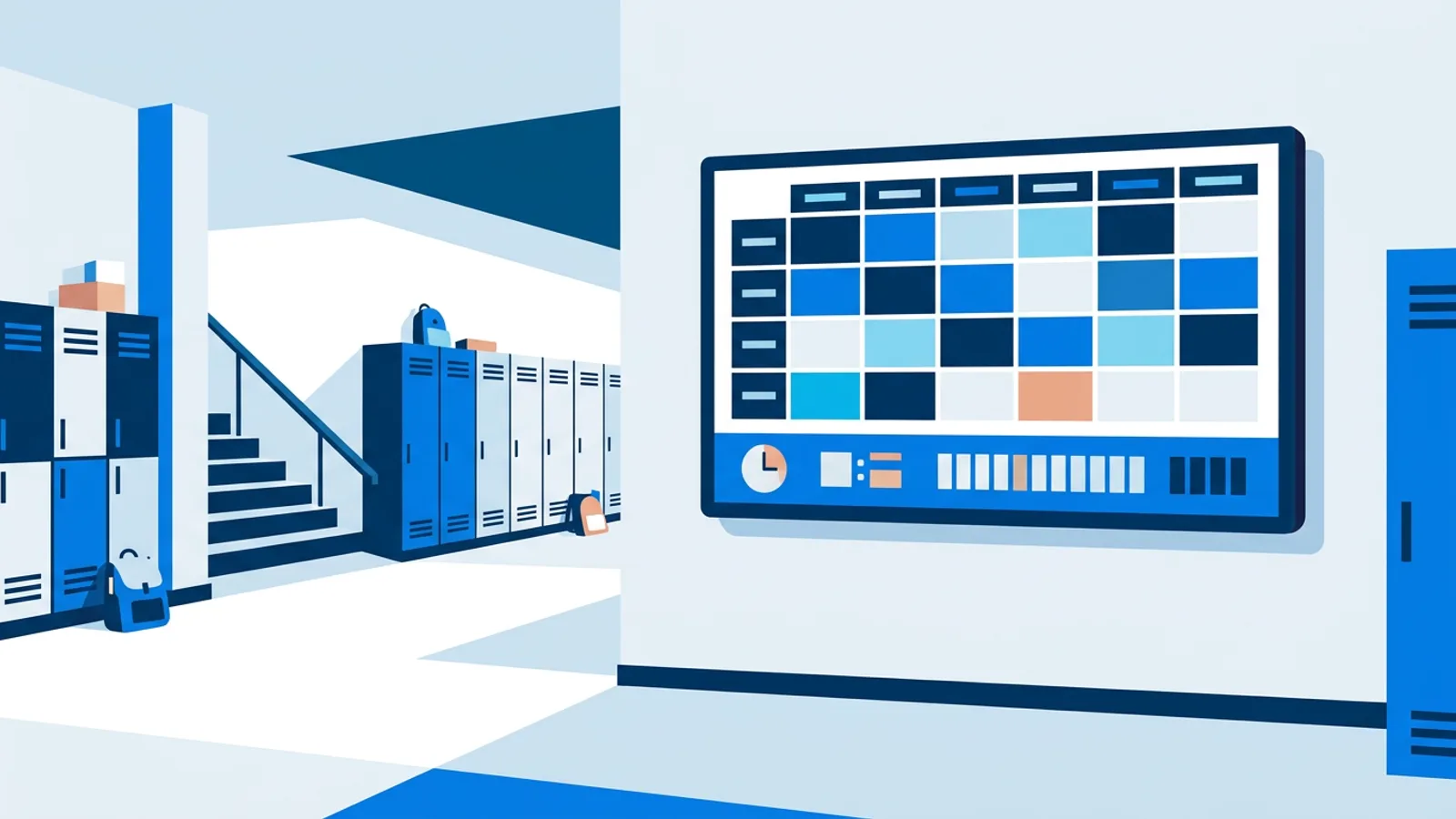
To put a Zermelo schedule on a TV screen, copy the iCal (webcal) export link that Zermelo generates for a class, teacher or student, and paste it into a calendar widget in your signage software. The screen then shows that rooster as an agenda, day or week view and updates whenever Zermelo updates the feed.
This guide uses that route because it works with any Zermelo portal that offers an iCal export: Zermelo already publishes schedules as standard .ics feeds, and TVpilot's Calendar widget reads any .ics feed. You can browse the Calendar widget and the other building blocks used below on the widgets overview, and the Zermelo on TV page has a short summary for schools.
This guide is for the person at a Dutch secondary school who has been asked to "get the rooster on the hallway TVs": an ICT coordinator, a roostermaker, or a teacher who happens to know their way around a dashboard. It covers where to find the feed, which feed to use for which screen, how to lay out a hallway screen versus a staff room screen, and what this setup cannot do.
How a Zermelo schedule gets on a TV screen
The chain has three links, and knowing them makes troubleshooting much easier later:
- Zermelo generates an .ics feed for one schedule (a person, a class or a group). The feed lives at a long URL with a token in it.
- TVpilot's Calendar widget fetches that URL and renders the lessons in the view you picked.
- The player (a Raspberry Pi, Fire TV Stick, Amazon Signage Stick or a smart TV browser) displays the widget, alone or as a box inside a designed slide.
The sync is one-way and read-only. Nothing you do in TVpilot changes anything in Zermelo, and a lesson moved in Zermelo only reaches the screen after Zermelo has regenerated the feed and the widget has fetched it again.
Finding the Zermelo ical feed for digital signage
Zermelo's export option sits in the Zermelo portal (your school's zportal address), usually under the settings or koppelingen section, labelled as a calendar or iCal link. The exact wording varies by portal version and by which options your school's Zermelo administrator has switched on. If you cannot find it, ask the roostermaker or functioneel beheerder before assuming the school does not support it.
What you get depends on who generates the link:
- A teacher or student account produces a feed of that person's own rooster.
- A school administrator may be able to produce feeds per class or group, which is what most public screens need.
Copy the link in full. If it starts with webcal://, that is fine: it is the same feed with a different prefix, and replacing webcal:// with https:// gives the plain web address if a tool asks for it.
Pick the feed that fits the screen, and mind privacy
A personal student feed shows that student's name, groups and possibly notes on a public TV. Do not use one for a hallway screen. Use a class or group feed, or a feed from a neutral account set up for display purposes. For a staff room, a teacher feed is reasonable, though a section or team feed is usually more useful than one teacher's week.
Treat the URL as a password. Anyone who has it can read that schedule. If it leaks (pasted in a group chat, shown in a screenshot), regenerate it in Zermelo and paste the new link into the widget.
Adding the feed in TVpilot
You have two ways to show the schedule, and the choice depends on whether the rooster is the only thing on that screen.
Option 1: a full-screen calendar slide
Use this when a screen exists only to show the rooster.
- In the dashboard, add a Calendar widget and paste the Zermelo .ics link.
- Choose the view: agenda, day or week.
- Add the widget to a playlist and assign that playlist to the screen.
- Press "Push to screen". Edits stay in draft until you do, so a half-configured widget never appears in the hallway.
Option 2: a widget box in the Designer
Use this when the rooster shares the screen with other content. The Designer has Widget boxes: a live plugin placed in a resizable box on a slide. Drop a Widget box on the canvas, point it at your Calendar widget, and arrange the clock, ticker or school logo around it. The seven Layout templates come with empty widget boxes already placed, so you can fill a split-screen layout without drawing it yourself.
Use one Calendar widget per feed. To show four classes side by side, create four Calendar widgets (one feed each) and place them in four boxes.
Agenda, day or week: which view for which screen
The view matters more than anything else for readability at distance. Use this rule:
| Screen location | Who looks at it | Best view | Why |
|---|---|---|---|
| Hallway or stairwell | Students walking past | Day view or agenda | Large text, only today, readable in a few seconds |
| Staff room | Teachers with a minute to spare | Week view | Shows tomorrow and the rest of the week at a glance |
| Reception | Visitors and parents | Agenda | A short list of what is on next, no grid to decode |
| Aula or canteen | Mixed | Agenda in a widget box | Leaves room for announcements and a clock |
If the screen is smaller than about 43 inches or viewers stand more than a few metres away, avoid the week view: a five-column grid of lesson codes becomes unreadable fast. Day view on a hallway screen and week view in the staff room is the setup that works for most schools.
Worked example: a school with six screens
Say you run ICT at a school with one building, two wings, and six screens: two hallway screens (one per wing), one in the aula, one at reception, one in the staff room and one spare in the mediatheek.
Plan and cost. The Free plan covers 1 screen and Starter covers up to 5 screens for €5 per month, so six screens means Pro at €19 per month (up to 25 screens, 10 GB storage). If you start with the staff room alone, the Free plan is enough to test the whole setup on one screen.
Hardware. Existing smart TVs can open a player URL in their browser. For screens that must start up reliably every morning, a Raspberry Pi 4 or 5 with TVpilot's one-command installer runs Chromium in kiosk mode with a watchdog that restarts the player within about 10 seconds if it crashes. A Fire TV Stick with the TVpilot app from the Amazon Appstore is the other low-effort option.
Feeds. The roostermaker creates group feeds for the classes whose lessons are in each wing. Wing A screen gets a Layout template with four widget boxes showing four class feeds in day view. Wing B gets the same with its classes. The staff room gets one week view of a team feed. Reception gets an agenda of a general feed.
The rest of the screen. Hallway slides get a clock in the corner and a Countdown widget set to count to 15:30 every day, with the red warning state in the last few minutes. The aula screen runs a playlist: the rooster box for 30 seconds, then announcements and photos. A scrolling news ticker over all content can carry school news from an RSS feed, and the Messages bar handles same-day notices such as a moved exam.
Evenings and holidays. On the Raspberry Pi screens, HDMI-CEC power scheduling switches the TVs to standby after school and back on in the morning, checked every minute against the dashboard schedule. Pro also allows blackout dates on the Schedule page, including Dutch holiday presets, so a special playlist does not run on days the school is closed.
Combining the rooster with other widgets
A rooster alone on a hallway screen gets ignored after a week. Two or three small additions keep people looking without crowding the schedule:
- A clock: TVpilot's full-screen clock has four styles, or place it in a small widget box.
- A countdown to the end of the day or to an event, using the countdown widget, which counts to the same time every day and has unit labels in Dutch.
- A news ticker over all content for school news.
- The Messages bar for urgent, short-lived notices.
Size the schedule box first: at 1080p it should take at least half the screen width, and the extras go in the remaining space. With four class feeds on one hallway screen, that means two rows of two boxes across the full width, with the clock and countdown in a narrow strip below. For more on what belongs where, see reception digital signage: what to show.
Limits you should know before you start
Updates are only as fresh as the feed. Zermelo decides how often it regenerates an .ics feed, and calendar apps also fetch on their own interval. A lesson cancelled at 08:05 may not be on screen at 08:10. For last-minute uitval, the Zermelo app on students' phones remains the source of truth, and the screen is for orientation.
What appears depends on the feed contents. If cancelled or changed lessons are included in the export, they show; if not, they do not. Check a known change in the feed before you promise teachers that substitutions will appear.
It is read-only. There is no write-back, no way to swap a room from the TV, and no interactivity on screen.
The player needs internet for updates. Players keep following their playlist schedule during an internet outage, but content updates, including a fresh copy of the feed, need a working connection. School networks with captive portals or strict filtering can also block the player; whitelisting the dashboard and feed domains fixes that.
The token can expire. If someone regenerates the link in Zermelo, the old one stops working and the widget goes empty. Set a backup playlist per screen so missing content shows something useful instead of a blank screen.
When TVpilot fits, and when it does not
TVpilot fits if you want the rooster on a few to a few dozen TVs alongside a clock, countdown, announcements and other content, managed from one web dashboard, on cheap hardware. It also fits if you already use the TVs for other things and just want to add a schedule.
It is the wrong choice if you need live substitutions on screen within seconds, if you need two-way changes, or if your school requires self-hosted software: TVpilot is hosted SaaS and cannot be installed on your own servers. If all you need is one teacher checking their week, the Zermelo app itself is simpler than any TV.
Get the rooster on your first screen
Start with one screen, ideally the staff room, because teachers will tell you quickly whether the feed is right. Find the class or team iCal link in the Zermelo portal, paste it into a Calendar widget, pick week view, and push it to the screen. Once it holds up for a week, copy the setup to the hallways with day views and a clock. You can do the first screen on the Free plan without a credit card: create your TVpilot account and add the feed today.
Frequently asked questions
Do I need a special Zermelo plugin to show the rooster on a TV?
No. Zermelo can export schedules as standard iCal (.ics or webcal) feeds, and TVpilot's Calendar widget reads any .ics feed, so pasting the Zermelo export link into a Calendar widget is enough to show the rooster as an agenda, day or week view. See the Zermelo page on tvpilot.app for a short overview for schools.
Where do I find the iCal link in Zermelo?
Log in to your school's Zermelo portal and look in the settings or koppelingen section for a calendar or iCal export link. The wording differs per portal version and depends on which options your school's administrator has enabled. Personal accounts give a feed of your own rooster; class or group feeds usually need an administrator.
How quickly do schedule changes appear on the screen?
Changes appear after Zermelo regenerates the feed and the Calendar widget fetches it again, so there can be a delay. Last-minute cancellations may not show immediately, which is why the Zermelo app remains the source of truth for uitval and the TV is best used for orientation.
Is it safe to show a student's Zermelo feed on a hallway TV?
No. A personal feed can show a student's name, groups and notes to everyone walking past. Use a class or group feed, or a neutral account created for display purposes, and treat the feed URL like a password: if it leaks, regenerate it in Zermelo and paste the new link into the widget.