Digital Signage CMS: What an Easy System Should Do
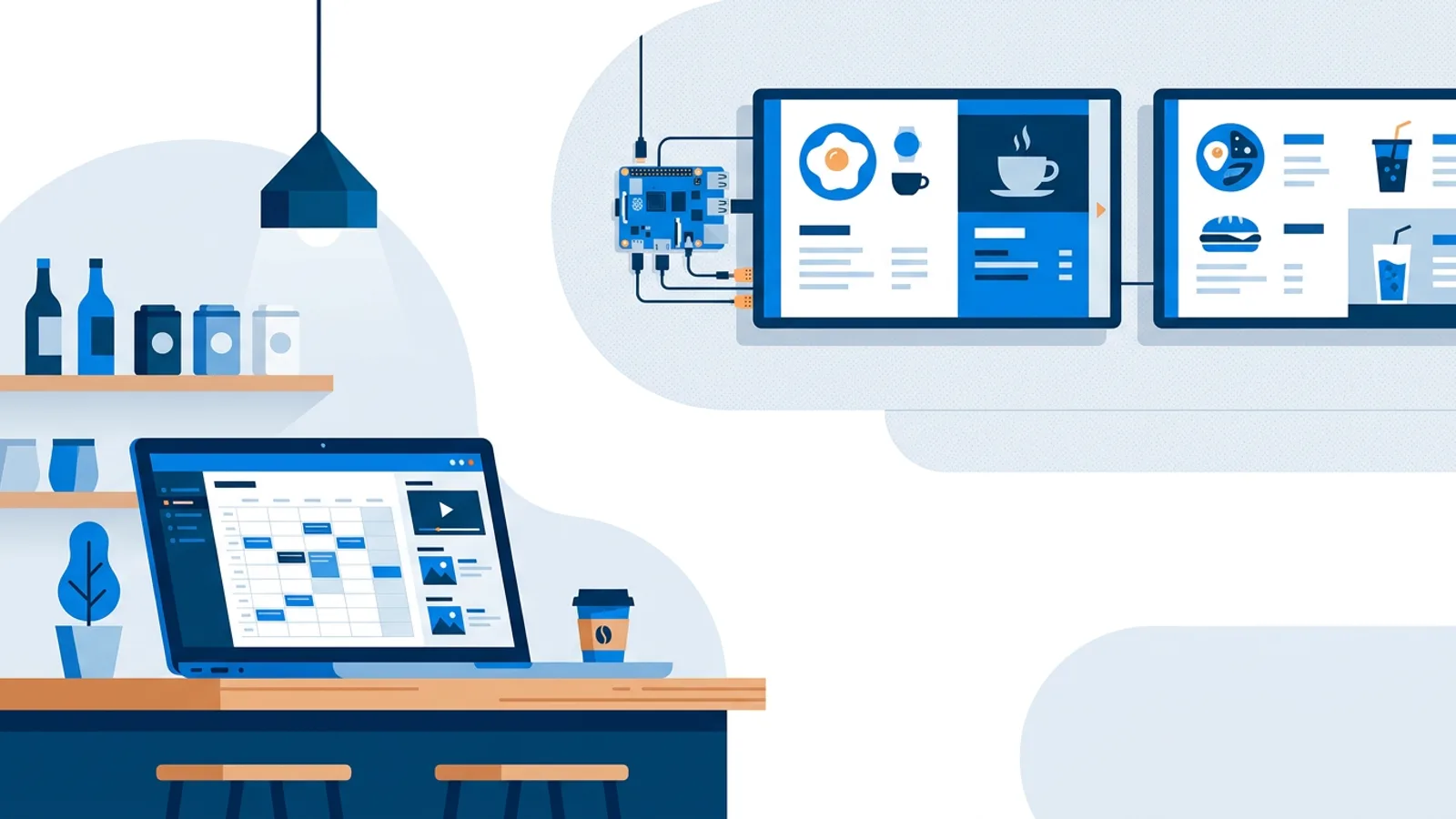
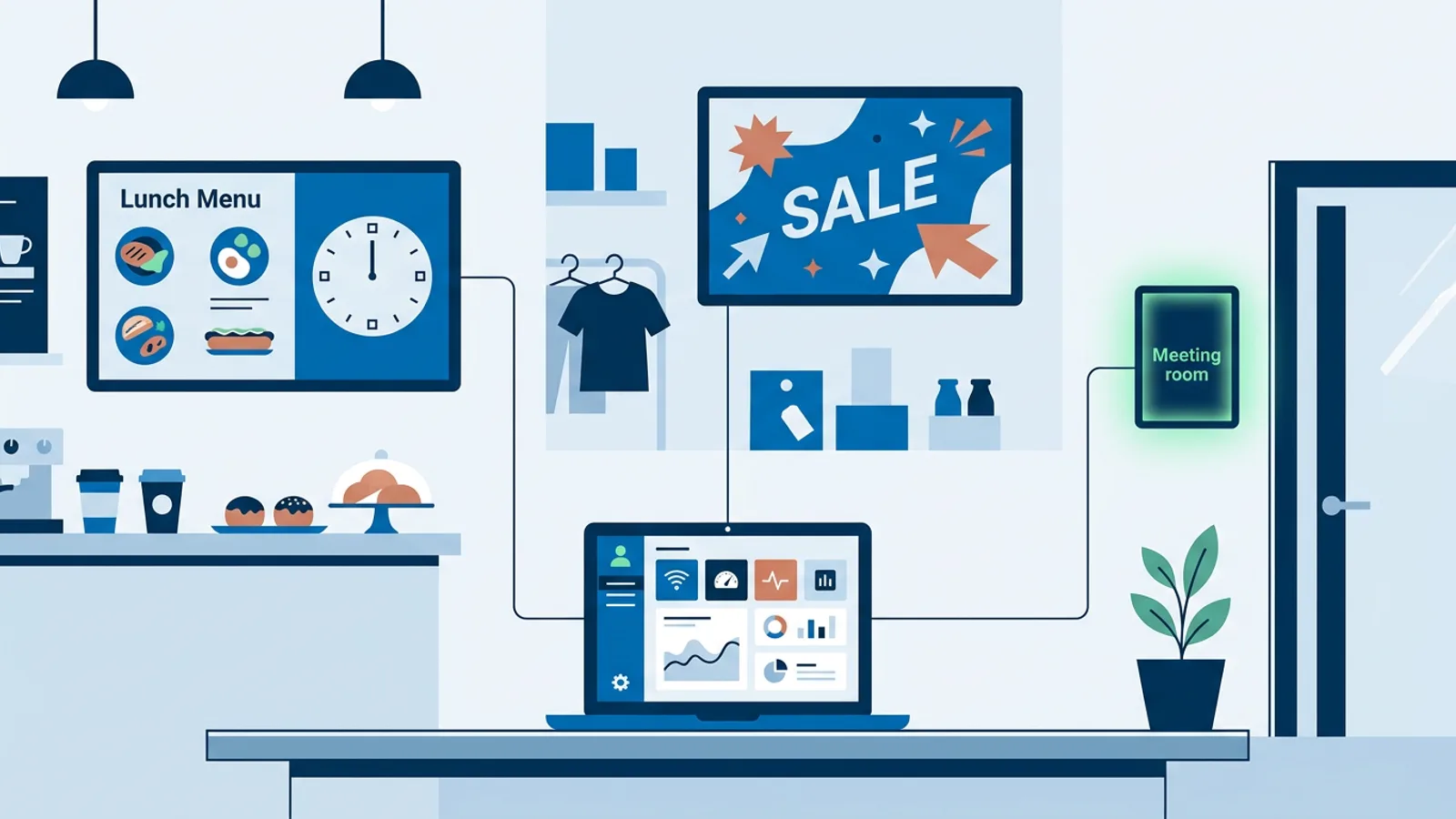
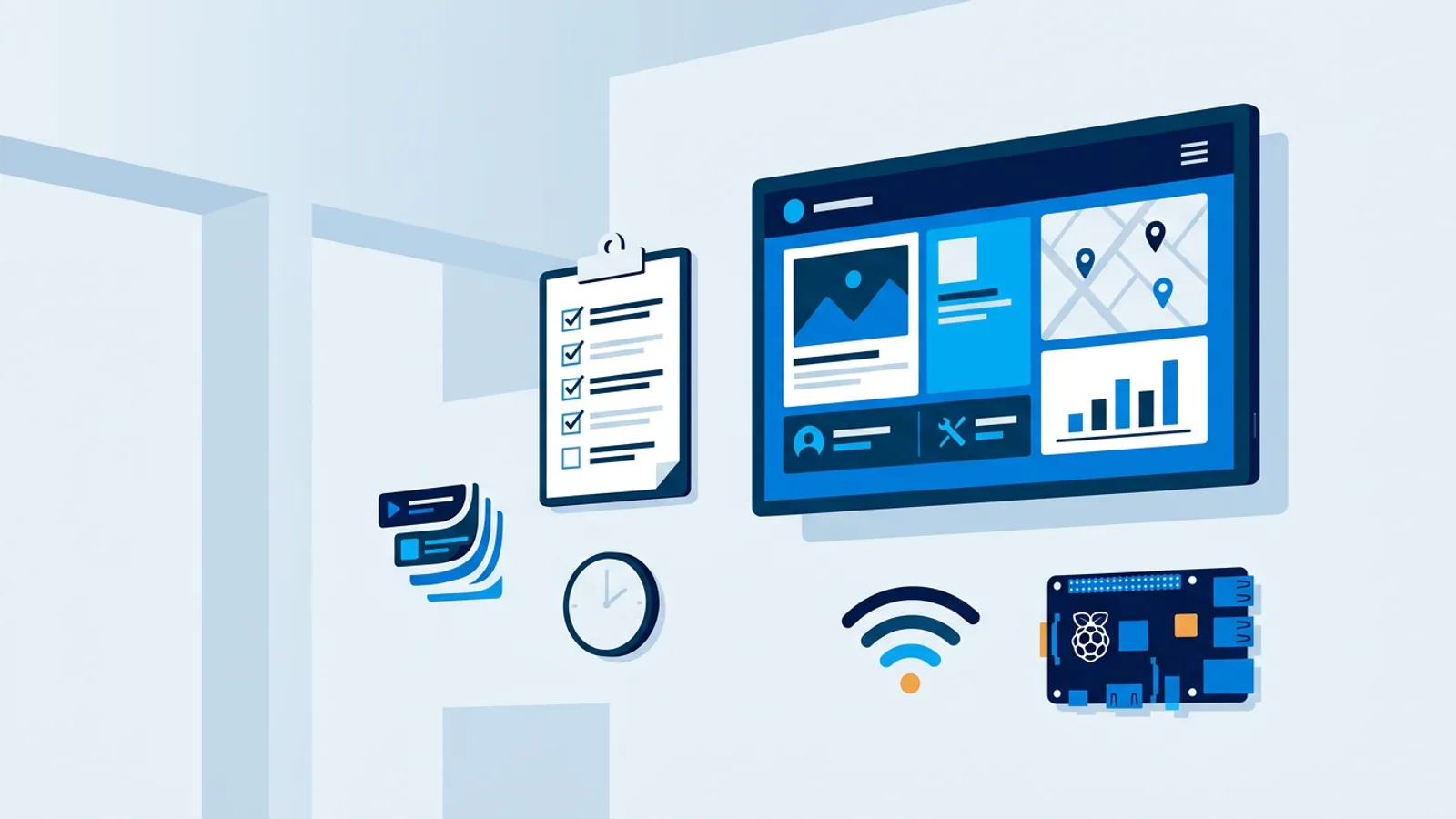
A digital signage CMS is the software where you upload images and videos, arrange them into playlists, schedule what plays on which screen and when, and check that every screen is still running. An easy content management system for commercial displays lets someone without technical skills change a screen in minutes, keeps half-finished edits off live screens, and warns you when a TV goes dark.
That definition covers a wide range of products, from free self-hosted projects to large enterprise suites. This guide walks through the jobs a CMS for digital signage has to do, shows each one on a concrete setup in TVpilot, the hosted signage software we build, and ends with a checklist and decision rules for picking one.
If you are comparing systems right now, read the checklist section first and come back to the details where a product falls short.
What a digital signage CMS does
Every digital signage content management system, cheap or expensive, has to cover seven jobs. Products differ mostly in how much effort each job takes you.
1. A media library that rejects bad files
The library is where your images, videos and PDFs live. The useful test is what happens when you upload something a screen cannot play. A phone photo in HEIC or a video in HEVC/H.265 often plays on your laptop and fails on a TV stick. TVpilot refuses those formats at upload with a clear message, offers to convert videos above 1080p in the browser before uploading, turns a PDF into one slide per page, and imports straight from Google Drive and Dropbox. Files can be replaced in place (the newest 5 versions are kept on paid plans) and restored from the trash for 30 days.
Content for digital signage also has to come from somewhere. If nobody on your team designs, look for a built-in editor. TVpilot has a Designer (a canvas editor with text, photos, icons, QR codes and widget boxes for live data) and AI Studio, which generates a designed promo, menu, opening hours or welcome screen from a short brief. If you already design in Canva, you can paste a public share link and edits in Canva appear on screens automatically.
2. Playlists
A playlist is an ordered loop of slides: images, videos, web pages, PDFs and live plugins. You want drag-and-drop ordering, one setting to apply the same duration to every slide, and the option to pause a slide without deleting it. One feature people only miss after the first black screen is a backup playlist: if the assigned content is empty or unavailable, TVpilot plays the backup instead.
3. Scheduling per screen and per slide
Scheduling works at two levels, and you need both.
- Per screen: which playlist plays on this screen at this time. TVpilot does this on a calendar with weekly repeating slots (lunch menu on weekdays 11:00 to 14:00) and one-off items (an event day). When nothing is planned, the screen falls back to its default playlist, and a one-off item beats a weekly one.
- Per slide: whether one slide inside a playlist shows on certain weekdays or hours, with an optional expiry date after which it takes itself off screen.
The expiry date is the feature that prevents last month's promotion from running for another three months because nobody remembered to delete it.
4. Drafts and Push to screen
In a CMS that saves every change live, a half-typed price or a test image can appear on the shop floor while you are still editing. In TVpilot, edits to plugins and playlists save as a draft, and screens keep playing the last pushed version until you press Push to screen. Paid plans add playlist version history with restore, so a bad push is one click to undo.
5. Roles and approvals
Once more than one person edits, you need roles. TVpilot has owner, admin, editor and viewer roles (Pro: up to 3 users; Business: up to 25). Business adds an approval workflow with a four-eyes option for playlists, uploads and schedule changes, which suits franchises and organisations where marketing signs off on what customers see.
6. Monitoring
A CMS should tell you a screen is off before a customer does. TVpilot shows online or offline status, TV power state, Wi-Fi signal strength and a screenshot of what each screen is showing, with remote restart and cache clear. Optional email alerts cover a screen going offline and recovering, expiring content and a weekly Monday report.
7. Proof of play
If you sell airtime on your screens or report to a head office, you need evidence of what played. TVpilot reports playback per media item, screen, day and hour, exports CSV and PDF, and issues proof-of-play certificates with a report number, plus advertiser reports per rented playlist. These are on paid plans only.
Live data sits on top of all seven: weather, Google reviews, train departures, webshop revenue, meeting room panels. TVpilot has more than 50 plugins for live data, listed on the integrations page.
Worked example: a bakery-café with four screens
Say you run a bakery-café with four screens in one shop: two menu boards behind the counter, one window screen facing the street and one TV in the seating area.
- Hardware. The menu boards and seating TV get a Raspberry Pi 4 each, installed with the one-command installer from the dashboard. The window screen is a smart TV with a browser pointed at its player URL.
- Plan. Starter costs €5/month with 3 screens included. The fourth screen is €2/month, so €7/month, or €49 + €20 = €69 a year if you pay yearly. Starter gives you 5 calendars and 20 scheduled items, enough for this shop.
- Content. You build the breakfast menu in the Designer, ask AI Studio for a "new sourdough this week" promo, and add a Google reviews widget to the seating-area playlist.
- Calendar. Breakfast menu is the default playlist on both menu boards. A weekly slot swaps in the lunch playlist on weekdays 11:00 to 14:00. A one-off item runs a market-day playlist on one Saturday.
- Per-slide rules. The sourdough promo gets an expiry date two weeks out. The window screen shows a "fresh bread until 10:00" slide only before 10:00.
- Power. The Pis switch their TVs to standby after closing through HDMI-CEC, following the power schedule in the dashboard.
- Edits. When a price changes, you edit the slide, check it, then press Push to screen. Nothing reaches the counter until then.
The decision point in this example is people. Starter has 1 user. If the shift manager also needs to edit menus with their own login, Pro at €29/month (10 screens, up to 3 users with roles) is the plan that fits. If you open a second branch, Starter's single location also pushes you to Pro, which has 3 locations.
Checklist for choosing a CMS for digital signage
| Question | Why it matters | Rule of thumb |
|---|---|---|
| Hosted or self-hosted? | Self-hosted means you run the server, updates and backups | Choose hosted unless you have IT staff and a policy requiring on-premise |
| Which players are supported? | Your hardware choice depends on it | Check your exact device, not "Android" in general |
| Price per plan or per screen? | Per-screen pricing grows fast as you add displays | Calculate your cost at today's screen count and at double |
| What happens offline? | Shop Wi-Fi drops | Ask whether the schedule keeps running without internet |
| Drafts before publishing? | Prevents half-edits on live screens | Required if more than one person edits |
| Per-slide expiry dates? | Stops stale promos | Required if you run time-limited offers |
| Monitoring and alerts? | You will not walk past every screen daily | Required beyond two screens |
| Proof of play? | Needed for advertisers or head office | Only if someone audits what played |
Three decision rules cover most small businesses:
- If you have one or two screens and edit them yourself, pick the system with the lowest effort to make a slide, and use a free tier to test it on your actual TV.
- If several people edit, drafts and roles matter more than any design feature, because one wrong push is visible to every customer.
- If you expect to grow from 3 screens to 15, compare total yearly cost at 15 screens, not the entry price.
Failure modes to test before you commit
These are the problems that show up in week three, not in the demo:
- Black screen on empty content. Delete the last slide in a test playlist and see what the screen does.
- Internet outage. Unplug the router for ten minutes. A good player keeps playing and keeps following its schedule. In TVpilot, players keep following the calendar during outages and a scheduled change downloaded in advance still switches at the exact moment, but new content edits need the connection back.
- Video that stutters. Upload one of your real videos and play it on your cheapest device. Many playback complaints are a format problem the CMS should have caught.
- Screens that never turn off. A consumer TV left on overnight ages faster and wastes power. Check whether the CMS can schedule TV power, or whether you need smart plugs.
- Forgotten promotions. Look for expiry dates per slide and an alert for expiring content.
When TVpilot is, and is not, the right fit
TVpilot fits small businesses, offices and schools that want a hosted dashboard, cheap hardware (a Raspberry Pi, a Fire TV Stick with the TVpilot app, the Amazon Signage Stick, or any device with a modern browser), and pricing per plan with screens included rather than per screen or per user. The Free plan covers 1 screen forever with no credit card, including AI Studio and all standard plugins, so you can test it on your real TV.
It is not the right fit if you need self-hosting. TVpilot is hosted SaaS only, not open source and not installable on your own server. There is no Google Play app, so Android TV runs through a kiosk browser with the player URL. Offline playback is limited to keeping what is already on the player running: content updates need internet. And above 100 screens you move to a custom arrangement rather than a self-service plan.
Start with one screen
The quickest way to judge any digital signage CMS is to put your own menu, promo or dashboard on your own TV and run it for a week, including one Wi-Fi drop and one price change. You can do that on TVpilot's Free plan with one screen, no card and no time limit: create your account and claim your first screen.
Frequently asked questions
What is a digital signage CMS?
A digital signage CMS (content management system) is software for managing what plays on screens. You upload media, build playlists, schedule which content plays on which screen at which time, and monitor whether screens are online. Hosted systems run in a web dashboard; self-hosted systems run on your own server.
Should I choose a hosted or self-hosted signage CMS?
Choose hosted if you do not have IT staff to run a server, apply updates and handle backups, which applies to most small businesses. Self-hosted makes sense when company policy requires content and data to stay on your own infrastructure and someone is available to maintain it. TVpilot is hosted only.
Does a digital signage CMS keep working when the internet drops?
It depends on the player. A good player keeps showing the content it already downloaded. TVpilot players keep following their schedule during internet outages and the Raspberry Pi player recovers automatically afterwards, but new edits only reach screens once the connection is back.
Is per-screen or per-plan pricing cheaper for signage software?
For a few screens the difference is small; it grows as you add displays. Calculate the yearly cost at your current screen count and at double. TVpilot charges per plan with screens included, for example Starter at €5/month with 3 screens and €2/month per extra screen, and never per user or device license.