How to Set Up Digital Signage on a TV, Step by Step
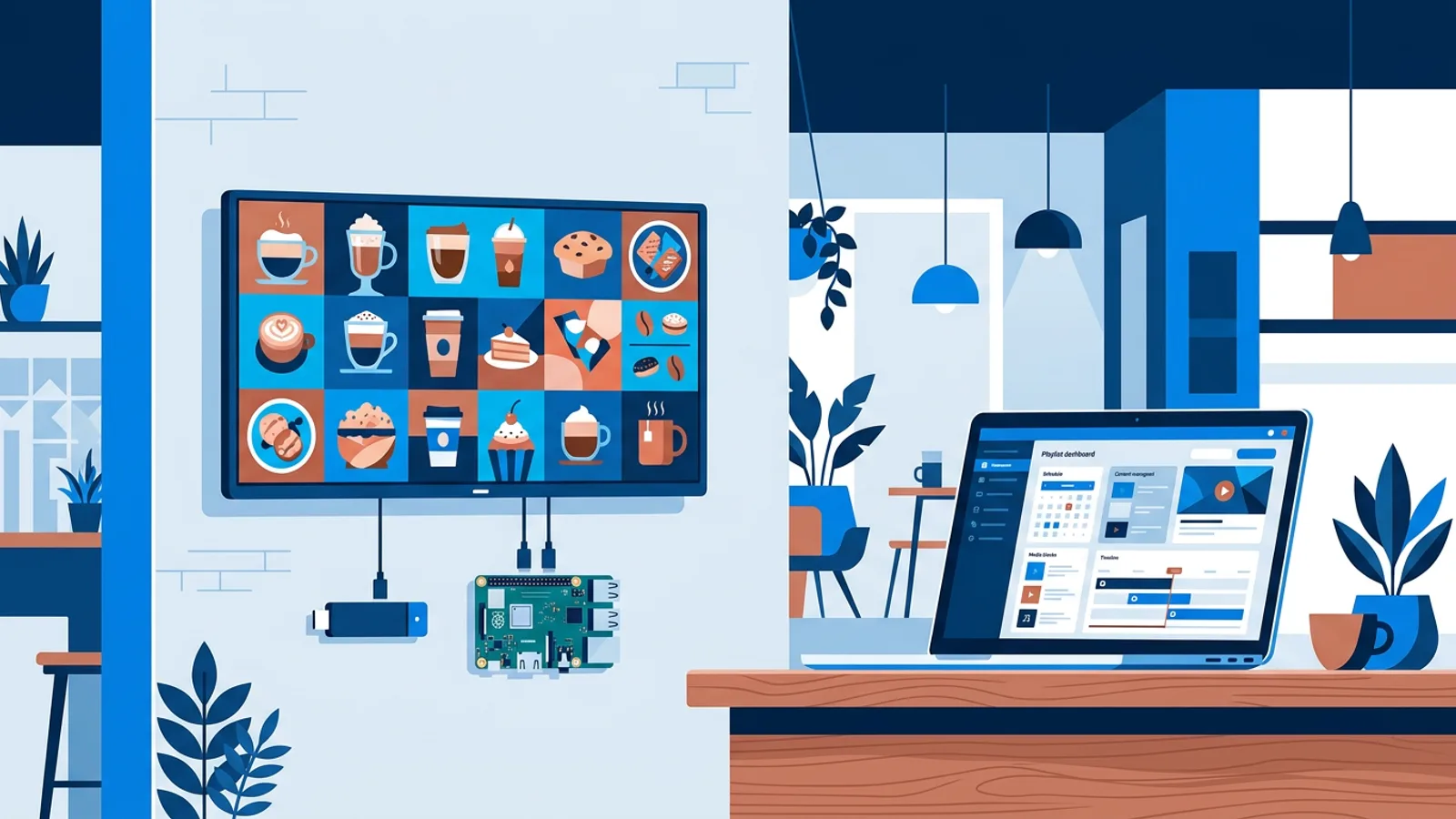
To set up digital signage on a TV, connect a small player (an Amazon Signage Stick, Raspberry Pi, Fire TV Stick, Android TV box or the TV's own browser) to the screen and pair it with a cloud dashboard using a claim code. You then upload images, videos or PDFs into a playlist, assign it to that screen, and schedule when it plays, all from a web browser.
That is the whole loop, and it works the same for one TV in a café as for ten in an office. This guide walks through it in the order you actually do it, with the decisions that trip people up at each step. The examples use TVpilot digital signage, but the order of steps applies to most hosted signage systems.
Before you buy anything, know that the Free plan covers 1 screen forever with no credit card, so you can run through every step below on a real TV before spending money on software.
How to set up digital signage on a TV: the six steps
- Pick the TV and decide where and how it hangs.
- Pick the player that drives it.
- Pair the player with your account.
- Upload content and build a playlist.
- Assign the playlist and set the schedule.
- Monitor the screen once it is live.
Step 1: Pick the TV and decide landscape or portrait
Any TV with an HDMI input works. A consumer TV is fine for a few hours a day in a shop or office; for screens that run 16 hours or more, or sit in a sunny window, look at a commercial display (the tradeoffs are covered in commercial display vs consumer TV).
Decide orientation before you mount anything, because it decides how you design every slide:
- Landscape (1920 x 1080) suits wallboards, dashboards, video and anything viewed from across a room.
- Portrait (1080 x 1920) suits menu boards, price lists, posters next to a door and anything people read standing close.
If you go portrait, check that the wall bracket supports a rotated TV, and set the rotation in the player's display settings rather than relying on the TV. Then make your slides at 1080 x 1920 so nothing gets letterboxed. Mixing orientations in one playlist is the most common reason a new screen looks wrong on day one.
Place the TV within reach of a power socket and good Wi-Fi, or run an Ethernet cable if you can. A screen that drops off the network every afternoon is far more annoying than a slightly worse viewing angle.
Step 2: Pick the player
The player is the small computer that shows your content. Here is how the options compare:
| Player | Best for | How it runs TVpilot |
|---|---|---|
| Amazon Signage Stick | 24/7 screens with no IT person around | Set up in the Amazon Signage app, choose TVpilot as CMS, starts in kiosk mode on every boot |
| Raspberry Pi 4 or 5 | Full control, TV on/off scheduling | One-command installer, Chromium kiosk mode, self-healing watchdog |
| Fire TV Stick | Cheap and quick for a few hours a day | TVpilot app from the Amazon Appstore (or the Silk browser) |
| Android TV box | Hardware you already own | Browser route: TV Bro or Fully Kiosk Browser with the player URL |
| Smart TV browser | Testing, or a screen with no spare HDMI budget | Open the player URL in the TV's browser |
The decision rule:
- If the screen must run all day without anyone touching it, choose the Amazon Signage Stick. It is built for signage and relaunches TVpilot after a power cut.
- If you want the TV to switch itself on in the morning and off at night, choose a Raspberry Pi. It is the only option here that controls TV power over HDMI-CEC from the dashboard schedule.
- If you already own a Fire TV Stick or Android box and the screen runs during opening hours only, use it. It works, and you can upgrade later without redoing your content.
- If you just want to see your first playlist on a TV tonight, open the player URL in the smart TV browser. Treat it as a test setup: TV browsers tend to drop back to the home screen after a firmware update or a long standby.
Note that there is no Google Play app, which is why Android TV goes through a kiosk browser. For a Pi, any model running Raspberry Pi OS with a desktop works, but a Pi 4 or 5 is the one to buy for smooth video. The Raspberry Pi setup page has the details.
Step 3: Pair the screen with the claim code
Pairing links the physical player to your account so the dashboard knows which TV is which. In the dashboard you add a screen, give it a clear name ("Counter menu" beats "Screen 1" once you have three), and get a claim code.
How you enter it depends on the player:
- Raspberry Pi: the dashboard generates a one-line installer command (curl ... | bash) containing a 6-character claim code. Paste it into the Pi's terminal. It installs Chromium in kiosk mode, sets up auto-start and a systemd service, hides the cursor, and adds a watchdog that restarts the player within about 10 seconds if it crashes.
- Amazon Signage Stick: plug it into the TV, open the free Amazon Signage mobile app, pick TVpilot as the CMS and type the claim code from the dashboard.
- Fire TV Stick, Android TV, smart TV browser: install the app or open the player URL, then follow the device guide in the dashboard.
Once paired, the screen shows up as online in the dashboard. If it does not, check the network first; guest Wi-Fi with a login page is the usual culprit.
Step 4: Upload content and build a playlist
A playlist is an ordered list of slides. TVpilot plays images, videos, web pages and PDFs, and a PDF becomes one slide per page, so a printed price list exported to PDF is a valid first playlist.
Practical points that save time:
- Upload files at the screen's resolution. Uploads refuse formats screens cannot play, such as HEIC photos from an iPhone and HEVC (H.265) video, and videos above 1080p can be converted in the browser first.
- Pull files from Google Drive or Dropbox instead of downloading and re-uploading.
- Set a duration per slide, or use "apply to all" to give the whole playlist the same duration and transition. Eight to ten seconds is a reasonable start for a slide with a headline and a price.
- No designs yet? The built-in Designer and AI Studio make slides from scratch, and a Canva share link plays as a slide that updates when you edit it in Canva.
Edits save as a draft. The screen keeps playing the last version until you press Push to screen, so half-finished work never appears in front of customers. It also means forgetting to push is the number one reason someone says "my change didn't show up".
Set a backup playlist for the screen too. If the assigned content is empty or unavailable, the screen plays the backup instead of going black.
Step 5: Assign the playlist and schedule it
The simplest setup is one default playlist per screen. Scheduling becomes useful once content should change by time of day. There are three layers:
- Per-screen calendar: decide which playlist plays when, with weekly repeating slots and one-off items for an event day. When nothing is planned, the screen falls back to its default playlist.
- Per-slide scheduling: show a single slide only on certain weekdays or between certain hours, with an optional expiry date so a promotion takes itself off screen.
- TV power on a Raspberry Pi: the player checks the power schedule every minute and switches the TV on or to standby over HDMI-CEC, with no smart plug.
Use the calendar when whole sets of content change (breakfast vs lunch). Use per-slide scheduling when one or two slides change inside an otherwise stable playlist. Players keep following the schedule during internet outages.
Worked example: a bakery with two screens
Say you run a bakery open 07:00 to 18:00 with a portrait menu screen behind the counter and a landscape screen in the window.
- Hardware: a Raspberry Pi 5 on the counter TV, so it can switch the TV on at 06:55 and off at 18:05. An Amazon Signage Stick on the window TV, because nobody wants to climb into the window display after a power cut.
- Plan: two screens is more than the Free plan's one, so Starter at €5/month (or €49/year) covers it, with 3 screens included and 5 calendars.
- Counter calendar: a "Breakfast" playlist daily 07:00 to 11:00, a "Lunch" playlist weekdays 11:00 to 14:00, and the default "All day" playlist the rest of the time. That is 2 weekly items.
- Window: one playlist of product photos, with a "Croissant deal" slide scheduled per slide for Saturday and Sunday mornings only, expiring at the end of the month.
The owner edits prices from a phone, presses Push to screen, and both TVs update without anyone touching them.
Step 6: Monitor the screen after it goes live
The dashboard shows each screen as online or offline, its TV power state on a Pi, Wi-Fi signal strength and a screenshot of what is playing right now. The screenshot is the fastest check: if it shows your menu but customers say the TV is black, the problem is the TV input or power, not the content.
Turn on email alerts for screen offline and recovery. From the dashboard you can also restart a player or clear its cache remotely. More on what to watch is in digital signage screen monitoring.
How does digital signage work behind the scenes?
The dashboard stores your playlists and schedule in the cloud. The player on the TV downloads them and plays them full screen in a loop, then checks back for changes. That is why a player needs an internet connection for content updates: the files and the schedule come from the dashboard. A Raspberry Pi player recovers by itself after an outage, and a scheduled change can download in advance and switch at the exact moment even if the connection is down at that time.
Common setup mistakes that cost you a day
- TV auto-standby: many consumer TVs switch off after a few hours without remote input. Disable eco or auto power off in the TV menu.
- Guest Wi-Fi with a login page: the player cannot click through it. Use a staff network or Ethernet.
- Wrong orientation: portrait slides on a landscape TV get black bars. Design for the mounted orientation.
- Draft not pushed: check that you pressed Push to screen.
- Smart TV browser as a permanent setup: fine for testing, fragile after updates. Move to a dedicated player once the content works.
When TVpilot is, and is not, the right fit
TVpilot fits if you want hosted software you manage from a browser, cheap players, and pricing per plan with screens included: Free for 1 screen, Starter at €5/month for 3. Plugins such as weather, Google reviews and webshop dashboards are included on every plan except the Premium ones.
It is not the right fit if you need to self-host: TVpilot is hosted SaaS and not open source. It is also not ideal for screens that will spend long periods with no internet at all, because content updates need a connection. And if your Android box can only install from Google Play, you will be using the browser route rather than a native app.
Get your first screen running
Start with the TV you already have and whichever player is in a drawer: pair it, upload one PDF or a few photos, push the playlist and check the screenshot in the dashboard. Once that works, move to an Amazon Signage Stick or Raspberry Pi for permanent use and add a schedule. Create a free account to set up your first screen, with no credit card and no time limit.
Frequently asked questions
Can I turn a normal TV into digital signage?
Yes. Any TV with an HDMI input works. Plug in a player such as an Amazon Signage Stick, Raspberry Pi, Fire TV Stick or Android TV box, or use the smart TV's own browser, then pair it with a signage dashboard to control what plays. Consumer TVs are fine for normal opening hours; for 24/7 use or bright windows, consider a commercial display.
Do I need a smart TV for digital signage?
No. The player does the work, so a basic non-smart TV with HDMI is enough. A smart TV browser can open a player URL for testing, but a dedicated player like the Amazon Signage Stick or a Raspberry Pi is more reliable for daily use because it starts the signage automatically after a reboot.
How much does it cost to set up digital signage on one TV with TVpilot?
The software is free for 1 screen on the Free plan, forever, with 250 MB storage and no credit card required. It is not a trial. You only pay for the player hardware. If you add screens, Starter costs €5/month or €49/year with 3 screens included.
Does digital signage keep working if the internet drops?
Partly. Players need an internet connection to receive new content, but they keep following the schedule they already have during an outage, and the Raspberry Pi player recovers automatically when the connection returns. A scheduled playlist change can also download in advance and switch on time while offline.