Firestick Digital Signage vs Amazon Signage Stick
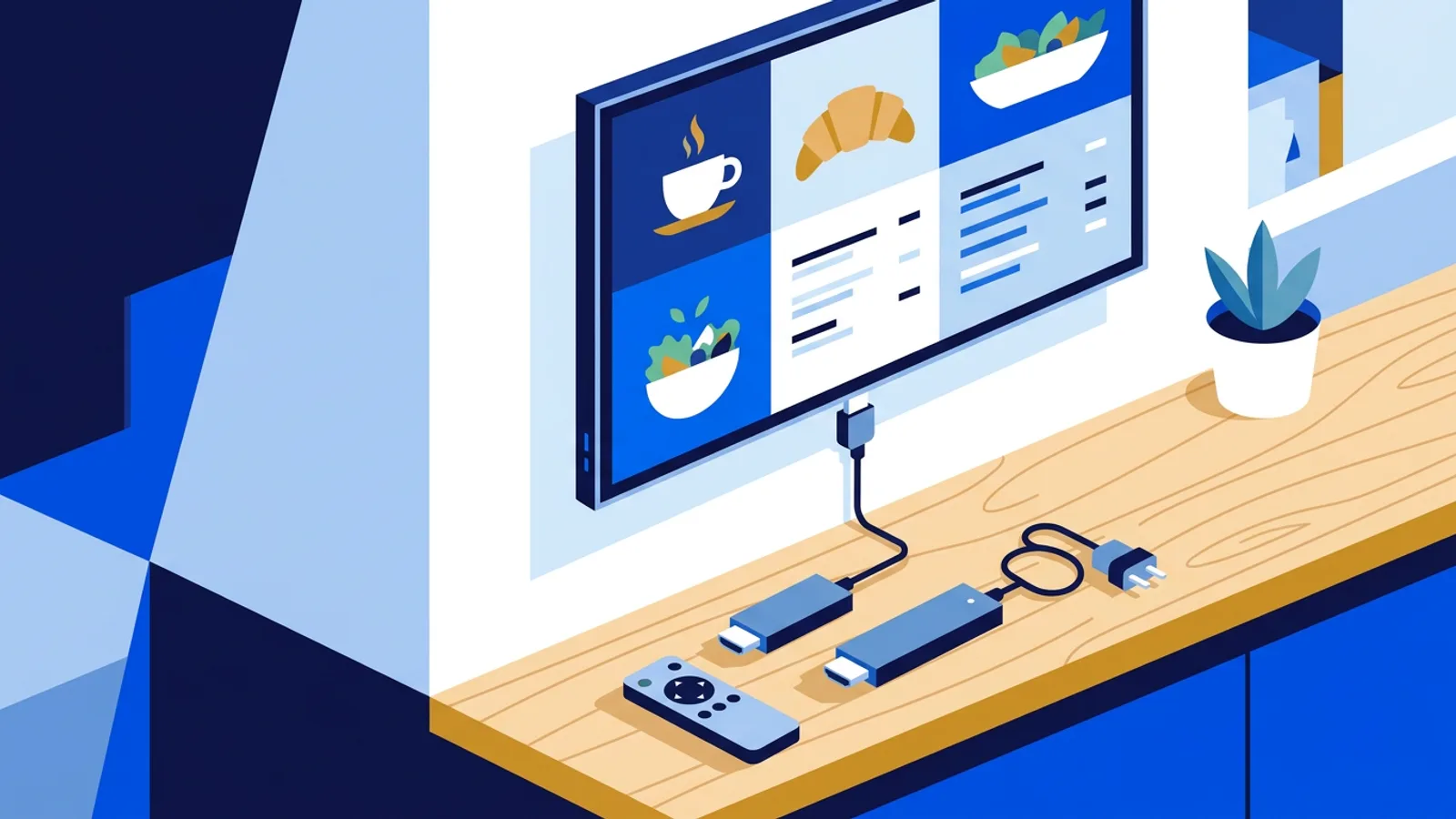
A Fire TV Stick is fine for firestick digital signage on one low-risk screen, such as a café menu TV that someone switches on every morning anyway. For a screen that has to come back by itself after a power cut, or for more than a couple of screens nobody wants to babysit, the Amazon Signage Stick is the better buy, because it is built to boot straight into your signage app.
Both sticks come from Amazon, both plug into HDMI, and both run TVpilot. The difference is what happens when nobody is standing next to the TV. This guide compares them on the points that matter for a business screen (startup behaviour, updates, remote management, cost and where to buy) and ends with a rule you can apply to your own setup. If you already know you want the purpose-built option, the Amazon Signage Stick setup page walks through it.
What each stick is designed to do
The Fire TV Stick is a consumer streaming device. It is designed for a living room: a home screen full of apps, a remote in someone's hand, and a person who decides what to watch. You can run signage on it by installing the TVpilot app from the Amazon Appstore, or by opening a TVpilot player URL in the Silk browser.
The Amazon Signage Stick is Amazon's purpose-built signage media player. You set it up with the free Amazon Signage mobile app, pick a content management system, and from then on the stick exists to show that system's content. TVpilot is available on it in collaboration with Amazon Signage.
That design difference explains almost every row in the comparison below.
Amazon Signage Stick vs Fire TV Stick: side by side
| Fire TV Stick | Amazon Signage Stick | |
|---|---|---|
| Built for | Home streaming | Digital signage |
| How TVpilot runs | TVpilot app (Amazon Appstore) or Silk browser with a player URL | Chosen as the CMS in the Amazon Signage app |
| Setup | Install app, enter player details with the remote | Amazon Signage mobile app, choose TVpilot, enter the claim code from the dashboard |
| After a power cut | Test it: expect to need the remote to reopen the app | TVpilot starts in kiosk mode on every boot, also after a power cut |
| Home screen and menus | Consumer home screen is part of the device | Starts straight into the signage app |
| Where to buy | Most electronics shops and Amazon | Amazon in the US, UK, Germany, France, Spain, Italy and Canada (also Amazon Business there); Netherlands and Belgium via amazon.de |
| Good for | One screen with a person nearby every day | Unattended screens, several locations, anything customer-facing that must not show a menu |
Kiosk start and power cuts
This is the row that decides most purchases. A business TV loses power more often than you think: a cleaner unplugs it, a breaker trips, the shop's power strip is on a timer, or the building switches circuits off at night.
With the Amazon Signage Stick, TVpilot starts in kiosk mode on every boot, including after a power cut. Nobody has to touch anything.
With a standard Fire TV Stick, test this yourself before you rely on it. Pull the plug, plug it back in and watch. On a consumer device you should expect to land on the Fire TV home screen and need the remote to reopen the TVpilot app. If the TV hangs in a staff room or a waiting area where nobody checks it, that home screen can sit there for hours. Also check the device's screensaver and sleep settings, which are aimed at home viewing.
Updates
There are two layers of updates on any signage stick: the device's own system software and your signage content.
Your content is the easy part. TVpilot playlists and plugins save as a draft, and screens keep playing the last version until you press Push to screen. From the dashboard you can reload every screen now, or schedule the reload for tonight at 03:00 in each screen's own time zone, so a change never interrupts opening hours.
The device layer is where the consumer stick is less predictable. A Fire TV Stick is designed around a person using the home screen, so any system prompt or app change is something you find out about when you look at the TV. A dedicated signage player is designed to return to the signage app on its own, which is the behaviour you want when the screen hangs above a counter.
Remote management
Whichever stick you choose, the TVpilot dashboard is where you manage content: playlists, per-slide scheduling, the calendar Schedule page, "Show now" for pushing a playlist to screens for 30 minutes up to indefinitely, and a backup playlist per screen so the TV does not go black if the assigned content is empty.
Screen monitoring shows online and offline status per screen, with optional email alerts when a screen goes offline and when it recovers. That alert is where the hardware difference shows up in practice. If a Signage Stick drops offline because of a power cut, it typically comes back on its own and you get a recovery email. If a Fire TV Stick drops offline, it may come back on the home screen instead of your playlist, and someone has to walk over with the remote.
Some features are tied to specific hardware. Switching the TV on and off on a schedule through HDMI-CEC, for example, is part of the Raspberry Pi player, so do not plan on it with either Amazon stick.
Firestick digital signage: when it is genuinely fine
A Fire TV Stick is a reasonable choice when all of these are true:
- You have one screen, or two at most.
- Someone who knows the remote is near the TV every working day.
- A home screen showing for a few minutes after a power cut is embarrassing at worst, not a problem.
- You already own the stick, or you want something you can buy in any electronics shop this afternoon.
Worked example: a café with one menu TV
Say you run a café with one TV behind the counter showing the menu, opening hours and a Google reviews slide. The barista switches the TV on every morning when the coffee machine warms up.
- Plug a Fire TV Stick into the TV and connect it to Wi-Fi.
- Install the TVpilot app from the Amazon Appstore.
- Sign up for TVpilot's Free plan: €0 forever, 1 screen, 250 MB storage, all standard plugins and AI Studio, no credit card.
- Build a playlist: a menu slide made in the Designer, a Google reviews plugin, and a lunch slide scheduled with dayparting for weekdays 11:00 to 14:00.
- Add a backup playlist with just your logo and opening hours.
Total software cost is zero. If the power trips one day, the barista notices the home screen, picks up the remote and opens the app again. For this café, paying more for hardware buys very little. The Fire TV Stick guide has the device-specific steps.
When the Amazon Signage Stick is worth it
Choose the Amazon Signage Stick if any of these apply:
- The screen is unattended: a waiting room, a hallway, a window display seen after closing.
- You have screens in more than one place and cannot walk to each one after a power cut.
- The screen is customer-facing and a streaming home screen would look unprofessional.
- The power to the TV is cut on purpose, for example by a timer or a building circuit that switches off at night.
Worked example: a clinic with six waiting room screens
Say you manage a physiotherapy practice with six TVs across two buildings. Each building's lights and sockets in the waiting area are switched off at night by a central switch.
With Fire TV Sticks, every morning would start with six TVs on the Fire TV home screen, and someone would walk both buildings with six remotes. With Amazon Signage Sticks, power returns at opening time, each stick boots, and TVpilot starts in kiosk mode on all six screens.
Software cost for six screens on TVpilot:
- Starter: €5/month includes 3 screens, plus 3 extra screens at €2/month each, so €11/month. Paying yearly: €49 + 3 × €20 = €109/year.
- Pro: €29/month includes 10 screens, up to 3 users with roles and 3 locations, and Premium features such as the emergency alert. Worth it if a second person edits content or you want one location per building.
TVpilot charges per plan with screens included, never per device license, so the same price applies whichever stick you plug in. The hardware is a one-off purchase, and with six screens the time saved on morning resets alone pays back the choice of a dedicated player.
Setting up the Signage Stick
- Plug the Signage Stick into the screen's HDMI port and power it.
- Open the free Amazon Signage mobile app and set the stick up.
- Choose TVpilot as the CMS.
- In the TVpilot dashboard, add a screen and copy the claim code.
- Enter the claim code. The screen appears in your dashboard and starts playing its playlist.
In the Netherlands or Belgium, order the stick from amazon.de, since it is not sold on a local Amazon store.
Mistakes that cost people time
- Testing only on day one. Both sticks work when you first set them up. Unplug the TV and plug it back in before you mount it; that is the test that tells the two apart.
- Powering the stick from the TV's USB port. Many TVs cut USB power in standby, so the stick reboots every time the TV is turned on. Use the power adapter in the box.
- Mixing hardware without a plan. A mix of Fire TV Sticks and Signage Sticks is fine in TVpilot, but note which screens need a manual restart after outages.
- Expecting features from other players. HDMI-CEC power scheduling is a Raspberry Pi feature. On Amazon sticks, use the TV's own timer or a building schedule for power.
Is TVpilot the right fit?
TVpilot is a good fit if you want hosted software managed from a web dashboard, a free plan for one screen, and the option to run on an Amazon Signage Stick, a Fire TV Stick, a Raspberry Pi or a browser on the same account.
It is less suitable if you need software you can host on your own servers (TVpilot is hosted SaaS and not self-hostable), or if the screen has no reliable internet: players need a connection for content updates, although they keep following an already downloaded schedule during outages. If your content is a single static image that never changes, a USB stick in the TV's media player may be all you need.
Which one should you buy?
Pick a Fire TV Stick for one screen with a person nearby every day and a budget that makes the cheapest route attractive; it runs TVpilot's Free plan without trouble. Pick the Amazon Signage Stick for unattended, customer-facing or multi-location screens, where kiosk start after a power cut saves you a walk to the TV. Either way, create a free TVpilot account, pair your first screen with a claim code, and run the power-cut test before you mount anything on the wall.
Frequently asked questions
Can I use a Fire TV Stick for digital signage in my business?
Yes. Install the TVpilot app from the Amazon Appstore, or open a TVpilot player URL in the Silk browser, and the stick plays your playlists. It works well for one or two screens where someone is nearby daily. Test what happens after unplugging it, because a consumer Fire TV Stick usually needs the remote to reopen the app.
What is the difference between the Amazon Signage Stick and a Fire TV Stick?
The Fire TV Stick is a consumer streaming device with a home screen. The Amazon Signage Stick is Amazon's purpose-built signage media player: you set it up with the Amazon Signage mobile app, choose a CMS such as TVpilot, and TVpilot then starts in kiosk mode on every boot, including after a power cut.
Where can I buy the Amazon Signage Stick?
It is sold on Amazon in the US, UK, Germany, France, Spain, Italy and Canada, and through Amazon Business in those countries. Customers in the Netherlands and Belgium order it from amazon.de. The TVpilot subscription is separate and free for one screen.
Does TVpilot cost more on an Amazon Signage Stick than on a Fire TV Stick?
No. TVpilot charges per plan with screens included, not per device license, so the price is the same on either stick. The Free plan covers 1 screen, Starter is €5/month with 3 screens included, and Pro is €29/month with 10 screens included (prices excl. VAT).