Video Wall Software: A 2x2 TV Wall Without a Controller
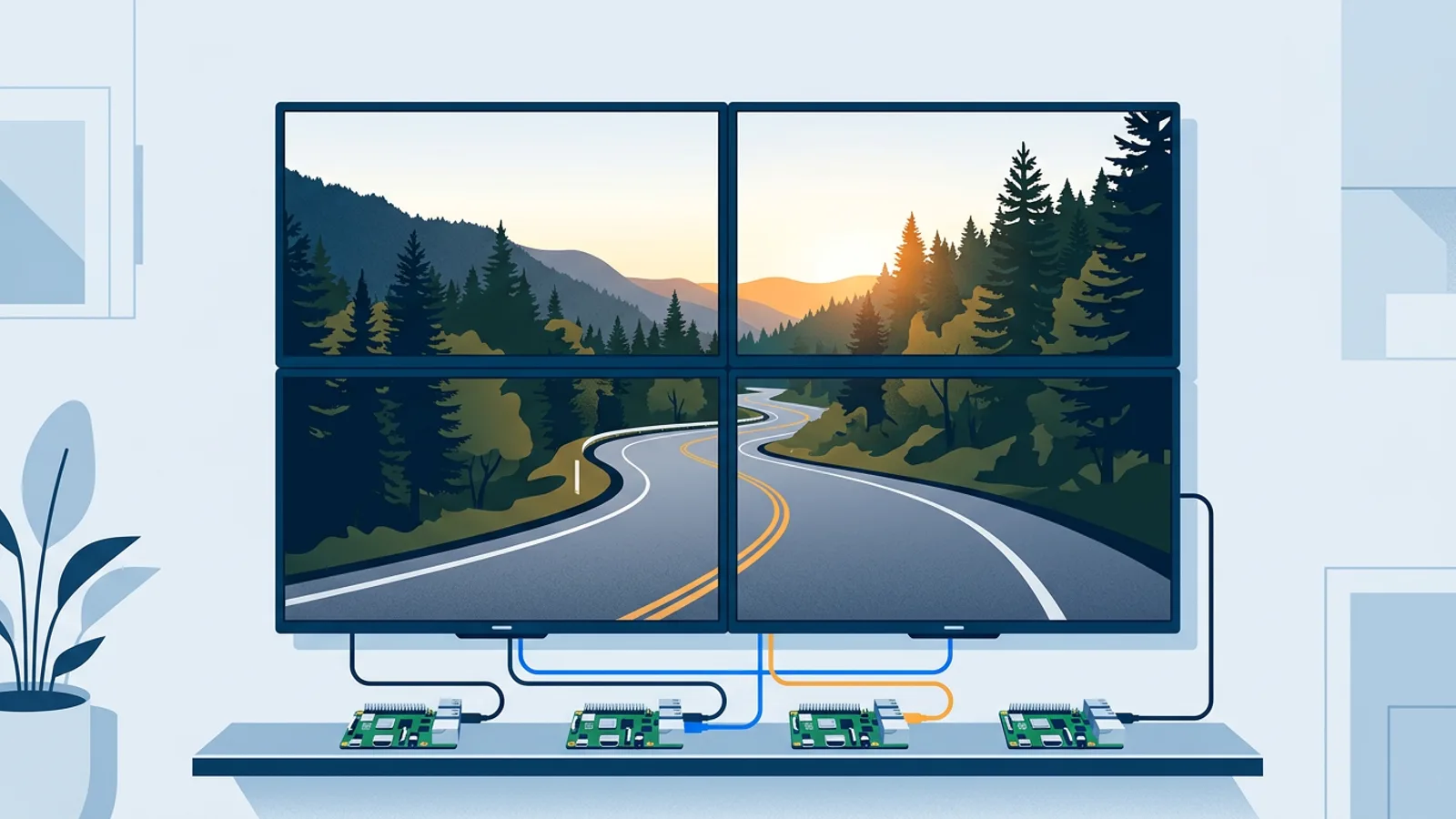
For most playlist content (promo images, menu boards, looping video, dashboards), you can build a 2x2 TV wall without a hardware controller. Put one small player behind each TV, and video wall software sends all four the same content while each player shows only its own quarter, in sync. You need a dedicated controller only if you want to feed a live HDMI source, such as a laptop or camera, across the whole wall.
This guide covers what a controller does, how software replaces it, which TVs and bezels give an acceptable result, and how to prepare content so it splits cleanly into tiles. If you want to see the TVpilot side first, the video wall feature page shows how a grid is set up in the dashboard.
The worked example below is a 2x2 wall of 55-inch TVs, because that is the size most small businesses ask about. The same rules apply up to a 4x4 grid.
What a video wall controller actually does
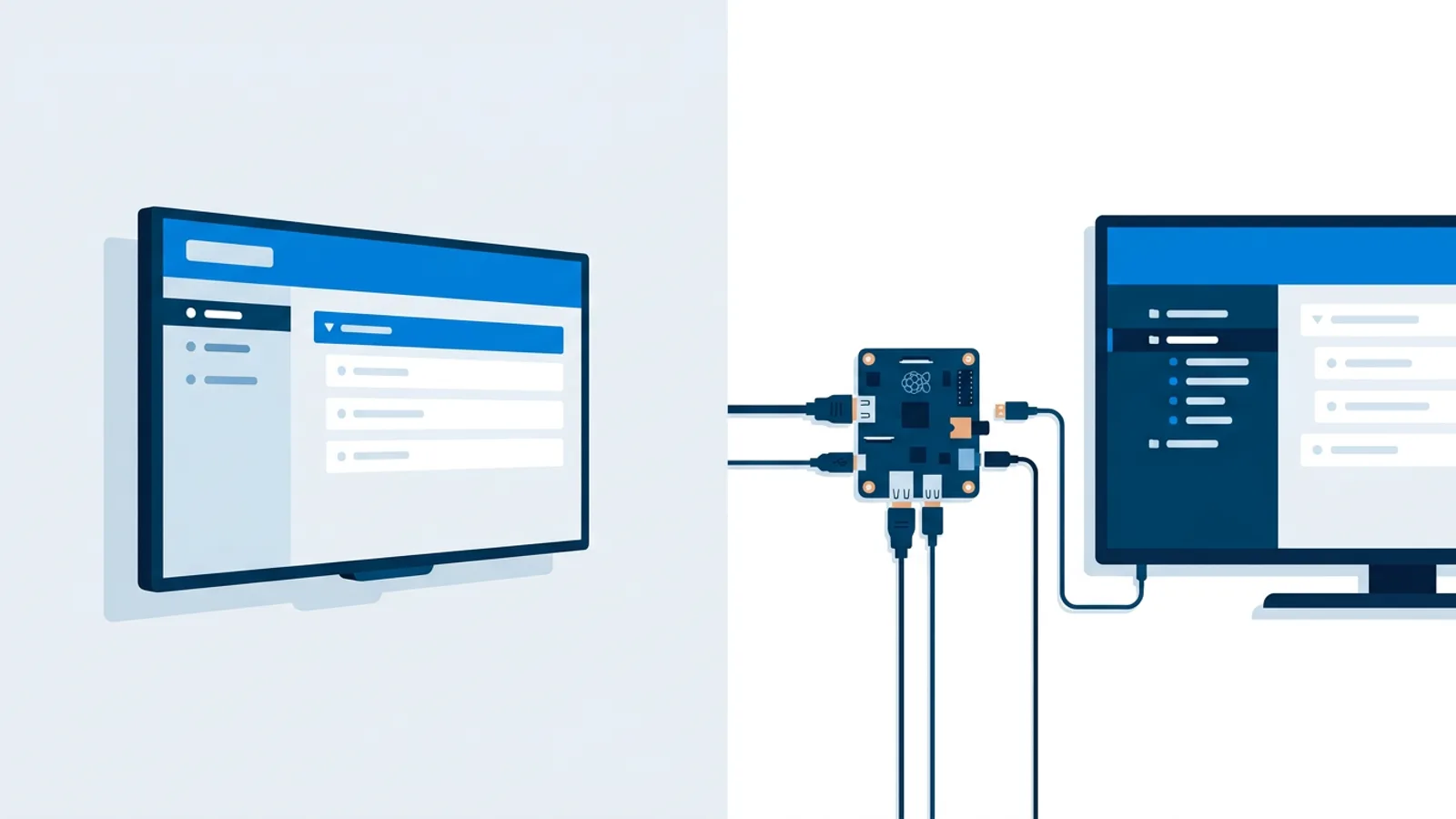
A hardware video wall controller is a box with one or more inputs and several HDMI outputs. It takes a single image, for example 1920x1080 from a media player, scales it up, cuts it into one region per screen and sends each region down its own cable. Better controllers also do bezel compensation (they hide the strip of image that would sit behind the TV frames) and keep every output on the same frame.
A controller is useful in two situations:
- You have one live source, such as a laptop presentation, a camera feed or a TV broadcast, and it has to fill all screens at once.
- You need frame-accurate sync for fast motion, such as sports or high-speed camera pans, where any offset between tiles is visible.
The controller costs money and adds a box, a power supply and four long HDMI runs to a single point of failure. If the box dies, the whole wall goes dark.
How video wall software replaces the controller
With video wall software there is no central box. Each TV gets its own player, for example a Raspberry Pi, and every player loads the same playlist. The software tells each player which position it has in the grid (top-left, top-right, bottom-left, bottom-right) and the player renders only that part of each slide. Timing is coordinated so the four tiles change slides and play video together.
In TVpilot this is how the video wall feature works: you give every screen in a grid (up to 4x4) the same playlist, and each one shows its own tile, synchronised. You manage it like any other playlist, so swapping a promo means editing one playlist, without re-cutting files per screen.
Three tradeoffs to know:
- Live inputs are out. Software tiling works on playlist content (images, videos, web pages, PDFs), not on an HDMI feed you plug in.
- Sync is very good for slideshows and normal video, but it depends on each player keeping up. A slow player on one tile shows as a stutter on that quarter only.
- You maintain four players instead of one controller. The upside is that one failed player blacks out one tile, not the wall.
Decision rule: controller or software?
If your wall needs a live source or frame-perfect fast motion, buy a controller (or a PC with a multi-output graphics card and wall software that runs on it). If your wall shows planned content (branding, menus, product video, dashboards), use software tiling with one player per screen, because it is cheaper, has no single point of failure and is managed from a browser. For LED walls built from cabinets, the logic is different again, since an LED wall has its own sending card and is driven as one big display.
Which TVs and bezels work for a TV wall
The software can only split the picture. How seamless the wall looks depends on the screens.
Use identical models
Buy four units of the same model at the same time, ideally from the same batch. Two TVs with the same name but a different panel revision can differ in colour temperature and brightness, and on a wall that difference is the first thing people see. If you mix an older TV with a new one, expect one quarter to look warmer or dimmer however much you tune it.
Bezel width decides the seam
On a wall, the visible seam is twice the bezel width: the right frame of one TV plus the left frame of its neighbour. Say a consumer TV has an 8 mm bezel. The seam is then 16 mm, a cross through the middle of a 2x2 wall. From a few metres away on a logo or photo that is acceptable. Through the middle of a line of text, it is not.
Commercial video wall displays have bezels of a few millimetres and are built for this, with uniform colour across units. They cost considerably more. For a reception or shop wall viewed from a distance, good consumer TVs with thin bezels are usually fine. Our guide on commercial displays vs consumer TVs covers the other differences, such as warranty for long daily use and brightness.
Match the settings, then lock them
Set every TV by hand to the same values:
- Same picture mode (a neutral mode, not "vivid" or "store demo").
- Brightness, contrast and colour temperature identical.
- Motion smoothing, eco mode and automatic brightness sensors off. A light sensor reacting to a lamp near one TV makes that tile dim on its own.
- Overscan off (often called "Just Scan", "Screen Fit" or "Original"). With overscan on, the TV crops the edges of its tile and the image no longer lines up across the seam.
- Auto power-off timers disabled, so one TV does not go to standby at 4 hours while the others stay on.
Worked example: a 2x2 wall of 55-inch TVs
Say you run a gym and want a 2x2 wall behind reception showing class promos and a looping brand video.
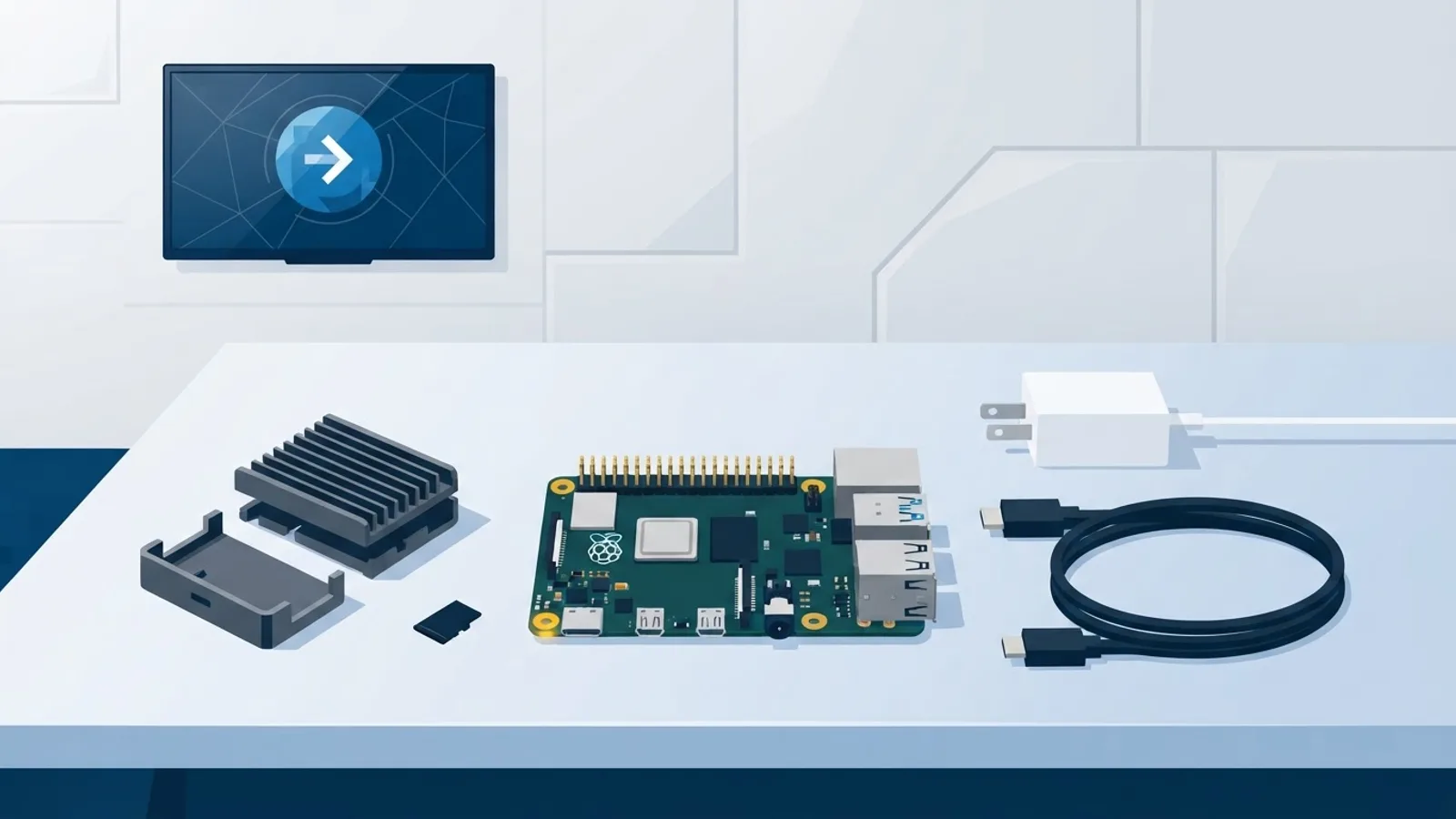
The hardware: four identical 55-inch TVs, four Raspberry Pi 4 or 5 players (TVpilot recommends a Pi 4 or 5 for smooth video), and a video wall mount with micro-adjustment so you can align the edges to the millimetre. A 55-inch TV has a picture of roughly 121 cm by 68 cm, so the finished wall is about 2.45 m wide and 1.37 m tall plus the bezels. Check that your wall has that much flat surface and four power points or a power strip behind the screens.
The network: run Ethernet to all four Pis if you can. Wi-Fi works, but a weak signal on one player is the most common reason a single tile lags behind.
The software setup:
- In the dashboard, generate the installer command and run it on each Pi with its 6-character claim code. The Pi boots straight into the player in kiosk mode.
- Add the four screens to a 2x2 video wall and set which tile each one shows.
- Assign one playlist to the wall.
The cost on TVpilot: video wall is not on the Free plan. Starter is €5/month with 3 screens included, so the fourth screen is an extra €2/month, €7/month in total (or €49 + €20 = €69/year on yearly billing). If you also run screens elsewhere in the building, Pro at €29/month includes 10 screens.
Power: the Pi player can switch each TV on and off with HDMI-CEC from the dashboard power schedule, so all four TVs go to standby at closing time without smart plugs. If one TV ignores CEC, check its CEC setting, which every brand gives a different name.
How content is cut into tiles
Four 1920x1080 TVs in a 2x2 grid add up to 3840x2160, which is a 4K canvas. Design your slides at 3840x2160 so each tile gets full 1080p detail. The top-left TV shows the area from 0 to 1919 pixels across and 0 to 1079 down, the top-right TV the area from 1920 to 3839 across, and so on.
If you upload a 1920x1080 image instead, each TV shows a quarter of it blown up to fill the screen, which is effectively 960x540 per tile. Photos survive that. Small text and logos look soft.
Rules that keep content readable on a wall:
- Keep text and faces away from the centre cross. Put headlines fully inside one tile or make them large enough that a 16 mm gap does not split a letter.
- Favour full-bleed photos, gradients and big shapes. They hide seams better than fine detail.
- For video, export at the canvas resolution if your players can decode it smoothly, and test one clip before producing a whole series.
- Use the 16:9 aspect ratio of the whole wall (a 2x2 grid of 16:9 TVs is itself 16:9). A 2x1, 3x2 or 4x2 grid changes the canvas shape (a 3x3 or 4x4 grid stays 16:9 but needs a larger canvas, e.g. 5760x3240 for 3x3), so design per grid.
Failure modes to check before opening day
- One tile shows the wrong quarter: the screen is set to the wrong tile. Fix it in the video wall settings, not by moving TVs.
- Edges do not line up: overscan is on, or the mount is not level. Fix overscan first, then use the micro-adjust.
- One tile lags on video: that player is older, on weak Wi-Fi, or decoding a file too heavy for it. Use identical players and a cable.
- One quarter looks bluish: mismatched picture settings or a different panel revision. Reset all four to the same values.
- A tile goes dark: a player is offline. Screen monitoring shows which one, and a remote restart from the dashboard is the first thing to try.
When TVpilot is, and is not, the right fit
TVpilot fits if you want a 2x2 up to 4x4 wall of TVs showing planned content, managed in the same dashboard as your other screens, with scheduling, power control and monitoring included. It is hosted software, so you need internet for content updates and you cannot self-host it.
It is the wrong fit if your wall must show a live HDMI source, needs broadcast-grade frame accuracy for fast sport, is larger than 4x4, or is an LED cabinet wall. In those cases a hardware controller or the LED wall's own processor is the right tool.
If a planned-content TV wall is what you need, set up one screen on the Free plan to test your players and content, then move to Starter when you are ready to tile four. Create your TVpilot account and start with the TV that will become the top-left tile.
Frequently asked questions
Do I need a video wall controller for a 2x2 TV wall?
Not if the wall shows planned content such as images, videos, web pages or PDFs. With video wall software, each TV gets its own player, all players load the same playlist and each shows its own tile in sync. A hardware controller is only needed when one live HDMI source, like a laptop or camera, has to fill the whole wall, or when you need frame-perfect sync for fast sport.
Can I mix different TV models in a video wall?
You can, but it shows. Different models, and even different panel revisions of the same model, vary in colour temperature, brightness and bezel width, so one tile will look warmer, dimmer or misaligned. Buy identical TVs at the same time and set every picture setting to the same values, with overscan and automatic brightness off.
What resolution should content be for a 2x2 video wall?
For four 1920x1080 TVs, design at 3840x2160 so each tile gets full 1080p detail. A 1920x1080 file still works, but each TV then shows a quarter of it enlarged, about 960x540 per tile, which makes small text and logos look soft. Keep text away from the centre cross where the bezels meet.
Which TVpilot plan includes video walls?
Video wall is not available on the Free plan. It works on paid plans, with grids up to 4x4. A 2x2 wall on Starter costs €5/month for 3 included screens plus €2/month for the fourth, so €7/month in total, or €69/year on yearly billing. Pro at €29/month includes 10 screens.