Digital Signage Bandwidth Requirements Explained
Digital signage bandwidth requirements depend far less on top download speed than on connection stability. A screen needs to check in and pull new content reliably; frequent drops that knock it offline mid-update cause more problems than a slow but steady connection ever will. If you're running a Raspberry Pi as the player, the hardware itself adds almost no network overhead beyond the content transfers it makes.
This matters because a lot of small businesses install a screen in a spot with weak wifi, thin walls, or a router shared with a dozen other devices, then wonder why the sign occasionally shows a stale slide or a broken video. Most of those problems trace back to what the sign downloads and when it downloads it, not to the speed of the internet plan itself.
Digital signage bandwidth requirements: the short answer
Most signage players don't stream media the way a video-on-demand service does. They download a playlist's files, images, video clips, PDFs, or a cached web page, to local storage, then play them from disk. The network stays busy in two situations: the first sync when a screen is set up, and whenever new or changed content gets pushed. Between those events, a well-built player mostly just checks in with small heartbeat and schedule requests.
Exact bandwidth needs depend on the content library and how often it changes, so there's no single number that applies to every screen. Signage traffic looks like occasional bursts of file transfer, not the steady stream a video call needs for the whole call. If a connection handles everyday web browsing plus the occasional larger download without trouble, it will generally handle a signage player too.
How much data does a digital sign use?
Data usage depends almost entirely on content type and how often it changes, not on how long the screen stays on. A sign that's been running the same playlist for weeks uses very little data once everything is cached locally. A sign that swaps in new promotional videos every day uses noticeably more, since each new video has to be downloaded before it can play.
Here's how different content types behave on the network, without pretending to know your exact file sizes:
| Content type | How it uses bandwidth |
|---|---|
| Static image slide (JPEG/PNG) | Downloaded once when added, then played from local storage |
| PDF menu or flyer | Downloaded once per update, similar to an image |
| Short video clip | Downloaded once, then loops from local storage no matter how many times it plays |
| Live web page slide | Re-fetched on refresh, similar to normal browsing |
| Weather widget | Small, periodic refresh |
| News ticker (RSS/Atom feed) | Small, periodic poll |
| Google reviews or listing feed sync | Occasional sync, frequency depends on setup |
Across all of these, the one-time download costs more than the repeat display. A video that plays on loop for hours costs the same amount of data whether it loops once or five hundred times, because after the first download it's read from local storage rather than pulled from the internet again.
The exception is anything that behaves like a live feed rather than a stored file: an embedded web page that reloads itself on a timer, a live stock ticker, or a video wall pulling a continuous stream. Those use bandwidth on an ongoing basis rather than in short bursts, and they're worth thinking about separately if a screen relies heavily on them.
Network requirements for signage beyond raw speed
Speed gets the attention, but for signage the more important factors are usually these.
Stability over peak speed
A connection that stays up reliably all day beats one that hits a high peak speed but drops for half a minute every hour. Signage players are built to tolerate short outages, but frequent drops mean content updates get delayed and status reporting becomes unreliable.
Outbound access, not inbound
A signage player pulls content from a cloud dashboard; it doesn't need incoming connections, port forwarding, or a static IP. If a network setup involves opening firewall ports for a screen, something is configured wrong.
DNS and basic HTTPS access
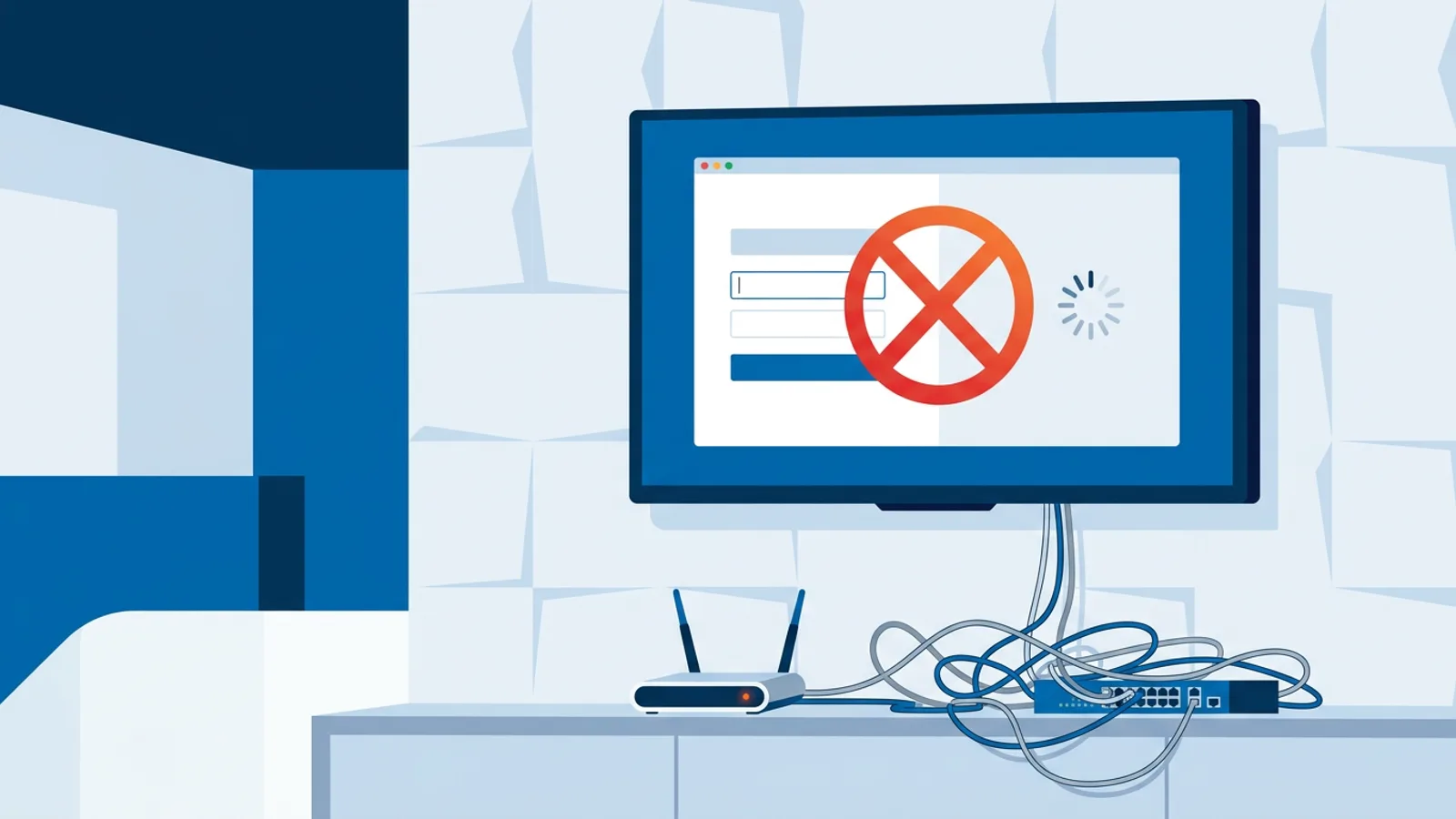
Most players just need standard outbound web access and working DNS resolution. If a business network has an aggressive content filter or a captive portal that blocks background connections, that's a more common cause of signage headaches than raw bandwidth.
Multiple screens sharing one connection
If several screens run off the same office connection, each one only adds a modest slice of update traffic. The situation changes if every screen tries to sync large new video files at the same moment, so staggering big content updates across the day is a reasonable habit for larger installs. Planning updates ahead of time with a digital signage schedule makes that easier than tracking it manually.
Wifi for digital signage: does it hold up?
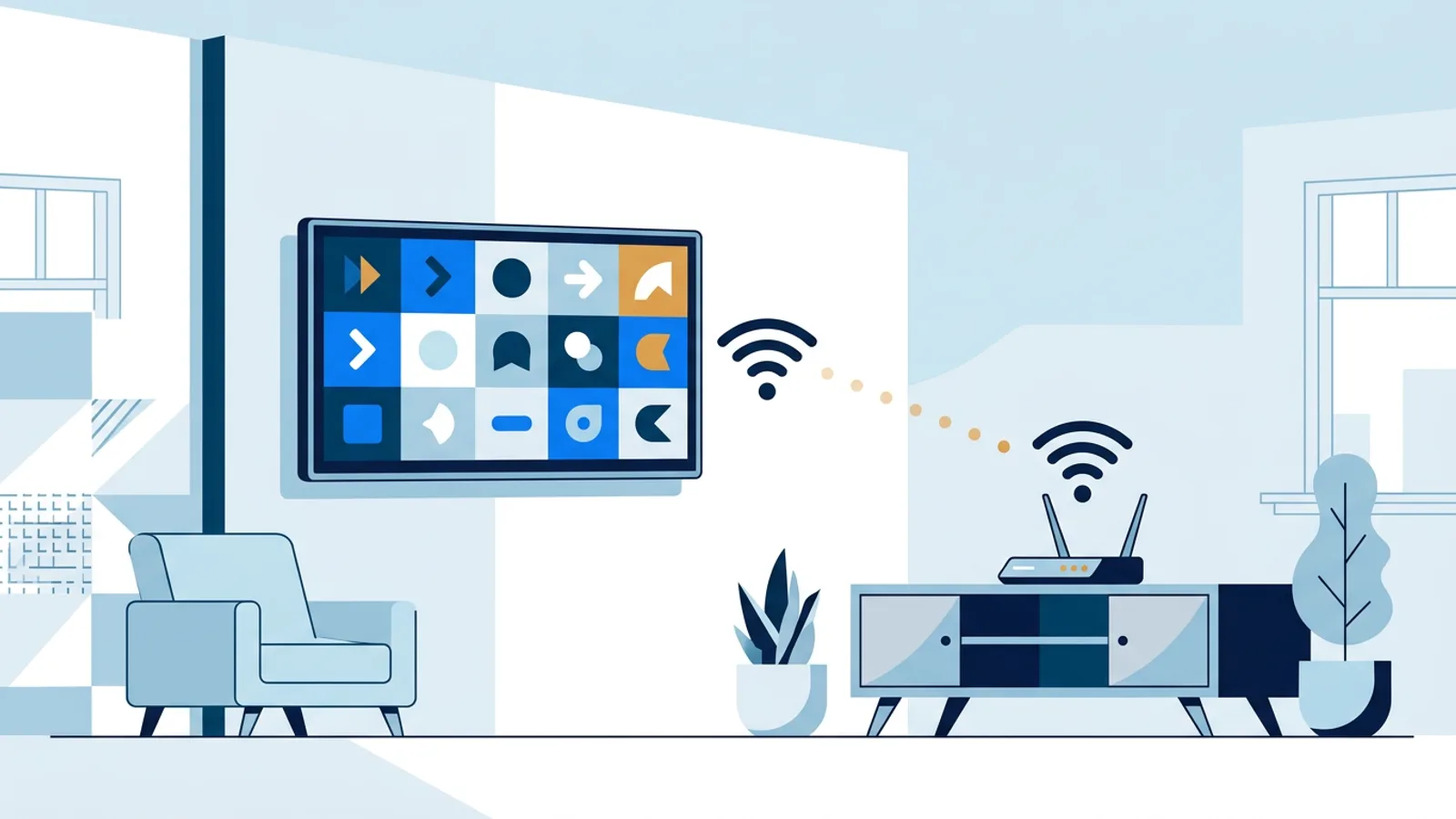
Wifi works fine for the vast majority of signage installs. Placement is usually the real problem, not wifi as a technology: TVs often go on walls or ceiling mounts far from the router, sometimes behind metal shelving, brick, or a kitchen full of interfering appliances. A screen with a weak signal will still play its current playlist, but content updates and schedule changes get slower and less reliable.
A few practical fixes, roughly in order of effort:
- Move the router or add a mesh access point closer to the screen.
- Use the 5 GHz band if the screen is close enough to the access point; it has less interference than 2.4 GHz, though shorter range.
- Run an ethernet cable if the wall or ceiling allows it. Wired is more reliable than wifi for a fixed screen and removes signal strength as a variable entirely.
- If you're building on a Raspberry Pi, check the dashboard's wifi signal strength reporting for that specific screen rather than guessing from the router's admin page. A weak reading there is a good early warning before content starts lagging.
For most single-location signage, a shop, a lobby, an office break room, a standard consumer or business wifi network with a decent router is enough. A dedicated signage VLAN or business-grade access points usually only becomes necessary once a site is running many screens or already has known wifi congestion problems.
What happens when the connection drops
A signage screen that goes offline for a few minutes, or a few hours, shouldn't just go black. Well-designed players keep playing whatever content is already downloaded and cached locally, and pick back up syncing once the connection returns. Calendar-based scheduling keeps following its plan during an outage as well, since players are built to keep running their schedule when the connection drops.
What doesn't work during an outage is anything that depends on a live feed, like a weather widget or news ticker, since those need a fresh pull to update. A brand-new screen that has never completed its first sync can't play anything yet either, since it has no cached content to fall back on. For more on how offline behavior works and where the limits are, see the guide to digital signage offline playback.
When TVpilot is (and isn't) the right fit
TVpilot is hosted signage software: playlists, scheduling and screens are managed from a web dashboard, and the player, commonly a Raspberry Pi, or any device with a browser, pulls content down and caches it locally. That fits the pattern already described: bursts of traffic on updates, otherwise quiet, and continued playback from cache if the connection drops. The Pi player specifically recovers automatically once a connection returns, and it checks the dashboard's power schedule every minute over HDMI-CEC to handle TV on/standby without extra hardware.
It isn't the right fit if a network specifically requires a self-hosted, on-premises system with no dependency on an outside dashboard at all. That's a legitimate requirement for some setups, and it's worth reading the self-hosted digital signage checklist before deciding. TVpilot also doesn't have a dedicated native app for Android TV or Fire TV yet; those run through the browser route, which works for most setups but is worth knowing upfront.
For a typical shop, office, or lobby screen where the priority is reliable playback on an ordinary internet connection, plus easy scheduling and remote management, this is close to what most installs actually need.
Getting started without overthinking the network
Most signage installs don't fail because of bandwidth. They fail because nobody checked wifi signal strength at the actual screen location, or because someone assumed a sign needs the same connection as a video streaming setup. Start with a normal business internet connection, put the access point within reasonable range of the screen (or run a cable if you can), and keep video clips reasonably sized rather than uploading raw footage nobody will notice the difference of on a shop TV.
If you want to see how the update and caching pattern behaves on real hardware, sign up for a free account and connect a screen. The free plan covers one screen and is enough to test the whole flow, including how it behaves when you unplug the router for a minute.
Frequently asked questions
How much internet speed does a digital sign actually need?
There's no strict minimum, but a connection in the low single digits of Mbps down is enough for most single-screen setups, since content downloads happen in occasional bursts rather than a continuous stream. What matters more than raw speed is that the connection stays up consistently, so scheduled updates and status checks go through without repeated drops.
Can digital signage run on wifi, or does it need ethernet?
Wifi works for the large majority of installs. Ethernet is more reliable and removes signal strength as a variable, which is worth doing if running a cable is easy, but it's not a requirement for a typical shop or office screen with a decent wifi signal at the mounting location.
How much data does a digital sign use per month?
It depends almost entirely on how often the content changes. A screen looping the same playlist for weeks uses very little ongoing data since files are cached locally after the first download. A screen that gets new video content added daily will use more, roughly proportional to the size of what's newly uploaded, not to how many hours the screen stays on.
What happens to a digital sign if the internet goes down?
A properly built signage player keeps playing whatever content is already cached locally and resumes syncing once the connection comes back. Calendar-based scheduling keeps following its plan during the outage too. Anything depending on a live feed, like a weather widget or news ticker, won't update until the connection returns.