Best Encoder for Digital Signage: H.264 Video Settings
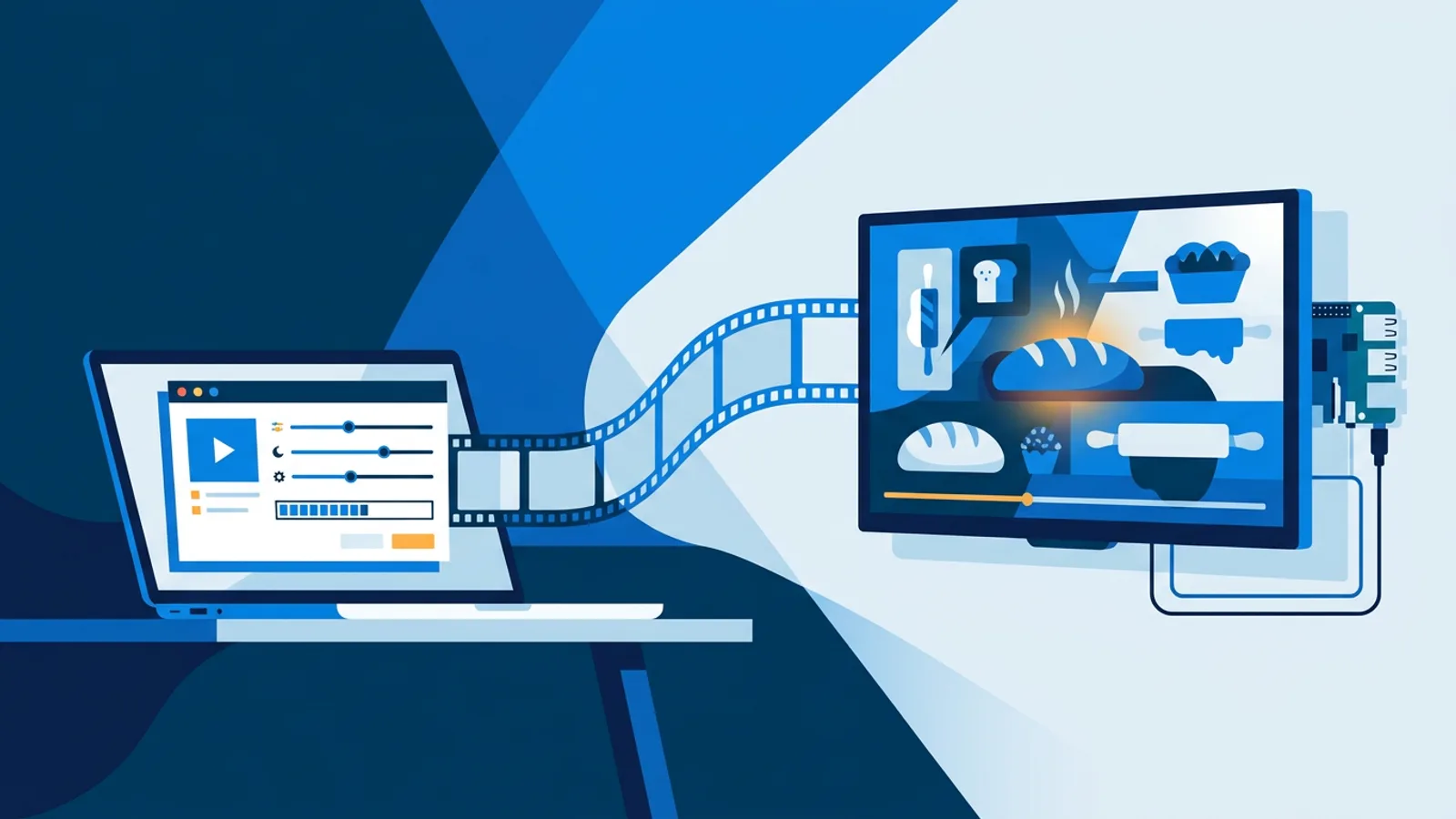
The best encoder for digital signage is almost always one you already have for free: HandBrake, or the H.264 export in the video editor you used to make the clip. The settings matter far more than the tool. Export H.264 in an MP4 container at 1080p, 25 or 30 frames per second, around 6 to 10 Mbps, 8-bit color and no HEVC, and the file will play smoothly on nearly every signage player, from a Raspberry Pi to a smart TV browser.
This guide gives you one export preset that works, shows how to set it in HandBrake, ffmpeg and the common editors, and works out what those settings cost you in storage. If you are still choosing hardware and software, start with how TVpilot digital signage turns a TV and a cheap player into a managed screen, then come back here when you have a clip to export.
The digital signage video settings to use
Here is the preset. Copy it into whatever encoder you use.
| Setting | Value | Why |
|---|---|---|
| Container | MP4 | Plays in every browser-based and app-based player |
| Video codec | H.264 (AVC) | Hardware and software decoding everywhere |
| Profile / level | High, level 4.1 or 4.2 | Safe for 1080p on older decoders |
| Resolution | 1920x1080 (portrait: 1080x1920) | Matches the panel on most signage TVs |
| Frame rate | Same as source, 25 or 30 fps, constant | Variable frame rate causes stutter on some players |
| Bitrate | 6 to 10 Mbps, capped at about 12 Mbps | Sharp enough for a TV seen from a few meters |
| Color | 8-bit, 4:2:0 (yuv420p) | 10-bit H.264 is poorly supported |
| Keyframe interval | Every 2 seconds | Clean looping and faster start |
| Audio | AAC 128 kbps, or no audio track | Most signage runs muted anyway |
| Fast start | On ("Web Optimized") | The player can start before the whole file is read |
If a setting is not in your encoder, leave it on the default. The ones that break playback when wrong are codec, color depth, resolution and frame rate mode.
Why H.264 and not HEVC
HEVC (H.265) makes files roughly half the size at the same quality, which sounds ideal for signage. Many browsers and older player devices cannot decode it, though, and licensing has kept support patchy for years. A file that plays on your laptop may show a black screen or a spinning wheel on the TV in the shop.
TVpilot handles this at upload: it refuses HEVC/H.265 videos (and HEIC photos) with a clear message instead of letting you send a file to screens that cannot play it. That protects you from finding out on a Saturday morning that the window screen is blank.
The most common source of HEVC files is a phone. iPhones record HEVC by default. You can switch the camera to Settings > Camera > Formats > Most Compatible before filming, or re-encode existing clips to H.264 with HandBrake as shown below. Android phones vary; check the camera's video settings for an H.264 or "compatible" option.
AV1 and VP9 fall in the same bucket: efficient, but not supported widely enough on signage hardware to rely on.
Which resolution: 1080p or 4K?
Use 1080p unless you have a specific reason not to. The decision rule is simple:
- If your player is a Raspberry Pi, a Fire TV Stick, an older smart TV or a browser on a modest laptop, export 1080p. 4K files decode slowly or not at all on these.
- If the screen is 4K and viewed from closer than about a meter (a touch kiosk, a small menu screen at the counter), 4K can look sharper, but test on the actual device first.
- If the screen is viewed from across a room, nobody can see the difference between 1080p and 4K, and the 4K file costs you about four times the storage.
If your footage is 4K from a camera or drone, you do not need to re-encode it yourself before uploading to TVpilot. Videos above 1080p can be converted in the browser before upload, so you get a 1080p file without installing anything. Doing it in HandBrake first is still useful if you also want to trim the clip or strip the audio.
For portrait screens, export at 1080x1920 rather than rotating a landscape video in the player. Rotation in software costs processing power and can drop frames.
How to pick a bitrate for H.264 on digital signage
Bitrate decides both quality and file size. At 1080p, these H.264 bitrate ranges hold up in practice:
- 4 to 6 Mbps: slides, text animations, motion graphics with flat colors.
- 6 to 10 Mbps: filmed footage, product shots, food, people walking.
- 10 to 12 Mbps: fast motion, confetti, water, lots of fine detail.
Going above about 12 Mbps at 1080p rarely looks better on a TV and makes playback harder on small players. Going below 4 Mbps shows blocky gradients, which are especially visible on dark backgrounds and skies.
In HandBrake you can also use constant quality (RF) instead of a bitrate. RF 20 to 22 with the x264 encoder gives good results for 1080p. RF lets the encoder spend bits where the picture needs them, but the file size is harder to predict, so set a bitrate if storage is tight.
HandBrake: the best encoder for digital signage, step by step
HandBrake is free for Windows, Mac and Linux and is the tool to pick if you want one encoder for every clip.
- Open the source file.
- Pick the preset General > Fast 1080p30 as a starting point.
- Summary tab: Format MP4, tick Web Optimized.
- Dimensions tab: confirm 1920x1080 (or 1080x1920 for portrait).
- Video tab: Video Encoder H.264 (x264), Framerate Same as source, tick Constant Framerate. Choose Avg Bitrate 8000 kbps with 2-pass encoding, or Constant Quality RF 21.
- Encoder Profile High, Level 4.1.
- Audio tab: remove the track if the screen plays muted, otherwise AAC at 128 kbps.
- Start Encode.
Removing the audio track is worth doing for silent screens. It saves a little space, and some players handle a file without audio more predictably than one with a silent track.
Exporting with ffmpeg
If you batch-convert many clips, ffmpeg does the same job from the command line:
ffmpeg -i input.mov -c:v libx264 -profile:v high -level 4.1 -pix_fmt yuv420p -b:v 8M -maxrate 12M -bufsize 16M -r 30 -g 60 -movflags +faststart -an output.mp4
Swap -r 30 -g 60 for -r 25 -g 50 if your footage is 25 fps (common in Europe). Replace -an with -c:a aac -b:a 128k to keep sound.
Exporting from common editors
You do not need a separate encoder if your editor exports H.264 properly:
- Adobe Premiere Pro: Format H.264, preset Match Source, High bitrate, then set target bitrate to 8 Mbps and maximum to 12 Mbps.
- DaVinci Resolve: Deliver page, Format MP4, Codec H.264, Restrict to 8000 Kb/s, resolution 1920x1080.
- Final Cut Pro: Share > Export File, Format Video and Audio, Video Codec H.264 (not HEVC), resolution 1080p.
- iMovie: Share > File, Resolution 1080p, Quality High, Compress Better Quality.
- Canva: Download as MP4, 1080p.
Check one thing after any editor export: open the file's info (QuickTime Inspector, VLC Codec Information or MediaInfo) and confirm it says H.264/AVC, not HEVC. Some editors switch to HEVC when you pick a "high efficiency" preset.
File sizes against storage: a worked example
The formula is bitrate × duration ÷ 8. At 8 Mbps, one second is 1 MB, so one minute is about 60 MB.
| Bitrate (1080p) | Size per 15 s | Size per minute |
|---|---|---|
| 5 Mbps | about 9 MB | about 38 MB |
| 8 Mbps | about 15 MB | about 60 MB |
| 12 Mbps | about 23 MB | about 90 MB |
Say you run a bakery with two screens: one menu board and one window screen. You film six 15-second clips (bread coming out of the oven, a cake, the shop front) on an iPhone in 4K HEVC. Straight off the phone, those files are large and TVpilot will refuse them as HEVC anyway.
Re-encoded in HandBrake at 1080p H.264, 8 Mbps, no audio, each clip is about 15 MB. Six clips come to about 90 MB. Add a dozen still images at 1 to 2 MB each and you are near 110 MB.
On the Free plan (1 screen, 250 MB storage) that fits, with room for a seasonal swap. With two screens you need Starter at €5/month or €49/year, which includes 3 screens and 2 GB storage, enough for around 130 of those clips. If you had uploaded the 4K versions converted only to H.264 at high bitrate, the same six clips could take several times the space and stutter on a small player.
Decide the bitrate before filming a whole campaign; re-encoding 40 clips later is slow work.
Failure modes and how to spot them
- Black screen or skipped slide: usually HEVC, 10-bit color or an unusual container (MOV with ProRes, MKV). Re-export with the preset above.
- Stutter every few seconds: variable frame rate from a phone or screen recording. Tick Constant Framerate.
- Smooth on the laptop, choppy on the TV: bitrate or resolution too high for the player. Drop to 1080p and 8 Mbps. On Raspberry Pi, a Pi 4 or 5 is recommended for smooth video; older models struggle with high-bitrate 1080p.
- A jump or flash at the loop point: the clip starts or ends mid-motion. Add a half-second hold on the first and last frame, and keep a 2-second keyframe interval.
- Blocky dark areas: bitrate too low for the content. Raise it to 8 or 10 Mbps.
For which file types and media sources a player accepts beyond video, see supported content for digital signage.
When TVpilot is, and is not, the right fit
TVpilot fits if you want to drop H.264 MP4s, images, PDFs and web pages into playlists and have them play on a Raspberry Pi, Fire TV Stick, Amazon Signage Stick or any modern browser. The upload checks catch HEVC and HEIC before they reach a screen, and oversized videos can be scaled to 1080p in the browser. YouTube and Vimeo links also work if you prefer to host video there; on a Raspberry Pi, YouTube's auto quality plays at 720p so the Pi decodes smoothly.
It is the wrong fit if your project depends on native 4K or HEVC playback, for example a high-end showroom wall where every pixel counts, or if you need software you can self-host. TVpilot is hosted SaaS and not self-hostable, and players need internet for content updates.
When you have a first clip ready, create a free TVpilot account, upload it to a playlist and check it on your own screen.
Frequently asked questions
What is the best video format for digital signage?
H.264 video in an MP4 container, at 1920x1080 (or 1080x1920 for portrait), 25 or 30 fps constant frame rate, 8-bit color and a bitrate of about 6 to 10 Mbps. This combination plays on Raspberry Pi players, Fire TV Sticks, smart TV browsers and laptops without special codecs.
Can I use HEVC (H.265) videos on digital signage?
It is risky. Many browsers and older player devices cannot decode HEVC, so the file may show a black screen. TVpilot refuses HEVC/H.265 uploads with a clear message. Re-encode the clip to H.264 with HandBrake, or set your iPhone camera to Most Compatible before filming.
What bitrate should I use for 1080p signage video?
Use 4 to 6 Mbps for slides and flat motion graphics, 6 to 10 Mbps for filmed footage, and up to about 12 Mbps for fast motion or fine detail. Higher than 12 Mbps rarely looks better on a TV and can make small players stutter. At 8 Mbps a minute of video is about 60 MB.
Should I upload 4K video to a signage screen?
Usually not. Most signage players, including Raspberry Pi and streaming sticks, play 1080p more reliably, and viewers across a room cannot see the difference. 4K files also take about four times the storage. In TVpilot, videos above 1080p can be converted in the browser before upload.