Queue Display System for Small Shops, No Ticket Machine
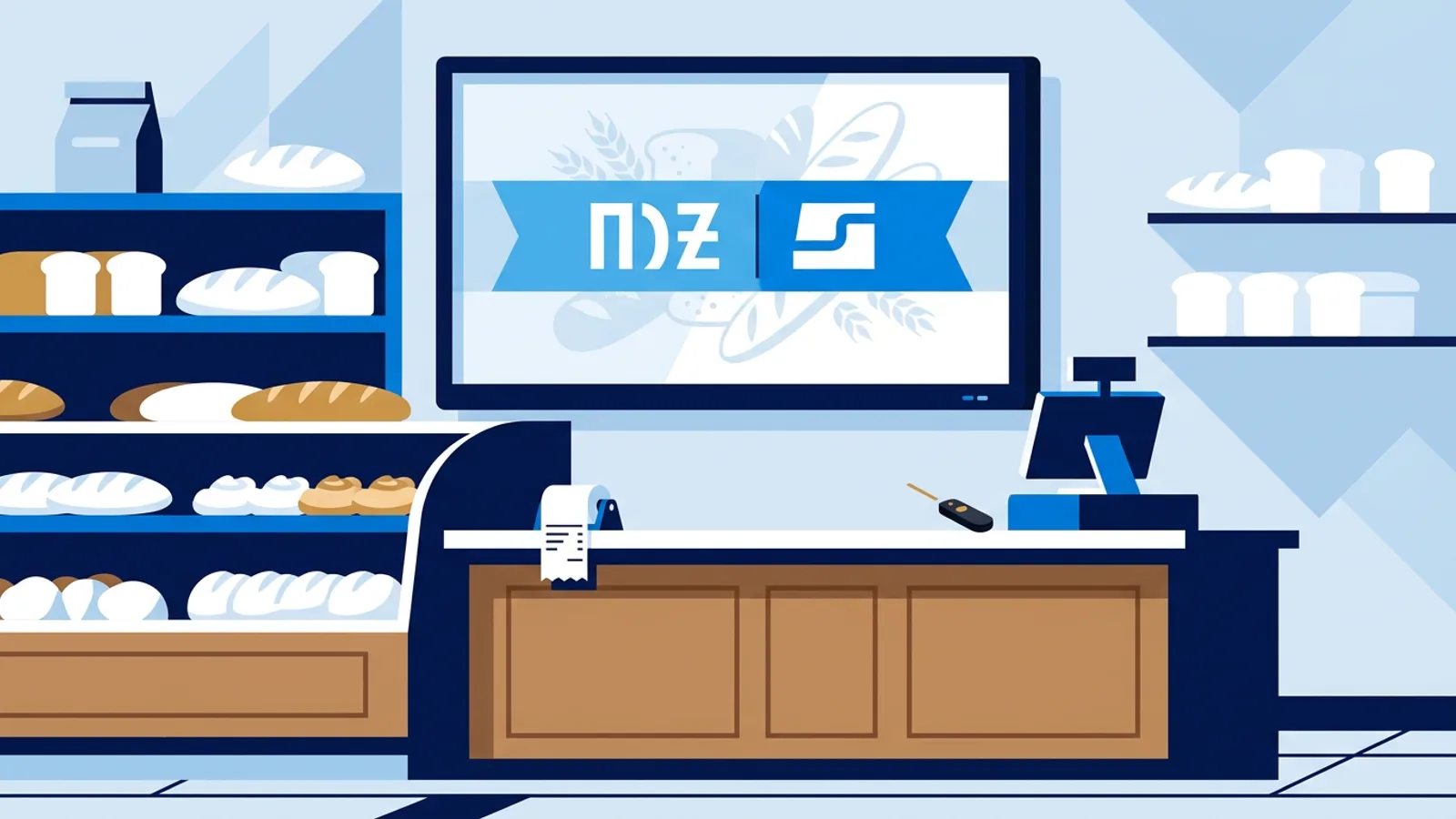
A small shop can run a working queue display system with three things it probably already has: a roll of numbered tickets (or a QR code on the counter), a button for staff to press, and the TV that currently shows promotions. When staff press Next, the next number appears big on the screen with a chime, and customers stop asking "who's next?" across the counter.
This guide is for the bakery with a Saturday rush, the pharmacy with two counters, the butcher where people crowd the glass, and the service desk where customers wait for a turn. It covers how a number system works, when a dedicated ticket kit is worth buying and when it is overkill, and how to set one up with the Now serving plugin for queue management on a screen you already own.
If you only serve one customer at a time and the queue never gets longer than four people, you may not need any of this. A number system earns its keep when people arrive in bursts, when the order of arrival is unclear, or when there is more than one counter.
How a ticket number system works
Every take-a-number setup has the same four parts, whatever the brand:
- Ticket source. The customer gets a number on arrival. Traditionally that is a pull ticket from a dispenser; it can also be a digital ticket on the customer's phone.
- Caller. Staff signal "I'm free" by pressing a button, which advances the count by one.
- Display. A screen shows the number now being served, ideally with a sound so people looking at their phone notice.
- Reset. The count starts fresh each day so numbers stay short and readable.
The dispenser and display do not need to talk to each other. A paper roll is pre-printed with numbers in sequence, so the display only has to count up in step. The roll issues the numbers and the button calls them, so the ticket roll does not need to be connected to anything.
Why a dedicated ticket kit is often overkill
A complete ticket kit (dispenser, LED number display, caller buttons, sometimes a controller box) is a one-off hardware purchase that grows with the number of counters and with extras such as a ticket printer. For a supermarket deli or a municipal office that may be the right buy. For a shop with one or two counters and a TV already on the wall, it means a second screen next to the first, more cables, and a device that can only ever show numbers.
| Dedicated ticket kit | Now serving on your existing TV | |
|---|---|---|
| Extra hardware | Dispenser, number display, caller units | A presenter, wireless button, keyboard or a phone |
| Screen | Separate number display | The TV already running your playlist |
| Between calls | Usually a numbers-only display | Keeps playing promotions, with the number as a banner |
| Digital tickets | Depends on the model | QR ticket on the customer's phone |
| Statistics | Depends on the model | People served, average and longest wait, busiest hour |
| Cost | One-off hardware purchase | Included in the Pro (€29/month or €289/year) and Business plans |
If you have five or more counters, need printed tickets with a logo and a timestamp, or have no screen and no plan to put one up, look at a dedicated kit. If you have one to three counters and a TV within sight of the queue, run the queue on that TV.
Setting up a queue display system on the TV you already have
Now serving is a plugin inside TVpilot. It needs no ticket machine or extra box; the screen is whatever already plays your TVpilot playlist (a Raspberry Pi behind the TV, a Fire TV Stick, an Amazon Signage Stick, a smart TV browser and so on).
Step 1: choose how customers get a number
You have two options, and you can use both at once.
- Paper ticket roll. The roll already on many counters. Zero learning curve for customers, works for people without a smartphone.
- QR ticket on the phone. The customer scans a code and gets a digital ticket that shows how many people are ahead and an estimated wait. You can limit it to people on site, so nobody grabs a number from home and turns up 40 minutes later.
If your customers are mostly older or in a hurry (butcher, pharmacy), lead with paper and offer the QR as an extra. If people tend to wander off while waiting (a phone repair desk, a bike shop counter), the QR ticket is the better default because they can see their place in the queue without watching the screen.
Step 2: choose what staff press
Staff press Next on whatever suits the counter:
- a presenter clicker (cheap, pocketable, one obvious button),
- a wireless button stuck to the counter,
- a keyboard at a till,
- their own phone, using a caller page protected by a PIN.
The PIN matters. Without it, anyone who found the caller page could advance your queue. Pick a PIN that is not written on a sticker on the till.
Step 3: choose banner or full-screen board
The number can show as a banner over your normal playlist, or as a full-screen board for several counters.
Use the banner if you have one counter and your TV earns its place by selling (today's bread specials, a promotion on vitamins). The playlist keeps running and the number sits on top. Use the full-screen board if you have two or more counters and customers need to see which counter to walk to, or if the queue is the main reason the screen exists.
Step 4: sound
Every call plays a chime, and you can add a spoken call-out such as "Number A 42, to counter 3". Spoken calls help when the screen is behind the queue or when customers are looking at shelves instead of the TV. They are less pleasant in a small, quiet shop where a chime is enough.
Worked example: a bakery and a pharmacy
Say you run a bakery with one 43-inch TV above the counter, driven by a Raspberry Pi, showing a playlist of eight slides (bread of the day, cake orders, opening hours). On Saturday mornings 20 to 30 people queue between 08:30 and 11:00 and the first question at the counter is always "was I before her?".
The setup:
- Put a paper ticket roll on the end of the counter where people come in.
- Add Now serving to the screen as a banner, so the eight slides keep rotating.
- Give the two staff members one presenter clicker each. Whoever finishes a customer presses Next.
- Turn on the chime, leave the spoken call-out off.
Pro at €289/year (excl. VAT) covers up to 10 screens; you buy two presenter clickers separately. There is no second display to buy or mount, and the screen that already sells your cakes keeps doing that between calls. After a few Saturdays the statistics show the busiest hour and the longest wait, which is the number to look at before deciding whether a third person should work from 09:00 instead of 10:00.
Now say you run a pharmacy with two counters and a waiting area with chairs. Here the full-screen board makes more sense: both counters are listed, the spoken call-out tells people which counter to go to, and the QR ticket lets someone step outside and still see how many people are ahead. If the waiting area already has a TV with health information, the waiting room signage guide covers what else is worth showing on it between calls.
Failure modes and how to avoid them
Most queue setups that get abandoned fail on small, boring things.
The TV is muted. The chime is useless if the TV volume is at zero or the audio goes to a soundbar that is switched off. Test the chime from where customers stand, with the shop's background noise on.
Double presses. A nervous double click on a presenter skips a number, and that customer feels cheated. Tell staff to press once and look at the screen. If a number gets skipped, call it by voice.
Paper roll out of step. Numbers on screen reset every day; a paper roll does not reset itself. Agree a short opening routine so the next ticket on the roll and the number the screen will call are in step. Shops that find this annoying often move to QR tickets as the main source.
Screen out of sight. If the queue forms facing the window and the TV hangs behind them, people will still ask. Mount the screen where the waiting customer naturally looks, usually above or just beside the counter.
Shaky internet. TVpilot players need an internet connection for updates, and calling numbers is a live update. If your shop Wi-Fi drops regularly, run a cable to the player or fix the Wi-Fi before you rely on it during a rush. The Raspberry Pi setup page explains how the Pi player is installed and how it recovers after an outage.
Nobody owns it. Decide which staff member checks the button batteries and the paper roll each morning. Ten seconds a day prevents the Saturday where the clicker is dead at 08:30.
When TVpilot is, and is not, the right fit
Now serving fits a shop or desk with one to a handful of counters that already has, or wants, a TV for promotions or information. You get the queue and the signage on one screen, managed from the same dashboard, and the statistics come along without extra work. It is part of the Pro and Business plans, so it makes most sense if you also use the screen for content; if you want a number on a wall and nothing else, weigh the plan cost against a simple standalone display.
It is not the right fit if you need printed tickets with your logo and a timestamp, appointment booking with time slots, or routing customers to different service types from a touch kiosk. It is also hosted software, so a shop with no reliable internet at the counter should solve that first or choose an offline kit.
Getting started
If customers in your shop regularly ask who is next, start with the TV you have: add a paper roll or a QR code, give staff a clicker or their phone with a PIN, and show the number as a banner over your existing playlist. Run it for two busy weekends, then check the statistics for your busiest hour and longest wait before you change staffing. You can create a TVpilot account and set up your screen today, then move to Pro when you are ready to switch on Now serving.
Frequently asked questions
Do I need a ticket machine to run a now serving display?
No. With TVpilot's Now serving plugin, customers take a number from a pre-printed paper ticket roll or scan a QR code for a digital ticket on their phone. Staff press Next on a presenter, wireless button, keyboard or a PIN-protected caller page on their phone, and the number appears on your existing TV. No ticket machine or extra box is needed.
Can the TV keep showing promotions while it displays queue numbers?
Yes. Now serving can show the current number as a banner over your normal playlist, so promotions keep rotating underneath. If you have several counters, you can switch to a full-screen board that lists the numbers per counter instead.
What does a customer see on the QR ticket?
After scanning the QR code, the customer gets a digital ticket on their own phone showing their number, how many people are ahead of them and an estimated wait. You can limit QR tickets to people who are on site, so nobody takes a number from home.
Which TVpilot plans include the queue display?
Now serving is included in the Pro plan (€29/month or €289/year, 10 screens included) and the Business plan (€99/month or €990/year, 25 screens included). Prices exclude VAT. It is not part of the Free or Starter plans.