Digital Signage for Retail Stores: Window, Promo, Shelf
Retail digital signage is a TV or display in your shop that plays content you manage from software, instead of printed posters you swap by hand. For a shop it does four jobs: it advertises promotions, shows reviews from real customers, keeps opening hours visible, and gives queue and service information where people wait. Digital signage for retail stores works best when each screen does one of those jobs well.
One TV near the entrance looping every promo, product photo and holiday notice serves none of these jobs well. A window screen pulls foot traffic, a checkout screen closes an add-on sale, and a shelf screen answers a shopper's question at the point of decision. Those need different content.
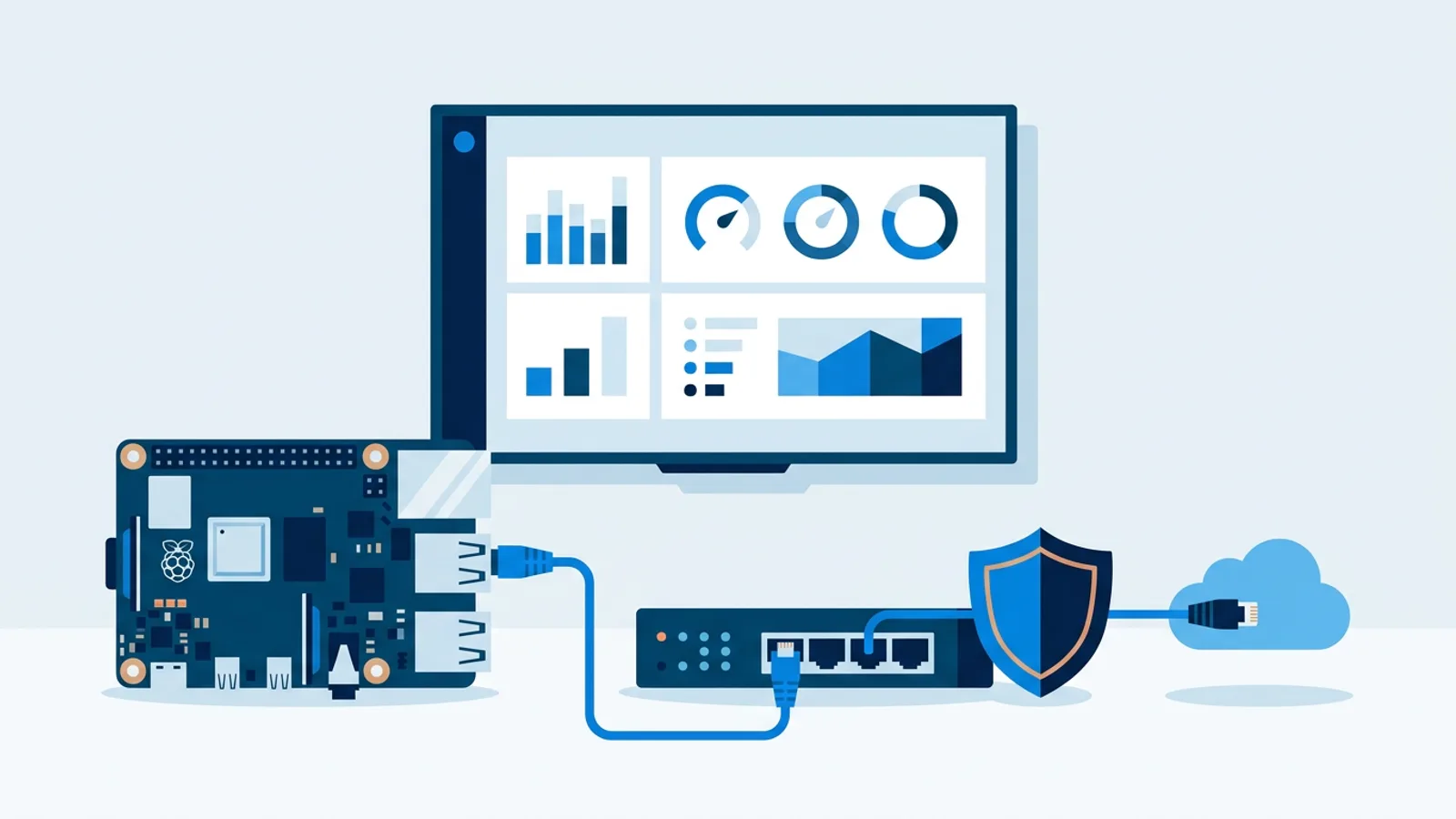
A Raspberry Pi or a smart TV's browser covers most shop screens. A cheap Raspberry Pi signage player running in kiosk mode handles a window display or a shelf screen fine, and if you already have a smart TV in the store, its built-in browser can run the same content with no extra box. This retail TV signage playbook covers where screens pay off, what to put on them, and how to pick hardware without overspending.
Digital signage for retail stores: where screens pay off
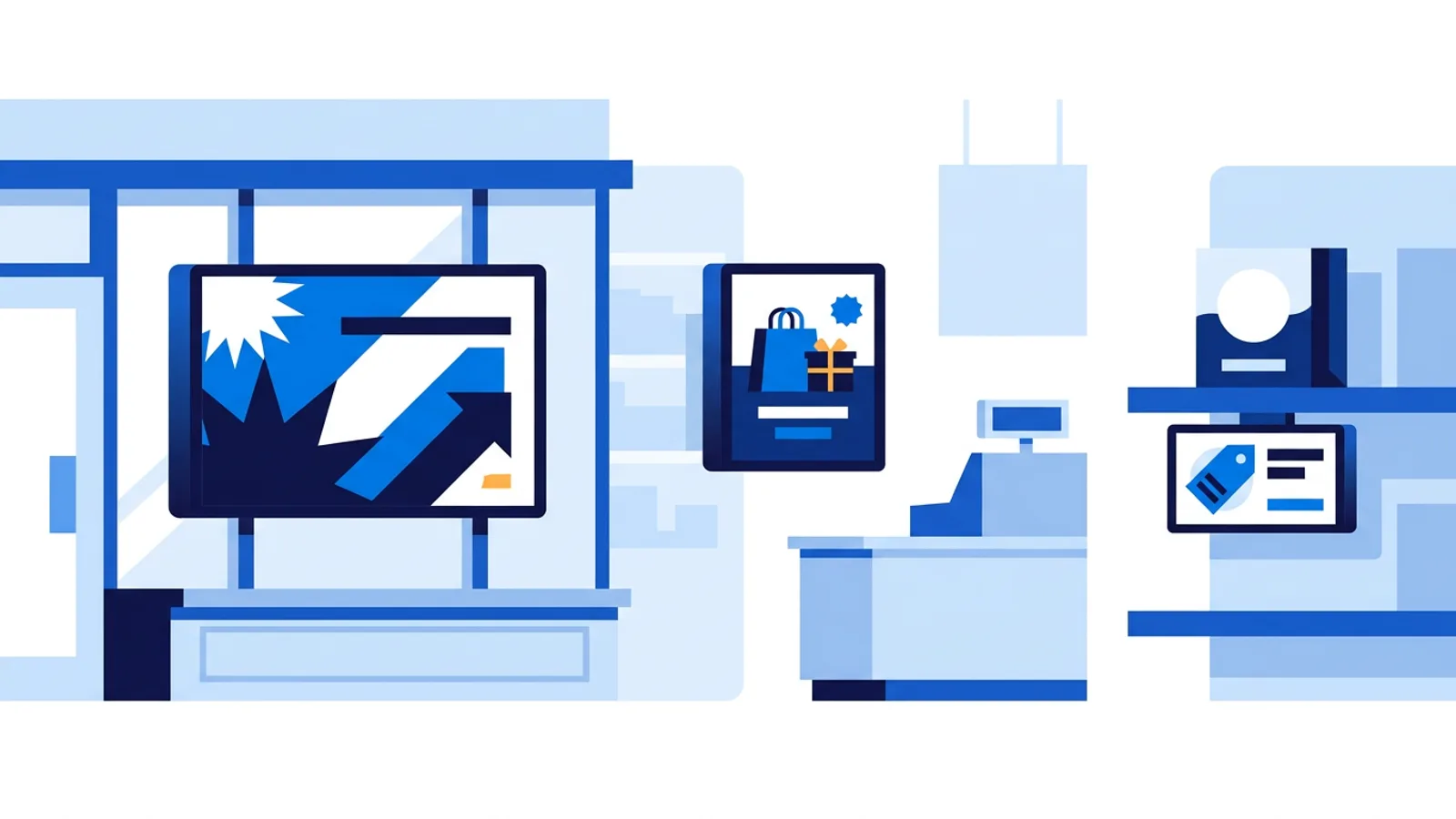
Retail signage falls into three jobs, and mixing them on one screen usually dilutes all three. Window screens sell the store to people who haven't walked in yet, often in daylight and at walking pace. In-store promo screens sell a specific item or offer to people already inside. Shelf and category screens answer a question at the point of decision: price, spec, stock, or a short demo. Each job has a different screen size, mounting height, brightness need and content rhythm, so plan them separately.
In a typical shop, five spots give a screen a clear audience and a clear job: the window, the entrance, the checkout, the fitting room or service desk, and the shelf end. If you can only afford one screen, start with the window; add the checkout second. The window and the shelf end each get their own section below. The other three work like this.
The entrance
People who just walked in are orienting themselves. Show opening hours (including late-night shopping days) next to your Google reviews, so newcomers see that other customers trust you.
The checkout
The queue is a captive audience for 30 seconds to a few minutes. Show a QR code to your loyalty signup and one small add-on item that sits right by the till.
The fitting room or service desk
Here the screen gives service information. A Messages bar line such as "Click and collect orders: ask at the service desk" or "Alterations ready in 3 working days" saves staff answering the same question all afternoon.
Retail window screen ideas that stop foot traffic
Window screens fight sun glare and short attention spans. Passers-by give your glass two or three seconds, while a shopper standing at a shelf might watch a screen for half a minute. So the window gets one offer in huge type, such as "Winter coats 30% off this week", ideally with a countdown to the end of the sale.
For retail window screen ideas, focus on:
- One message per slide, large type. A window screen is read through glass, sometimes with reflections. Three offers on one slide means none of them land.
- High contrast over subtle branding. Pastel-on-pastel looks nice on a laptop and disappears in daylight. Dark backgrounds with bright, saturated call-to-action text hold up better.
- Portrait orientation for narrow storefronts, landscape for wide display windows.
- Rotation on a schedule. A lunch special that should disappear at 14:00 and a weekend sale that runs Friday through Sunday are exactly what calendar scheduling is for, so nobody has to swap the playlist by hand.
- A countdown for anything time-limited. A flip-style or digital countdown to "Sale ends Sunday" gives passers-by a reason to act now. The countdown widget can also count to the same time every day, such as closing time.
Avoid full-motion video with a lot of dark frames in bright storefronts; it reads as murky next to daylight. Still images and simple animated text read better through glass.
What to show on a retail screen
Say you run a shoe shop with one 50" screen by the entrance, visible from the checkout queue. A 5-minute loop (300 seconds) keeps it fresh for regulars without feeling repetitive to someone in a short queue:
| Slot | Content | Duration |
|---|---|---|
| 1 | Promotion: "Second pair half price" | 45 s |
| 2 | Google reviews, rotating best ones | 60 s |
| 3 | New product: 15-second muted video, played twice | 30 s |
| 4 | Promotion repeated with a product photo | 45 s |
| 5 | Opening hours, incl. Sunday hours | 30 s |
| 6 | QR code to the webshop: "Your size sold out? Order online" | 45 s |
| 7 | Google reviews again | 45 s |
The promotion appears twice and the reviews twice, because those carry the most weight for a queue that turns over every few minutes. The opening hours slide can use per-slide scheduling so it only shows on days when the hours differ, and the promo slide can carry an expiry date so it takes itself off screen when the sale ends.
For the reviews slot, the review widgets pull Google, Trustpilot, Tripadvisor or Yelp reviews onto the screen and keep them current. The QR code is built in the designer as a sharp graphic rather than pasted in as a blurry photo.
In-store promo displays that move product
Once a shopper is inside, the screen's job changes from stopping a passer-by to adding one more thing to the basket. An in-store promo display near the register, an endcap or a fitting room queue can:
- Pull bestseller and low-stock tiles straight from store data. If the store runs on Shopify, WooCommerce, Magento or Lightspeed eCom, the ecommerce dashboards show today's best sellers and stock levels live, so the screen reflects what's actually selling instead of a "featured items" slide someone forgot to update in March.
- Carry a QR code linking to a loyalty signup or an online exclusive.
- Rotate Google or Trustpilot reviews between offers to build trust while someone waits in line.
Keep the price and the offer on the same slide. A shopper who sees a product photo and has to wait for the next slide to learn the price has usually looked away by then.
Back-of-house: a takings counter for the team
A screen in the stockroom or staff area is a different job from selling. If the store checks out through Mollie or Stripe, or takes card payments on a SumUp terminal, one read-only API key shows takings for today, this week and this month. The SumUp dashboard refreshes every 10 minutes and can split the day per payment method. Keep this screen out of customer sight.
Shelf-edge and small screens
Shelf screens are small, mounted close to product, and usually ignored until a shopper is already standing there deciding. Their content should answer one of three questions: what is this, how much, and does it work. A small screen at the end of an aisle answers "does it work?" best, with a 15-second muted demo loop of the product in use, captioned, next to its price.
Other good shelf-screen content includes price and a one-line spec, refreshed on a schedule instead of reprinted paper tags, and a QR code to reviews or a size guide, useful in footwear or electronics where shoppers research on their phone anyway.
Shelf screens are also the easiest place to overspend on hardware. A small screen running a 15-second loop doesn't need a powerful media player; a Raspberry Pi or a browser-based smart display handles it fine.
Picking hardware for each placement
| Placement | Typical size | Good hardware fit | Notes |
|---|---|---|---|
| Window display | 43"-55" | Raspberry Pi or a browser on a commercial display | Needs anti-glare glass or a bright panel |
| In-store promo | 32"-50" | Raspberry Pi, smart TV browser | Near power outlets, at eye level, register or endcap |
| Shelf/category | 10"-24" | Raspberry Pi with a small monitor | Low power draw, tucked into fixtures |
A Raspberry Pi 4 or 5 covers all three rows; the choice mostly comes down to how much video you play. If a store already owns smart TVs, the browser route skips buying any extra box, at the cost of the HDMI-CEC power scheduling and the self-healing watchdog a dedicated Pi player gets you. On a Pi, the TV switches on and to standby on the dashboard's power schedule, so the window screen goes dark after closing without a smart plug.
Scheduling multiple promos without babysitting screens
A single store easily ends up with a lunch special, a weekend sale, a seasonal window theme and a loyalty QR code, all on different days and screens. Calendar scheduling assigns playlists to weekly slots or one-off dates, and a default playlist takes over automatically when nothing is scheduled. Blackout dates (on Pro and Business) handle holidays. Players keep following the schedule during internet outages, so a dropped connection on a Saturday doesn't stop the weekend sale.
When TVpilot fits, and when it doesn't
TVpilot fits a retailer running one or more screens who wants a web dashboard to swap playlists, schedule promos ahead of time, and connect live store data (Shopify, WooCommerce, Mollie, Stripe, bol.com) without hand-editing slides every day. On cost: the Free plan covers one screen with 250 MB storage at no cost, forever. Starter is €5 per month with 3 screens included (up to 10), and Pro is €29 per month with 10 screens included (up to 100). The shoe shop above, with a window, an entrance and a checkout screen, fits on Starter for €5 per month; details are on the signup page.
It's a weaker fit if you want to self-host the software on your own servers; TVpilot is hosted SaaS, not open source. It's also not the right choice yet if your only hardware is a Fire TV Stick and you want a dedicated native app; that route runs through the stick's browser. And if you run one screen with content that never changes, a USB stick in the TV's own media player might genuinely be enough.
If your shop has a window, a checkout or a shelf end that could carry a promotion, reviews and opening hours, create a free account, set up one screen on the Free plan, build the 5-minute loop above, and add screens only when the store needs more.
Frequently asked questions
What should I put on a retail window screen?
Show one offer per slide in large, high-contrast type, such as a percentage-off sale, plus a countdown if the offer is time-limited. Avoid dark, busy video because it looks murky next to daylight through glass. Schedule window content by day and time so lunch or weekend offers appear and disappear automatically.
How long should an in-store signage loop be?
For a screen visible from a checkout queue, a loop of around 5 minutes works well: long enough to avoid feeling repetitive to regulars, short enough that someone waiting a few minutes sees your main promotion. Repeat the most important slides, usually the promotion and reviews, twice within the loop.
Do I need a special media player for shop screens?
No. A Raspberry Pi 4 or 5 handles window, promo and shelf screens, and a smart TV's built-in browser can run browser-based signage with no extra box. A Pi adds HDMI-CEC power scheduling, so the TV switches off after closing, and a watchdog that restarts the player if it crashes.
How much does digital signage cost for a small shop?
With TVpilot, one screen is free forever on the Free plan with 250 MB storage. Starter costs €5 per month with 3 screens included, enough for a window, entrance and checkout screen, and Pro costs €29 per month with 10 screens included. Hardware is extra: a Raspberry Pi or an existing smart TV.