Waiting Room TV: Digital Signage for Waiting Rooms

A waiting room TV should show practical information first (opening hours, who is working today, any delays) and fill the rest of the loop with calm, glanceable content such as news headlines, weather, a health tip and a Wi-Fi QR code. Good digital signage for waiting rooms runs that loop silently, slowly and in text large enough to read from the furthest chair, with the practical slides updated the moment they change.
Most waiting room screens fail for one of two reasons. Nobody planned what goes on them, or the hardware is unreliable enough that staff give up and switch the TV off. This guide fixes the first problem with a ready-made 10-minute loop and the second with a player that does not need daily attention.
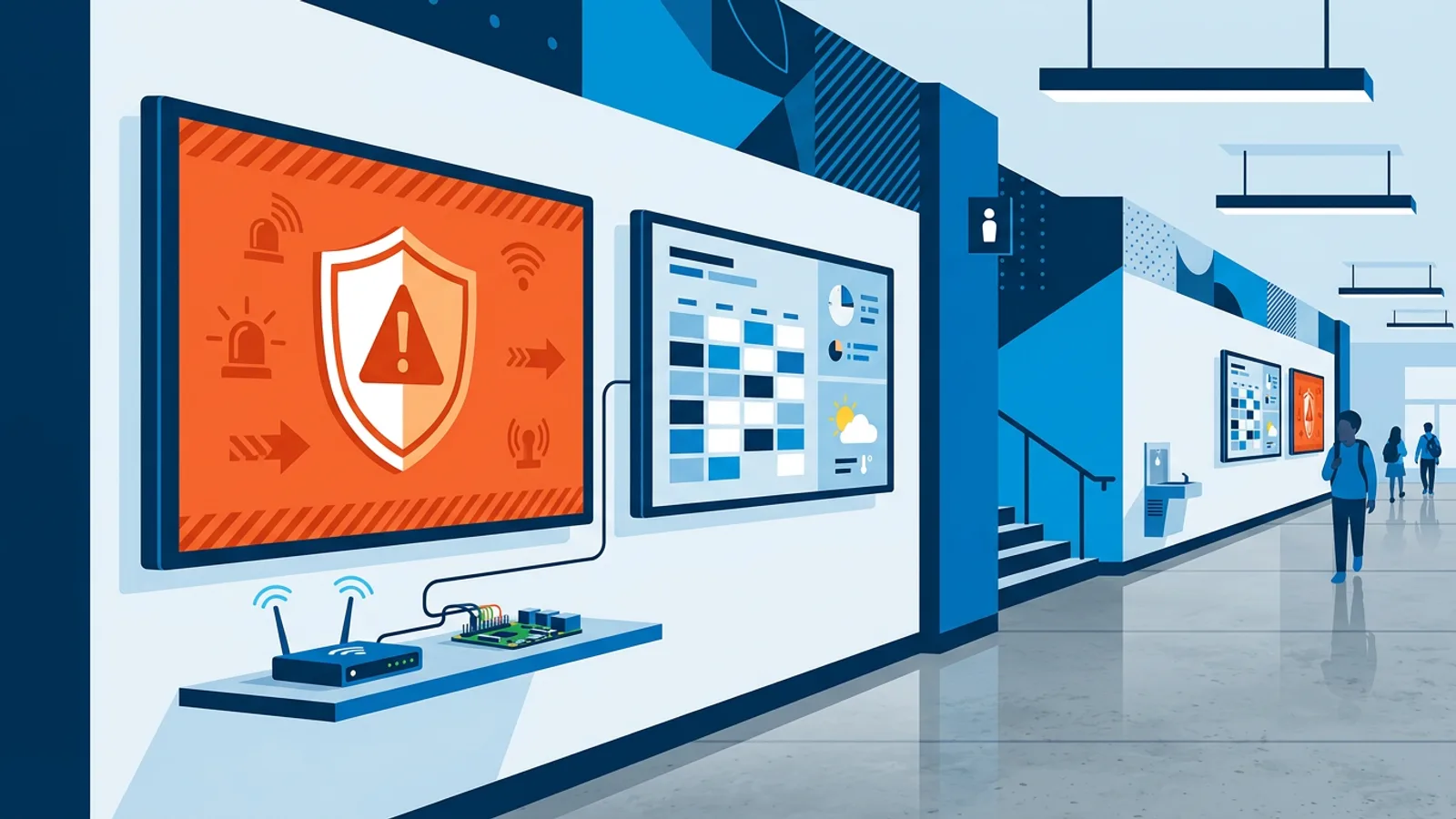
A lot of clinics and offices already have a spare TV in the corner. The cheapest reliable way to drive it is a Raspberry Pi running a signage player in kiosk mode, which restarts itself if something goes wrong and turns the TV on and off on a schedule over HDMI-CEC, so the receptionist never has to find the remote or fit a smart plug.
What to show on a waiting room TV
The loop below is a worked example. Say you run a small dental practice with one 55-inch TV in the waiting room and an average wait of 10 to 15 minutes. The loop is exactly 10 minutes long, and the welcome slide with practice information comes back every 4 minutes, so anyone who sits down sees it within 4 minutes without having to watch the whole rotation.
| Time | Slide | Duration |
|---|---|---|
| 0:00 | Welcome and practice information (today's hours, dentists in today) | 30 s |
| 0:30 | Wi-Fi QR code with network name | 20 s |
| 0:50 | Health tip: flossing or brushing reminder | 30 s |
| 1:20 | News headlines page | 60 s |
| 2:20 | Weather for today and tomorrow | 20 s |
| 2:40 | Calm muted video (nature or aquarium) | 80 s |
| 4:00 | Welcome and practice information (repeat) | 30 s |
| 4:30 | QR code to the online intake form | 30 s |
| 5:00 | Health tip: book your six-monthly check-up | 30 s |
| 5:30 | News headlines page | 60 s |
| 6:30 | Wi-Fi QR code (repeat) | 20 s |
| 6:50 | Calm muted video | 70 s |
| 8:00 | Welcome and practice information (repeat) | 30 s |
| 8:30 | Health tip: insurance card reminder | 30 s |
| 9:00 | Full-screen clock or weather | 30 s |
| 9:30 | Calm muted video | 30 s |
Two things run on top of the loop instead of inside it. When the schedule slips, an on-screen message bar across the bottom of every slide says "Running about 15 minutes late, thank you for your patience". Patients then get the delay without waiting for the welcome slide, and the receptionist removes the bar once the day catches up. The news can also run as a scrolling ticker instead of a full page; the news feed plugin reads any RSS or Atom feed and shows it either as a broadcast-style page or as a ticker over all content, with region presets for Europe, the USA and Asia.
A few rules for the slides themselves:
- The welcome slide carries today's hours, not the standard week. If Thursday closes at 15:00, the slide says so on Thursday.
- The Wi-Fi QR code shows the network name as text too, for people whose camera app will not scan it.
- Health tips rotate weekly. A tip that has been on screen since last winter tells patients nobody looks after the screen.
- Pick a neutral news source. Breaking-news footage of disasters is the last thing an anxious patient needs, so choose a feed that leans to general or local headlines.
Waiting room TV without sound
A waiting room TV should almost always be muted. Receptionists take phone calls, patients are called by name, and a looping soundtrack becomes unbearable for staff by mid-morning. That has three consequences for content.
First, every video has to work with the sound off. Nature, aquarium and slow drone footage work well. Talking-head explainer videos do not, unless they carry burned-in subtitles or captions. YouTube videos play muted and looping by default in TVpilot, with captions available as a setting, and Vimeo videos with sound off and loop on use Vimeo's background mode with no overlays. Uploaded videos can be muted per video.
Second, text has to be readable from a chair, not from the desk where you designed it. Before a slide goes live, sit in the chair furthest from the screen and read it. If you squint, cut words and make the text bigger. A practical limit is one headline and three short lines per slide; six facts on one frame end up ignored.
Third, the pace has to be slow. People in a waiting room look up, read a line, and look back at their phone or form. Fast transitions and 5-second slides mean they constantly catch the second half of a message. Give text slides 20 to 30 seconds, use a plain fade transition, and let the calm video slots give the eye somewhere to rest. An anxious patient should find the screen soothing to glance at, closer to an airport departure board than a billboard.
What works in digital signage for waiting rooms
People in a waiting room are anxious, bored, or trying to fill in a form. Content that helps them gets watched; content that feels like a shopping mall kiosk gets ignored or complained about. The waiting room TV loop above follows that pattern: practical information first, one calm visual between information slides, a handful of service slides updated when they go out of date, and something mildly useful in healthcare settings.
Clinic TV display ideas that don't feel like an ad break
For medical, dental and veterinary waiting rooms, the content that gets the fewest complaints helps someone get through their visit faster or feel less lost:
- Practice hours, including today's specific hours if they differ from the standard schedule.
- Which practitioners are in today, with photos if the practice is small enough that names mean something to patients.
- Insurance and payment reminders ("please have your insurance card ready").
- A QR code linking to an online intake form, so people fill it out on their phone instead of on a clipboard.
- General health reminders: flu shot season, booking annual check-ups, hand-washing signage during outbreak season.
The nature or aquarium loop earns its screen time here more than almost anywhere else. Keep it as the palette cleanser between information slides rather than running it constantly. Avoid pharmaceutical-style promotional content and anything that could read as diagnosing or alarming.
Office waiting room screen: for reception areas, not medical
A law firm, accountant's office, car dealership service bay or corporate lobby has a different job: make visitors feel the business is organised and give them something mildly useful while they wait for a meeting.
- Meeting room status if visitors wait near conference rooms. A meeting room panel reads the room's iCal link and shows free/busy, the current booking and what's next.
- Company news, or a scrolling ticker of recent press mentions.
- A live social feed from the company's Instagram, if that is part of the brand.
- A welcome message with the visitor's host name, pushed by the front desk on the day.
Reception TV content: the practical checklist
Here is a starting rotation by venue type. Tune it afterwards based on what visitors actually ask about at the front desk: every repeated question is a slide.
| Venue | Core content | Avoid |
|---|---|---|
| Medical/dental clinic | Hours, staff in today, intake QR code, health reminders | Pharma ads, alarming statistics |
| Veterinary clinic | Hours, staff photos, pet health tips, adoption events | Graphic imagery |
| Law/accounting office | Meeting room status, company news, clock/weather | Case results with client names |
| Car dealership service bay | Service specials, wait-time estimate, shop hours | Aggressive sales pitches |
| Corporate/coworking lobby | Meeting room panel, welcome message, social feed | Internal HR announcements visible to outside visitors |
Whatever the venue, changing content by time of day helps more than most people expect. A clinic can show intake reminders during the morning rush and more calm video in a quiet afternoon; an office lobby can show meeting-room status during business hours and a simple closed message after hours. Per-slide dayparting handles the small changes, and calendar scheduling swaps whole playlists (a different rotation on Mondays than on Saturdays, for instance), so nobody has to swap USB sticks by hand.
Hardware: what to run the waiting room TV on
Most waiting rooms already own the TV; the question is what drives it. Three realistic options:
- A Raspberry Pi with a signage player installed via a one-line setup command, running Chromium in kiosk mode. This is the cheapest route for a business that already has a TV and needs a small always-on box behind it.
- A smart TV's built-in browser, pointed at a signage player URL. The browser and smart TV setup needs no extra hardware, but performance and reliability depend on the TV's own browser.
- An old laptop or mini PC repurposed as a dedicated player, if one is sitting unused in a cupboard.
For a single-screen waiting room, a Pi is usually the most predictable choice. It does not share resources with the TV's other apps, a watchdog restarts the player within about 10 seconds if it crashes, and HDMI-CEC switches the TV to standby when the practice closes. If your smart TV's browser plays the loop smoothly for a full day, it is a perfectly good option and saves buying anything.
When TVpilot is (and isn't) the right fit
TVpilot fits waiting rooms that want a web dashboard where non-technical staff can update hours, swap a slide, or push an urgent "closed early today" message without touching the player. "Show now" pushes a playlist to the screen for 30 minutes, an hour, two hours or until a chosen time, after which the screen returns to its planning. The Free plan covers one screen with 250 MB of storage at no cost, forever, which is enough for a single-location clinic or small office reception. Starter is €5 per month with 3 screens included (extra screens €2 per month each, up to 10) if the practice has several rooms.
It beats a looping USB stick if the practice changes staff schedules often, runs different content on different days, or wants a meeting room panel, an intake-form QR code, or review widgets that pull from Google or Trustpilot automatically.
It is a weaker fit for a practice that never changes its screen and just wants a photo slideshow forever; a USB drive in the TV is simpler there. It is also the wrong tool if you need to self-host your signage software on your own server: TVpilot is hosted SaaS, not open source, and players need an internet connection to receive content updates.
Copy the 10-minute loop above, swap in your own hours and practitioners, and create a free account to get your waiting room TV showing something useful before the next patient sits down.
Frequently asked questions
What should be on a waiting room TV?
Start with today's opening hours, which staff are in, and any delays, then fill the loop with calm content: news headlines, weather, a health tip, a Wi-Fi QR code and muted nature video. Repeat the practical slide every few minutes so new arrivals see it quickly, and keep every slide readable from the furthest chair.
Can I show my own information on a waiting room TV?
Yes. With signage software you build slides with your own hours, staff photos, health tips and QR codes, or paste a Canva design or Google Slides link that updates on screen when you edit it. Staff can change slides or add a delay message from a web dashboard without touching the TV or the player.
Do I need a special TV for a waiting room?
No. A normal consumer TV works fine for most waiting rooms that run during opening hours. What matters more is the player: a Raspberry Pi behind the TV, or the TV's own browser pointed at a player URL. A Pi can also switch the TV on and off on a schedule over HDMI-CEC.
How much does it cost to run a waiting room TV with TVpilot?
For one screen, TVpilot's Free plan costs nothing, forever, with 250 MB of storage and no credit card required. Practices with up to three screens can use Starter at €5 per month, and extra screens cost €2 per month each, up to 10. Your only other cost is the player, such as a Raspberry Pi, unless your TV's built-in browser handles the playlist well.