Digital Signage Scheduling: Plan Content Ahead of Time
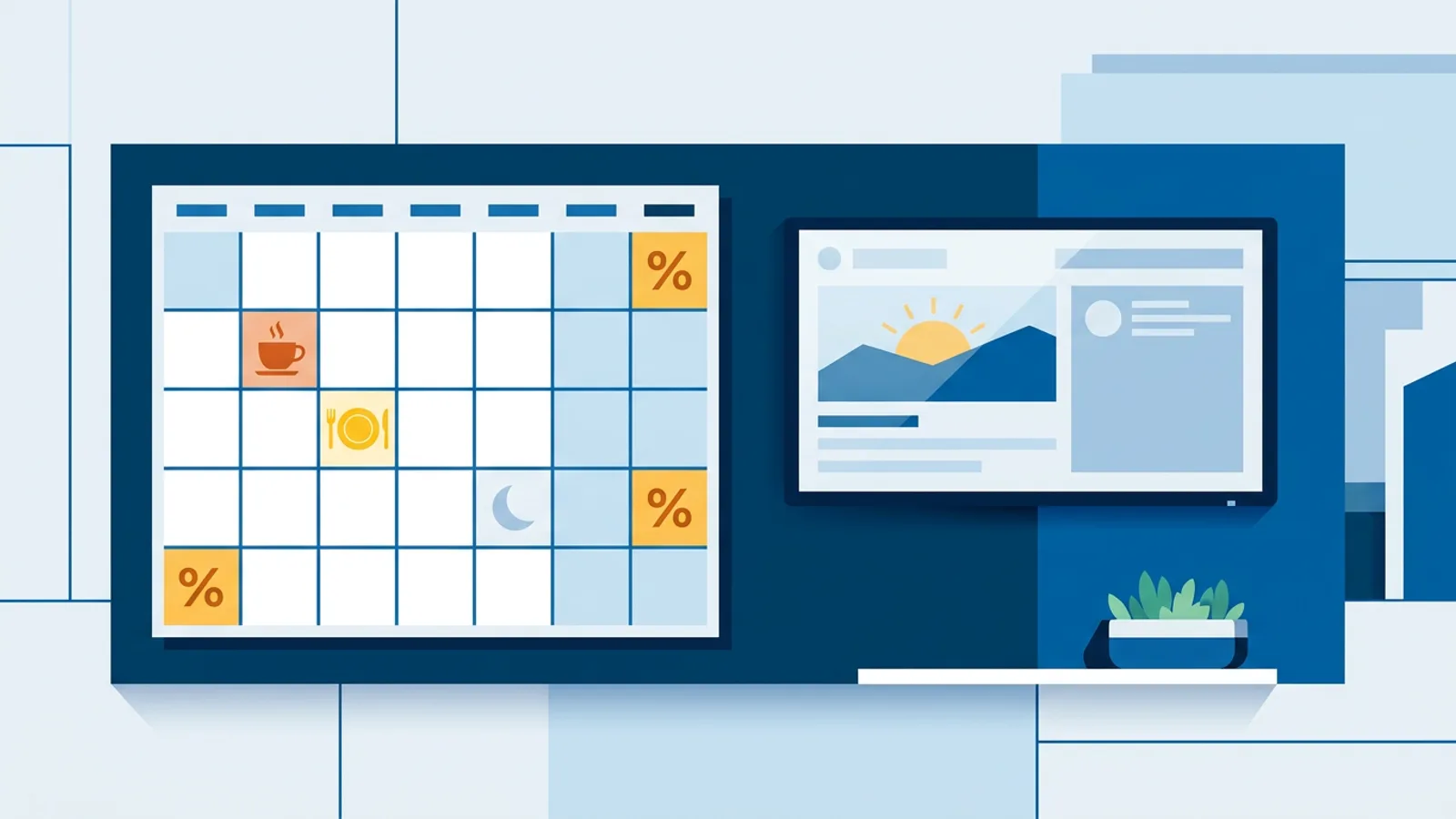
Digital signage scheduling means deciding what each screen plays, and when, before the day starts, so nobody has to log in and swap a playlist by hand at 11 a.m. Set it up once on a calendar and the screen follows the plan on its own, including on days you completely forget it exists.
The most common version of this is a restaurant switching between breakfast, lunch and dinner menus without anyone touching a remote. If you're building that kind of setup, the digital menu board is a good place to start, since the screen itself needs to be readable from across a room before scheduling matters at all.
What digital signage scheduling actually covers
There are two different things people mean when they say "scheduling," and mixing them up causes most of the confusion.
The first is per-slide dayparting: one slide inside a playlist that only shows up during certain hours, like a lunch special that appears from 11:00 to 14:00 and then steps aside for the rest of the rotation. TVpilot supports this too, with an optional expiry date so the slide removes itself from the playlist for good once a promotion ends.
The second, and the subject of this article, is calendar-based scheduling of whole playlists. Instead of editing one slide's timing, you tell a screen: play the "Lunch Menu" playlist from 11:00 to 14:00 on weekdays, play "Dinner Menu" in the evening, and play "Breakfast Menu" every morning. Different content sets, swapped automatically, on a calendar you can plan weeks or months ahead.
How the calendar decides what plays right now
Every screen in TVpilot has a default playlist. That's the fallback: whatever plays when nothing else is scheduled. A calendar on the Planning page then overrides that default according to two kinds of entries.
One-off items cover a single date: a product launch, a conference day, a holiday promo that runs December 20 to 24. Weekly repeating slots cover a recurring window: the lunch menu on weekdays between 11:00 and 14:00, class schedules that change by day of the week, a happy-hour playlist every Friday evening.
When the calendar is empty for a given moment, the screen just plays its default playlist. A gap in the schedule is never a black screen, it's whatever you set as the baseline content. Two rules resolve conflicts when entries overlap: a one-off item always beats a weekly slot, and if two items of the same type overlap, the one that started most recently wins. That means you can drop a one-off "closed for renovation" playlist on top of a normal weekly rotation without deleting anything, and the regular schedule resumes automatically the day after.
Because it's a real calendar, you can plan a full year in one sitting: enter every public holiday's opening-hours screen, every seasonal menu change, every event day, and walk away.
Show now: overriding the plan for a few minutes
Sometimes the plan needs to bend on short notice, a surprise VIP visit, an unexpected closure, a playlist that needs to go up right now, not at the next scheduled slot. "Show now" pushes any playlist to one or more screens immediately, for 30 minutes, an hour, two hours, until a chosen time, or indefinitely. Once that window ends, the screen returns to whatever the calendar says on its own. Nobody has to remember to switch it back.
Four routines this actually solves
Restaurants rotate breakfast, lunch and dinner menus without staff touching anything after opening: weekly slots handle the daily rhythm, one-off items handle the Valentine's Day special or the New Year's Eve menu.
Gyms show a different class timetable per day: Monday's spin schedule, Tuesday's yoga block, weekend open-gym hours, all set once and left alone.
Retailers build a seasonal sale campaign weeks before it starts, schedule it as a one-off block for the exact sale dates, and let the regular catalog playlist resume the moment it ends.
Offices flip between visitor-facing content during business hours and internal dashboards or comms after the lobby empties out, without anyone at the front desk owning that job.
If you're setting up an office lobby specifically, the team dashboards and internal comms guide covers the content side of that split in more detail.
Plan limits and blackout dates
How many calendars and scheduled items you get depends on plan:
| Plan | Calendars | Scheduled items per calendar | Blackout dates |
|---|---|---|---|
| Free | 1 | 2 | No |
| Starter | 5 | 20 | No |
| Pro | 25 | 200 | Yes |
| Business | 25 | 200 | Yes |
Pro and Business plans add blackout dates, an "except on..." rule that suppresses a weekly slot on specific days, including Dutch public holiday presets, so a lunch-menu slot doesn't fire on a day the business is closed without you having to delete and re-add it every year.
One honest caveat: players need an internet connection to pull new content and schedule updates from the dashboard. Once a playlist has loaded onto a screen, it keeps following the plan it already has during an outage, it just won't pick up brand-new changes until the connection comes back. If offline resilience is a bigger concern for your setup than scheduling, the offline playback guide goes into what's cached and what isn't.
When this is the right fit, and when it isn't
Calendar scheduling earns its keep the moment content actually needs to change on a rhythm, daily menu swaps, weekly class timetables, seasonal campaigns planned in advance. If a screen plays the same playlist forever, none of this matters and a plain default playlist is all you need.
It's also not a replacement for per-slide dayparting. If you just want one slide to appear during a two-hour window inside an otherwise unchanged playlist, that's a slide-level setting, not a calendar entry, and it's simpler to set up that way.
Where it's a genuinely weak fit: businesses that need content to react to something other than time, like live inventory levels or a sensor trigger. Calendar scheduling is built around dates and clock time, not external events. And if you're set on self-hosting your own signage stack rather than using a hosted dashboard, that's a different architecture choice covered in the self-hosted signage guide, worth reading before comparing tools directly.
Getting it running
Start with the default playlist for each screen, since that's what plays whenever the calendar is quiet. Add your recurring weekly slots next, lunch hours, class times, whatever repeats. Layer one-off items on top for anything date-specific. Then leave it alone and check back only when the routine changes.
A free TVpilot account gets you one calendar with two scheduled items, enough to try the lunch/dinner swap on a single screen before deciding if you need more. Sign up and set your first calendar in the time it would've taken to swap today's playlist by hand.
Frequently asked questions
What happens if I forget to schedule anything for a day?
Nothing breaks. Every screen has a default playlist, and whenever the calendar has no matching one-off item or weekly slot for that moment, the screen simply plays its default. A gap in the schedule never means a black screen.
What's the difference between calendar scheduling and per-slide dayparting?
Calendar scheduling swaps entire playlists on a screen based on dates and times, like switching from a lunch menu playlist to a dinner menu playlist. Per-slide dayparting shows or hides one slide inside a playlist during chosen hours or weekdays, with an optional expiry date. Use calendar scheduling for whole content changes, dayparting for a single promo slide.
If a one-off event and a weekly time slot overlap, which one plays?
The one-off item always wins over a weekly repeating slot. If two entries of the same type overlap each other, the one that started most recently takes priority.
Can I push content to a screen outside of its normal schedule?
Yes, that's what "Show now" is for. You can push any playlist to one or more screens immediately for 30 minutes, an hour, two hours, until a chosen time, or indefinitely. When that window ends, the screen automatically goes back to following its calendar.