Digital Signage Software for Smart TV: 5 Routes Compared
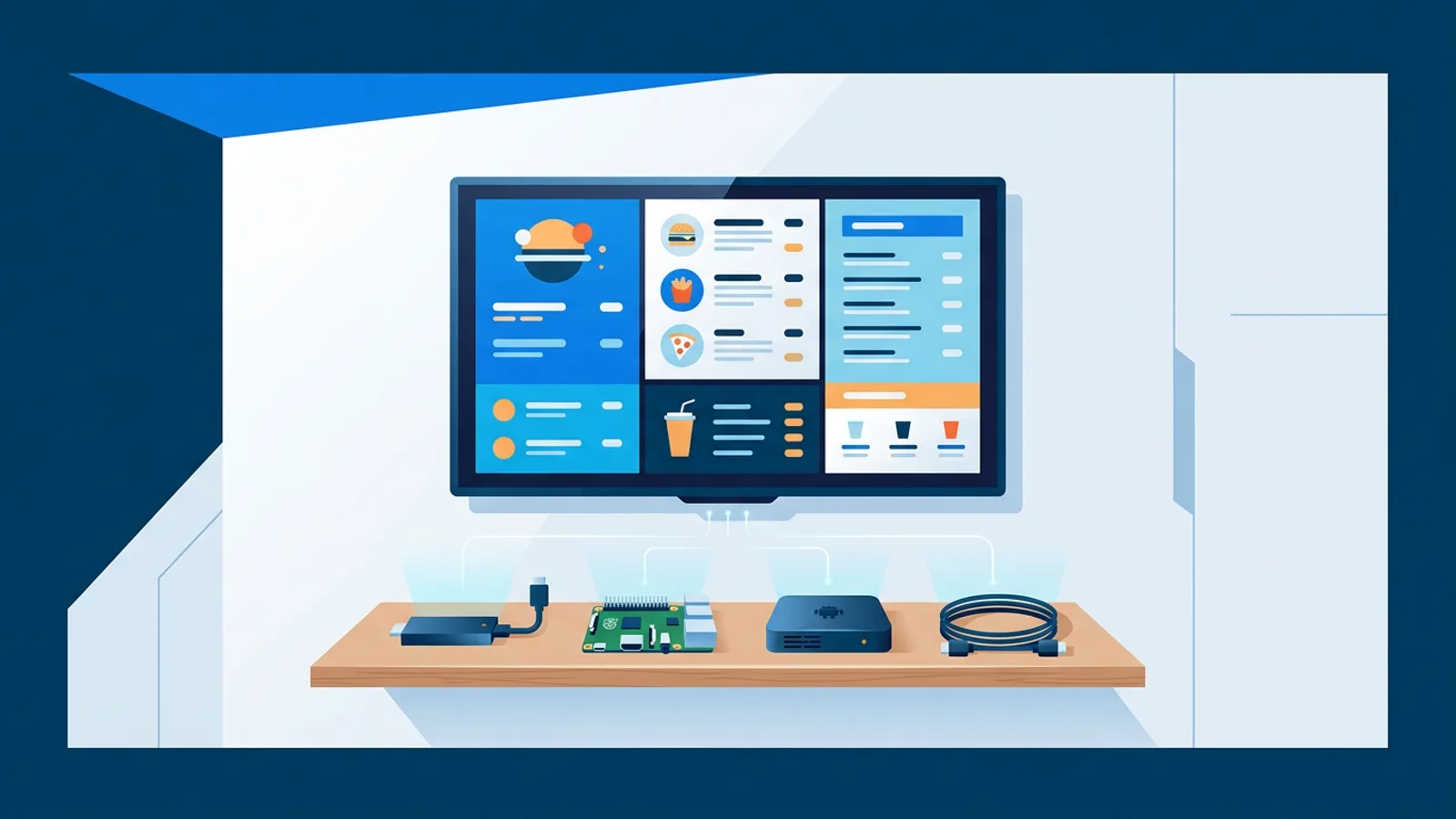
The quickest digital signage software for smart TV setups opens a player URL in the TV's own browser, and that works on most Samsung, LG, Android TV and Fire TV sets. Whether it keeps working unattended for months depends on what the TV does after a power cut, a firmware update or its own sleep timer, and that differs a lot per platform.
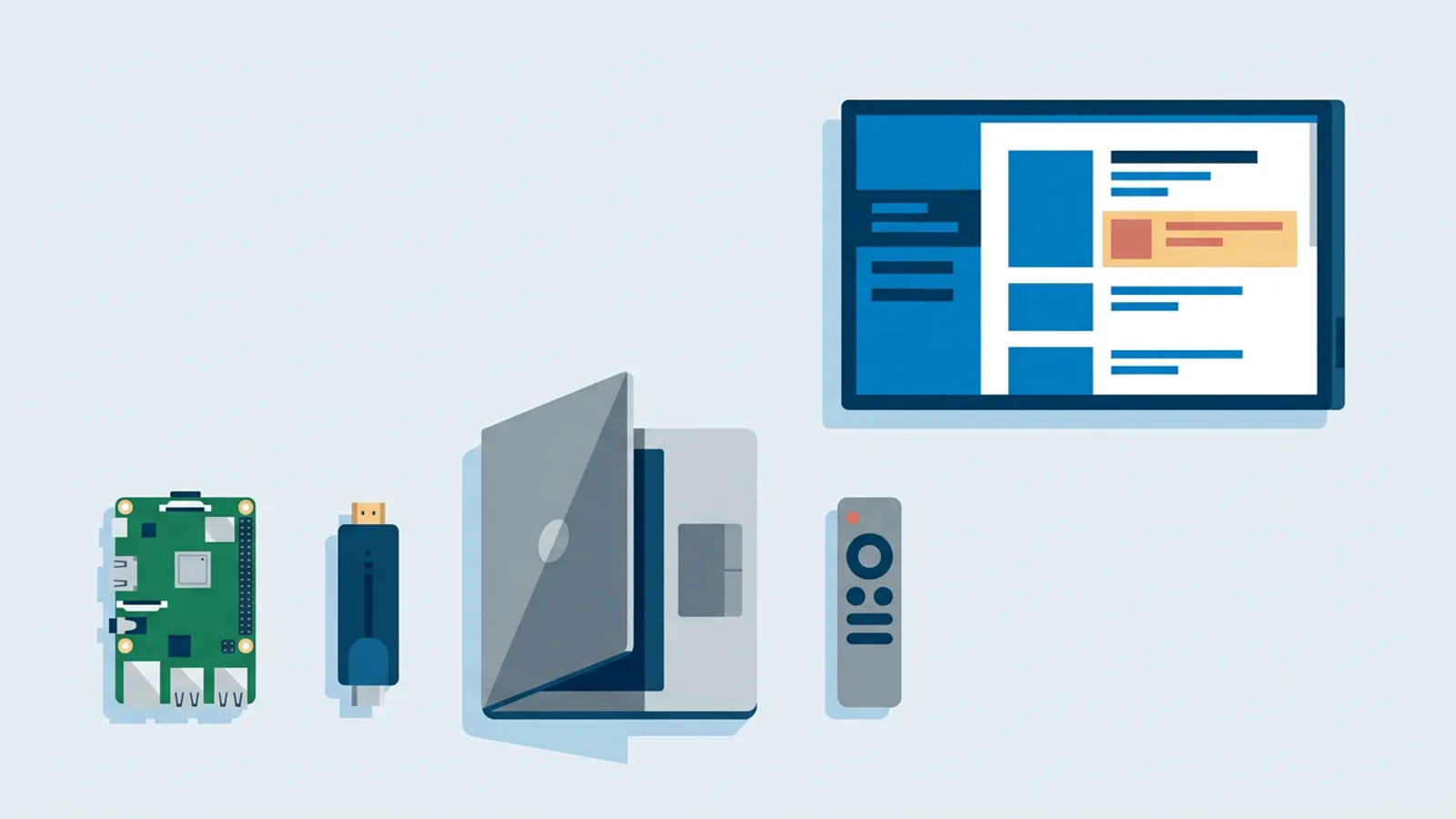
TVpilot has no native app for Samsung Tizen or LG webOS. On those TVs it runs in the built-in browser through a player URL, as described in the smart TV browser setup guide. On Fire TV and the Amazon Signage Stick there is a TVpilot app, on Android TV you use a kiosk browser, and on a Raspberry Pi a one-command installer does the work.
This guide compares those five routes for someone who already owns the TVs, or is about to buy them, and wants to know whether the TV alone is enough or whether a small box is needed behind it.
What every route has in common
In every case the content lives in the web dashboard: playlists, schedules, widgets. The device on the TV only opens the player and shows what the dashboard sends. Once loaded, the player keeps following its schedule during internet outages, and a backup playlist per screen plays if the assigned content is empty or unavailable, so the screen does not go black.
The routes differ in three practical things:
- Who starts the player after the TV loses power.
- Who keeps the player in front, above screensavers, home screens and update pop-ups.
- Who switches the TV on in the morning and off at night.
If the answer to all three is "a member of staff", the built-in browser is enough. If the answer should be "nobody", you need a device that handles it.
Picking a route: digital signage software for smart TV, per platform
| Route | Works on | Restarts the player after a power cut | Main weak spot |
|---|---|---|---|
| Built-in browser | Samsung, LG, most smart TVs | No, someone reopens the URL | Sleep timers, updates, limited browser memory |
| Android TV + kiosk browser | Android TV and Google TV sets and boxes | Yes, if the kiosk browser is set to launch on boot | No Google Play app, more setup |
| Fire TV Stick + TVpilot app | Any TV with HDMI | Depends on the device settings | Consumer screensaver and home screen |
| Amazon Signage Stick | Any screen with HDMI | Yes, kiosk mode on every boot | Sold in a limited list of countries |
| Raspberry Pi | Any TV with HDMI | Yes, systemd service plus watchdog | Needs a Pi and a one-time install |
Samsung and LG: the built-in browser
Open the TV's web browser, type the player URL, switch to full screen. That is the whole install, and it costs nothing beyond the TV.
What breaks on consumer TVs:
- Power cuts and wall switches. When the TV comes back, it boots to its home screen or the last input, and the browser does not reopen by itself.
- Auto power off. Many TVs have an eco or idle setting that switches the set off after a few hours without remote input. A signage screen never gets remote input, so turn it off.
- Firmware updates. An update can restart the TV or put a notice over your content, and after the restart you are back to the home screen.
- Browser limits. TV browsers have less memory than a laptop. A long playlist with several large videos can stutter, or the browser reloads the page. Keep videos at 1080p in H.264; TVpilot refuses HEVC/H.265 uploads anyway and can convert videos above 1080p in the browser before upload.
Decision rule: if someone turns the TV on every morning and can reopen the URL in half a minute, the built-in browser is fine. If the TV hangs high on a wall, sits behind a counter nobody reaches, or is powered by a wall switch with the lights, add a device.
Android TV and Google TV: a kiosk browser
There is no TVpilot app in Google Play. Android TV runs through the browser route: install TV Bro or Fully Kiosk Browser and point it at the player URL. Chromecast with Google TV works the same way.
TV Bro is a quick way to test. For a screen that has to run unattended, Fully Kiosk Browser is the better choice because it can be set to start on boot and keep the page in front. Expect to spend more time on the first setup than with the other routes, mostly in the Android settings. The Android TV setup page walks through it.
Choose this route if your TV already runs Android TV or Google TV and you would rather not add hardware, or if you have spare Android TV boxes in a drawer.
Fire TV Stick: the TVpilot app
On a Fire TV Stick you install the TVpilot app from the Amazon Appstore, or open the player URL in the Silk browser. This is the cheapest way to turn a TV with a weak browser, or no smart features at all, into a managed screen.
The catch is that a Fire TV Stick is a consumer streaming device. It has a screensaver, a home screen full of entertainment, and system updates on its own timing. Set the screensaver to never and check after a power cut whether the app comes back on its own with your settings. If it does not, the stick needs a human after every outage, just like the built-in browser.
Amazon Signage Stick: built for unattended screens
The Amazon Signage Stick looks like a Fire TV Stick but is Amazon's purpose-built signage player, and TVpilot is available on it in collaboration with Amazon Signage. Setup takes three steps: plug the Stick into an HDMI screen, set it up with the free Amazon Signage mobile app, choose TVpilot as the CMS and enter the claim code from the TVpilot dashboard.
After that, TVpilot starts in kiosk mode on every boot, also after a power cut. That single behaviour solves the most common failure on consumer TVs.
The Stick is sold on Amazon in the US, UK, Germany, France, Spain, Italy and Canada, also through Amazon Business there. Customers in the Netherlands and Belgium order via amazon.de. Details are on the Amazon Signage Stick page.
Decision rule: if you were about to buy a Fire TV Stick for a screen nobody will look after, buy the Signage Stick instead where it is sold.
Raspberry Pi: the most control
The Raspberry Pi is TVpilot's primary player. The dashboard generates a one-command installer with a 6-character claim code. It sets up Chromium in kiosk mode, auto-start on X11 or Wayland with a systemd service, a quiet boot, a hidden cursor and a watchdog that restarts the player within about 10 seconds if it stops.
Two things only the Pi does in this comparison:
- TV power scheduling over HDMI-CEC. The player checks the dashboard power schedule every minute and switches the TV on or to standby, without a smart plug.
- Automatic player updates, with a daily check at 03:00 plus remote update and remote reboot from the dashboard.
Any Pi running Raspberry Pi OS with a desktop works; a Pi 4 or 5 is recommended for smooth video. YouTube slides on the "auto" quality setting play at 720p on a Pi so it decodes smoothly.
Decision rule: if you want TVs to switch off at night and on before opening without anyone touching a remote, and you are comfortable flashing a microSD card, pick the Pi.
Worked example: a practice with three TVs
Say you run a dental practice with three screens.
- Reception, an LG smart TV behind the desk. The receptionist switches it on at 8:00 every day anyway. Built-in browser, player URL bookmarked. Extra hardware: none.
- Waiting room, a Samsung mounted high on the wall, powered through the wall switch that also controls the lights. Every evening it loses power, so the built-in browser would show the Samsung home screen every morning. An Amazon Signage Stick (ordered via amazon.de if you are in the Netherlands) boots straight back into TVpilot.
- Staff room, an older TV without smart features. A Fire TV Stick with the TVpilot app works if staff do not mind reopening it now and then; a Raspberry Pi works if you also want the TV to go to standby at 18:00 by itself.
On cost, the Starter plan at €5 per month (or €49 per year) includes 3 screens, so this whole practice fits in it. A fourth screen later adds €2 per month. You can first test the LG on the Free plan, which covers 1 screen with no credit card.
Set a backup playlist on each screen, and switch on the optional email alert for offline screens. The first morning the waiting room TV fails to come back, you get an email instead of a patient pointing at a blank screen.
Settings to change on any consumer TV
Menu names vary per brand, but check these before you walk away from a new screen:
- Turn off auto power off, idle sleep and eco timers.
- Set power-on behaviour to the last HDMI input instead of the home screen, where the TV offers it.
- Turn off automatic software updates, or check that they happen outside opening hours.
- Disable screensavers on any stick or box.
- Use a Wi-Fi network without a login page; guest networks with a captive portal block players.
When TVpilot is, and is not, the right fit
TVpilot fits if you have a mix of TVs and want one dashboard for all of them, starting free on one screen and paying per plan with screens included rather than per device.
It is the wrong fit if you need a native app that runs from Tizen or webOS memory with auto-start and no extra hardware, because we do not have one. It is also wrong if your screens must run for long periods without internet (content updates need a connection), or if you require open-source or self-hosted software. And if you only want one static poster on one TV, a USB stick in the TV's own media player costs nothing and is honestly enough.
Start with the screen you already have
Open the player URL on one TV today, run it for a week on the Free plan, and note what happens after the first power cut or overnight switch-off. That tells you exactly which screens need a Signage Stick, a Fire TV Stick or a Pi. Create a free TVpilot account and pair your first screen.
Frequently asked questions
Is there a TVpilot app for Samsung or LG smart TVs?
No. TVpilot has no native Tizen or webOS app. On Samsung and LG TVs you open the player URL in the built-in web browser. For screens that must restart on their own after a power cut, add an Amazon Signage Stick, a Fire TV Stick with the TVpilot app, or a Raspberry Pi.
Do I need extra hardware for digital signage on a smart TV?
Not always. If someone switches the TV on every day and can reopen the player URL, the built-in browser is enough. If the TV is out of reach, on a wall switch or expected to run unattended, a small player such as the Amazon Signage Stick or a Raspberry Pi is worth adding because it restarts the player automatically.
Why does my smart TV signage stop after a power cut?
After power returns, most consumer TVs boot to their home screen or last input, and the built-in browser does not reopen the page. Eco timers and firmware updates cause the same result. The Amazon Signage Stick starts TVpilot in kiosk mode on every boot, and the Raspberry Pi player starts via a systemd service with a watchdog.
What is the difference between a Fire TV Stick and the Amazon Signage Stick for signage?
Both can run TVpilot from the Amazon Appstore, but the Fire TV Stick is a consumer streaming device with a screensaver, home screen and its own update timing. The Amazon Signage Stick is purpose-built for signage: you set it up with the Amazon Signage app, choose TVpilot as the CMS, and it starts TVpilot in kiosk mode on every boot, also after a power cut.