Digital Signage Player Alternatives: 7 Cheaper Options
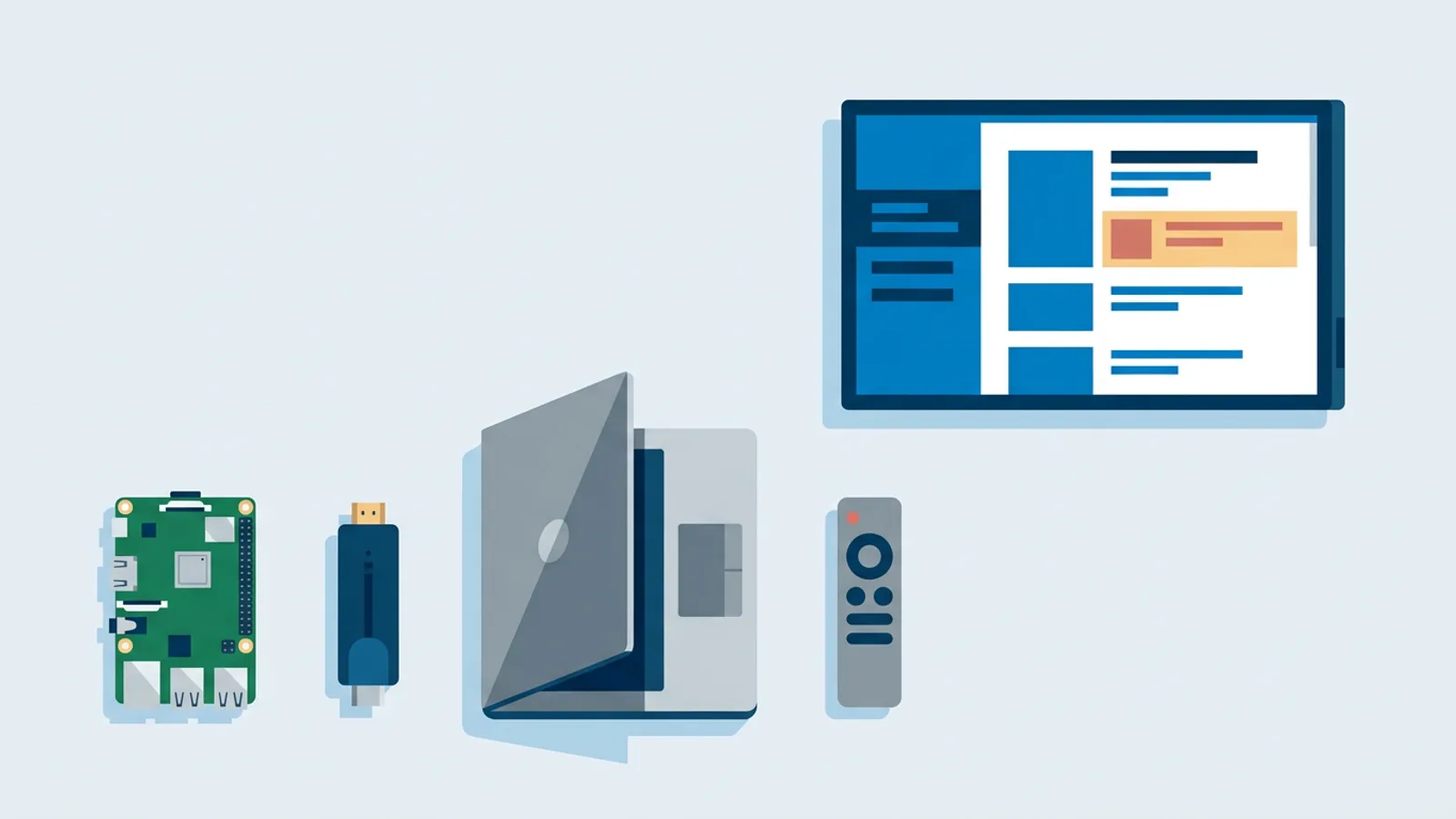
You can replace a dedicated digital signage media player with the TV's own browser, a Fire TV Stick running the TVpilot app, the Amazon Signage Stick, a Chromecast with Google TV, a Raspberry Pi, or an old laptop or iPad. These digital signage player alternatives do the same job as a proprietary box for less money, and the right one depends mostly on whether the screen has to survive power cuts and run all day without anyone touching it.
The media player line item is often the most overpriced part of a signage quote. Vendors bundle a locked-down box with their software subscription and price them together. Once you know what the box actually does, you can buy your own hardware or skip it entirely.
Below, each option gets a short verdict, then a comparison table, then three common setups with a recommendation for each.
What a dedicated media player actually does
A signage media player is a small computer that:
- Boots straight into a full-screen browser or app, with no desktop, taskbar or icons visible
- Connects to a content management dashboard over the internet
- Downloads or streams the assigned playlist and loops it
- Restarts itself if the app crashes or the network drops
None of that requires proprietary hardware. A Raspberry Pi, a streaming stick or the TV's built-in browser can do it. What separates a good alternative from a bad one is the last point: what happens at 7:00 on a Monday after the power flickered over the weekend.
Alternative 1: the browser you already have
Most smart TVs ship with a browser, sometimes buried in the app store or settings. With TVpilot, any device with a modern browser can be a screen: you point it at a player URL and set it to full screen. Our guide to running signage in a smart TV browser covers where to find the browser on common brands.
The hurdles are keeping the TV from sleeping, hiding the address bar, and getting back to the player page after the TV loses power. Many TVs return to their home screen or last input after a power cut, so someone has to reopen the browser. Smart TV browsers also vary in speed and in how well they handle video. For a reception screen showing slides during office hours, that is usually fine. For a window display that nobody checks, it is a risk.
A Chromecast with Google TV works the same way through its browser route; see the Chromecast with Google TV setup. An iPad or Mac also runs the player URL in its browser, which is handy for a counter-top screen (iPad and Mac setup).
Alternative 2: Fire TV Stick with the TVpilot app
If you want a stick instead of relying on the TV's browser, a Fire TV Stick is the easiest step up. The TVpilot app is in the Amazon Appstore, so you install it like any other app and pair it with the claim code from the dashboard. The Silk browser with the player URL also works. The Fire TV Stick setup guide walks through both routes.
A Fire TV Stick is consumer hardware, so check how it behaves after a power cut on your specific device before you rely on it for a screen that has to run unattended. Android TV devices take the browser route (TV Bro or Fully Kiosk Browser with the player URL), because there is no TVpilot app on Google Play; details are on the Android TV page.
Alternative 3: Amazon Signage Stick
The Amazon Signage Stick is Amazon's purpose-built signage media player, and TVpilot is available on it in collaboration with Amazon Signage. It sits in the low hardware cost class, closer to a streaming stick than to a commercial player.
Setup: plug the Stick into an HDMI screen, set it up with the free Amazon Signage mobile app, choose TVpilot as the CMS and enter the claim code from the TVpilot dashboard. TVpilot then starts in kiosk mode on every boot, also after a power cut. That boot behaviour is the main reason to pick it over a regular Fire TV Stick. The Stick is sold on Amazon in the US, UK, Germany, France, Spain, Italy and Canada; customers in the Netherlands and Belgium order via amazon.de. The Amazon Signage Stick page has the full walkthrough.
Alternative 4: Raspberry Pi
A Raspberry Pi running Raspberry Pi OS with a desktop is the closest thing to a purpose-built player you assemble yourself, and it is not locked to any software vendor.
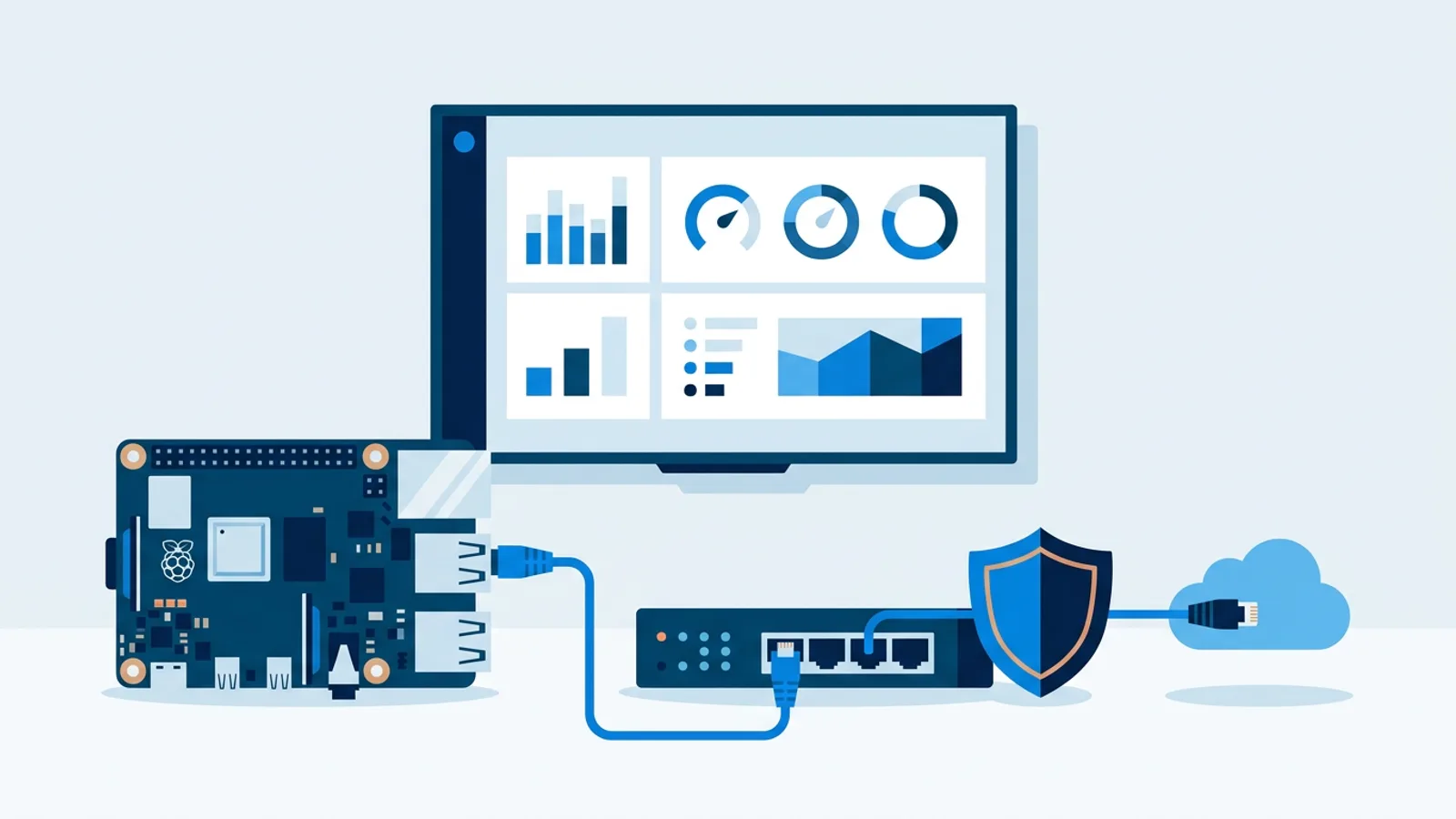
With TVpilot, setup is one command generated in the dashboard along with a 6-character claim code. You paste it into the Pi's terminal and it sets up Chromium in kiosk mode, auto-start on X11 or Wayland plus a systemd service, a quiet boot, a hidden cursor and a watchdog that restarts the player within about 10 seconds if it stops. The Pi checks the dashboard power schedule every minute and switches the TV on or to standby over HDMI-CEC, so the screen turns off at night without a smart plug. Player updates are checked daily at 03:00, and you can reboot or update a Pi remotely.
Any Pi with a desktop works; a Pi 4 or 5 is worth it for smooth video. The hardware list covers what to buy.
Alternative 5: an old laptop or iPad
A laptop gathering dust can run signage: disable sleep, keep it running with the lid closed, open the player URL in full screen. It draws more power than a Pi and takes up space behind the TV, but it costs nothing and works today. Treat it as a bridge while you decide on permanent hardware, because laptops rarely restart into the browser on their own after a power cut.
Digital signage player alternatives compared
| Option | Hardware cost class | 24/7 reliability | Recovery after a power cut | Set-up effort |
|---|---|---|---|---|
| Smart TV's own browser | None | Fair, varies by TV brand | Usually manual: reopen the browser | Low |
| Chromecast with Google TV (browser) | Low | Fair | Depends on device settings, test it | Low to medium |
| Fire TV Stick with TVpilot app | Low | Good for daily use | Depends on device settings, test it | Low |
| Amazon Signage Stick | Low | Good, purpose-built | Starts TVpilot in kiosk mode on every boot | Low |
| Raspberry Pi | Low to medium | Good: watchdog restarts the player in about 10 s | Auto-starts the player on boot | Medium, one command |
| Old laptop | None | Fair, bulky | Usually manual | Low |
| iPad or Mac (browser) | None if owned | Fair | Usually manual | Low |
A dedicated commercial player can still make sense when a vendor handles procurement, installation and support as one package, which is closer to the model in what display-as-a-service is. For most small setups, the software and the power-cut behaviour matter more than the brand of the box.
Which alternative fits which screen
A single reception TV
Say you run a dental practice with one TV behind the desk, showing opening hours, a welcome slide and Google reviews. Someone is there every morning, so if the TV comes back on its home screen after a power cut, a colleague reopens it in ten seconds. Use the TV's own browser, or a Fire TV Stick with the TVpilot app if the TV browser is slow. Hardware cost: none to low. Software: the Free plan covers one screen with 250 MB storage, no credit card needed.
A shop window that must run all day
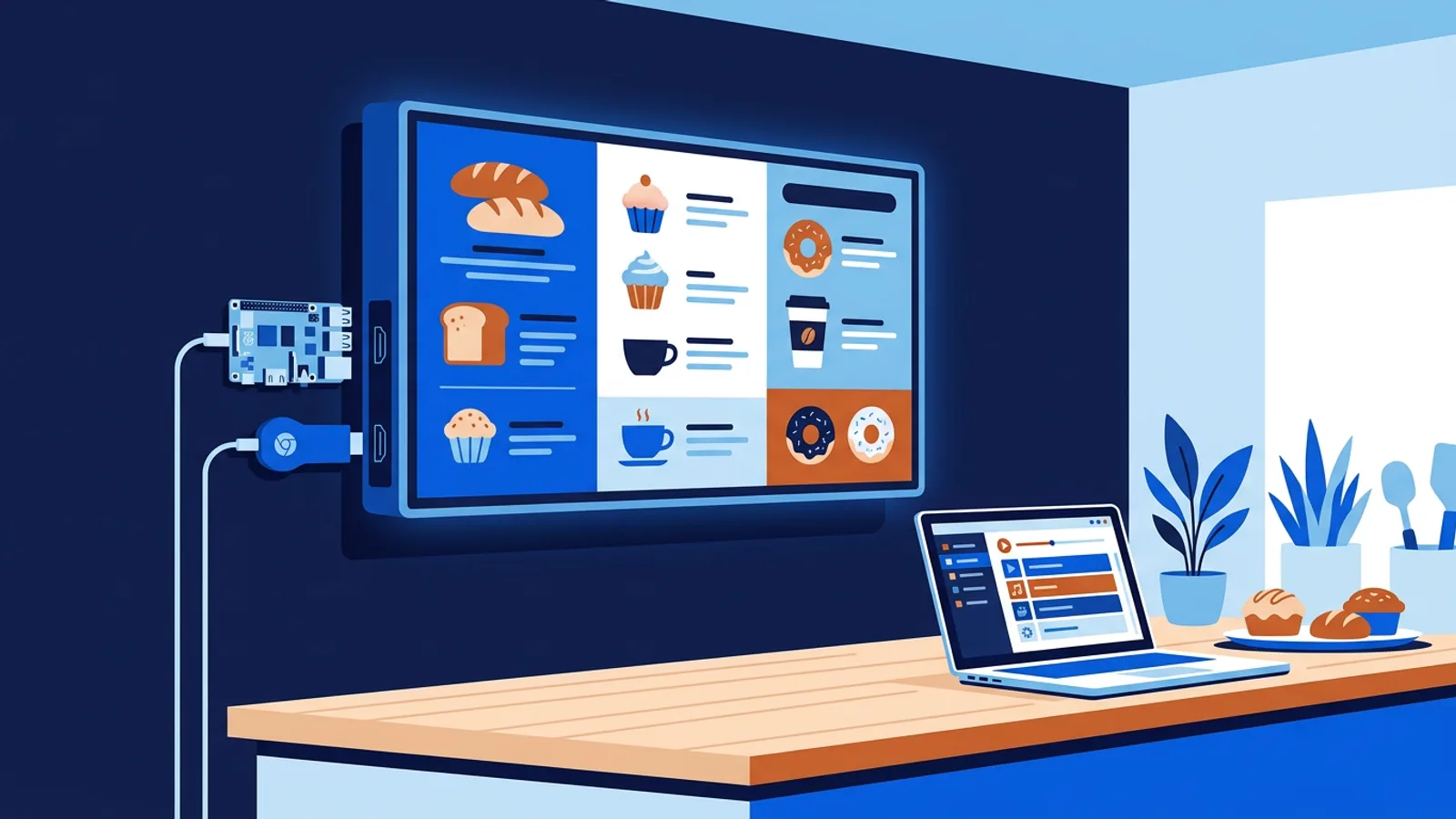
Say you run a bakery with a window screen facing the street from 7:00 to 19:00, plus weekends when you are not on site. A black window after a power dip costs you a day of visibility. Pick the Amazon Signage Stick (TVpilot starts in kiosk mode on every boot) or a Raspberry Pi (auto-start, watchdog, and HDMI-CEC to switch the TV off at night). The Pi wins if you want the TV power schedule handled by the player itself; the Stick wins if you never want to open a terminal. Set a backup playlist so the window shows something even if the assigned playlist is empty.
A fleet across several locations
Say you run three gyms with four screens each: 12 screens. That fits the Pro plan (€29/month with 10 screens included, plus 2 extra screens at €2/month each, so €33/month; up to 100 screens, 10 GB storage); three screens or fewer fits Starter at €5/month. At this size, standardise on one device type so every site behaves the same. Raspberry Pi or Amazon Signage Stick are the sensible choices here. Turn on offline email alerts from screen monitoring, and use fleet-wide updates to reload every screen tonight at 03:00 in each screen's own time zone. The guide to a signage system for multiple locations covers locations, roles and approvals.
When TVpilot fits, and when it doesn't
TVpilot is hosted signage software that runs on every option above: the Raspberry Pi one-command installer, the TVpilot app on Fire TV and the Amazon Signage Stick, or any modern browser pointed at a player URL. Playlists, per-slide scheduling, calendar scheduling, the Designer and all plugins work the same whichever device sits behind the TV.
It fits if you want to avoid proprietary hardware, manage more than one screen from one dashboard, or need scheduling and design features beyond a web page on a loop. It does not fit if you need a fully offline system: players need an internet connection to receive content updates, though the Pi player recovers automatically after an outage. It also does not fit if you require open-source software you host yourself, because TVpilot is hosted SaaS and not self-hostable.
Getting started without buying a media player
Start with what you own: open the player URL in your TV's browser or on a spare laptop and watch it for a week. If the screen needs to come back on its own after a power cut, move to a Raspberry Pi or an Amazon Signage Stick before you scale up. Create a free TVpilot account, pair your first screen with the claim code, and test it on the TV in front of you today.
Frequently asked questions
Do I need a media player for digital signage?
No. Any device with a modern browser can play signage from a web dashboard, including smart TVs, Fire TV Sticks, Chromecast with Google TV, laptops and iPads. A separate device is worth adding when the screen must restart into its content on its own after a power cut, which a Raspberry Pi or Amazon Signage Stick handles.
Can a smart TV run digital signage without a player?
Yes, if the TV has a usable browser. Open the player URL, go full screen and disable sleep. The weak spot is recovery: many TVs return to their home screen after a power cut, so someone must reopen the browser. That is fine for a staffed reception, less so for an unattended shop window.
What is the cheapest digital signage player?
The cheapest player is the one you already own: the smart TV's built-in browser or an old laptop costs nothing extra. If you need to buy hardware, a streaming stick, the Amazon Signage Stick or a Raspberry Pi all sit in the low cost class. Choose by power-cut recovery and set-up effort rather than price alone.