Smart TV vs Raspberry Pi Digital Signage: Which Fits You?
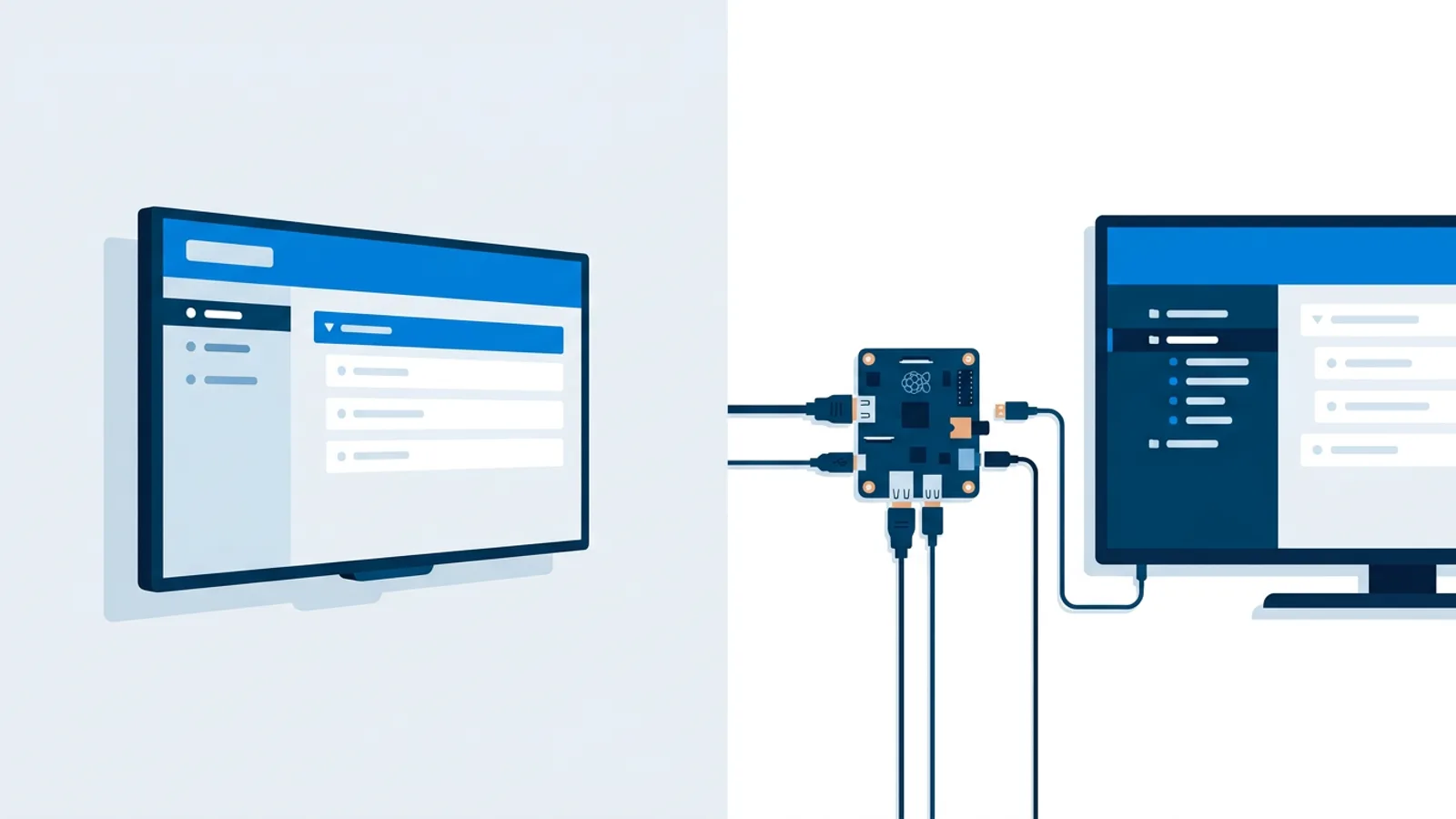
Smart TV vs Raspberry Pi digital signage comparisons really come down to how much content you plan to run and how many screens you're managing. A smart TV's own browser is enough for a single screen with light, mostly-static content. A Raspberry Pi earns its keep once you need heavier video, remote scheduling, or more than a screen or two running unattended. Both are legitimate digital signage hardware options, and the difference usually shows up three months in, after nobody has touched the screen and something inevitably needs a restart.
We cover the Raspberry Pi route in detail on our Raspberry Pi signage page, but here the goal is a head-to-head comparison against the smart TV browser approach, so you can pick based on your own screens and budget rather than on whatever a salesperson happens to be pushing.
Most small businesses land on this question after buying a TV for a lobby, waiting room, or shop window and then realizing they need something to actually manage what plays on it. The TV itself is rarely the bottleneck. What matters is what runs the browser, how it recovers from a power cut, and how easy it is to change content without climbing on a ladder.
Smart TV vs Raspberry Pi digital signage: the core tradeoff
A smart TV runs its own operating system (Tizen, webOS, Android TV, Google TV, whatever the manufacturer shipped) with a browser buried in the apps menu. Point that browser at a signage player URL and the TV becomes a screen. No extra hardware, no extra box on the back of the TV, no extra cable clutter. That's the appeal.
A Raspberry Pi is a small, separate computer that sits behind the TV and does one job: boot straight into a full-screen browser and keep it running. It costs more than "free" (you already own the TV's browser) but it decouples the signage software from whatever browser engine the TV manufacturer happened to install three years ago and never updated.
Where smart TV browsers fall short
Built-in TV browsers are usually an afterthought for the manufacturer. Problems that show up in the field:
- Older or slower TV chips choke on video-heavy playlists, transitions, or multiple widgets on one slide.
- The browser app can get killed by the TV's own power-saving or memory management, and won't always restart itself.
- After a power cut, some TVs come back to the home screen instead of relaunching the browser, so the screen sits idle until someone manually reopens it.
- Firmware updates occasionally break or remove the browser app entirely, with no warning.
- Remote control navigation to find and pin the browser app varies wildly between brands, which is painful for multi-location rollouts where every store has a different TV model.
None of this makes a smart TV a bad screen. It makes the TV's browser a fragile place to run something that's supposed to run unattended for months.
Where a Raspberry Pi earns its cost
A Raspberry Pi separates the "screen" from the "computer running the screen." That split is exactly why dedicated media players exist in the first place, and it's the same reasoning covered in our roundup of digital signage player alternatives to a media box. With TVpilot specifically, the Pi setup uses a one-command installer generated from the dashboard with a 6-character claim code. It configures Chromium in kiosk mode, sets it to auto-start on boot via a systemd service, and runs a watchdog that restarts the player within about 10 seconds if it ever crashes. Quiet boot and a hidden cursor mean the screen never shows a desktop, taskbar, or mouse pointer to customers.
The Pi can also handle TV power scheduling over HDMI-CEC: the player checks the dashboard's power schedule every minute and switches the TV on or to standby automatically, with no smart plug required. That single feature solves a real annoyance: TVs left on 24/7 burn power and shorten panel life for no reason outside business hours.
Digital signage hardware comparison at a glance
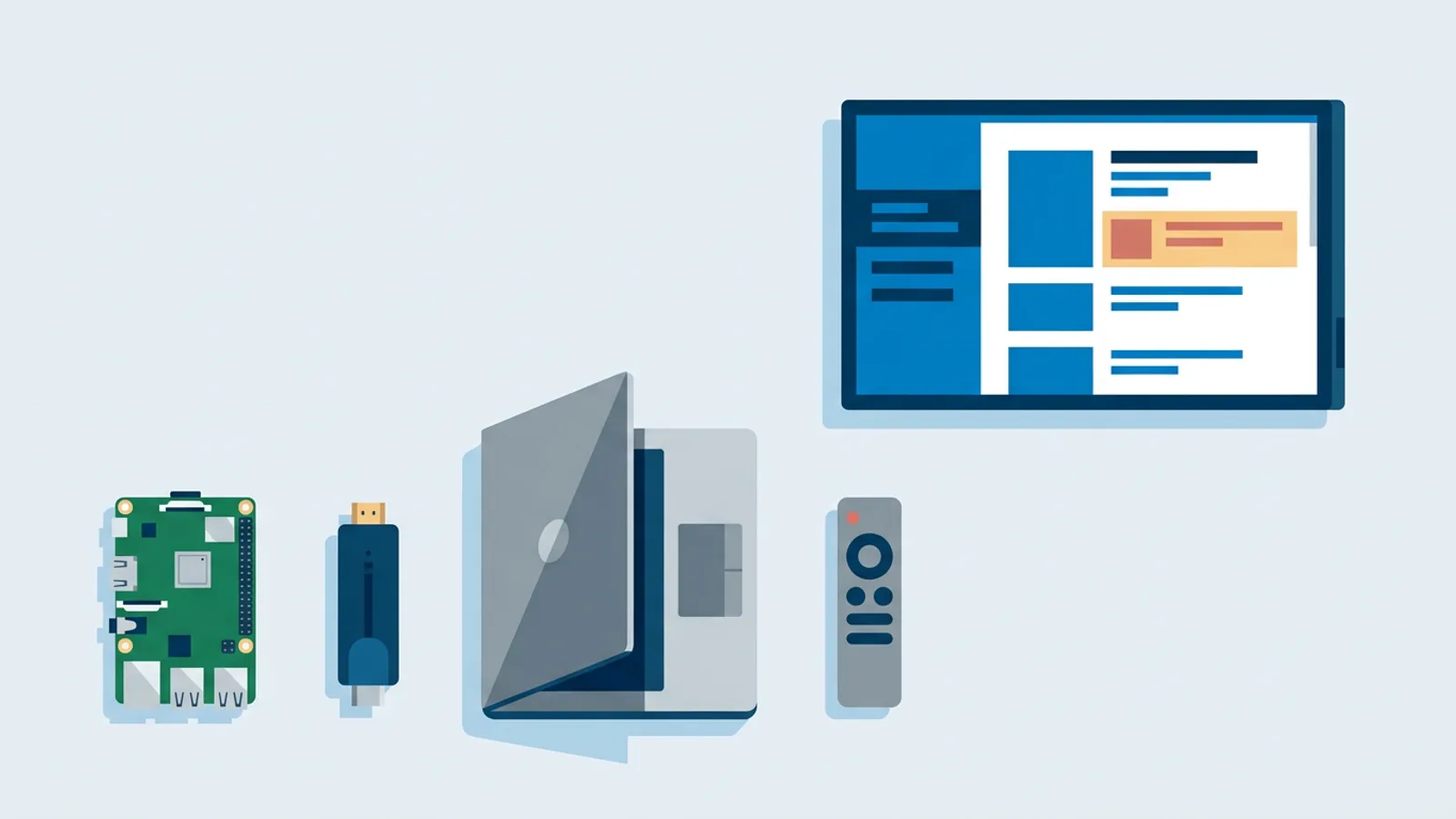
| Hardware | Extra cost | Reliability for unattended use | Best for |
|---|---|---|---|
| Smart TV's own browser | None (already own the TV) | Depends heavily on TV brand and firmware | One screen, light content, low budget |
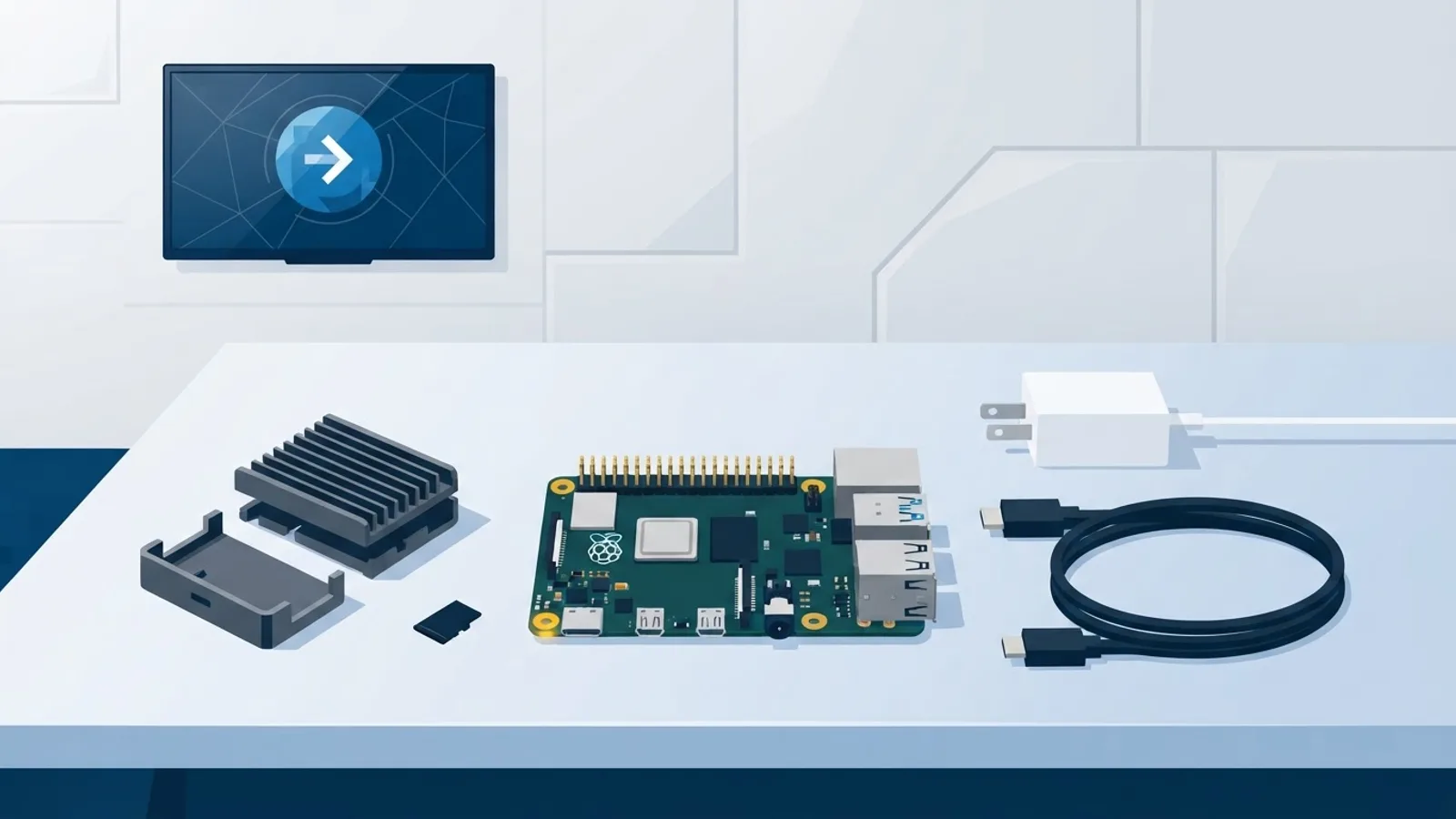
| Raspberry Pi 4 or 5 | Board, power supply, SD card, case | Watchdog-managed auto-restart, CEC power scheduling | Multiple screens, video-heavy playlists, unattended locations |
| Fire TV Stick / Android TV box | Low to moderate | Runs signage via a browser app, no dedicated kiosk mode out of the box | Existing streaming hardware repurposed for signage |
| Amazon Signage Stick | Purpose-built device | Amazon's own kiosk boot, provisioned through Amazon's console | Businesses standardizing on Amazon's signage hardware line |
For a full parts list and current-generation comparison, see the Raspberry Pi hardware list and Pi 4 vs Pi 5 for signage. If you're weighing a streaming stick instead, Fire TV Stick kiosk mode and the Amazon Signage Stick explainer cover those paths without assuming Pi-level setup.
Browser signage vs media player: what changes day to day
The hardware choice barely affects the software you use to build playlists and schedules. The difference is what happens between updates.
On a smart TV browser, a content change usually means the browser is already displaying the player page and just needs the new content to load on its next refresh cycle. That part works the same on a Pi. The gap is in what happens when nobody is watching: a Pi's watchdog restarts a stuck player automatically, while a TV's browser app has no such safety net beyond whatever the manufacturer built in, which in practice is often nothing.
Bandwidth needs are similar either way since both are just loading a web page. If you're curious about actual data usage for playlists with video, our bandwidth requirements guide breaks that down separately from the hardware question.
Picking the best way to run digital signage for your situation
A few realistic scenarios:
A single-location cafe with one TV showing a static menu and a weather widget can genuinely get by on the TV's own browser, especially if the TV is newer. The failure mode (occasional manual restart) is annoying but rare enough to live with.
A gym with screens in the entrance, each studio, and the front desk benefits from Raspberry Pi players because a stuck browser on one screen shouldn't require someone to walk over with a remote. Our gym signage guide covers content ideas once the hardware question is settled.
A multi-location retailer standardizing hardware across ten or more stores usually settles on Raspberry Pi for the same reason IT departments standardize on anything: identical setup instructions, identical failure behavior, and one claim code per screen instead of ten different TV remote menus to navigate.
When TVpilot works well, and when it doesn't
TVpilot runs on both paths described here: the one-command Pi installer with the watchdog and CEC power scheduling described above, or a plain browser pointed at a player URL for any smart TV, Android TV, or old laptop with a modern browser. There's no dedicated native app for Android TV or Fire TV yet, so those run through the browser route rather than an installed app.
TVpilot is hosted software, not something you self-host, and it needs an internet connection for content updates (the Pi player recovers on its own once the connection comes back, and screens keep following their existing schedule during an outage). If your business needs a fully offline, self-hosted setup for compliance or network policy reasons, our self-hosted signage checklist is a more honest starting point than a hosted product like this one.
For everyone else, the Free plan covers one screen with 250 MB of storage and AI Studio access at no cost, no credit card required. Starter is €5/month with 3 screens included (up to 10), and Pro is €29/month with 10 screens included (up to 100) and Premium included. Priority support is on Business (€99/month, 25 screens included). Full breakdown is in our pricing guide.
If you've already got a TV and are deciding between trusting its built-in browser or adding a Raspberry Pi behind it, start with one screen and see how it holds up for a month before standardizing across a whole location. Sign up and try either setup on the Free plan; it takes about as long as installing a streaming app.
Frequently asked questions
Is a Raspberry Pi always more reliable than a smart TV's built-in browser for signage?
Usually yes for unattended use, mainly because of the watchdog process: on TVpilot's Pi setup, the player restarts automatically within about 10 seconds if it crashes, while a TV's own browser app has no equivalent safety net beyond whatever the manufacturer built in, which is often nothing.
Can I run TVpilot on a smart TV without buying a Raspberry Pi?
Yes. Point any modern browser, including a smart TV's built-in one, at a TVpilot player URL and the screen starts playing. There's no dedicated native app for Android TV or Fire TV yet, so those also run through the browser route rather than an installed app.
Does a Raspberry Pi need a smart plug to turn the TV on and off on a schedule?
No. On TVpilot, the Pi player checks the dashboard's power schedule every minute and switches the TV on or to standby using HDMI-CEC, which works over the existing HDMI cable without any extra hardware.
What's the real cost difference between the two approaches?
A smart TV's browser costs nothing extra since you already own the TV. A Raspberry Pi adds the cost of the board, power supply, SD card, and case, but recovers that cost in fewer manual restarts and standardized setup once you're running more than one or two screens.