Digital Signage for Churches: Service Times and Events
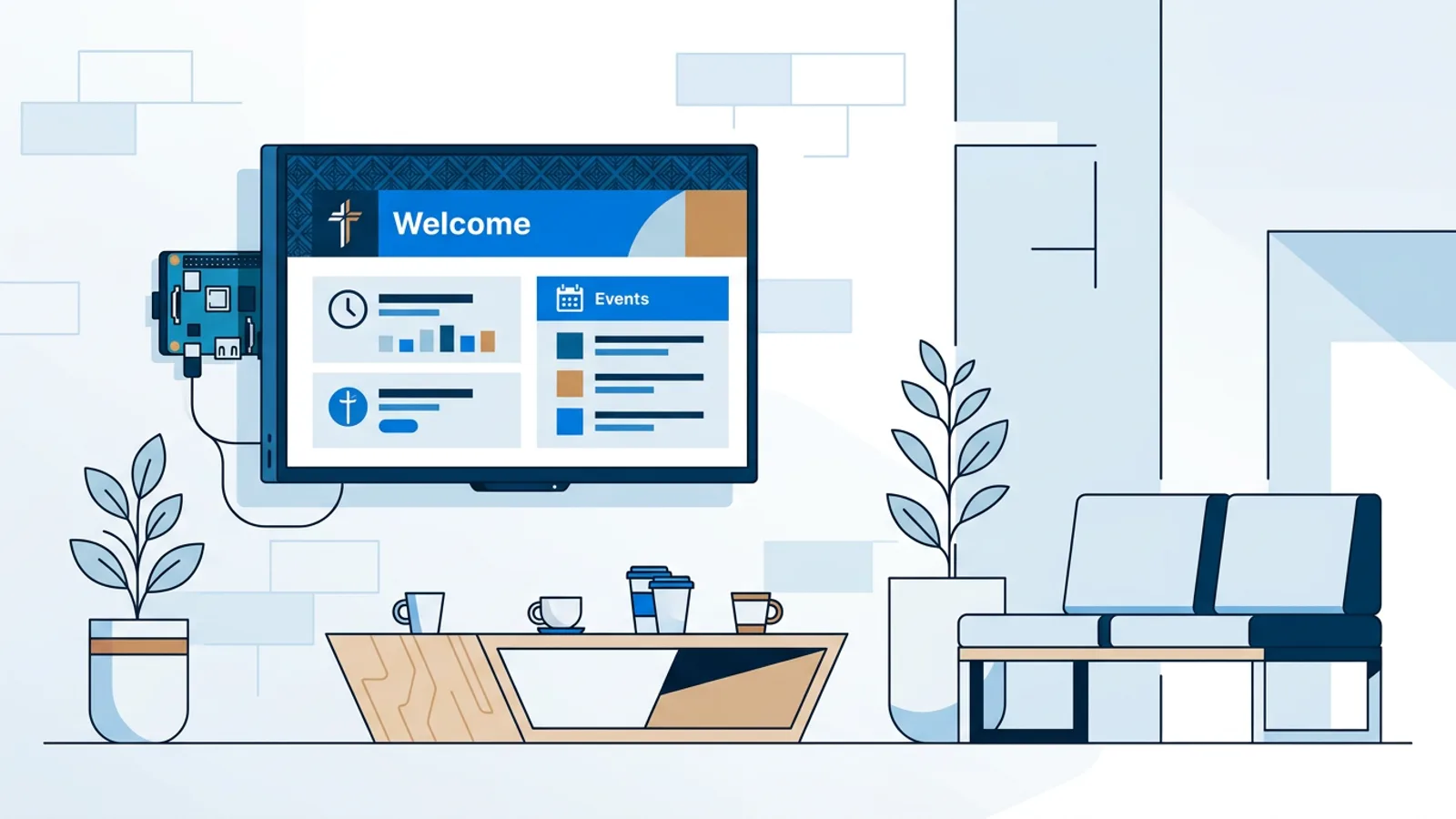
Digital signage for churches works best when the lobby TV follows the week on its own. It shows a welcome and service times before the service, events and groups after it, and the office hours and upcoming calendar on weekdays, with no volunteer pressing buttons on Sunday morning. The setup is a TV, a small player such as a Raspberry Pi running a signage player, and a schedule you build once.
This guide is for the church administrator, the volunteer who "knows computers", or the community center coordinator who has inherited a TV in the entrance hall. It covers what to show at which moment, how to schedule it so it runs itself, who should be allowed to edit it, and the mistakes that leave a screen showing last month's bake sale.
The core idea: plan around the rhythm of your building. Most churches and community centers have a weekly pattern that barely changes, plus a handful of one-off events. Set up the pattern once and spend volunteer time only on the one-offs.
What a church lobby TV display should show, and when
People look at a lobby screen for a few seconds while they walk past or wait for coffee. What they need changes through the week, so one long slideshow running all day is the wrong format. Split the content into time slots.
| Moment | Who is in the lobby | What to show |
|---|---|---|
| Sunday, 30 to 60 min before service | Regulars, visitors, families | Welcome, service time, where children's church meets, giving QR code |
| Sunday, after service | People staying for coffee | This week's events, small groups, sign-up QR codes, volunteer requests |
| Weekday evenings | Group members, choir, youth | Tonight's activities and rooms, the week ahead |
| Weekday office hours | Visitors, deliveries, renters | Office hours, contact details, upcoming events calendar |
| Nights and empty days | Nobody | TV in standby |
Two rules keep this readable. Use one message per slide, with text large enough to read from the door. And give each slide 8 to 12 seconds, so a full loop of five or six slides finishes while someone waits in line.
The hardware: one player per TV
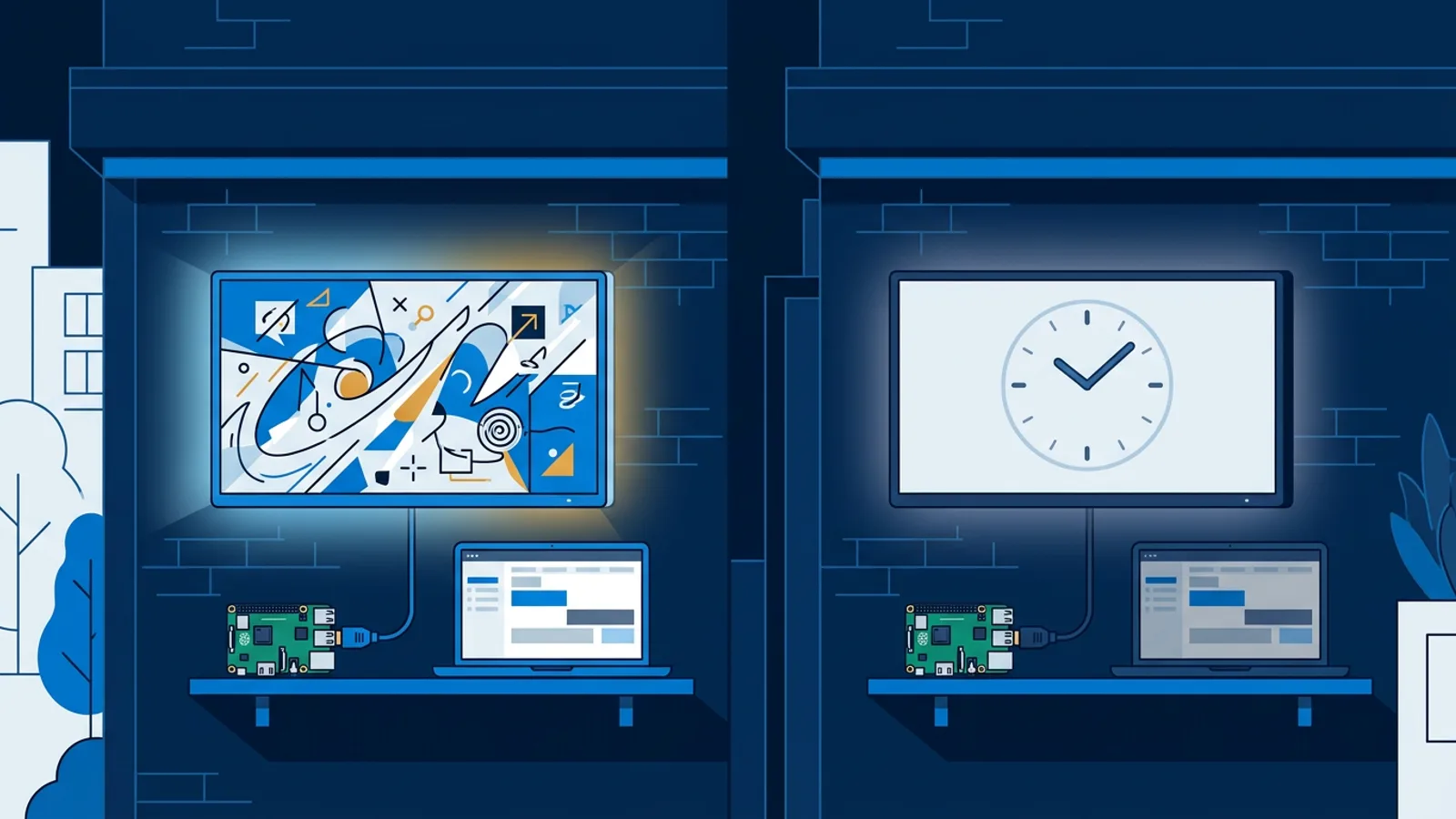
Each screen needs something to drive it. A Raspberry Pi 4 or 5 behind the TV is the most hands-off option: the TVpilot installer is a single command generated in the dashboard with a 6-character claim code. It sets up Chromium in kiosk mode, starts the player automatically on boot and runs a watchdog that restarts the player within about 10 seconds if it crashes. The Pi also checks the dashboard power schedule every minute and switches the TV on or to standby over HDMI-CEC, so you do not need a smart plug.
If you would rather not handle a Pi, a Fire TV Stick with the TVpilot app from the Amazon Appstore, the Amazon Signage Stick, or a smart TV's browser pointed at a player URL also works. The tradeoff is power control: the HDMI-CEC power schedule described here is a Pi feature. For a lobby TV that should be off from Sunday afternoon until Wednesday evening, that matters.
One practical warning for church buildings: many have a guest Wi-Fi with a click-to-accept page. A player cannot click "accept", so put screens on the staff network or a cable.
Digital signage for churches: setting up the weekly rhythm
TVpilot has two layers of scheduling, and using both is what makes a screen hands-off.
The Schedule page decides which playlist plays on a screen. You add weekly repeating time slots (for example "Sunday 08:30 to 10:00: Sunday morning playlist") and one-off items for special days. When nothing is planned, the screen falls back to its default playlist. A one-off item beats a weekly slot, so Christmas Eve automatically overrides the normal Sunday plan.
Per-slide scheduling decides when a single slide inside a playlist appears: only on chosen weekdays, only between chosen times, and optionally until an expiry date after which it removes itself.
Worked example: a church with two screens
Say you run a church with a TV in the entrance lobby and one in the fellowship hall. Services are Sunday at 10:00, there is a midweek group on Wednesday evening, and the office is open Tuesday to Friday 09:00 to 13:00.
You build three playlists:
- Sunday morning: welcome slide, "Service starts at 10:00", children's church location, giving QR code made in the Designer, and a countdown.
- After service: coffee and fellowship, this month's events, small group sign-up QR code, a volunteer request.
- Weekday: office hours, the upcoming events calendar, a weather widget.
On the Schedule page for the lobby screen, you add two weekly slots: Sunday 08:30 to 10:15 plays Sunday morning, and Sunday 11:15 to 13:30 plays After service. Weekday is the default playlist, so it fills every other moment. That is two scheduled items on one calendar.
The countdown is the detail visitors notice. The countdown widget can count to the same time every day, so set it to 10:00 and use per-slide scheduling to show it only on Sundays between 09:30 and 10:00. When it reaches zero it shows a custom message such as "The service has started, please come in quietly".
Then the power schedule: TV on Sunday 08:15 to 13:45, Wednesday 18:30 to 21:30, and Tuesday to Friday 09:00 to 13:00. Outside those hours the Pi puts the TV in standby.
For Christmas Eve you add a one-off item with a dedicated playlist (service times for both evening services, parking information). That is a third scheduled item, and the fellowship hall screen needs its own calendar too.
Now the plan choice. The Free plan covers 1 screen with 1 calendar and 2 scheduled items, which is enough for a single lobby TV with Sunday morning and after-service slots. This example has two screens and four or more scheduled items, so it needs Starter: €5 per month or €49 per year, with 3 screens, 5 calendars and 20 scheduled items included. You can plan the whole liturgical year ahead, including Easter and harvest festival, in January.
Announcements that take themselves down
The most common complaint about a church announcement screen is stale content. The concert happened two weeks ago and it is still on the TV, and after that people stop reading the screen.
Fix it at the moment you add the slide. Give every event slide an expiry date, the day after the event. The slide disappears by itself, and nobody has to remember. For recurring items, such as "Youth group tonight 19:00", use weekday scheduling so the slide appears only on the right day.
If your team already makes announcements in Google Slides or Canva for the projector, do not rebuild them. Paste the Google Slides link (published to the web or shared with anyone who has the link) and it plays as a slide that auto-advances and loops. Paste the public share link of a Canva design and later edits in Canva appear on screen automatically. Multi-page Canva designs show only the first page, so use one design per announcement. If you start from scratch, AI Studio can generate a designed welcome or event screen from a short brief.
Edits to playlists and plugins save as a draft, and screens keep playing the last pushed version until someone presses "Push to screen". A volunteer can work on next week's slides on Thursday without half-finished work appearing in the lobby.
Community center digital signage: rooms and calendars
A community center has a different problem: many groups, many rooms, and a schedule that changes weekly. Retyping that schedule onto slides is a job nobody keeps up.
Instead, keep the bookings in a shared Google Calendar or Outlook calendar and show it live. The Calendar widget takes the iCal link of any calendar and displays it as an agenda, day or week view. When the coordinator adds the Tuesday yoga class to the calendar, it appears on the entrance screen with no extra step. Churches can do the same with their events calendar for the weekday playlist.
For individual rooms, the meeting room panel reads a room calendar and shows free or busy right now, the current booking and what comes next, green when free and red when busy. A small screen by each hall door answers "am I in the right room?" before anyone has to ask.
For same-day notices ("Hall B closed today, choir moved to the chapel"), use the on-screen Messages bar or "Show now", which pushes a playlist to chosen screens for 30 minutes, 1 or 2 hours, or until a set time, then returns to the normal schedule automatically.
Who updates it: volunteers and logins
A screen often depends on one volunteer, and when that person moves away, nobody knows the password. Decide this before you start.
If one staff member or administrator manages the screen, Starter is enough: it includes 1 user. If two or three volunteers share the work, do not share one login. Pro (€29 per month or €289 per year) gives up to 3 users with roles, so the youth leader can be an editor while the treasurer has view-only access, plus 10 screens and 3 locations for a church with a separate hall or chapel. Every user can turn on two-factor authentication on any plan.
Pro also includes the Emergency alert: one button puts a full-screen message such as Evacuate or Fire on every screen within seconds, over whatever is playing. For a building that hosts children's groups and public events, that is worth weighing. Larger organizations with several sites and approval needs (one person signs off before anything goes live) are the case for Business.
Failure modes to avoid
These are the problems that actually show up in church and community buildings:
- Privacy slips. Never put prayer requests with names, pastoral news or children's check-in details on a public lobby screen. Lobbies are open to anyone.
- YouTube ads in the sanctuary. You can paste a YouTube live stream for an overflow room, and sound is configurable, but YouTube decides whether a video carries ads. Your own channel's ad-free videos play clean. Vimeo plays without ads.
- TVs left on all week. Without a power schedule the lobby TV burns all week for an audience of zero. Set the HDMI-CEC schedule on day one.
- Internet outages. Players keep following the schedule during an outage, but new content only arrives once the connection returns. Push Sunday's changes by Saturday.
- Phone photos that will not upload. HEIC images and HEVC videos are refused with a clear message; export as JPEG or H.264 MP4.
When TVpilot fits, and when it does not
TVpilot fits if you want a screen that follows a weekly pattern without weekly work, have more than one person or more than one TV, or want calendars and room panels that update themselves.
It is not the right tool for song lyrics and sermon slides on the projector during worship; that is the job of presentation software run live by an operator. It is also more than you need if your TV shows one static slide that changes twice a year: a USB stick in the TV's media player does that fine. And if your church requires open-source or self-hosted software, TVpilot is hosted SaaS and cannot be self-hosted.
Getting started
Start with one screen: the lobby TV, a Raspberry Pi, a Sunday morning playlist and a weekday default. That fits the Free plan, costs nothing, and needs no credit card. Run it for a month, add expiry dates to every event slide, and expand to the hall or a second calendar when the rhythm works. You can create a free TVpilot account and have the lobby screen running before next Sunday.
Frequently asked questions
Can we show our livestream on a TV in an overflow room?
Yes. Paste the YouTube live stream link into a playlist and it plays full-screen. It starts muted by default, but sound can be switched on in the settings. YouTube decides whether a video carries ads, so streams from your own channel without ads are the safest choice. Vimeo links play without ads.
How much does digital signage for a church cost?
The software is free for one screen on the Free plan, which includes 1 calendar and 2 scheduled items. Two or three screens fit the Starter plan at €5 per month or €49 per year (excl. VAT). Pro, at €29 per month or €289 per year, adds up to 3 users with roles and the Emergency alert. Hardware is separate: a TV and a player such as a Raspberry Pi 4 or 5.
Can several volunteers update the church announcement screen?
On Starter there is 1 user, so only one person should manage it. Pro allows up to 3 users with roles such as editor or viewer, and Business allows up to 25 users with an approval step before anything goes live. Drafts never appear on screen until someone presses Push to screen.
What happens if the church Wi-Fi goes down on Sunday?
The player keeps following its schedule during an internet outage, so the Sunday playlist still switches at the planned time. New edits only reach the screen once the connection is back, so push Sunday changes the day before. Avoid guest Wi-Fi with a click-to-accept page, because a player cannot accept it.