Raspberry Pi 4 vs Pi 5 for Digital Signage: Which to Buy
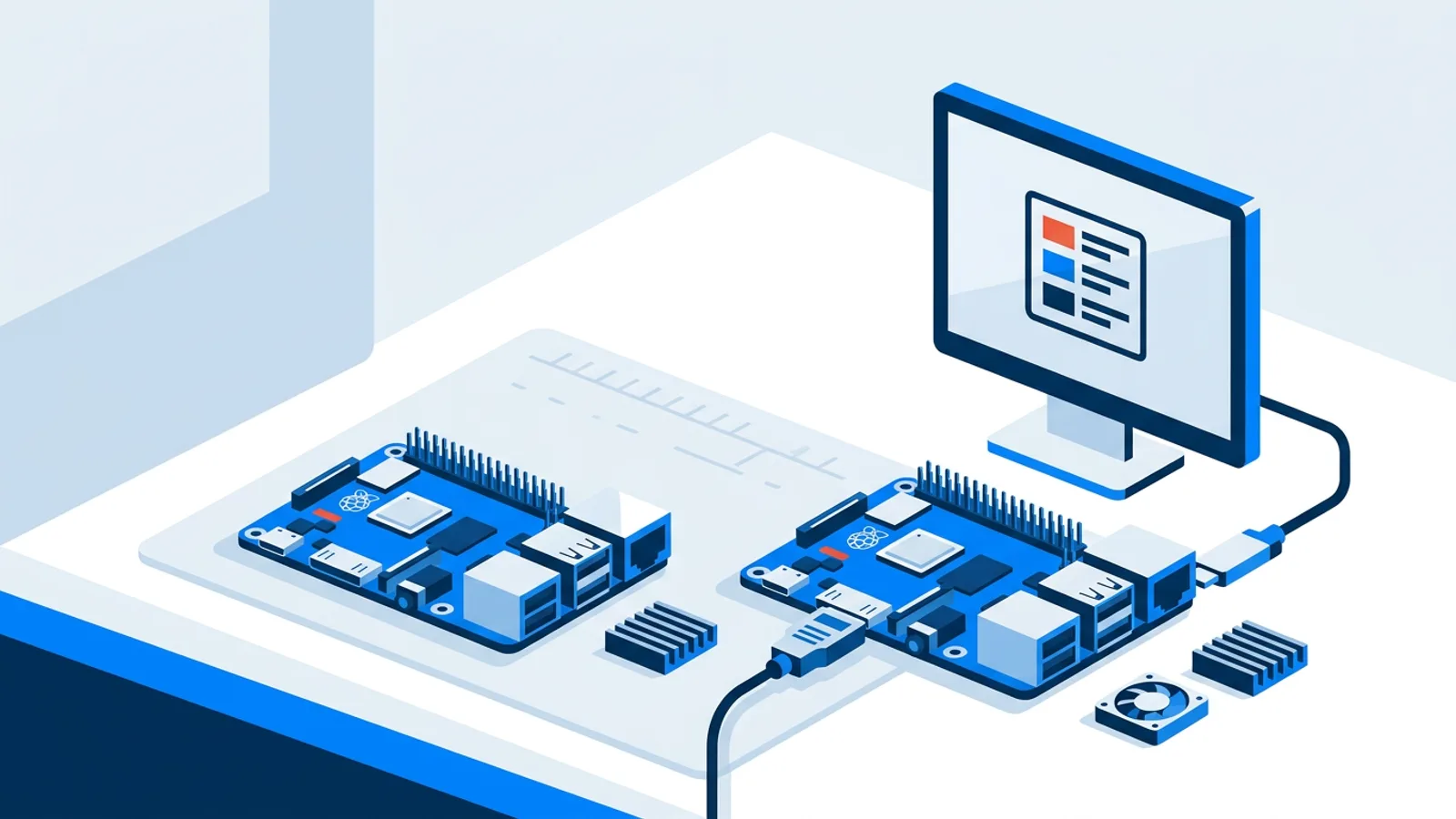
Most signage jobs (a lobby playlist, a menu board, a lunch-hour dashboard) don't need the newest chip you can buy. Choosing between a Raspberry Pi 4 vs Pi 5 for digital signage comes down to one question: how demanding is the content you're actually going to loop, not how new the board is.
If you haven't picked hardware yet, the Raspberry Pi signage hardware guide covers the full parts list and setup path. This article is narrower: it's a straight raspberry pi signage hardware comparison so you can decide which generation to buy for the screen you're actually building.
What actually changed between Pi 4 and Pi 5
The Pi 5 has a quad-core Cortex-A76 CPU running at 2.4GHz, versus the Pi 4's quad-core Cortex-A72 at up to 1.8GHz. In plain terms, the Pi 5's CPU is roughly two to three times faster at general-purpose work: rendering a busy Chromium kiosk page, running several live widgets, decoding audio, handling a scrolling news ticker on top of video.
The GPU moved from VideoCore VI to VideoCore VII, and the board picked up PCIe support, faster USB, and a separate I/O controller chip. None of that matters much for a screen that just plays a playlist. What matters for signage is the CPU headroom and, more specifically, video decode, covered below.
RAM options overlap: both boards ship in multiple tiers, and either family covers what a signage kiosk needs. You don't need the largest RAM option on either board for this use case.
Video decode: the part that actually matters for signage
This is the detail most comparisons skip. The Pi 4 has a dedicated hardware video decoder that handles H.264 up to 1080p60 and HEVC (H.265) up to 4K60 without touching the CPU. The Pi 5 dropped the dedicated H.264 decode block; H.264 video on a Pi 5 is decoded in software, using the CPU. Raspberry Pi's own documentation covers the change in detail if you want the full breakdown (raspberrypi.com).
In practice this evens out. The Pi 5's CPU is fast enough that software H.264 decode at 1080p is fine, and its HEVC hardware decode is still there for 4K content. A Pi 4 with hardware H.264 decode can actually be the more efficient choice for a screen that mostly plays MP4 loops, because the CPU stays nearly idle while the dedicated decoder does the work.
One fact that applies to both boards: on TVpilot's Raspberry Pi player, YouTube's "auto" quality setting is capped to 720p specifically so the Pi decodes it smoothly rather than choking on 1080p or 4K streams. That single setting removes most of the video-decode argument for typical signage content, whichever board you're running.
RAM, storage and how much headroom you need
A kiosk browser running one playlist with a handful of images and a muted video loop is a light workload on either board. Where RAM starts to matter is stacking widgets: a live sales dashboard refreshing every few seconds, a news ticker scrolling over video, a social feed pulling new photos, all on the same screen. That's a heavier Chromium tab, and more RAM gives it room to breathe without the browser process getting killed or the frame rate stuttering.
Storage is a non-issue for signage either way. Media plays from the dashboard, not from a large local library, so a basic SD card or USB drive is enough on both boards. Buy for reliability (a name-brand card, not the cheapest one you can find), not capacity.
Power, heat and reliability
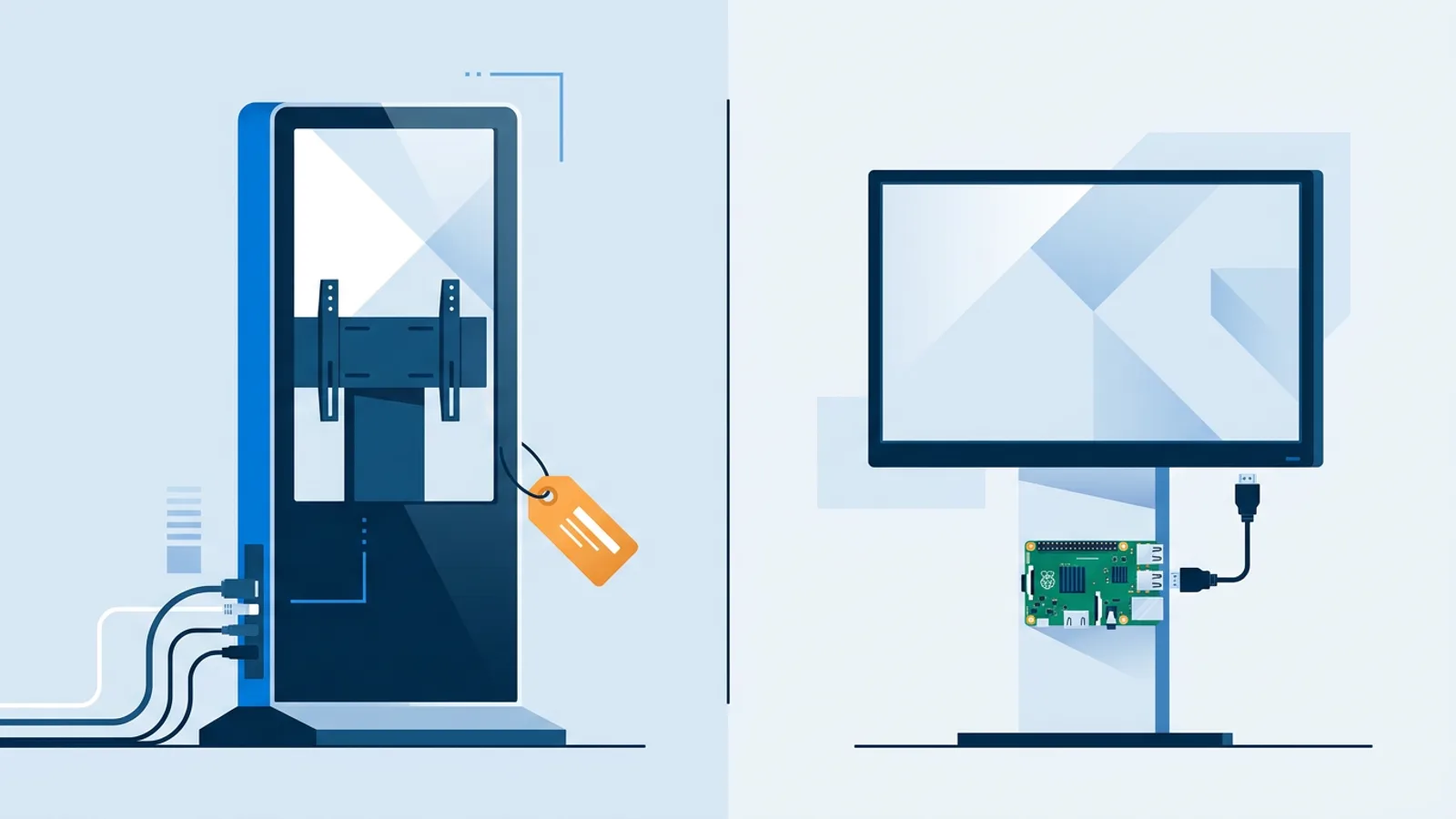
The Pi 5 draws more power under sustained load than the Pi 4, and it runs hotter. Raspberry Pi's own case for the Pi 5 ships with a fan for a reason. If your sign lives in a wall-mounted enclosure behind a TV with no airflow, running 10-16 hours a day, that heat has nowhere to go. A Pi 4 can often get away with a passive heatsink case for signage-level workloads. A Pi 5 doing the same job for the same hours is safer with active cooling, especially in summer or in an enclosure.
This is the practical tiebreaker for a lot of small businesses: if the Pi is going to sit exposed on a shelf with airflow, either board is fine. If it's getting tucked into a tight TV mount, the Pi 4's lower heat output is one less thing to worry about.
Pi 4 vs Pi 5 for signage, side by side
| Raspberry Pi 4 | Raspberry Pi 5 | |
|---|---|---|
| CPU | Quad-core Cortex-A72, up to 1.8GHz | Quad-core Cortex-A76, 2.4GHz |
| H.264 video decode | Hardware, up to 1080p60 | Software, CPU-based |
| HEVC (4K) decode | Hardware, up to 4K60 | Hardware, up to 4K60 |
| Cooling for 12+ hr/day signage use | Passive heatsink usually fine | Active cooling recommended |
| Best fit | Single or dual video loops, menu boards, dashboards | Multiple video tiles, heavier widget stacks, live streams |
Which board for which signage job
- A single playlist of images and PDFs, no video: a Pi 4 (even a 2GB model) has more than enough headroom.
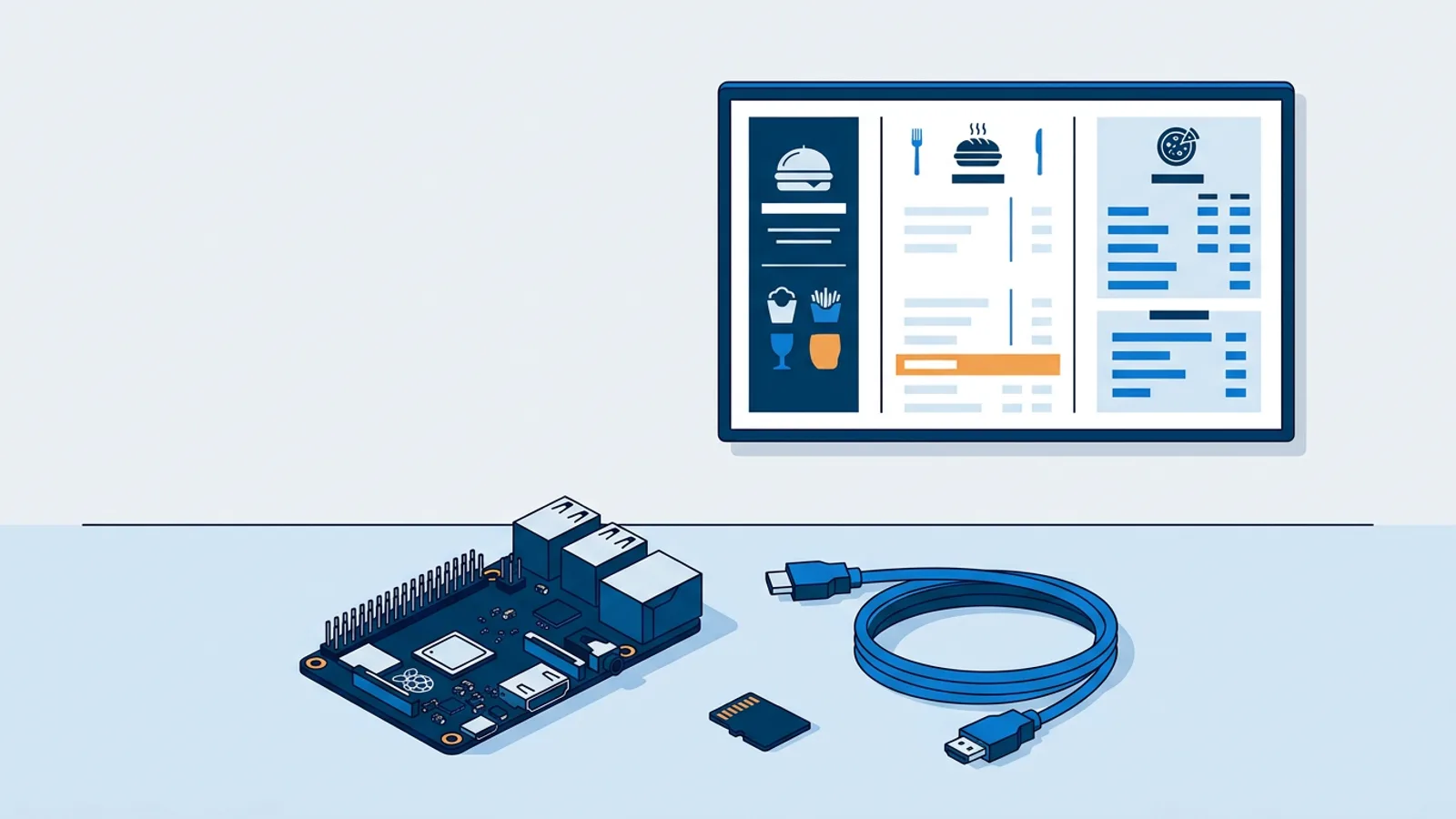
- A menu board or lobby screen with a couple of muted video loops, a weather widget and a news ticker: either board works; Pi 4 is the cheaper, cooler choice.
- A meeting room panel, a countdown timer, a Power BI wallboard, or portrait rotation: mostly static or low-refresh content, so board choice barely matters.
- Several video tiles at once, a YouTube live stream, or heavy live dashboards refreshing constantly: the Pi 5's extra CPU headroom is worth the higher price and the fan.
If you're still assembling a shopping list, the Raspberry Pi signage hardware list has the specific SD cards, cases and mounts that hold up under continuous use.
Setting up either board for signage
Board choice only matters once the software side is sorted. On TVpilot, both generations install the same way: generate a 6-character claim code in the dashboard, run one install command on the Pi, and the player sets up Chromium in kiosk mode with auto-start on boot, a systemd service, and a watchdog that restarts the player within about 10 seconds if it crashes. Boot is quiet and the cursor stays hidden, so there's no visible desktop flashing before the sign appears.
Any Pi running Raspberry Pi OS with a desktop works with this installer; a Pi 4 or 5 is recommended specifically for smooth video, which lines up with everything above. If the TV supports HDMI-CEC, the Pi checks the dashboard's power schedule every minute and switches the TV on and off automatically, no smart plug needed. Updates happen on their own: a daily check at 3am, plus the option to push an update or reboot remotely from the dashboard whenever you want.
For a walkthrough of the full setup from a blank SD card to a live screen, the Raspberry Pi digital signage tutorial covers the steps in order.
When TVpilot fits, and when it doesn't
TVpilot fits if you want to manage the Pi (or several Pis across locations) from a browser: push playlists, schedule content by day and time, get an alert if a screen drops offline, without SSHing into anything. The free plan covers one screen with no time limit and no card required, which is enough to test the whole workflow on a single Pi before deciding whether to add more screens.
It doesn't fit if you specifically want a self-hosted, open-source stack you run on your own server: TVpilot is hosted software, not something you install and run yourself. If that's a hard requirement, it's worth reading an honest comparison of what self-hosting actually costs in time and maintenance before committing either way.
Buy the board that matches your content, not the newest one on the shelf, set it up, and see it running before you decide whether to scale it to more screens. Sign up free and claim your first Pi in a few minutes.
Frequently asked questions
Is a Raspberry Pi 4 fast enough for digital signage in 2026?
Yes, for the vast majority of signage content. A Pi 4 has a dedicated hardware video decoder for H.264 up to 1080p60 and HEVC up to 4K60, which covers image slideshows, menu boards, muted video loops and most widgets without stressing the CPU. It only starts to struggle if you stack several simultaneous video tiles or very heavy live dashboards on one screen.
Does a Raspberry Pi 5 need a fan for signage use?
For sustained daily use, active cooling is recommended. The Pi 5 draws more power and runs hotter than the Pi 4 under load, and a signage kiosk typically runs 10 to 16 hours a day. A passive heatsink can be enough if the Pi has open airflow, but inside a tight TV wall mount a small fan is the safer choice.
How much RAM do I need on a Raspberry Pi for signage?
A basic playlist of images, PDFs and a couple of video loops runs comfortably on a lower RAM tier on either board. More RAM helps when you stack several live widgets on one screen at once, such as a scrolling ticker over video plus a live sales dashboard, since that keeps more of Chromium's rendering work in memory without stuttering.
Which Raspberry Pi models does TVpilot support?
Any Raspberry Pi running Raspberry Pi OS with a desktop environment works with the TVpilot installer, which sets up Chromium kiosk mode, auto-start, a systemd service and a watchdog automatically. A Pi 4 or Pi 5 is recommended specifically for smooth video playback.