Narrowcasting on an LED Display: What Software Controls
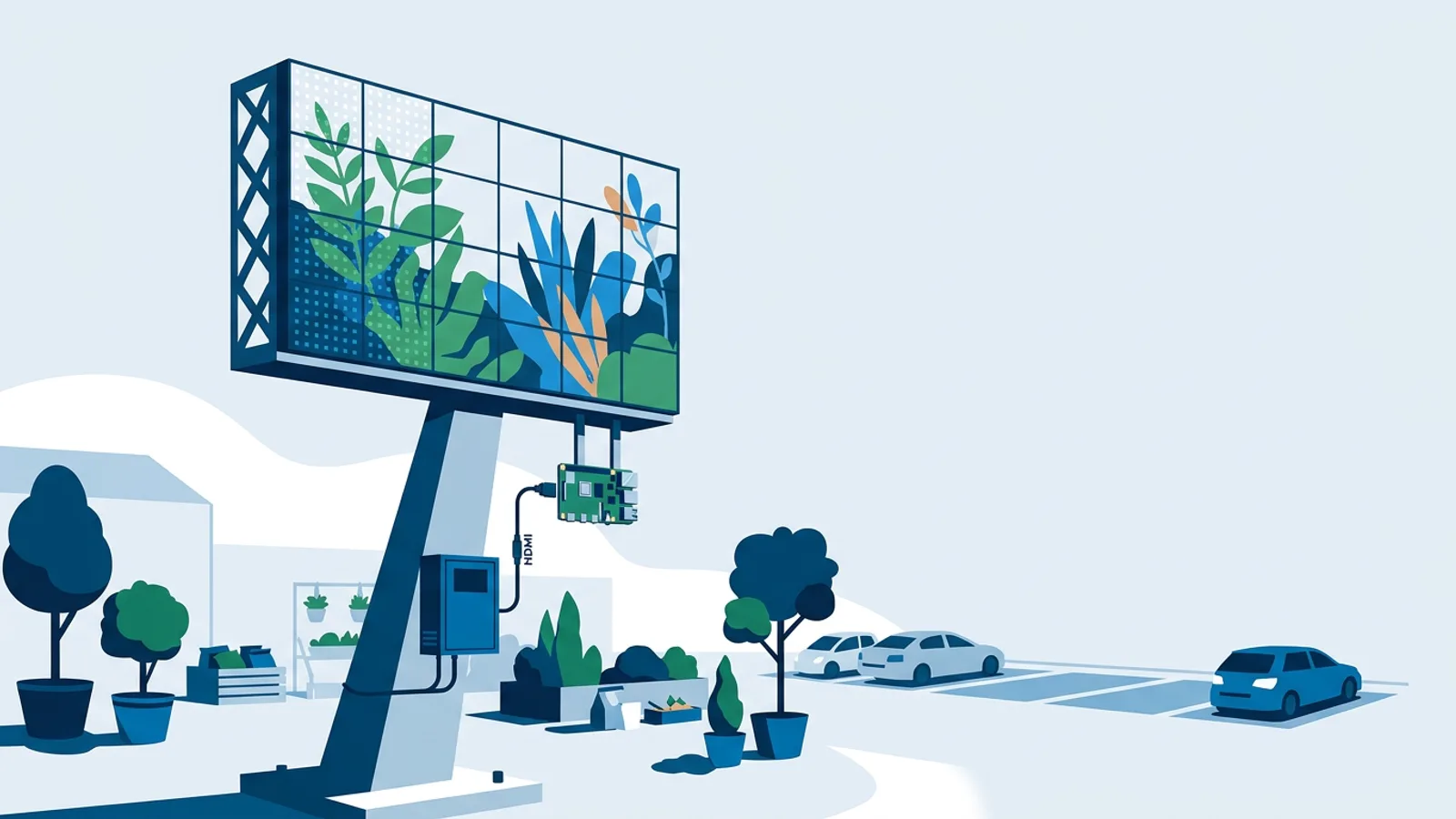
Narrowcasting on an LED display works the same way it does on a TV. Signage software decides what plays, where and when, and the LED wall's own processor decides how those pixels light up. If your LED controller has an HDMI input, a cheap media player such as a Raspberry Pi running TVpilot can feed it scheduled playlists exactly as it would feed a normal screen.
The confusion comes from mixing two layers. Narrowcasting is a content strategy: targeted messages for a specific audience at a specific time. LED is a display technology: modules of light-emitting diodes, often outdoors, driven by a dedicated processor from brands like Novastar or Linsn. This guide separates the two, shows the wiring, and helps you decide whether your LED setup is just another screen or a job for an AV integrator first.
Narrowcasting and LED are two different layers
Every LED signage installation has three layers, each with its own owner.
| Layer | What it does | Who handles it |
|---|---|---|
| Content and scheduling | Playlists, dayparting, calendars, which message plays at 08:00 vs 17:00 | Signage software (CMS) |
| Media player | Renders the content and outputs an HDMI signal | Raspberry Pi, signage stick, PC |
| LED processing | Maps the HDMI image onto modules, sets brightness, color calibration, refresh rate | LED sending card or video processor |
The CMS never talks to the LED modules directly. It sees an HDMI display, just like a TV. Everything specific to LED happens after the HDMI cable. If you want the background on targeting itself, our explainer on what narrowcasting is covers the content side in more depth.
How a narrowcasting LED display is wired
A typical small LED installation looks like this:
- Media player (for example a Raspberry Pi 5) outputs 1920x1080 over HDMI.
- HDMI goes into the LED controller box or video processor. Many have an HDMI or DVI input on the front or back.
- The controller's sending card pushes data over network cables to receiving cards inside the cabinets.
- Receiving cards drive the individual LED modules.
The installer configures steps 2 to 4 with the manufacturer's tool (Novastar's NovaLCT, for instance). That configuration tells the processor how big the wall is in pixels and which part of the incoming HDMI image to show. Once that is done, the wall behaves like a monitor with an unusual resolution.
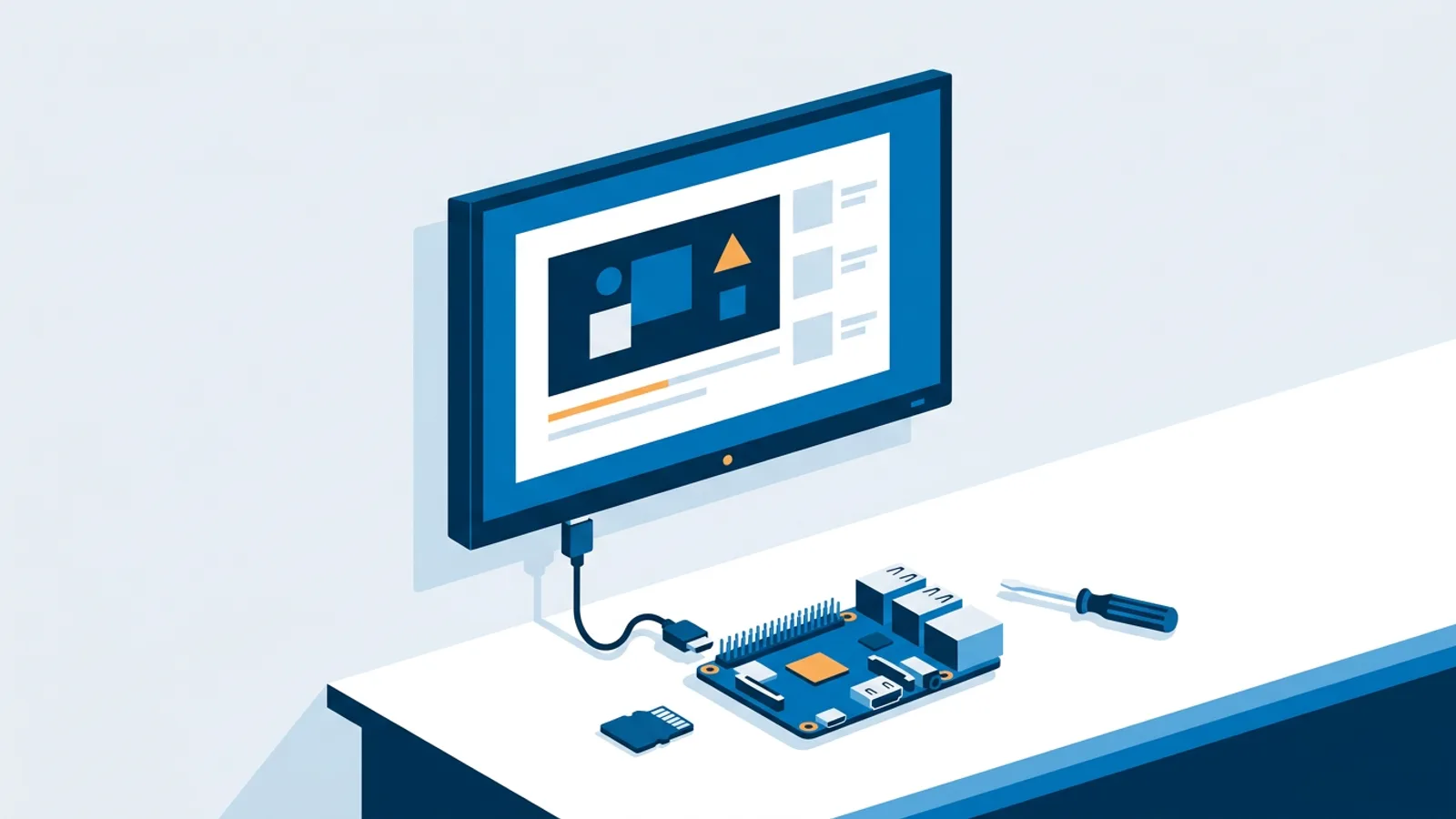
Setting up the player side takes a few minutes. On a Pi with Raspberry Pi OS desktop, you paste a one-line installer from the TVpilot dashboard, enter the 6-character claim code, and the Pi boots straight into a Chromium kiosk with a watchdog that restarts the player within about 10 seconds if it ever crashes. Pi 4 or 5 is recommended for smooth video.
What standard signage software controls
All the narrowcasting logic lives in the CMS. In TVpilot that means:
- Per-slide dayparting: show a slide only on chosen weekdays or between chosen times, with an optional expiry date.
- Calendar scheduling: decide which playlist plays when, with weekly repeating slots (lunch menu weekdays 11:00 to 14:00) and one-off items (an event day). One-off beats weekly, and when nothing is planned the screen falls back to its default playlist.
- Show now: push a playlist immediately for 30 minutes, 1 hour, 2 hours or until a set time, then return to the plan.
- Scheduled change: the player downloads the next playlist in advance and switches at the exact moment, even if offline at that time.
- Backup playlist: if assigned content is empty or unavailable, the backup plays instead of a black wall.
- Monitoring: online status, screenshots, device logs, remote restart and email alerts when a player drops offline.
The screenshot feature is useful on LED. It shows what the player is sending, so if the dashboard screenshot looks right and the wall looks wrong, you know the problem sits in the processor configuration.
What the CMS can't control on an LED wall
TVpilot does not do pixel-level LED work, and neither does any browser-based signage player. These belong to the LED processor:
- Calibration: color and brightness uniformity between modules from different batches.
- Brightness mapping: daytime vs night brightness, often tied to an ambient light sensor on outdoor signs. A wall at full daytime brightness at 22:00 is a common complaint from neighbours, and the fix is in the processor, not the playlist.
- Non-standard canvases: walls of 1200x600, 384x192 or curved and irregular shapes. The player outputs standard HDMI resolutions; the processor crops or scales into your wall's pixel map.
- Refresh rate, gamma, scan settings: hardware tuning that affects flicker on camera and color depth.
- Power: on a TV, the Pi can switch power via HDMI-CEC on a schedule. LED processors generally do not respond to CEC, so expect to use the processor's own schedule, a timer on the cabinet power, or a dark playlist in the quiet hours. Check with your installer before you count on CEC.
Odd resolutions: where most LED projects go wrong
LED walls are sized in cabinets, so their pixel counts rarely match 1920x1080. Work it out from the pixel pitch: wall width in millimetres divided by pitch equals horizontal pixels.
A 3,000 mm x 1,500 mm wall at P2.5 is 1200x600 pixels, a 2:1 ratio. Your player sends 16:9. The processor can handle that two ways:
- Scale the full 1920x1080 frame down to 1200x600. Everything gets stretched horizontally by roughly 12 percent. Photos of people look off; plain text and graphics usually pass.
- Crop a 1200x600 window from the 1080p frame. No distortion, but anything outside the window disappears, so your slides must be designed with the important content inside that area.
The decision rule: if your wall is within a few percent of 16:9, let the processor scale and forget about it. If it is noticeably wider, taller or irregular, ask the installer to crop a fixed window, then design slides at the wall's ratio and place them in that window. If the wall is something like 5:1 or curved, you need AV integration before any CMS question makes sense.
Worked example: an outdoor LED sign at a garden centre
Say you run a garden centre with an outdoor LED sign by the car park entrance, 2,560 mm x 1,440 mm at P10, a common outdoor pitch.
Resolution. 2,560 / 10 = 256 pixels wide, 1,440 / 10 = 144 pixels high. That is exactly 16:9, so the processor can scale the Pi's 1080p output cleanly. Each wall pixel represents about a 7.5x7.5 block of your 1920x1080 design.
Content rules that follow from the numbers. 144 pixels of height leaves room for two or three lines of text at most. Keep headlines to four or five words, use a bold font at roughly a quarter of the screen height, and skip fine print, QR codes and thin lines, which turn to mush at this density. A drive-by viewer has a few seconds, so slides of 6 to 8 seconds work better than 15.
Hardware. One Raspberry Pi 5 in a weatherproof spot near the controller, HDMI into the processor's input. The installer has already set the processor's ambient sensor so the sign dims after sunset.
Narrowcasting schedule.
- Weekday mornings 08:00 to 12:00: a slide about the coffee corner, set with per-slide dayparting.
- Saturday and Sunday: a weekend playlist via a weekly calendar slot, with bedding plant promos.
- A one-off calendar item for the spring fair day, which beats the weekly slot automatically.
- Default playlist: opening hours and the current offer.
Cost. One screen fits the Free plan at €0 with one calendar and two scheduled items, which covers the weekend slot plus the fair day. If the centre adds an indoor screen at the tills, Starter at €5/month includes 3 screens and 5 calendars.
Compare an indoor lobby wall of 2,400 mm x 1,350 mm at P1.5: that is 1600x900 pixels, also 16:9, and dense enough for photos, small text and live widgets. Same player, same software, very different content rules.
When the video wall feature applies to LED
Most LED walls with a single processor present themselves as one display, so the Pi treats the whole wall as one screen. You do not need a video wall feature for that.
TVpilot's video wall feature matters when you have several separate HDMI inputs: for example two LED panels side by side, each with its own controller, or a row of LED cabinets fed by individual processors. You give every screen in the grid (up to 4x4) the same playlist and each shows its own tile, synchronised. It assumes each tile behaves like a normal HDMI display at a standard resolution, with matching size and bezel-free alignment set up on the hardware side. Video wall is on paid plans, not on Free.
LED vs LCD digital signage: which one you actually need
If you are still choosing hardware, the rule is simple. Choose LCD (a commercial display or even a decent TV) for indoor screens up to the largest sizes you can buy off the shelf, viewed from a few metres: it is cheaper, sharper up close, and needs no processor. Choose LED when the sign is outdoors in direct sun, larger than any single panel, an unusual shape, or viewed from far away where a coarse pitch is fine. Our guide to commercial displays vs consumer TVs covers the LCD side.
Is your LED setup just another screen?
It is just another screen if all of these are true:
- The controller or processor has an HDMI (or DVI with adapter) input.
- It accepts a 1080p signal.
- The installer has already mapped the receiving cards so a laptop plugged in shows a correct image.
- Brightness and dimming are configured on the processor.
You need specialist AV integration first if there is no processor yet, the modules have never been mapped, the wall is curved or irregular, or colors visibly differ between cabinets. A CMS cannot fix any of those.
When TVpilot is (and isn't) the right fit
TVpilot fits when your LED wall already accepts HDMI and you want scheduled, targeted content managed from a web dashboard: dayparting, calendars, monitoring, widgets such as weather or reviews, and multi-screen fleets. It is hosted SaaS, so it is not for sites that require self-hosted software, and players need internet for content updates (they keep following the schedule during outages).
It is the wrong tool if you need LED calibration, brightness curves, custom odd-resolution canvas output, or control of the processor itself. That stays with the LED vendor's software and your installer. Large rental or stage LED with live video switching is also better served by dedicated AV gear.
Getting your LED wall running
Confirm your processor shows a correct image from a laptop over HDMI, work out the wall's pixel resolution from its pitch, and design slides for that density. Then plug in a Raspberry Pi, run the installer, and build your schedule. You can start free with one screen, no credit card needed, and add more screens when the first LED sign is behaving.
Frequently asked questions
Can I use normal digital signage software on an LED video wall?
Yes, as long as the LED processor or controller has an HDMI input. The signage player outputs a standard HDMI signal and the processor maps it onto the LED modules. The software handles scheduling and content; the processor handles calibration, brightness and pixel mapping.
What resolution should I send to an LED display?
Send a standard resolution such as 1920x1080 and let the LED processor scale or crop it to the wall's native pixels. Calculate the wall's resolution by dividing its width and height in millimetres by the pixel pitch. If the ratio is close to 16:9, scaling works; if not, have the installer crop a fixed window and design content at the wall's ratio.
Does a Raspberry Pi work with Novastar or Linsn LED controllers?
A Raspberry Pi works with any LED controller that accepts HDMI input, which includes many Novastar and Linsn processors and sending boxes. The Pi treats the wall as a regular monitor. You still configure the wall itself with the manufacturer's software.
Can signage software turn an LED wall on and off on a schedule?
On TVs, a Raspberry Pi running TVpilot can switch power via HDMI-CEC on a schedule. LED processors generally do not respond to HDMI-CEC, so use the processor's own scheduling, a power timer on the cabinets, or a dark playlist during closed hours. Check with your installer what your controller supports.