Evacuation Digital Signage: Set It Up Before You Need It
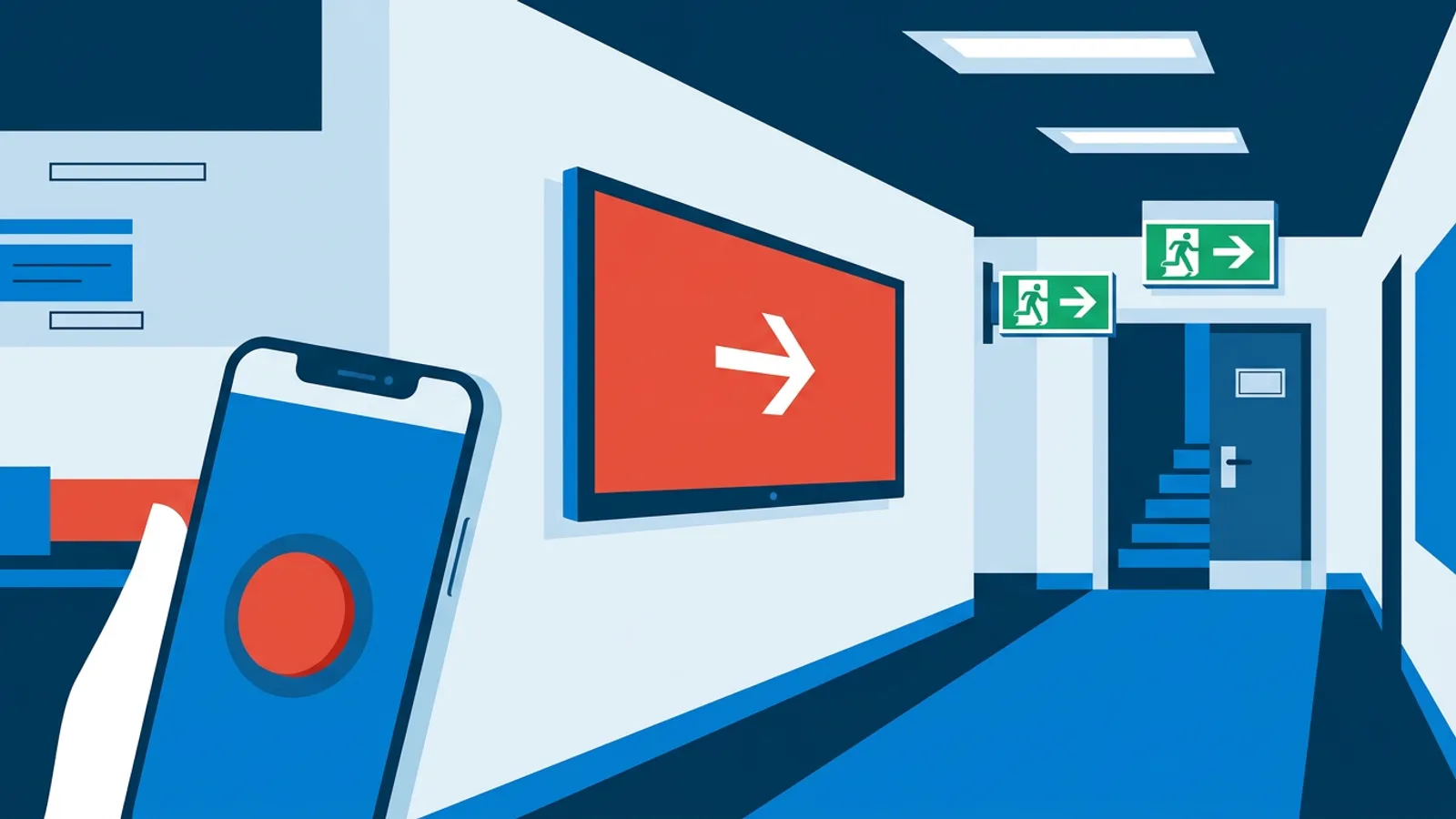
Evacuation digital signage works when four things are settled before the alarm ever sounds: the messages are written, the people allowed to send them are chosen, the scope per building is decided, and every screen has been tested in place. Do those once, take about an hour, and in a real emergency you press one button instead of improvising text on a phone while people are moving toward the exits.
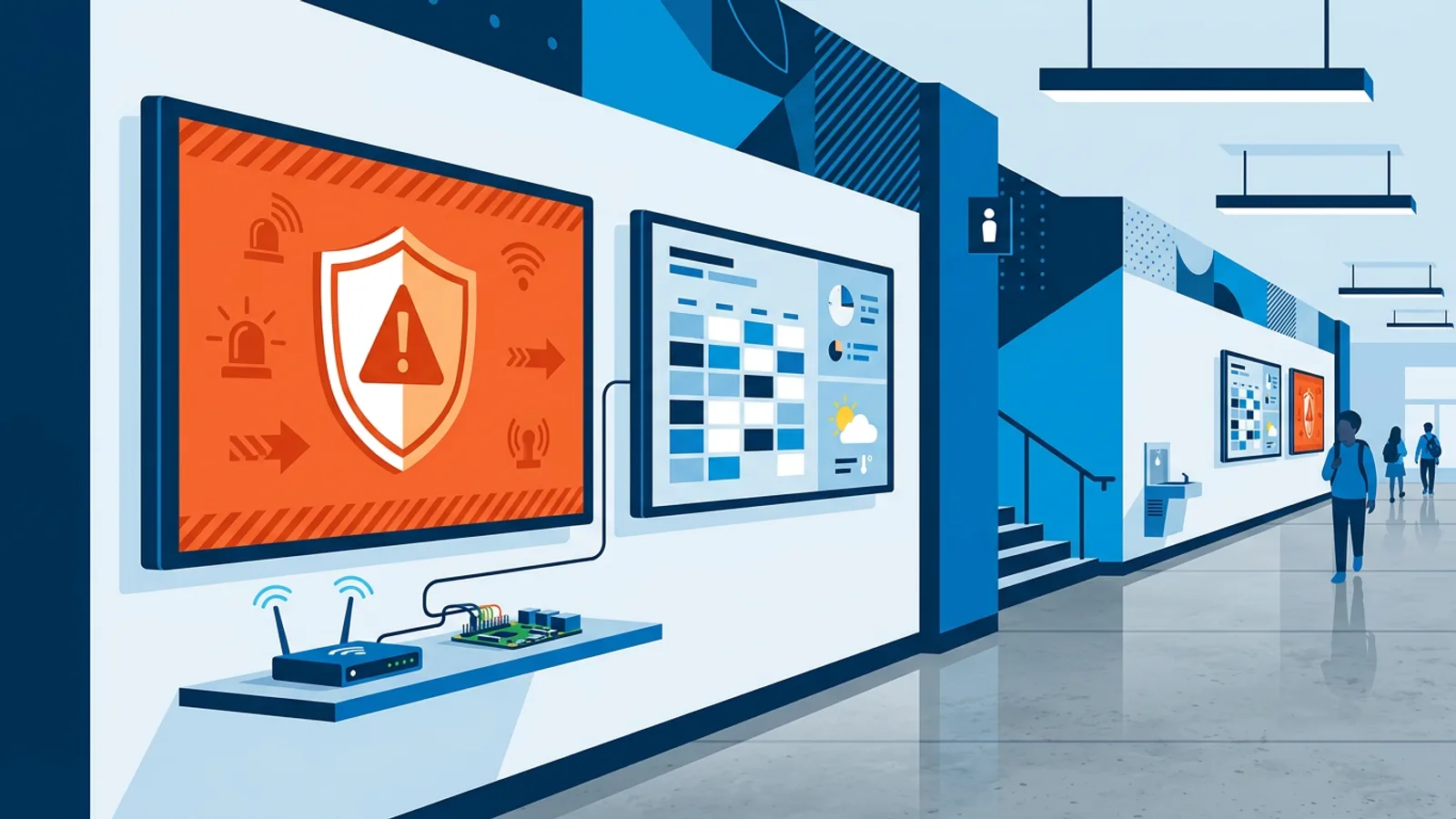
This guide is the preparedness checklist. It assumes you already have TVs showing menus, schedules or announcements and want them to show an evacuation or fire message when it counts. In TVpilot that is the emergency alert button, which puts one full-screen message over whatever is playing, within seconds.
The checklist applies to any system with a similar feature, but the details and prices below are TVpilot's.
What evacuation digital signage can and cannot do
A screen is a second channel. Your fire alarm, sounders and trained staff are the first channel, and the screens support them.
What screens do well:
- Tell people what to do next in plain words, such as which stairs to use and where the assembly point is.
- Reach people who cannot hear the alarm well: headphones in a coworking space, a noisy kitchen, visitors with hearing loss.
- Keep showing a closure or disruption notice after the event, so people arriving later do not walk back in.
What screens cannot do:
- Replace a fire alarm system or any legally required warning device. If your building needs sounders, beacons or voice alarm, the screens change nothing about that.
- Start by themselves. The alert in TVpilot begins when a person presses the button. Plan around a human being doing that.
- Work without power or network. A TV on mains power goes dark in a power cut, and a player that is offline when you press the button cannot receive the new message.
Keep that list in your safety plan so nobody later assumes the screens were part of the alarm.
Write your evacuation messages before the alarm
TVpilot ships with four ready-made messages: Evacuate, Fire, Temporarily closed and Disruption. They are fine as they are. You can also write your own message with an icon and a colour, and this is where preparation pays off, because a site-specific message is far more useful than a generic one.
Rules for a message that works from across a room:
- Lead with the action verb: "Leave the building now."
- Give one route instruction: "Use the stairs, not the lift."
- Name the assembly point the way staff say it: "Meet at the car park behind building B."
- Stop there. Three short lines read at a glance; a paragraph does not.
Write one custom message per real scenario you can imagine at your site. For most small businesses that is three:
| Scenario | Starting point | What to add |
|---|---|---|
| Fire or full evacuation | Ready-made Evacuate or Fire | Route and assembly point in a custom version |
| Shelter in place (storm, outside incident) | Custom message | Where to go inside, "stay away from windows" |
| Closed after an incident | Ready-made Temporarily closed | Reopening info or a phone number |
Use red for leave-now messages and a different colour (amber, blue) for stay-inside or closed, so nobody confuses the two at a glance.
Decide who may press the button
In TVpilot, editors and up can start an emergency alert, and owners and admins get an email when one starts. Viewers cannot start one. That gives you a simple rule.
If a person is expected to act during an evacuation, give them editor rights or higher and make sure they can log in from their phone today. If a person only needs to see the screens, keep them as viewer.
Pick at least two people per location, never one. The person who would normally press it may be on holiday, or may be the one leading people out. A good pair is the receptionist (near the entrance, often first to know) and the office or shift manager.
Then remove friction:
- Have each person bookmark the dashboard on their phone and log in once a month so the session and password stay fresh.
- If you use two-factor authentication (and you should), confirm their authenticator is on the phone they carry, not a desktop.
- Write the steps on one card next to the fire procedure: open dashboard, press the red Emergency alert button, pick the message, pick the scope, pick the duration, send.
Choose the scope: all screens, a location or a tag
The alert can go to all screens, to one location, to a tag, or to screens you pick by hand. Decide the scope per scenario in advance, because picking the wrong one in a hurry either misses people or evacuates a branch that is perfectly safe.
- If the incident affects one building, send to that location.
- If it affects one floor or zone inside a building, send to a tag you created for that zone (for example "floor-2" or "warehouse").
- If it affects the whole organisation (a citywide warning, a cyber incident closing all branches), send to all screens.
Tag your screens now, while it is calm. A tag you have to invent during an incident does not exist.
Duration is the last choice. The alert shows for 15 minutes, 1 hour, 4 hours or 24 hours and ends by itself, also when the screen has gone offline in the meantime. You can extend or stop it at any time. For a live evacuation, pick 1 hour and extend if needed. For a closure, pick 4 or 24 hours. For tests, always pick 15 minutes.
Worked example: an office with two buildings and eight screens
Say you manage an office split over two buildings across a courtyard. Building A has five screens (reception, canteen, two corridors, a meeting area). Building B has three (entrance, workshop, break room). The reception and canteen TVs run on Raspberry Pi players; the others are smart TVs using the browser route.
Plan: Pro at €29/month, which includes 10 screens, Premium (so the emergency alert), 3 users with roles and 3 locations. Eight screens fit with room to spare.
Setup, about an hour in total:
- Create two locations, "Building A" and "Building B", and assign the screens.
- Add a tag "workshop" to the workshop screen, because a machine fault there might need a local message only.
- Write three custom messages: "Evacuate Building A, use the courtyard exit, meet at the bike shed", the same for Building B with its own exit, and an amber "Stay inside, keep away from the windows".
- Give editor rights to the receptionist and the facilities lead; the office manager is the owner and receives the alert email.
- On the two Pi screens, use Turn TVs on so a TV in standby wakes up for the alert.
If the same business had only three screens in one building, Starter at €5/month plus the Premium add-on at €9/month (€14/month, or €49 + €90 = €139 per year on yearly billing) would cover it. Starter has 1 user and 1 location, so the second person who can press the button would need to share that login, which is weaker. That limitation alone is a reason some small sites move to Pro.
Test it per location, then keep testing
A test that only proves the dashboard works is not a test. You need someone standing in front of every screen.
Run it like this, one location at a time:
- Tell staff a screen test is happening, so nobody leaves the building.
- Send a custom message that starts with the word TEST, scoped to that location, for 15 minutes. Avoid sending the real Evacuate message during a test; visitors cannot tell the difference.
- Walk the floor with a checklist of screens. For each, note whether the message appeared, how fast, and whether it was readable from the usual viewing distance.
- Note any TV that stayed in standby or showed the normal playlist.
- Stop the alert from the dashboard, and confirm the owner and admin received the email.
Do it at setup, after any new screen is added, and whenever you hold a fire drill. Pairing it with the drill is the easiest habit to keep, since everyone is already thinking about evacuation and you can send the real wording to the screens during the drill itself.
Failure modes that leave a screen blank or wrong
These are the problems a test usually finds.
The TV is in standby. Turn TVs on wakes a TV through a Raspberry Pi. On other players (Fire TV Stick, smart TV browser) a TV in standby stays dark. Fix: use a Pi for screens that must always show alerts, or schedule those TVs to stay on during opening hours.
The screen is offline. A player on flaky Wi-Fi misses the alert. Fix: turn on offline email alerts in screen monitoring so you hear about it on a normal Tuesday, not during an incident.
The message is out of date. An assembly point moves after building work and the custom message still names the old one. Fix: review messages every time the fire procedure changes.
The only person with access is gone. Fix: two people per location, as above.
The scope was too wide. Someone sends Evacuate to all screens when one branch had a problem. Fix: put the scope rule for each scenario on the instruction card.
For the feature itself (what the alert looks like on screen, the ready-made messages and how they replace a playlist), see our emergency alert digital signage guide.
When TVpilot is the right fit, and when it is not
TVpilot fits if you run a handful to a hundred screens in shops, offices, schools, gyms or clinics and want a fast, visual backup to your alarm without building anything. No playlist, upload or approval step is needed to send an alert, which matters even on Business plans where normal content goes through approval.
It is the wrong tool if you need a certified mass notification or voice alarm system, an alert that triggers automatically from your fire panel, or screens that keep running through a power cut. Those needs belong with your fire safety installer. The Free plan does not include the emergency alert, so a single-screen setup on Free would need Starter with the add-on.
Set it up this week
Block one hour: write three messages, give two people editor rights, tag your screens per zone, and run a 15-minute TEST alert per location while someone walks the floor. If you are not on TVpilot yet, create an account, add your screens, and choose Pro or Starter with the Premium add-on so the red button is ready before anyone needs it.
Frequently asked questions
Can digital signage replace a fire alarm?
No. Screens are a visual backup that tells people what to do and where to go. Your fire alarm, sounders and any legally required warning devices stay in place. Screens also go dark in a power cut and cannot receive a new message when they are offline, so they should never be the only warning.
Does the TVpilot emergency alert start automatically when the fire alarm goes off?
No. A person starts it by pressing the red Emergency alert button in the dashboard and choosing the message, the screens and the duration. Plan for at least two people per location with editor rights or higher who can log in from their phone.
Which TVpilot plans include the emergency alert?
The emergency alert is a Premium feature. It is included in Pro (€29/month) and Business (€99/month), and available on Starter (€5/month) with the Premium add-on for €9/month. It is not part of the Free plan. Prices exclude VAT.
How do I test evacuation messages without causing a real evacuation?
Tell staff a screen test is happening, then send a custom message that starts with TEST to one location for 15 minutes. Have someone check every screen in person, note any TV that stayed in standby or offline, and stop the alert from the dashboard when the walk-through is done.