Schedule a TV to Turn On and Off Automatically: CEC vs Plug
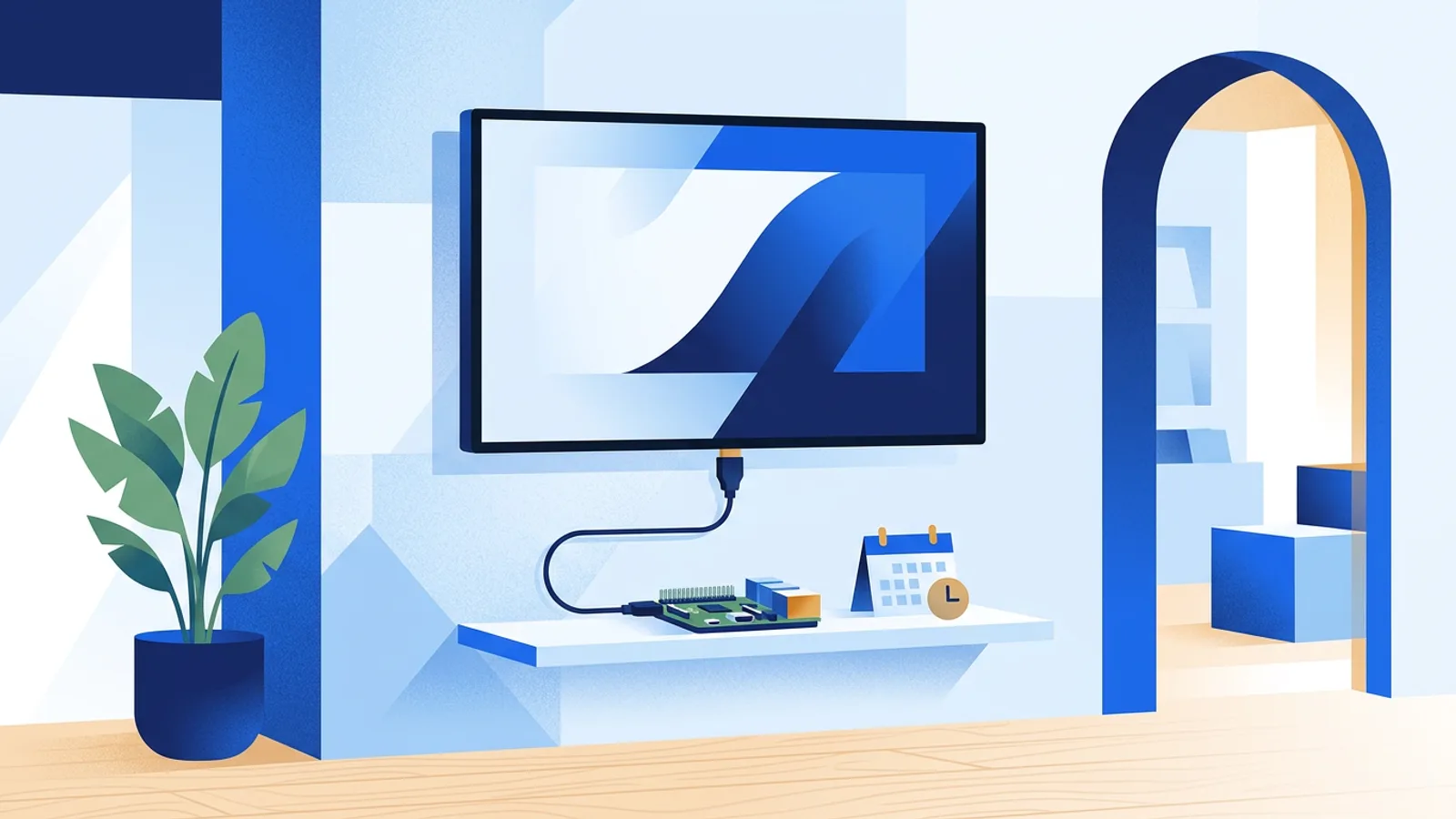
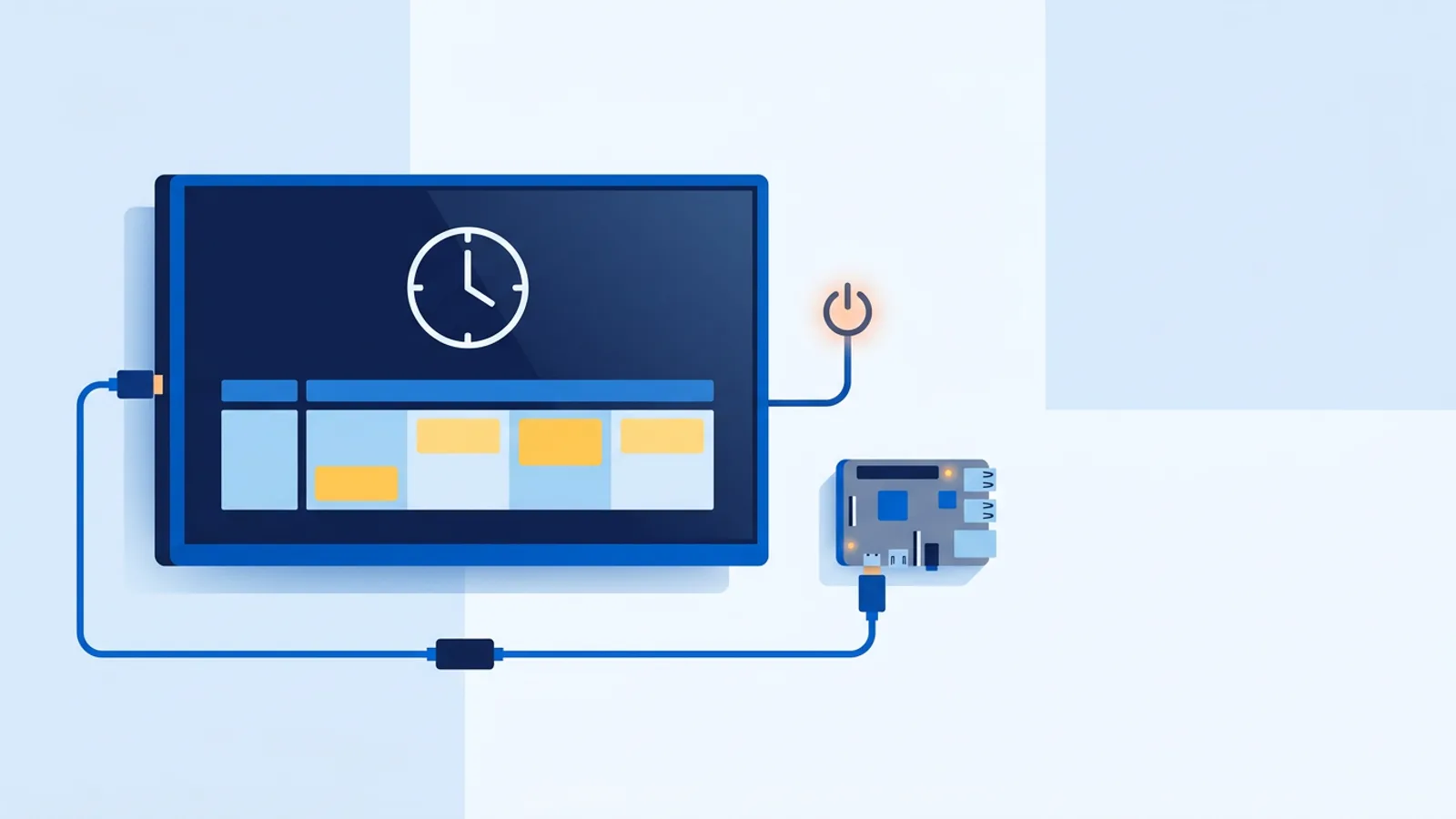
There are three ways to schedule a TV to turn on and off automatically: the TV's built-in on/off timer, a smart plug with a schedule, or HDMI-CEC commands sent from a small player plugged into the TV. For a business screen that must also wake up showing content (a menu board, lobby display or shop window), use HDMI-CEC from a player, because the player that runs your content also switches the TV between on and standby on a schedule.
The built-in timer is fine for a single TV at home, and a smart plug is a workable fallback for TVs that ignore CEC. The rest of this guide shows where each method breaks, with a worked example, and how to set up an HDMI-CEC power schedule with Raspberry Pi digital signage, where the Pi player handles it without a smart plug.
A TV left on 24/7 burns power overnight, and panels age with total on-hours. A TV that depends on someone switching it off at closing time will eventually stay on all weekend. Automating the power removes that human step.
Why bother scheduling TV power at all
Three practical reasons come up again and again:
- Electricity cost. A display left on 13 extra hours a day adds up over a year, especially with several screens.
- Panel life. LCD and OLED panels both degrade with total on-hours. Cutting unnecessary overnight runtime extends the useful life of the screen.
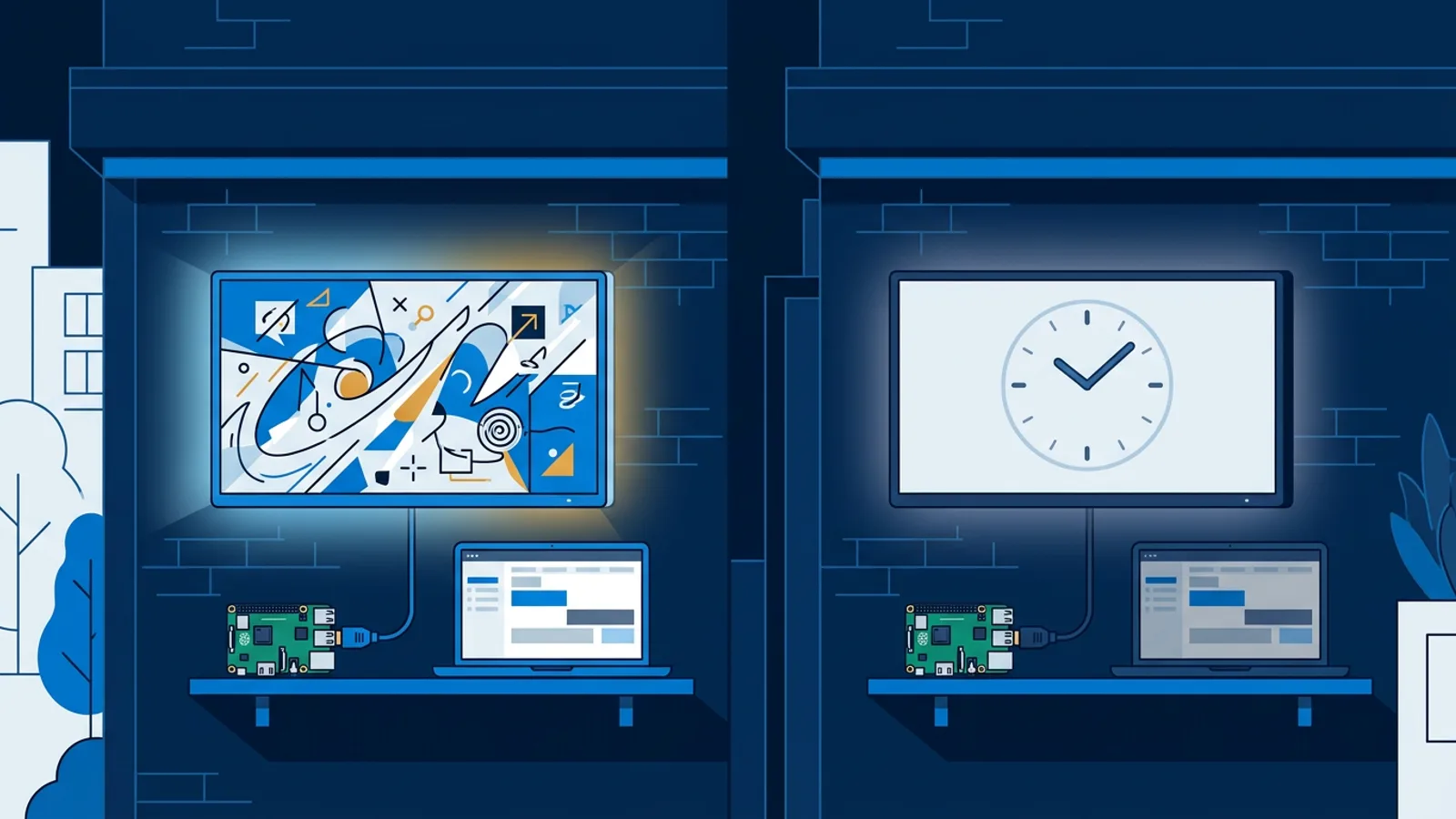
- Looking professional. A dark screen after hours looks intentional. A screen stuck on a frozen menu or a stray mouse cursor looks broken.
Worked example: a café with two screens
Say you run a café open 07:30 to 18:00, with two TVs behind the counter showing the menu. You want them on at 07:15, so they are warm and showing content before the first customer, and in standby at 18:15. That is 11 hours on and 13 hours off per day.
To estimate the saving, check the power rating on the back of your TV. If each set draws 100 W while on (an example figure, yours will differ), the two screens use 2.6 kWh less per day than if left running: 13 hours × 100 W × 2. Over a year that is roughly 950 kWh. Multiply by your own electricity tariff for the euro figure. Standby still draws a little power, so the real saving is slightly lower, but the order of magnitude holds.
The café also has a practical requirement the numbers don't show: at 07:15 both screens must show the menu, not a "No signal" message or the TV's home screen. That requirement decides which method works.
Three ways to schedule a TV to turn on and off automatically
| TV's built-in timer | HDMI-CEC from a player | Smart plug | |
|---|---|---|---|
| Reliability | Weak: often one timer, can reset after a power cut, depends on model and firmware | Strong once CEC works on your TV: proper standby, schedule lives in software | Moderate: the plug itself is reliable, but the TV may not come back on |
| Set-up effort | Low per TV, but done by hand at every screen | One-time: enable CEC on the TV, set the schedule in a dashboard | Low: app on your phone, one schedule per plug |
| Cost | Free | A player you already need for content (for example a Raspberry Pi); TVpilot is free for 1 screen | The price of a smart plug per screen |
| Wakes up showing content | Often no: on-timers tend to switch to the TV tuner or home screen | Yes: the player is already running your playlist when the TV turns on | Only if the TV powers on by itself after mains returns, and the player finishes booting |
The TV's built-in timer
Most TVs have a sleep or off timer, and some have an on timer too. For signage the weak spots are predictable. Many on-timers wake the set on the tuner or the smart TV home screen instead of the HDMI input. Settings can be lost after a power cut or a firmware update. And every change, such as different opening hours in December, means walking to each TV with a remote. Fine for a living room, fragile for a shop.
A smart plug with a schedule
Smart plugs are a reasonable DIY fix and plenty of small businesses run signage this way. The catch is what happens when power returns. Many TVs come back in standby after a mains cut, so the plug switches on and the screen stays dark. Some models have a power-on behaviour setting that fixes this, many don't. Cutting mains is also a hard shutdown every day rather than a clean move to standby. Most modern TVs survive it, but it is a rougher daily routine.
If the player shares the plug, it loses power too and has to boot from scratch every morning, which adds a delay before content appears. Put the player on a separate, always-on outlet if you go this route.
HDMI-CEC from a connected player
The player sends the TV a real "power on" or "standby" command over the HDMI cable, the same as pressing the remote's power button. The TV goes through its normal power cycle, and because the player never switches off, your content is already on the HDMI input the moment the panel lights up. This is the route that meets the café's 07:15 requirement.
What HDMI-CEC actually is
HDMI-CEC (Consumer Electronics Control) is a signalling feature in the HDMI standard that lets connected devices talk to each other over the same cable that carries video. It is the feature that lets a game console turn the TV on, or lets your TV remote control a soundbar. Almost every TV made in the last decade supports it, though manufacturers give it different names (Anynet+, Bravia Sync, SimpLink and others), and it sometimes has to be switched on in the TV's settings menu.
For scheduling, CEC means a small computer plugged into the TV can switch it on or to standby with no extra hardware between the TV and the wall and no cut in power. If your TV ignores the commands, the usual culprits are CEC being off, an eco or deep-standby mode, or the wrong HDMI port; our guide to fixing HDMI-CEC not working walks through each one.
Setting up an HDMI-CEC TV schedule on a Raspberry Pi
This is the method TVpilot uses on Raspberry Pi signage players. The Pi player checks the power schedule in the dashboard every minute and switches the TV on or to standby via HDMI-CEC, so no smart plug or extra wiring is needed. This power scheduling is a feature of the Pi player; other players, such as a smart TV browser or a Fire TV Stick, don't switch the TV this way.
Step by step
- Get a Raspberry Pi running Raspberry Pi OS with a desktop. Any Pi with a desktop works; a Pi 4 or 5 is recommended for smooth video. Full setup details are in the Raspberry Pi digital signage tutorial.
- Create a free account and generate a 6-character claim code from the dashboard.
- Run the one-command installer on the Pi (a
curl … | bashcommand generated for you). It sets up Chromium in kiosk mode, auto-start with a systemd service, a self-healing watchdog that restarts the player within about 10 seconds, quiet boot and a hidden cursor. - Confirm HDMI-CEC is enabled on the TV. It is often on by default, but if the Pi can't power the TV on, look in the TV's settings for the CEC feature under its brand name.
- Set the power schedule in the dashboard. From then on the player checks it every minute and sends the CEC command itself.
For the café example, that means on at 07:15 and standby at 18:15. Screen monitoring in the dashboard shows each TV's power state (on or standby) next to its online status, so you can check from your phone that both screens actually went to standby without driving back to the shop.
Because the power schedule lives in the same dashboard as your playlists, changing hours for a holiday or a late opening is an edit in the browser, not a trip to the TV.
When a smart plug or the TV's own timer is genuinely fine
Not every setup needs HDMI-CEC. If you are switching a single home TV off overnight, the built-in sleep timer costs nothing and works. If your TV refuses to respond to CEC after you've tried the usual fixes, a smart plug on the TV (with the player on its own outlet) plus a TV that powers on when mains returns is a sensible fallback.
HDMI-CEC scheduling pays off where a screen runs daily and unattended for months: retail windows, menu boards, waiting rooms and office lobbies. Those are also the places where someone notices when the screen wakes up on the wrong input.
Is TVpilot the right fit for this
TVpilot fits if you use (or are willing to add) a Raspberry Pi as the player, want the TV power schedule managed in the same dashboard as your content, and have an internet connection at the screen. Players need internet to pull content updates; the Pi player recovers automatically after an outage. The Free plan covers one screen with 250 MB of storage and no credit card, enough to test the whole CEC power schedule before deciding whether you need Starter (€5/month, 3 screens included, up to 10) or Pro (€29/month, 10 screens included, up to 100).
It is not the right fit if you need a fully offline, air-gapped display, if you want to self-host the software (TVpilot is hosted SaaS only), or if your only player is a smart TV browser or Fire TV Stick and you need power scheduling, since the HDMI-CEC power schedule runs on the Raspberry Pi player. In that case, the TV's own timer or a smart plug remains your option for power.
If your screens run the same hours every day and someone keeps forgetting to switch them off, an HDMI-CEC power schedule on a Raspberry Pi fixes it for good and wakes the TV straight into your content. Sign up free, plug a Pi into the TV, and set your first power schedule in the dashboard next to your playlist.
Frequently asked questions
Can I schedule a TV to turn on and off without a smart plug?
Yes. Many TVs have a built-in on/off timer, though on-timers often wake the TV on the tuner or home screen. For signage, a player connected over HDMI can send HDMI-CEC commands to switch the TV on and to standby. TVpilot's Raspberry Pi player does this from the dashboard power schedule, checking it every minute, so no smart plug is needed.
Why does my TV stay off when the smart plug turns on?
Many TVs return to standby after a mains power cut instead of switching on, so the plug restores power but the screen stays dark. Look in the TV's settings for a power-on behaviour option. If there is none, use HDMI-CEC from a player instead, which sends a real power-on command.
Does HDMI-CEC work on every TV?
Almost every TV from the last decade supports HDMI-CEC, but brands name it differently (Anynet+, Bravia Sync, SimpLink and others) and it is sometimes switched off by default. Eco or deep-standby modes and some HDMI ports can also block commands. Enable CEC in the TV settings and test with the player connected.
Does the TVpilot power schedule work on a Fire TV Stick or smart TV browser?
No. The HDMI-CEC power schedule is a feature of the TVpilot Raspberry Pi player, which switches the TV on and to standby from the dashboard schedule. On other players, use the TV's own timer or a smart plug for power.