Digital Signage for Small Business: A Starter Guide
Digital signage for small business sounds like something that needs an AV company, a site survey and a four-figure invoice. It does not. In 2026 you can turn the TV you already own into a managed sign for the price of a lunch, and control it from the same laptop you do your bookkeeping on. Platforms like TVpilot exist precisely for this: a web dashboard on one side, a cheap player behind the TV on the other.
This guide walks through the decisions in order: what a signage setup actually consists of, which hardware fits which situation, what it costs per month, and how to get your first screen on the wall this week. It is written for a shop, cafe, salon, gym, showroom or office with one to ten screens, not for a retail chain with a control room.
What a signage setup actually consists of
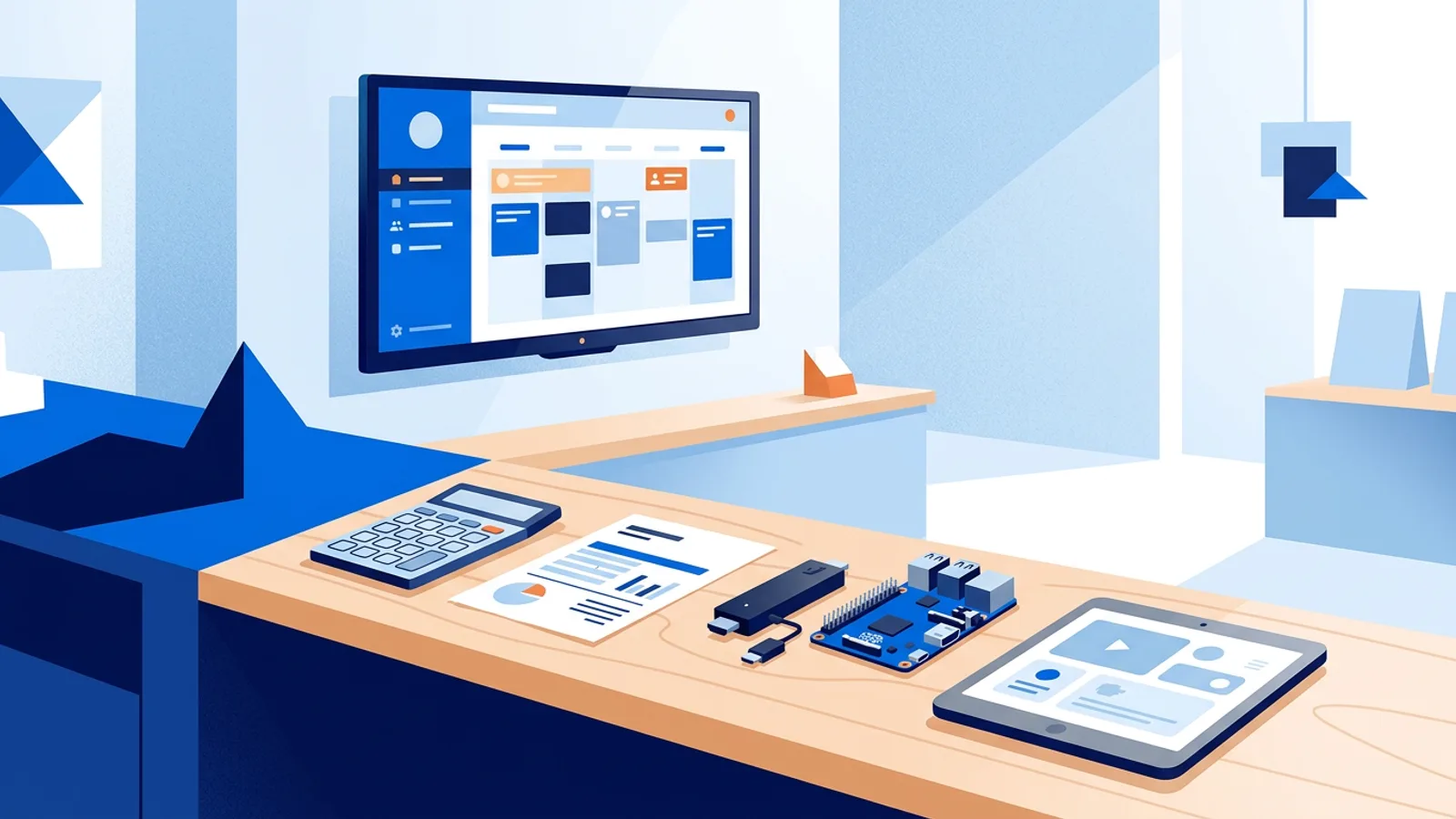
Every digital signage setup, from a bakery counter to an airport, has the same three parts:
- A screen. Usually a TV. Sometimes a commercial display, but for most small businesses that is optional (more on this below).
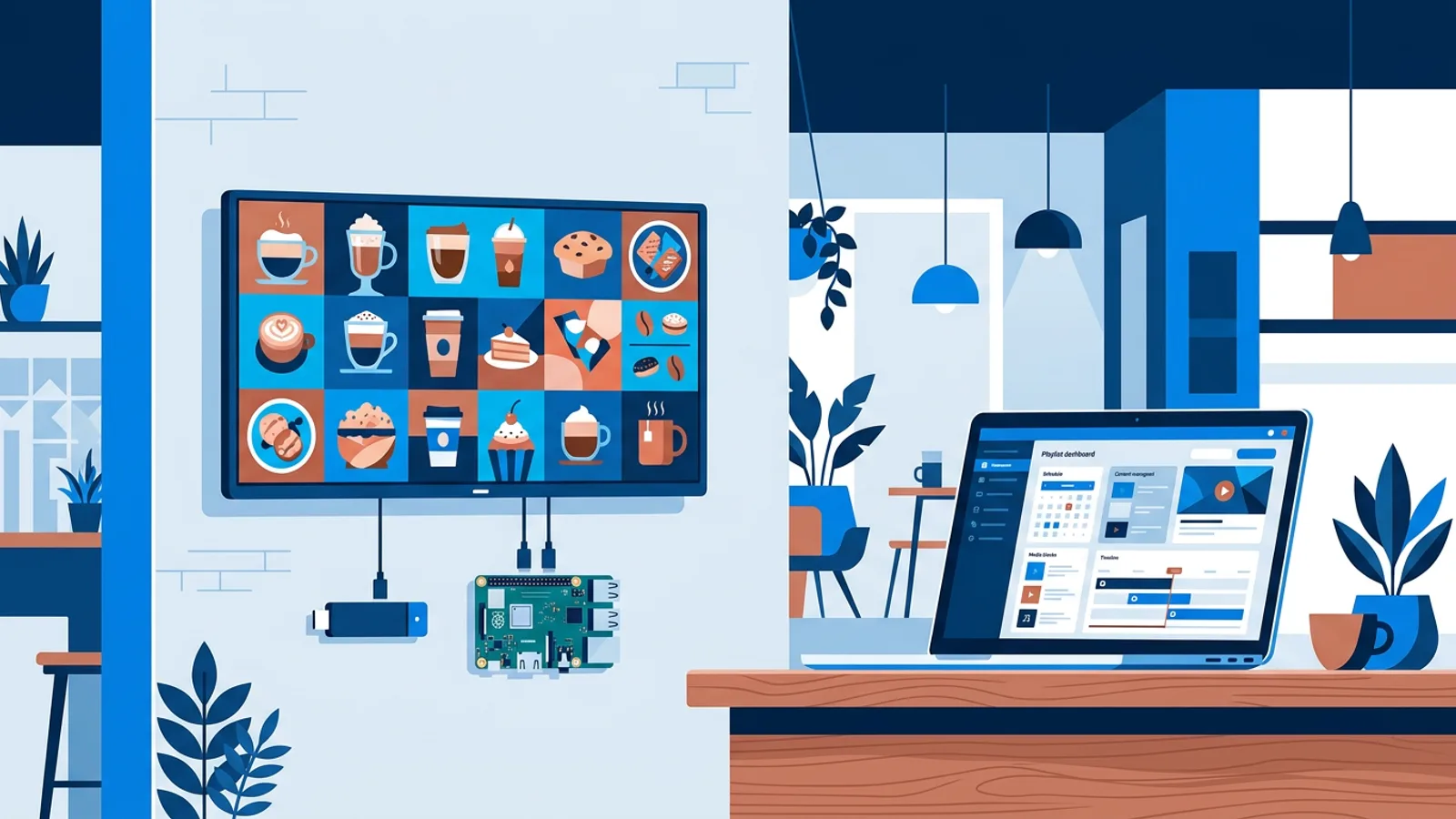
- A player. The small computer that shows your content on the screen. This can be a Raspberry Pi, a streaming stick, the browser built into a smart TV, or an old laptop.
- Software. The place where you upload images and videos, build playlists, set schedules, and see whether your screens are online. With hosted software this is just a website you log into.
The screen and the player are one-time purchases. The software is a subscription, and this is where small businesses most often overpay, because many platforms price per screen per month at rates designed for corporate fleets.
Choosing hardware: three sensible routes
Route 1: Raspberry Pi (best for a screen that runs all day)
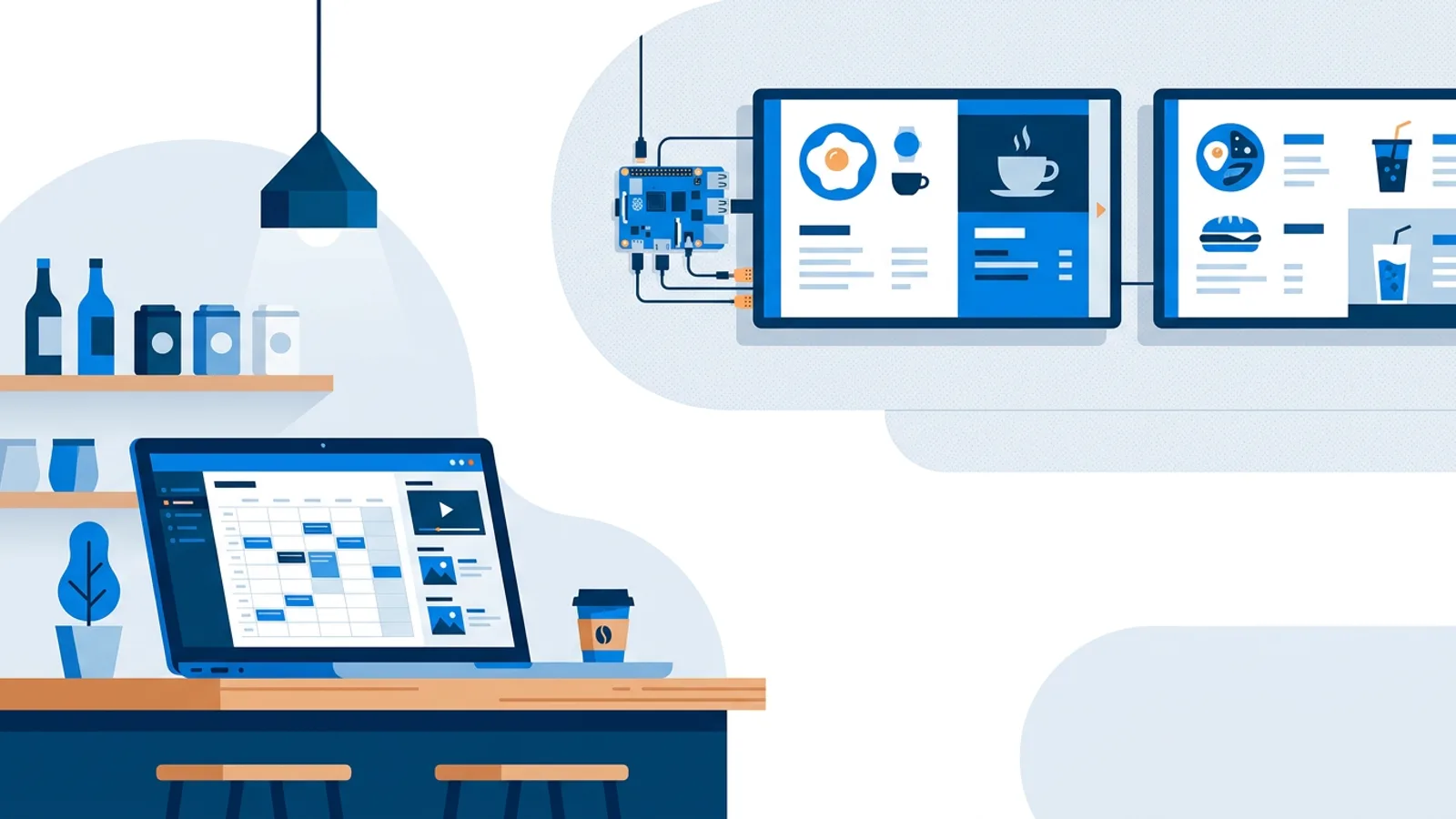
A Raspberry Pi 4 or 5 with a case and power supply costs around 60 to 100 euros and is the workhorse of budget signage. It is silent, sips power, and runs for years. With TVpilot the setup is one command: the dashboard generates a short install command with a 6-character claim code, you paste it into the Pi's terminal, and the installer configures a full-screen kiosk that starts on boot, hides the cursor, and restarts itself within about ten seconds if anything crashes.
The Pi route has two extras the other routes lack. First, automatic TV power control: the Pi can switch the TV on and to standby over the HDMI cable (HDMI-CEC) on a schedule you set in the dashboard, so the screen turns itself on before opening and off after closing without a smart plug. Second, remote management: updates and reboots happen from the dashboard, so you never need a ladder. If you want the full walkthrough, read our Raspberry Pi digital signage guide.
Route 2: a streaming stick or the TV's own browser (cheapest start)
Any device with a modern browser can be a player: you open your screen's player URL and the content plays full screen. That includes a Fire TV Stick with a browser app installed, an Android TV, a smart TV's built-in browser, or that laptop in the storage room nobody uses. Hardware cost: 0 to 40 euros.
The honest tradeoff: a browser on a TV is less dependable than a dedicated player. The TV may not reopen the browser after a power cut, and you cannot manage the device remotely the way you can with a Pi. It is a great way to test signage with zero commitment, and perfectly workable for a screen you glance at daily anyway (like one behind your own counter). For a screen customers depend on, graduate to a Pi. Our comparison of the cheapest digital signage players goes deeper on this.
Route 3: a commercial display (only when you need it)
Commercial displays cost two to four times as much as a consumer TV of the same size. You need one in three situations: the screen runs 24/7 (consumer panels are not built for that), it faces direct sunlight (you need higher brightness), or you mount it in portrait (many consumer TVs overheat that way). A shop screen that runs ten hours a day in normal indoor light does not need one. Buy the consumer TV, spend the difference on better content.
What digital signage software costs a small business
Software pricing in this market runs from free to over 20 euros per screen per month, and the differences at the top are mostly features a small business never touches (single sign-on, audit logs, API access). What you actually need: playlist management, scheduling, image and video support, and a way to see that your screens are online.
A realistic budget picture for a single screen:
| Item | One-time | Monthly |
|---|---|---|
| TV you already own | 0 | 0 |
| Raspberry Pi 4 kit | ~80 euros | 0 |
| Software (TVpilot Free) | 0 | 0 |
| Software (TVpilot Starter, 3 screens included) | 0 | 5 euros |
TVpilot's free plan covers one screen with 250 MB of storage and no credit card. Starter is 5 euros per month with three screens included (up to ten, extra screens 2 euros each per month), and Pro is 29 euros per month with ten screens included (up to one hundred). Many competitors charge per screen, so five screens can cost 40 to 100 euros per month elsewhere; check what the free tiers really include before you commit, because limits differ a lot (we compared them in what free digital signage actually gives you).
One buying tip that applies to every vendor: check what happens when you grow. A plan that is cheap at one screen can be expensive at six. Flat plans with screen allowances are easier to predict than strict per-screen pricing.
Getting your first screen live: a checklist
- Pick the location before the hardware. Eye level, near the point where customers wait or decide, no direct sunlight on the panel. The best screen in the wrong spot is wallpaper.
- Create your account and your first screen in the dashboard. With TVpilot you add a screen and get either a player URL (browser route) or an install command (Pi route).
- Connect the player. Browser route: open the URL on the device, done. Pi route: paste the install command, wait for the kiosk to start.
- Build a first playlist. Start small: three to five slides. Opening hours, one current promotion, one thing that makes you different. Images, videos, web pages and PDFs all work.
- Set a schedule. Weekday lunch menu, weekend brunch menu, and if you run a Pi, let HDMI-CEC turn the TV off outside opening hours.
- Check the dashboard the next morning. Screen still online, content still correct. Then stop checking daily; the dashboard shows online and offline status when you need it.
What to actually put on the screen
Content is where signage pays for itself or quietly fails, so a few rules from practice:
- Fewer words, bigger type. A screen is read in two to three seconds from meters away. One message per slide. If you are unsure how big text should be, our font size guide has concrete numbers.
- Rotate weekly, not never. Stale content trains regulars to ignore the screen. Put a recurring 15-minute slot in your calendar to swap one slide.
- Promote margin, not just menu. The screen is the one ad channel you fully own; use it for the products you earn on, gift cards, and your loyalty program.
- You do not need a designer. TVpilot's AI Studio generates designed screens (promos, menus, opening hours, welcome screens) from a short brief, and there are templates for the common cases. A phone photo of your product plus large clear text beats a cluttered template every time.
Mistakes to skip
The four we see most with first setups: buying the software before checking it supports hardware you already own; mounting the screen where staff can see it but customers cannot; cramming a whole A4 poster onto one slide; and forgetting the power schedule, so the sign glows all night for nobody. All four are free to avoid.
Start with one screen and the TV you already have. If it earns attention in the first month, you will know exactly where the second screen should go, and adding it is a five-minute job in the dashboard rather than a new project. You can try TVpilot free on your first screen and be live this afternoon.
Frequently asked questions
How much does digital signage cost for a small business?
Plan for a one-time hardware cost of roughly 0 to 150 euros per screen (a TV you already own plus a Raspberry Pi or a cheap streaming stick) and software from 0 to 30 euros per month. TVpilot is free for one screen and 5 euros per month for up to three screens.
Can I use a normal consumer TV for digital signage?
Yes. For a shop, cafe or office that runs a screen during opening hours, a consumer TV is fine and far cheaper than a commercial display. Commercial displays matter mainly for 24/7 operation, very bright sunlight, or portrait mounting.
Do I need design skills to make signage content?
No. Most platforms include templates, and TVpilot's AI Studio generates designed screens (promos, menus, opening hours) from a short text brief. You can also show simple images or PDFs you already have.
What happens to my screen if the internet drops?
It depends on the player. TVpilot's Raspberry Pi player keeps running and recovers automatically after an outage, but players do need a connection to receive content updates.