AI Digital Signage: Generate Screen Content With a Prompt

If you've ever stared at a blank canvas trying to make a "Spring Sale" poster look decent, AI digital signage solves a narrower but very real problem: turning a short text brief into a finished, on-brand screen without opening a design tool. You describe what you want, the software lays out text, imagery and color, and you get something you can actually put on a TV.
Signage content is small and repetitive, which is why this helps more here than in most design work. A cafe needs a happy hour board today, an opening-hours screen next week, and a new promo the week after that. Nobody wants to relearn a design app for a five-minute task. That's the gap AI content generation is meant to close.
The AI part is only useful if the screen behind it is reliable. A gorgeous promo graphic that flickers off because the player crashed overnight helps nobody. If you're setting up the physical side of this, our Raspberry Pi signage guide covers the hardware and player setup that AI-generated content actually plays on.
What "AI digital signage" actually means
The term gets used loosely. People usually mean one of three things when they say "AI digital signage":
- Content generation: typing a brief and getting a designed screen (a promo, a menu, a welcome slide) without touching a design tool.
- Scheduling automation: software that decides what to show and when based on rules, which is mostly regular logic, not AI.
- Analytics or audience detection: cameras or sensors that try to infer who's watching, which is a much heavier, more privacy-sensitive category.
Most small businesses asking about "AI signage" want the first one: less time spent designing, more time spent running the business. That's the piece TVpilot's AI Studio is built for, and it's the piece this article focuses on.
How the AI Studio flow works
In TVpilot's dashboard, AI Studio takes a short brief and turns it into a designed signage screen, no design skills needed. The workflow is simple:
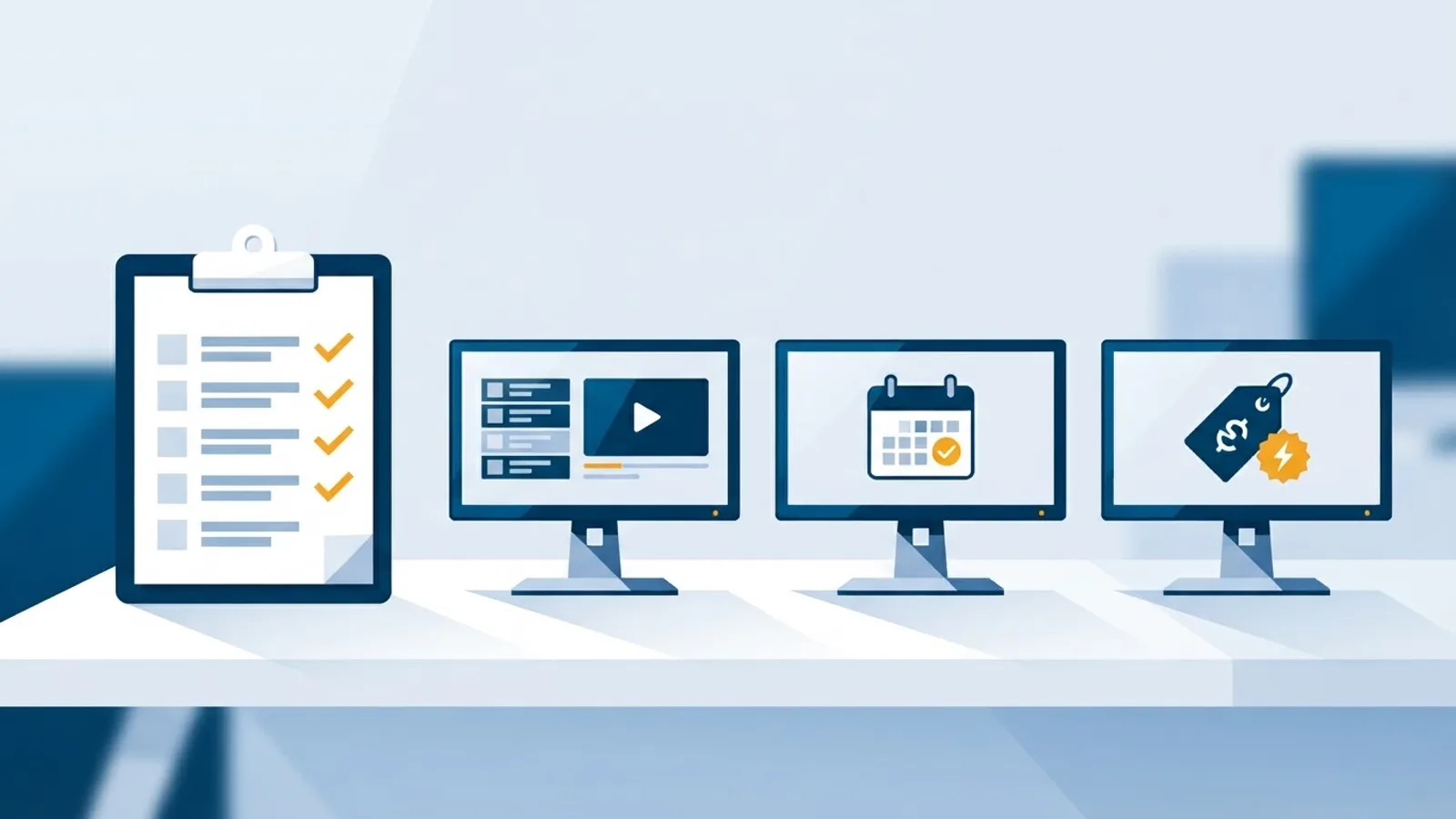
- Pick a screen type: promo, menu, opening hours, or welcome screen.
- Write a short brief: what's on sale, the hours, the menu items, or the welcome message.
- Generate and review: the tool produces a designed layout you can look at on your own screen size before publishing.
- Publish to a playlist: the generated screen slots into your existing schedule alongside your other content (images, videos, web pages, PDFs).
Here's what that looks like with a few realistic briefs:
| Brief you'd type | What comes back |
|---|---|
| "Spring sale, 20% off all plants, this weekend only" | A promo screen with a headline, discount callout and seasonal layout |
| "Happy hour 4-6pm, half price drafts, weekdays" | A bar-style board with time slot, pricing and a simple visual hierarchy |
| "1-bedroom unit available, move-in ready, contact office" | A vacancy notice suitable for a leasing office window display |
None of these require a designer or a stock photo library. You're describing the message, not fighting with alignment guides.
Why this beats a generic template library
Static templates are fine until your business doesn't fit the template. A generic "50% off" template doesn't know your product is plants, or that your happy hour runs weekdays only. A brief-driven approach adapts the layout to what you typed, which tends to produce something closer to "done" on the first try, especially for people who don't design things for a living.
Still give it a quick human check before publishing. AI-generated layouts are a strong starting point, not a guarantee of perfect spelling or brand match, so glance at the preview before it goes live on the actual screen, the same way you'd proofread a printed sign.
Where this fits into a real signage setup
Generated content is only half the picture. It needs somewhere to run, and that's where the hardware and player choice comes in. TVpilot supports a few common paths:
- Raspberry Pi: the primary supported player. A one-command installer sets up Chromium kiosk mode, auto-start, and a watchdog that restarts the player automatically if it crashes. A Pi 4 or 5 is recommended for smooth video, but any Pi running Raspberry Pi OS with a desktop works. See the Raspberry Pi signage setup for the full walkthrough.
- Any device with a browser: smart TVs, Android TV boxes, Fire TV Sticks with a browser app, or even an old laptop, by pointing the browser at a player URL.
Once a player is running, your AI-generated screens sit in the same playlist as everything else: images, videos, PDFs, or plain web pages, with drag-and-drop ordering and per-time-slot scheduling. If you're building a food or drink menu specifically, our menu board guide walks through that use case in more depth, and pairs well with AI-generated menu screens for quick updates.
On the hardware side, the Pi player also handles HDMI-CEC TV power scheduling, so the TV switches on and off with your schedule without a separate smart plug. That's a small thing, but it matters if your AI-generated "opening hours" screen is supposed to correspond to when the TV is on.
When TVpilot's AI approach is (and isn't) the right fit
AI content generation is most useful when you're producing signage regularly and don't have design time to spare: weekly promos, daily specials, or seasonal changes. If you're a single-location shop that changes one poster twice a year, a designer-made static image loaded once will serve you fine, and you don't need a subscription for that.
Limitations worth knowing before you commit:
- TVpilot is hosted software, not open source and not self-hostable. You're managing screens through the web dashboard, not running your own server.
- There's no dedicated native app for Android TV or Fire TV yet; those devices run signage through their browser instead.
- Players need an internet connection to receive content updates. The Raspberry Pi player recovers automatically after an outage, but genuinely offline-only setups aren't the target use case.
If those constraints are a dealbreaker, for example you need a fully offline kiosk in a location with no reliable connection, a simpler local setup like the one in our Chromium kiosk mode guide might suit you better, without the AI layer.
Getting started
If you want to try the AI content flow without committing to anything, the free plan covers one screen and 250 MB of storage with no credit card required, enough to test a promo screen or a menu on a spare TV. From there, the Starter plan (three screens, 2 GB storage) and Pro plan (10 screens, 10 GB, Premium included) scale up as you add locations or displays.
The practical path: set up a player (Raspberry Pi is the most tested route, see the full setup guide), write a one-sentence brief for your first promo or menu screen in AI Studio, and drop it into a playlist. You'll know within a day whether the generated layout matches what your customers need to see, and you can adjust the brief and regenerate if it doesn't.
AI-generated signage content won't replace good judgment about what to advertise or when, but it removes the design bottleneck that keeps a lot of small businesses showing the same static poster for months. If you want to see the AI Studio flow on your own screen, sign up and try it on the free plan before deciding whether to scale it across more displays.
Frequently asked questions
Does AI digital signage replace the need for a designer entirely?
For routine content like weekly promos, menus, and opening-hours screens, yes, a brief-driven tool like AI Studio can produce a usable designed screen without a designer. For a one-off brand campaign or a highly specific visual identity, a human designer will still do a better job; the AI route is built for speed and volume, not bespoke branding.
What kind of screens can I generate with a text brief?
TVpilot's AI Studio generates promo screens, menus, opening-hours notices, and welcome screens from a short written brief. You describe the content (for example a sale, a happy hour, or a vacancy notice) and it returns a designed layout you can review and publish to your playlist.
Do I need special hardware to use AI-generated signage content?
No. Once a screen is generated, it plays like any other signage content, on a Raspberry Pi player, a smart TV browser, an Android TV device, or a Fire TV Stick with a browser app. The AI generation happens in the web dashboard; the hardware just needs to run the player.
Can AI-generated screens update automatically without me doing anything?
The generation step itself is manual: you write a brief and review the result before publishing. Once published, it plays on your schedule like any other playlist item. There's no automatic re-generation based on external triggers; you update the brief yourself when the promo, menu, or hours change.