Digital Signage Software Buyer's Guide: What to Compare
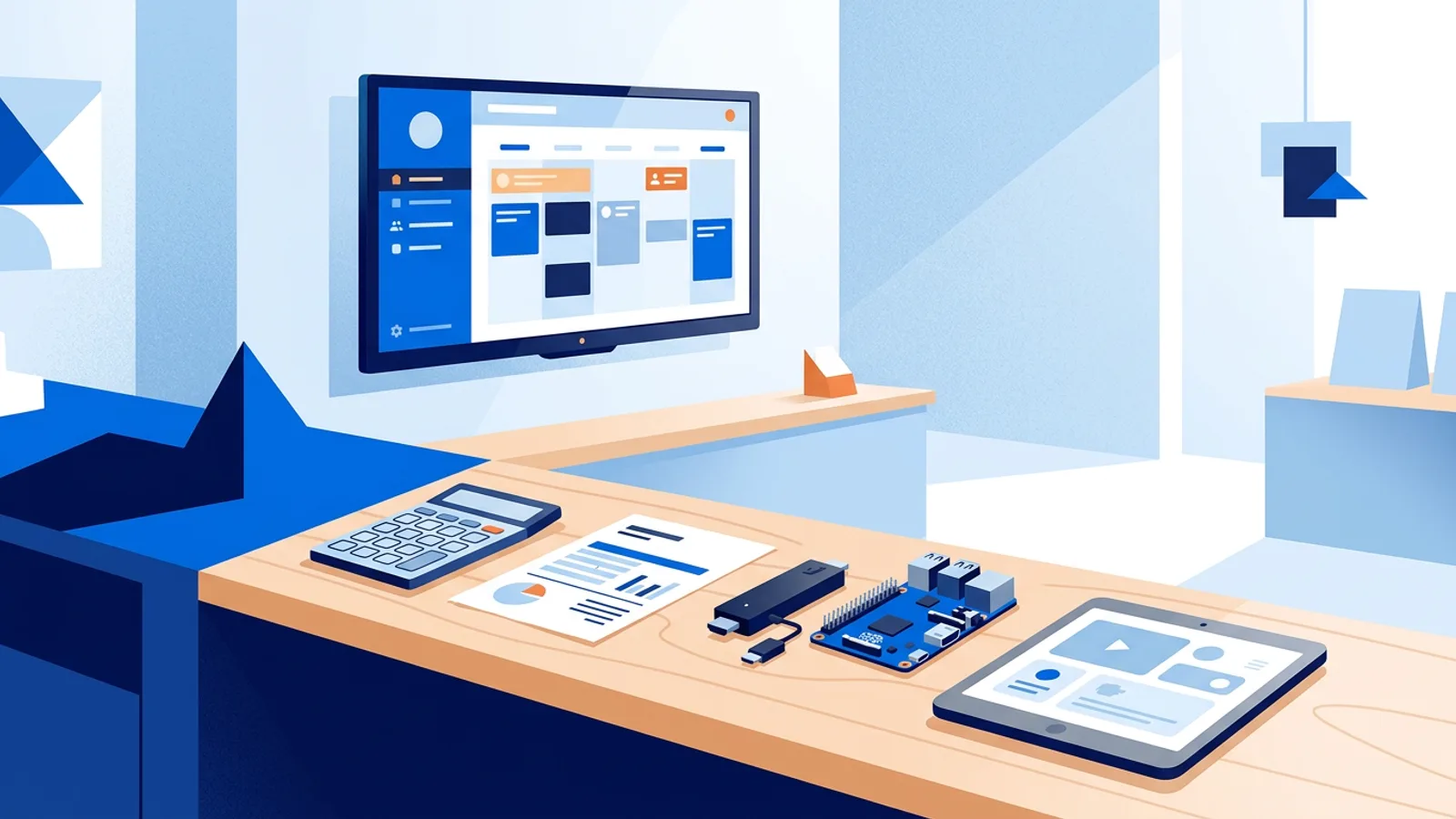
Most digital signage software looks identical on a marketing page: a dashboard screenshot, a stock photo of a TV in a lobby, and a row of logos claiming Android TV, Fire Stick and Raspberry Pi support. This digital signage software buyer's guide exists because the real differences show up later, in the fine print about screen limits, in how a plan handles scheduling, and in what happens to your screen when the internet drops for an afternoon.
Use this checklist to compare any digital signage software against your actual requirements: how many screens, what hardware, what content, and how much you're willing to pay per screen per month. If you already know you want to run screens on a Raspberry Pi, our Raspberry Pi signage guide covers the hardware side; this article covers the software decision that sits on top of it.
What this digital signage software buyer's guide covers
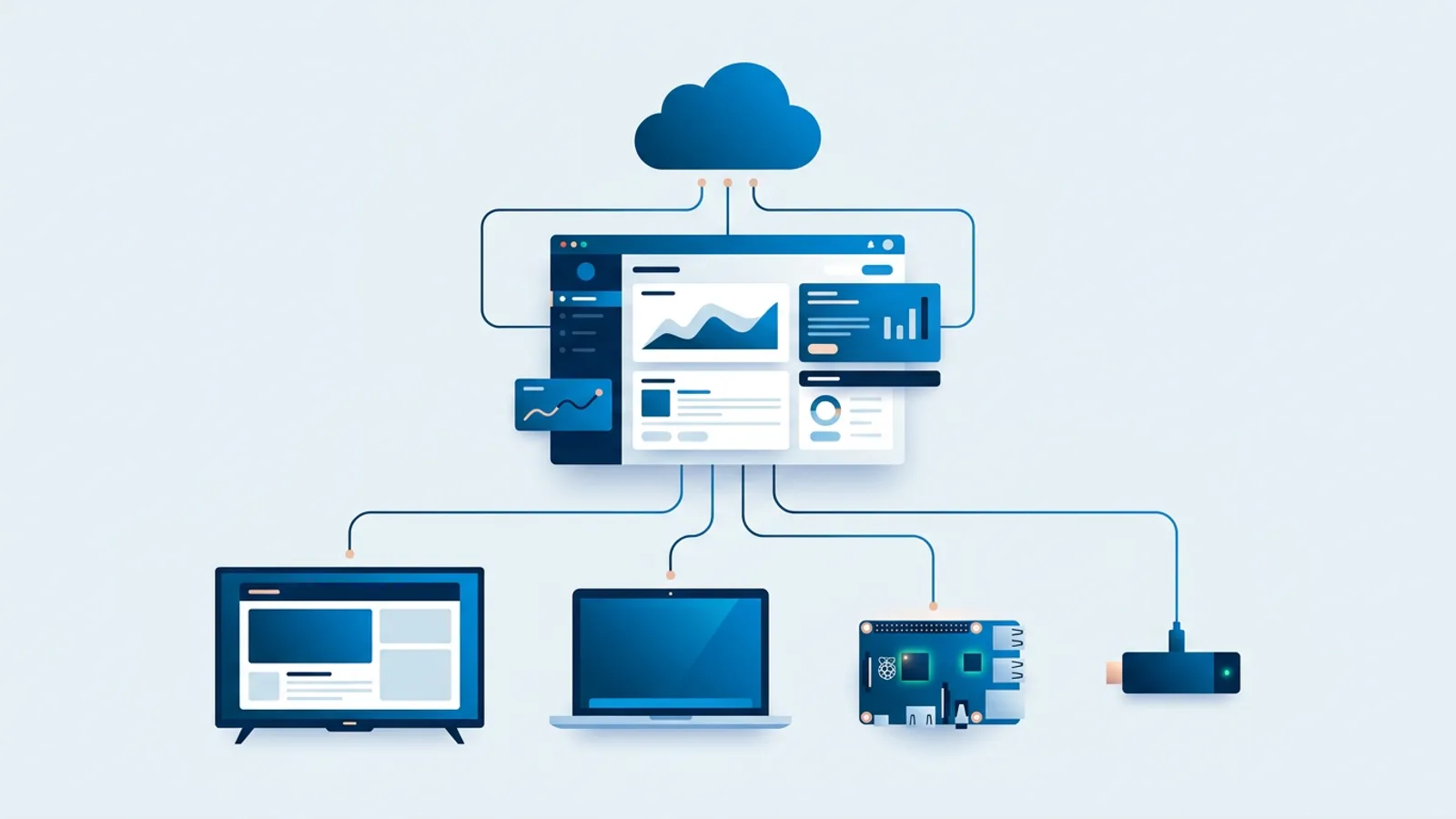
Strip away the branding and every digital signage platform does three jobs: it stores your content (images, videos, web pages, PDFs), it decides what plays where and when, and it pushes that decision to a physical screen. The screen itself might be a Raspberry Pi, a smart TV's built-in browser, a Fire TV Stick, or a dedicated media player. The software is the layer that makes updating fifty screens as easy as updating one.
How well a platform does that third job, getting content from your dashboard onto a screen reliably, is really what separates the good options from the frustrating ones. Everything in this guide traces back to that.
How to choose digital signage software: the checklist
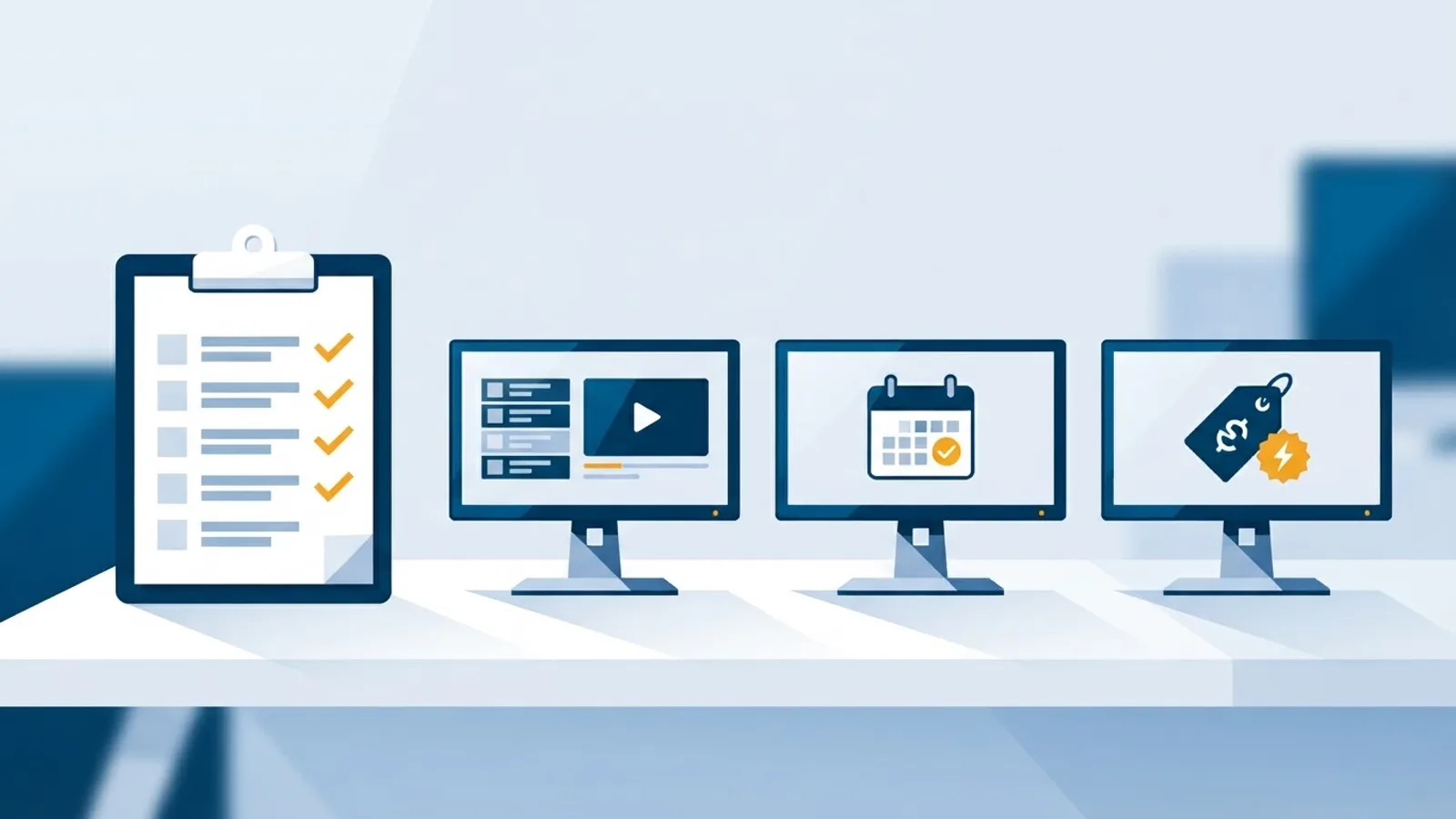
Run any shortlist through these six questions before you subscribe to anything.
1. What hardware does it actually run on?
Some platforms require their own branded media player. Others work with whatever you already have: a Raspberry Pi, a smart TV's browser, an old laptop. "Supports Android TV" sometimes means a dedicated native app and sometimes just means "has a browser you can point at a URL", which is a meaningfully different experience for kiosk mode, auto-start after a power cut, and remote reboot. Ask specifically how the player starts up after the TV loses power, not just whether it "works" on the device.
2. How is content actually scheduled?
Playlists that just loop are fine for a single static promo. Real businesses need more: a lunch menu that only shows from 11:00 to 14:00 on weekdays, a holiday sale that turns itself off after a set date, a calendar of what plays on which day for the next few months. Check whether scheduling happens per slide, per playlist, or both, and whether you can plan further ahead than next week. Our scheduling deep-dive goes into the difference between calendar scheduling and simple playlists if you want the longer version.
3. What's the actual pricing model?
Per-screen pricing is the industry standard, but the number per screen hides a lot: storage limits, whether every feature is included at every tier or gated behind an enterprise call, and whether there's a free plan you can actually use rather than a trial that expires. We wrote a full breakdown in digital signage software pricing if you want line-by-line comparisons across plan tiers.
4. What happens when the internet drops?
A screen that goes black or shows an error the moment Wi-Fi hiccups is a liability in a shop or waiting room. Ask whether the player caches content locally and keeps playing its last-known schedule during an outage, or whether it depends on a live connection for every frame. See offline playback for what "offline support" should mean in practice.
5. Does it cover the content types you'll actually use?
Static images and MP4 loops cover maybe half of real signage use. Check for web pages, PDFs, YouTube or Vimeo embeds, social feeds, and live data widgets (weather, reviews, countdowns) before you assume you'll need a second tool for those.
6. How many screens, and does the plan grow with you?
A single-screen pilot and a five-location rollout are different problems. Confirm the jump in price and features between the free or entry tier and the plan you'd need at your real screen count, not the one on the landing page's hero image.
Digital signage pricing comparison: what you're actually paying for
Per-screen SaaS pricing generally clusters into a few tiers. Here's a generic shape of what to expect across platforms in this range, before you look at any specific vendor's numbers:
| Tier | Typical price | Screens | What usually changes |
|---|---|---|---|
| Free | €0 | 1 | Storage cap, sometimes feature limits |
| Starter | around €5/month | up to 5 | More storage, most features unlocked |
| Pro | around €15 to €25/month | up to 25 | Priority support, higher storage, advanced scheduling |
| Business | Custom | 25+ | Dedicated support, negotiated storage |
On TVpilot specifically: Free is €0 forever for 1 screen and 250 MB storage with no credit card required, Starter is €5/month with 3 screens included (up to 10) and 2 GB storage, Pro is €29/month with 10 screens included (up to 100) and 10 GB storage, and Business is €99/month with 25 screens included (up to 100), 100 GB storage and priority support. Beyond 100 screens, pricing is custom. There is no trial period anywhere in that lineup; the Free plan is meant to be used indefinitely within its limits, not to expire.
What matters more than the sticker price is whether features are locked behind the top tier. A platform that reserves scheduling, widgets, or offline resilience for its most expensive plan effectively charges you twice: once for screens, once to unlock the features that make the software worth using. Check the full features checklist against each plan tier, line by line, before comparing headline prices.
Signs worth double-checking before you commit
A sales page that only offers "contact sales" for pricing might be fine for a genuinely large deployment, but for a five-screen shop it usually means the plan wasn't built with your size in mind. Look closely at how screen count and storage are bundled: some platforms force an upgrade to a much bigger, pricier tier just to unlock a single feature you actually need, rather than letting you pay for extra screens without extra features stapled on.
Ask specifically what happens during an internet outage, and if the documentation doesn't mention it at all, treat that as an unanswered question rather than an assumption you can afford to make. The same goes for "native app" claims: hardware support that turns out, on closer reading, to just be a browser wrapper isn't dishonest, but it changes what you should expect from kiosk mode and auto-restart. And if scheduling is described only as "playlists" with no way to plan further than next week or set an expiry date on a promo, that's a real limitation for anything beyond a single static loop.
Each of these is worth raising directly with support before you commit a full rollout. How clearly they answer tells you as much as the answer itself.
Where TVpilot fits, and where it doesn't
TVpilot is hosted signage software: a web dashboard that manages playlists, scheduling, and screen monitoring for Raspberry Pi players, smart TVs, and anything with a browser. The one-command Raspberry Pi installer sets up kiosk mode, auto-start, and a watchdog that restarts the player automatically if it crashes, and the Pi player can switch the TV on and off over HDMI-CEC on a schedule without a smart plug. Calendar scheduling on the Schedule page lets a business plan playlists a year ahead, with weekly repeating slots and one-off events, and players keep following that schedule through internet outages.
TVpilot is hosted software, so there's no self-hosted or open-source option. If running your own server matters to you, read our honest breakdown of self-hosted signage or the open source cost guide before assuming a hosted platform is the only option. There's also no dedicated native app for Android TV or Fire TV yet; those run through the browser route, which works fine for most use cases but isn't a purpose-built app experience. Offline playback has a real limit too: players need a connection to receive content updates, though the Pi player recovers automatically once the connection returns.
If your setup is one to twenty-five screens, mostly playlists plus scheduling plus a widget or two (weather, reviews, a countdown), and you'd rather not run your own server, it's a reasonable fit. If you need dozens of native apps across exotic hardware, or you specifically want to self-host, look elsewhere first.
Building your own shortlist
Write down your actual numbers before opening any comparison page: screen count today and in a year, hardware you already own, and the two or three content types you'll use every week. Then run that list against the six questions above for each platform you're considering. The complete digital signage guide is a useful companion if you're still deciding on hardware alongside software.
Connect one screen on TVpilot's free plan and run it against this checklist yourself: no credit card, and the plan doesn't expire like a trial. Sign up to try it before deciding whether to pay for more screens.
Frequently asked questions
What's the biggest difference between digital signage software platforms?
Usually it's not the feature list on the marketing page but how reliably content gets from the dashboard to the screen: how the player recovers after a power cut, whether scheduling supports more than simple looping playlists, and what happens on screen during an internet outage.
Is per-screen pricing the same across most digital signage software?
The pricing model (a monthly fee per screen, often with tiers by screen count) is fairly standard across the industry, but what's included at each tier varies a lot. Storage limits, feature gating, and whether a usable free plan exists differ platform to platform, so compare the actual limits, not just the headline price.
Do I need different software for a Raspberry Pi versus a smart TV?
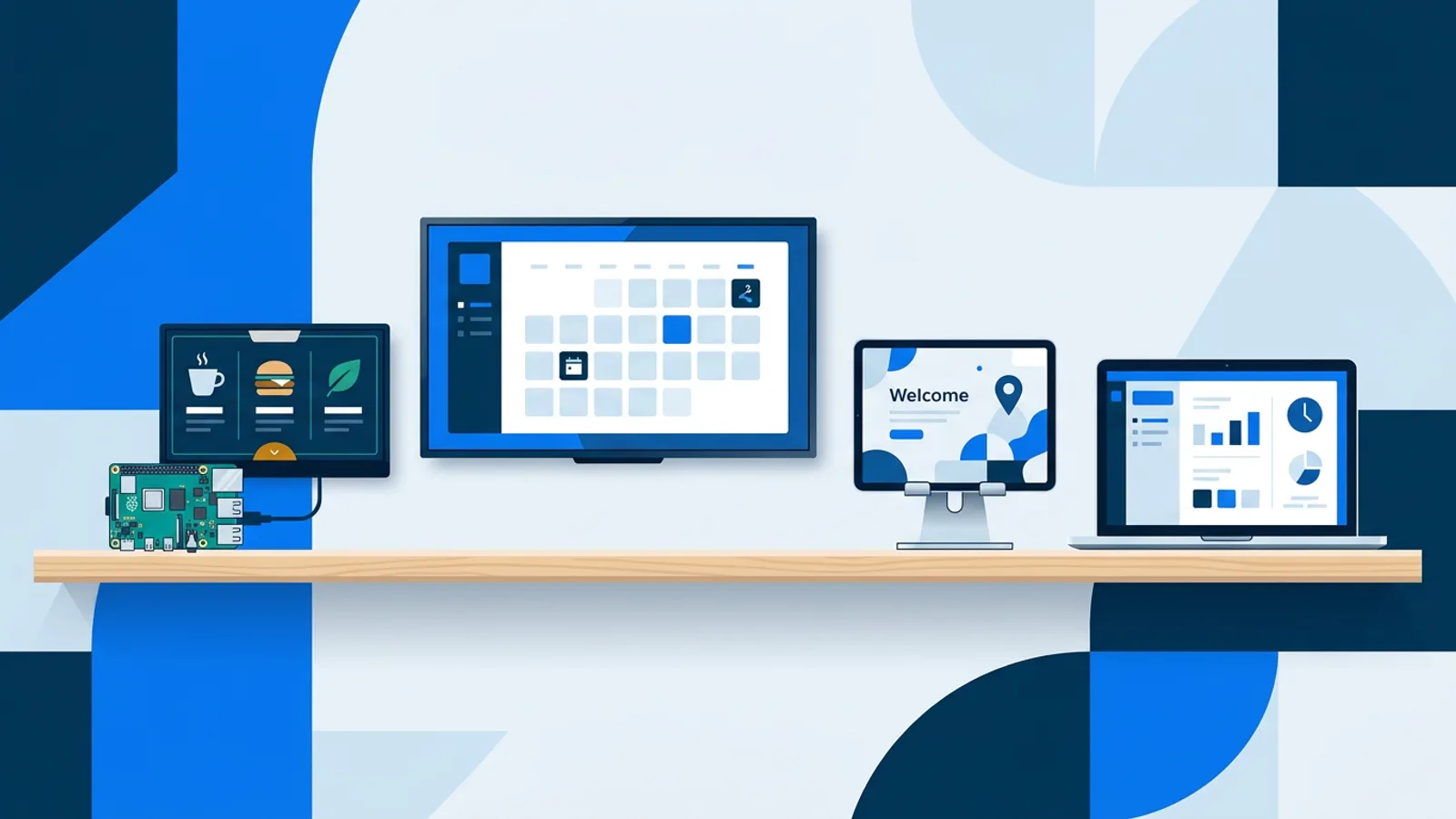
Not necessarily. Platforms built around a web dashboard, like TVpilot, can run the same playlists and schedules on a Raspberry Pi, a smart TV's browser, or any device with a modern browser. The hardware choice affects setup and reliability details, not which software you need.
What should I check before assuming a platform works offline?
Ask whether the player caches the current content and schedule locally so it keeps playing during an outage, or whether it needs a live connection for every update. On TVpilot's Raspberry Pi player, screens keep following their existing schedule during an outage and recover automatically once the connection returns, though new content updates still require internet access.