Digital Signage Screen Monitoring: Spot Offline TVs Fast
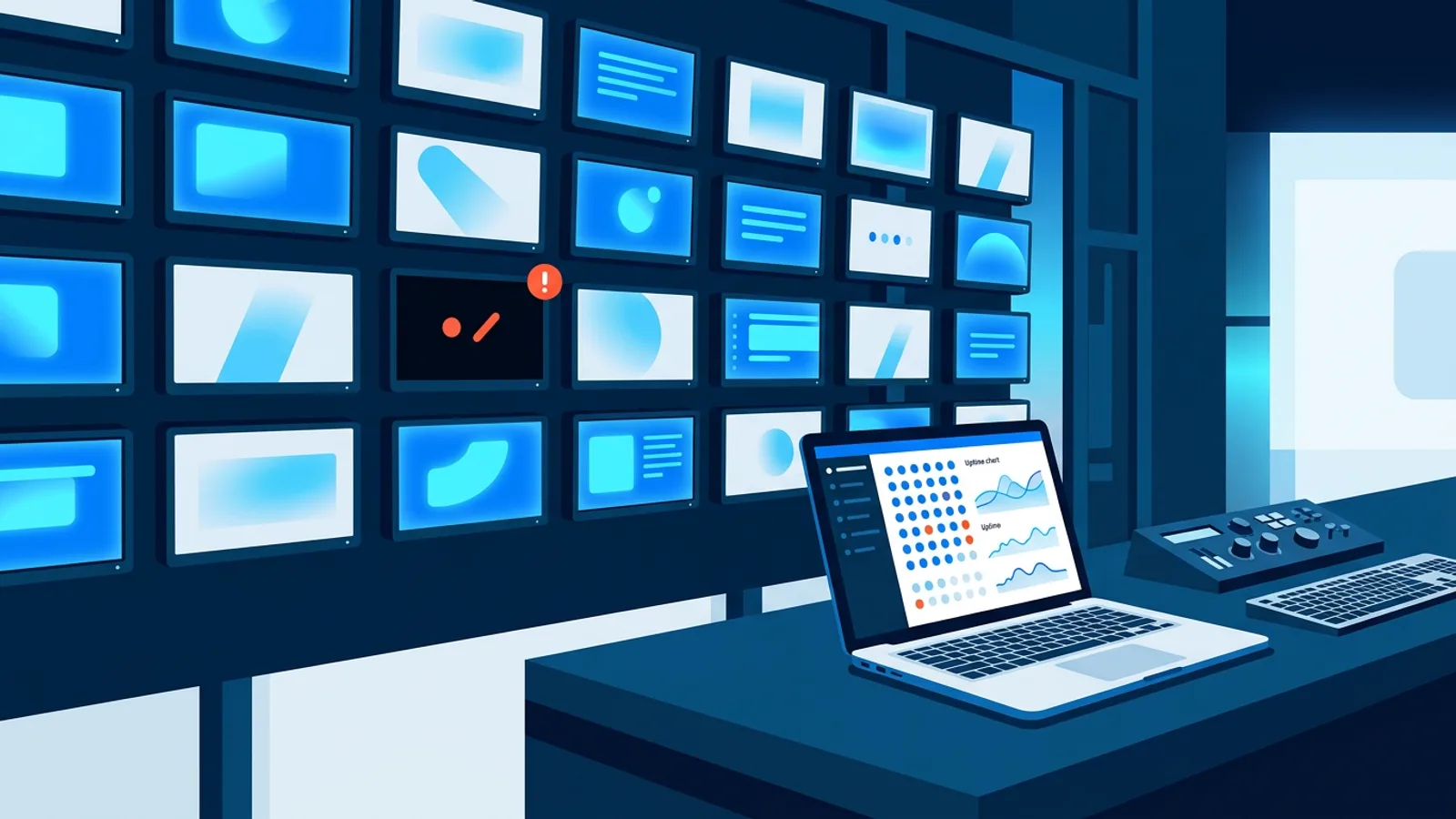
A screen that's been dark since Tuesday and nobody noticed is the single most common complaint from people running more than one or two displays. Digital signage screen monitoring solves that specific problem: it tells you the moment a TV stops checking in, so you find out from a dashboard or an email instead of from a customer asking why the menu board is off.
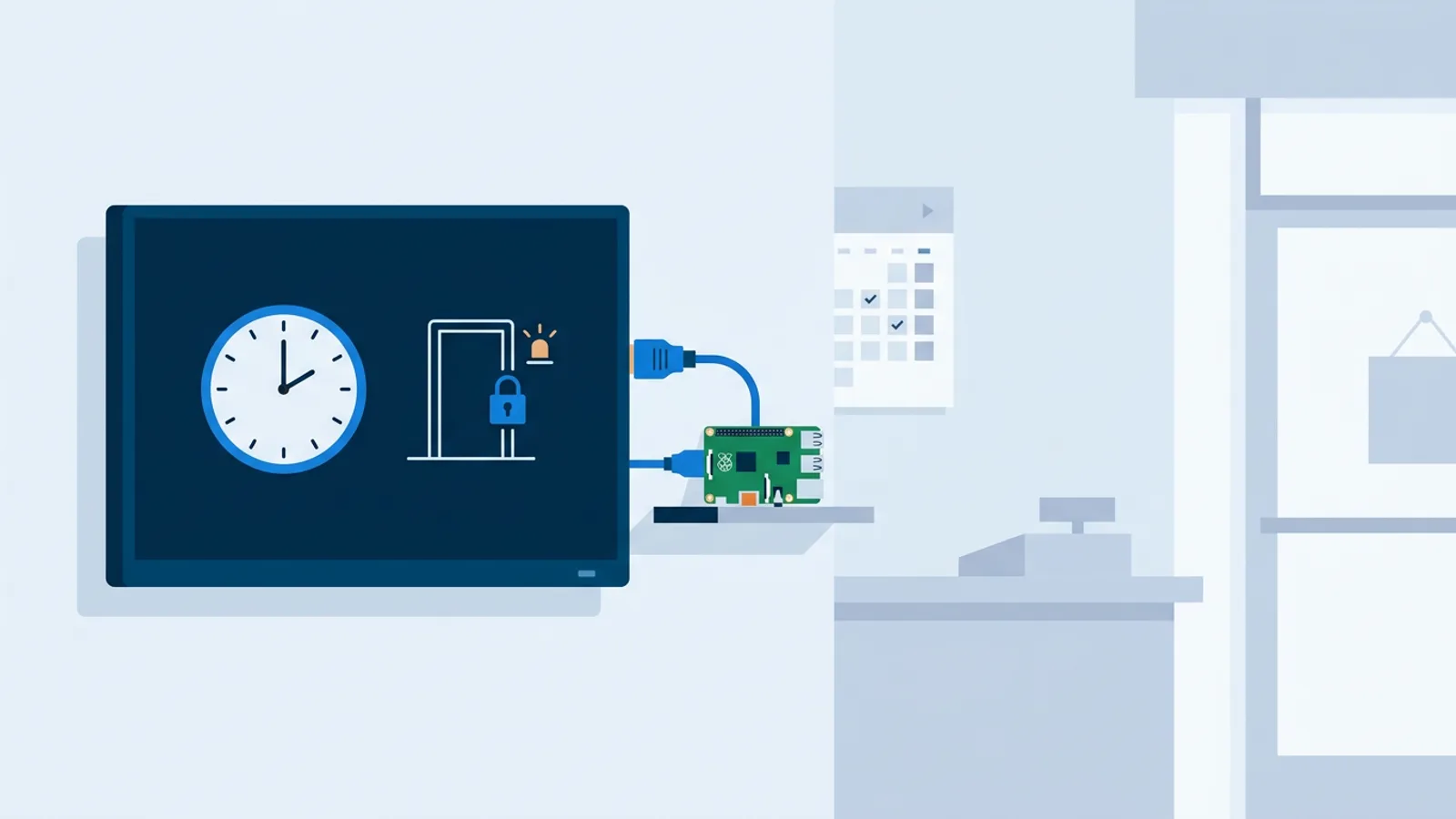
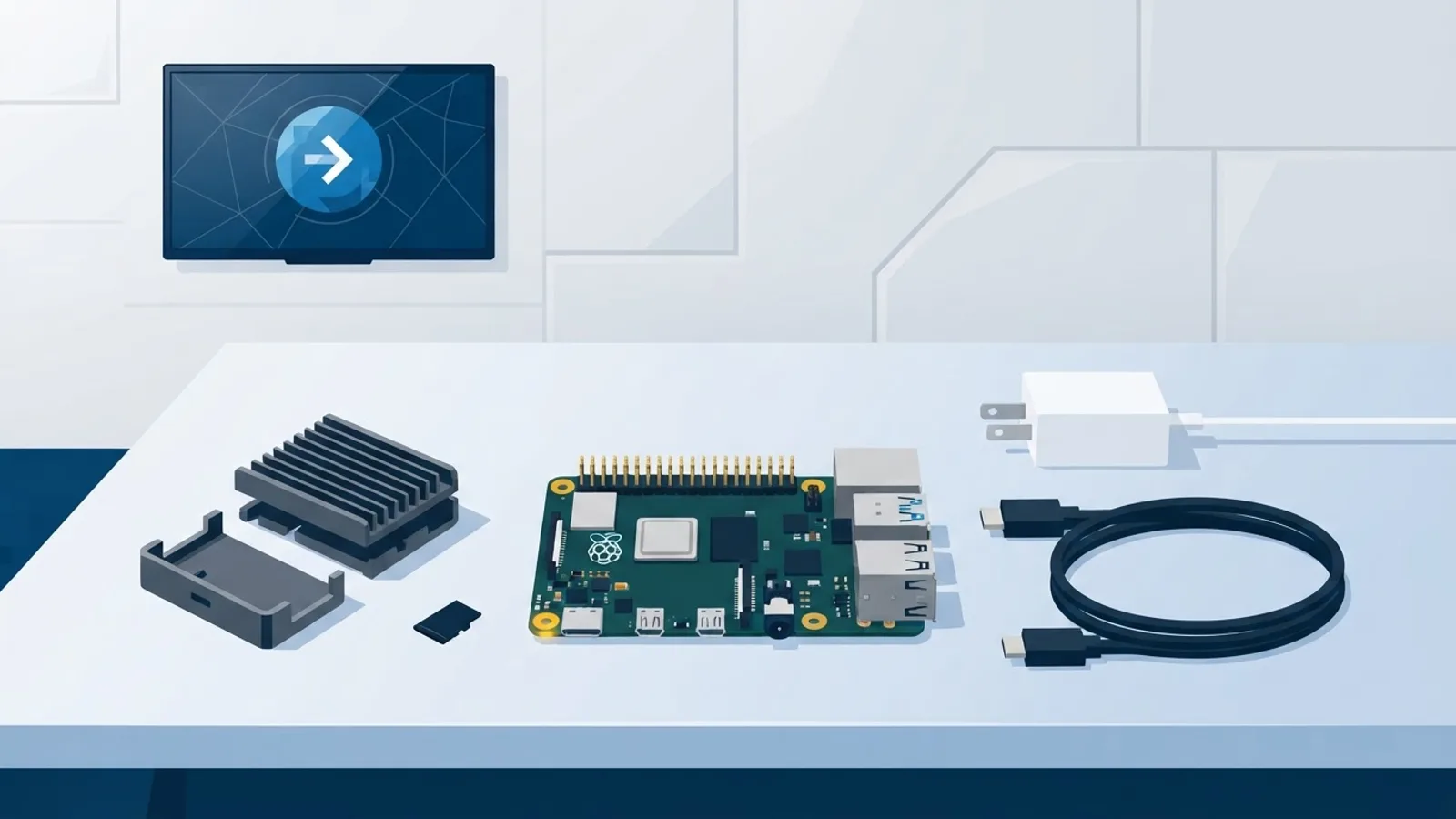
The failure itself is usually boring. A router reboots and the player doesn't reconnect. A cleaner unplugs a power strip. A Raspberry Pi's SD card corrupts after a bad shutdown. None of these are dramatic, and none of them are visible unless you're standing in the room. If you're running signage on a Raspberry Pi signage player, the hardware itself is reliable, but you still want something watching it from outside.
Why screens go quiet without anyone noticing
Most small signage setups start with one or two TVs that someone glances at once a day. That works until you add a third location, a back room screen nobody walks past, or a player that's tucked behind a TV where the HDMI cable is one nudge away from falling out. At that point, "I'll just check on it" stops being a real process.
The usual offenders:
- Wi-Fi drops and never reconnects automatically
- A power outage takes the TV down and it doesn't power back on
- The media player crashes or freezes on a specific slide
- Someone switches the TV's HDMI input to watch something else and forgets to switch it back
- An SD card or storage device fails after months of quiet degradation
Some of these are fixable remotely in seconds. Others need a person on-site. Monitoring doesn't prevent the failure, it just collapses the time between "it broke" and "someone knows it broke" from days down to minutes.
What monitoring actually measures
"Monitoring" sounds abstract until you break it into the actual signals a dashboard can show you. In TVpilot, each screen reports:
- Online/offline status, based on a heartbeat the player sends on a regular interval
- TV power state (on or standby), read over HDMI-CEC where the TV supports it
- Wi-Fi signal strength, useful for catching a screen that's about to drop before it actually does
- Device logs, so you can see what the player was doing before it went quiet
- Screenshots, a snapshot of what's currently on the physical screen
That last one matters more than it sounds. A screen can be technically "online" (heartbeat arriving fine) while showing a frozen frame, a blank slide, or content that expired three weeks ago. Status alone tells you the player is alive. A screenshot tells you what a customer is actually looking at.
On the Raspberry Pi player, there's also a self-healing watchdog running locally: if the kiosk browser crashes or hangs, it restarts the player within about 10 seconds without anyone touching anything. That's not a substitute for monitoring (you still want to know it happened, especially if it's happening repeatedly), but it does mean a lot of would-be "screen is down" incidents resolve themselves before you'd ever get an alert.
Getting the offline alert to a real person
A dashboard is only useful if someone is looking at it. Most people aren't, which is why the alert needs to come to them instead. TVpilot sends email alerts for screen offline and recovery events, new devices being paired, content that's about to expire, and a weekly Monday summary. For teams that live in Slack or Teams rather than email, there's also a signed webhook that plugs into Slack, Teams, Zapier, Make, or n8n.
| Alert type | Where it shows up | Good for |
|---|---|---|
| Screen offline / recovery email | Inbox | Solo owners, small teams |
| New device paired | Inbox | Catching unauthorized or duplicate installs |
| Expiring content | Inbox | Preventing stale promos or outdated menus |
| Weekly Monday report | Inbox | A calm weekly check instead of constant pings |
| Signed webhook | Slack / Teams / Zapier / Make / n8n | Teams that want offline alerts in a shared channel |
The webhook route is worth setting up if more than one person is responsible for the screens. An email to a shared inbox tends to get missed. A message in a channel everyone already reads gets seen. This is one of the small habits covered in general digital signage management best practices: put alerts where the team actually looks, not where it's technically easiest to send them.
The uptime dashboard: what's actually worth checking
A per-screen status page is fine for one TV. Once you're running five, ten, or fifty, you want a fleet view, which is what a Health page is for. Look for uptime per screen over time and an aggregate chart across the whole fleet, rather than just a current snapshot.
A few patterns worth watching for:
- One screen with recurring short outages. Usually a Wi-Fi or power issue local to that spot, not a software problem.
- A cluster of screens going offline at the same time. Points to a network or building-wide power event, not the signage software.
- A screen that's "online" but hasn't updated content in weeks. Often a scheduling or playlist assignment mistake rather than a connectivity one.
- Wi-Fi signal trending down over days before a screen drops. Worth relocating the router or adding a repeater before it becomes a full outage.
Uptime numbers by themselves don't fix anything. What they're good for is telling you where to spend actual attention, instead of treating every location as equally at risk.
Fixing it before you drive anywhere
A meaningful chunk of "screen is down" tickets don't need a site visit. From the dashboard you can remotely restart the player or clear its cache, which resolves a frozen browser tab or a stuck slide without anyone touching the TV in person. It's worth trying that first, every time, before assuming hardware has failed. If a remote restart doesn't bring the screen back within a few minutes, that's the signal it's an on-site problem: power, cable, or a dead SD card. For the Pi specifically, there's a dedicated Raspberry Pi signage troubleshooting guide that walks through the most common causes in that order.
One more thing worth knowing: a screen going offline doesn't necessarily mean the screen goes blank. Players keep following their last-known schedule and playlist while offline, so a brief Wi-Fi outage usually looks like nothing changed to anyone walking past. Screens only need connectivity to receive new content and schedule changes, not to keep playing what they already have. There's more detail on exactly how that works in digital signage offline playback, which is worth reading if you're deciding how much monitoring urgency a given outage actually deserves.
Monitoring multiple screens without turning it into a job
With one TV, checking on it is a glance. With ten TVs across two or three locations, checking on it manually is a part-time job nobody signed up for. The point of a shared dashboard is that one person, or a rotating on-call person, can see every screen's status in one place instead of visiting each location's admin panel separately. Combined with a weekly report and offline alerts landing in a channel, most of the manual checking disappears and turns into occasional actual incidents.
When this matters and when it doesn't
If you're running a single screen in a shop you walk past ten times a day, formal offline monitoring is close to unnecessary. You'll notice a dead screen faster than any alert email will arrive. TVpilot's Free plan covers exactly that case at no cost, with monitoring included even at that scale, but you don't strictly need the alerting to run one screen well.
Monitoring earns its keep once you have screens you don't walk past daily: a second location, a back office, a screen in a waiting room or hallway, or any setup where "someone will notice" isn't actually true. At that point, knowing about an outage in minutes rather than days is the whole value.
What TVpilot doesn't do: it's hosted software, not something you self-host on your own server, and there's no way to run the dashboard on infrastructure you control. If that's a hard requirement, a self-hosted setup is a different path worth weighing on its own terms.
If you're already running screens and have no visibility into which ones are actually online right now, that's the gap to close first. Sign up for a free account, connect a screen, and check the Health page after it's been running for a day or two. It's a five-minute way to find out whether "the screens are fine" is actually true or just assumed.
Frequently asked questions
How does digital signage screen monitoring detect that a TV is offline?
The player software sends a regular heartbeat to the dashboard. If a heartbeat is missed for longer than the expected interval, the screen is marked offline and, if alerts are enabled, an email or webhook notification goes out. TVpilot also tracks TV power state over HDMI-CEC and Wi-Fi signal strength, so you can often see a screen's connection weakening before it actually drops.
Does a screen go blank the moment it loses internet connection?
No. Signage players keep playing whatever playlist and schedule they last downloaded while offline. Connectivity is needed for new content and schedule changes to arrive, not for the screen to keep displaying what it already has. A brief outage usually looks like nothing happened to anyone walking past the screen.
Can I get offline alerts in Slack or Teams instead of email?
Yes. TVpilot sends offline and recovery alerts by email by default, and also offers a signed webhook that connects to Slack, Teams, Zapier, Make, or n8n, so alerts can land in a shared channel instead of a single inbox.
What should I check before assuming a screen has a hardware fault?
Start with a remote restart or cache clear from the dashboard, which resolves most frozen-browser or stuck-slide situations without a site visit. If the screen doesn't come back online within a few minutes of that, treat it as an on-site issue: check power, the HDMI cable, and on a Raspberry Pi, the SD card.