Browser-Based Digital Signage vs Raspberry Pi: Which to Pick?
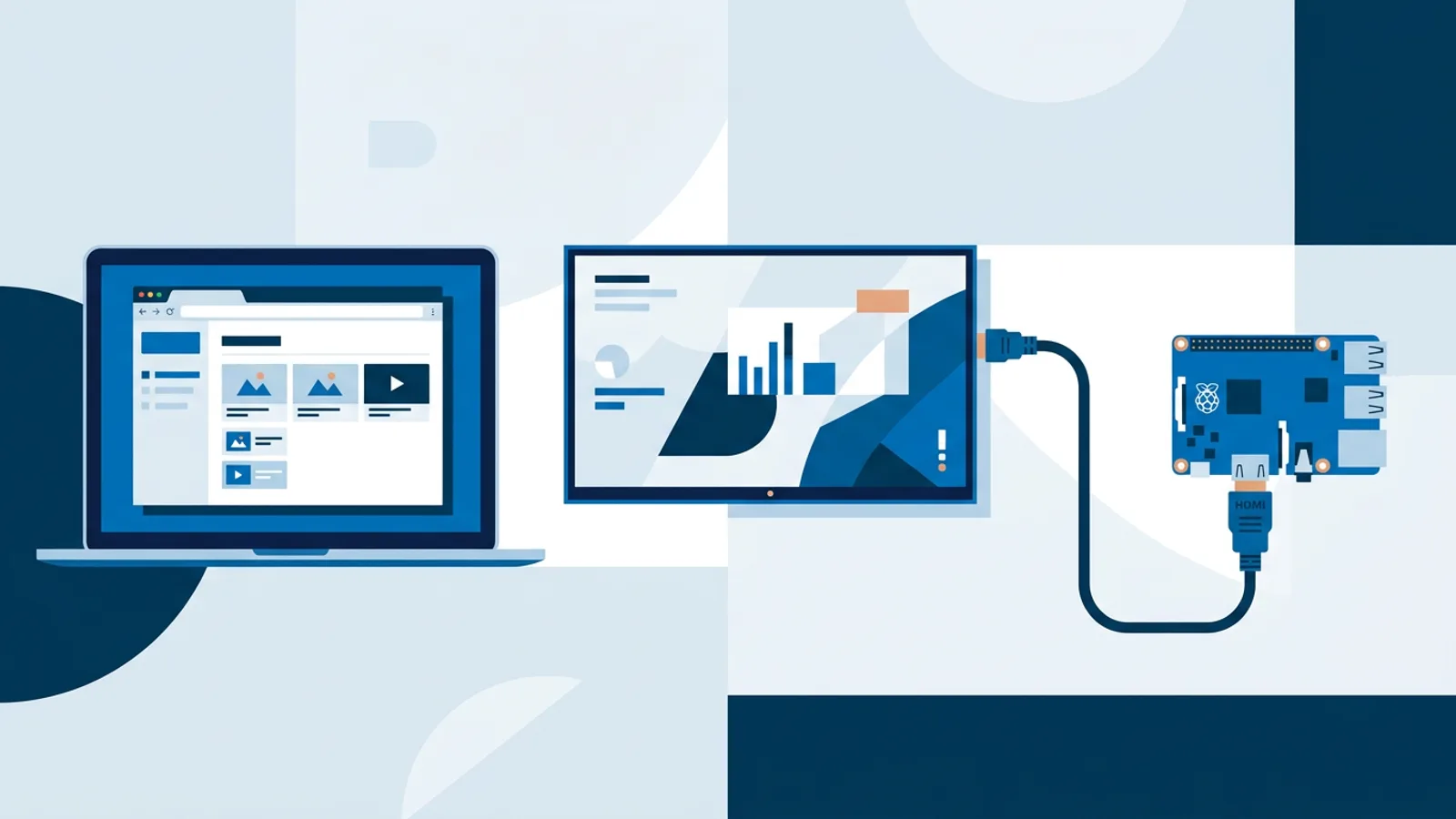
If you're choosing between browser based digital signage vs raspberry pi as your player, the short answer is: a browser works if you already own a screen with a decent built-in browser or a spare laptop, and a Raspberry Pi is worth the extra cardboard and cabling when you want a dedicated, purpose-built box that won't get repurposed by whoever needs a laptop next Tuesday.
Both routes can run the exact same signage software and the exact same playlists. The difference is entirely in the hardware layer underneath: what boots it, what keeps it running, and what happens when the power flickers or the browser tab needs a nudge at 3am. Our own Raspberry Pi player page covers the Pi setup in detail, but this article is about the decision itself, not just the instructions.
What "browser-based" signage actually means
Browser-based signage means you point any device with a modern browser at a player URL and it displays your content. No installer, no operating system to manage, no SD card to format. This works on:
- Smart TVs with a built-in browser
- Old laptops or mini PCs you already have lying around
- Android TV boxes
- A Fire TV Stick, using its browser app
The appeal is obvious: zero new hardware cost if you already own a capable screen or device. The catch is that browser quality varies wildly across smart TV brands and firmware versions. Some TV browsers handle full-screen video and auto-refresh fine for years. Others quietly lose focus, drop the tab after a firmware update, or struggle with anything heavier than static images. You're depending on hardware and software you don't fully control.
What a Raspberry Pi player actually means
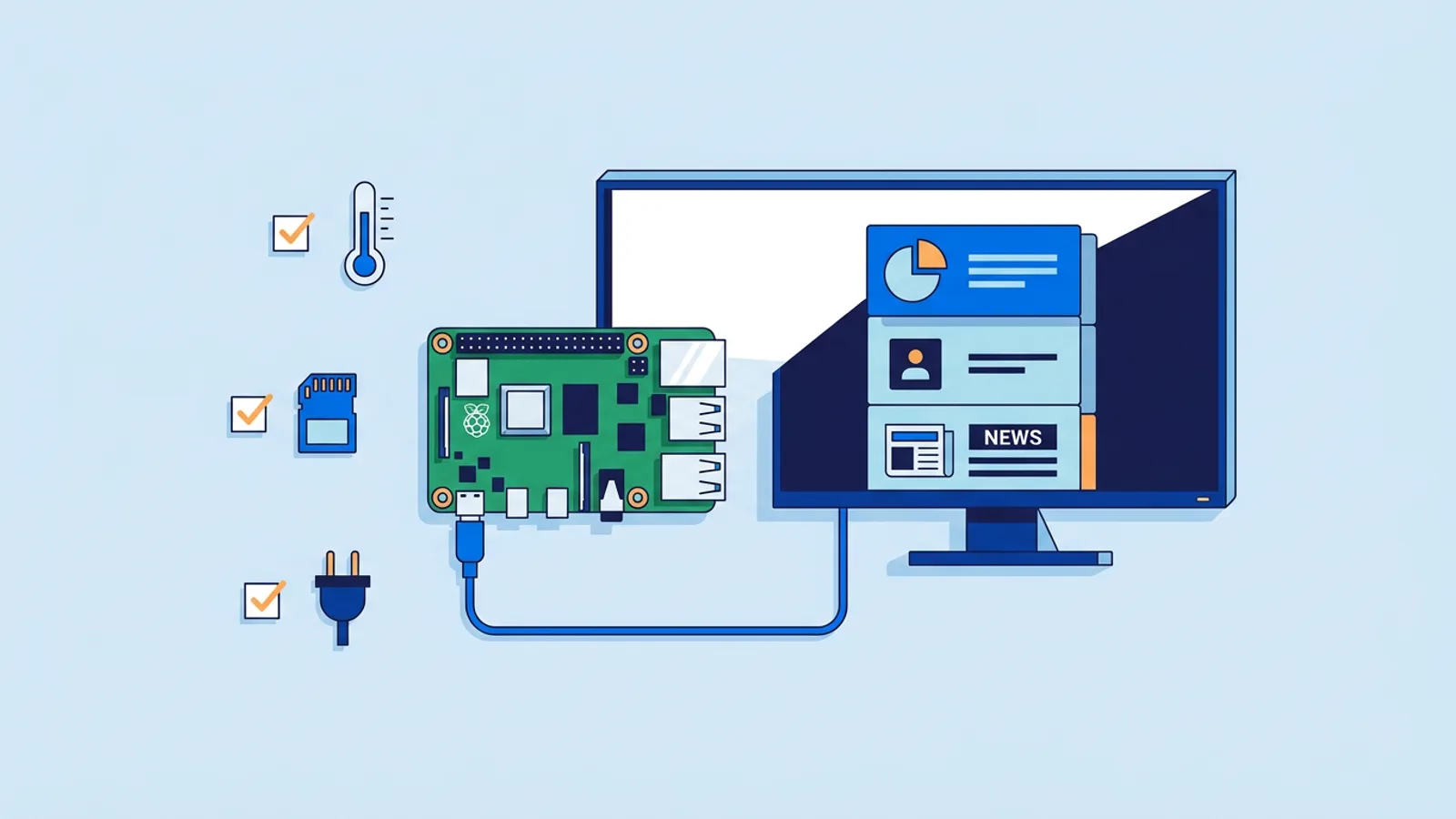
A Raspberry Pi player is a small dedicated computer, running Raspberry Pi OS, whose only job is to boot straight into a full-screen Chromium browser locked in kiosk mode. Nobody accidentally closes the tab because there's no desktop to accidentally click on. It boots quiet, hides the cursor, and stays on that one screen.
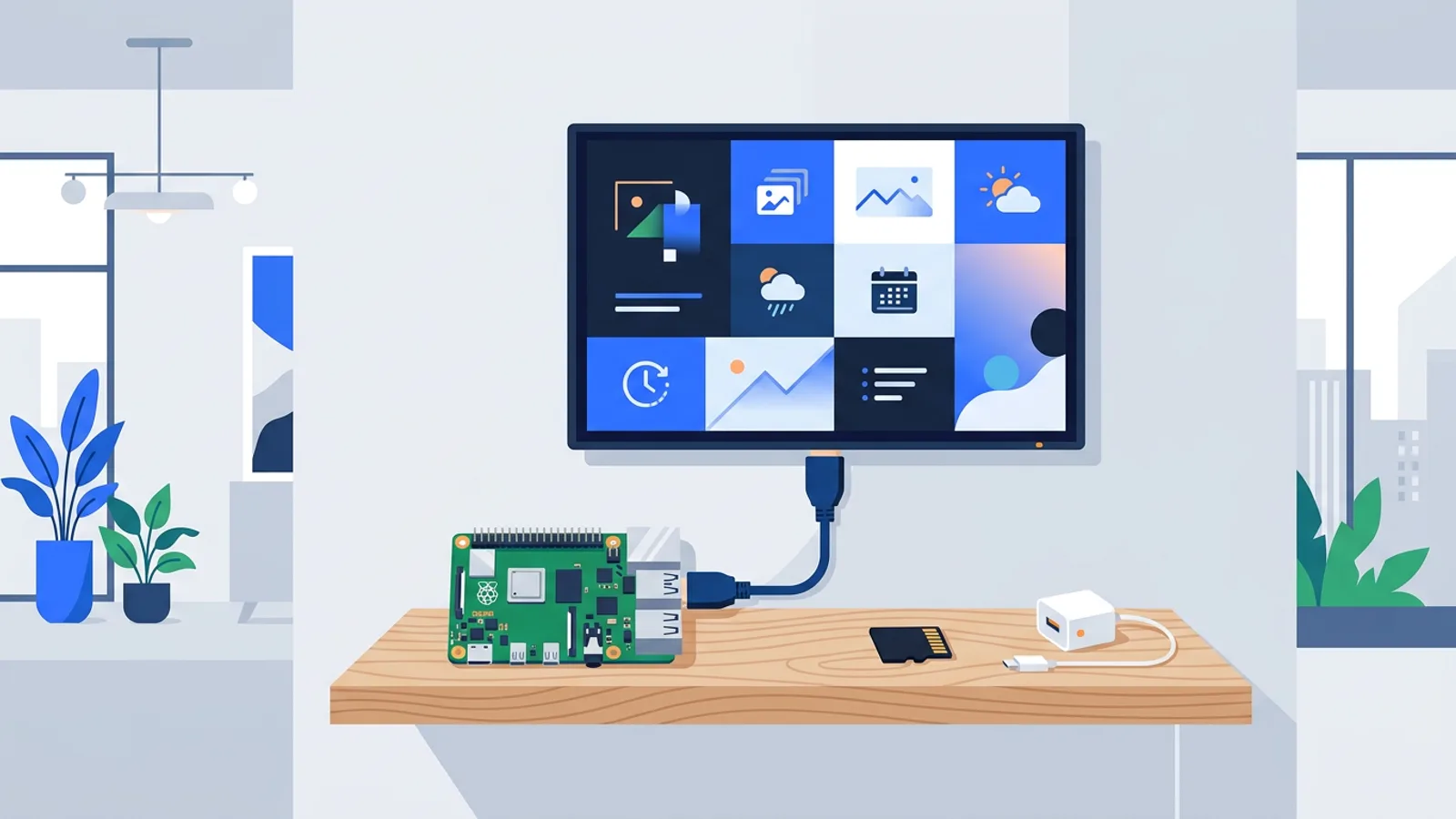
With TVpilot, setting this up is a single command: you generate a 6-character claim code in the dashboard, run the installer it gives you (curl … | bash) on a fresh Raspberry Pi OS install, and it configures Chromium kiosk mode, sets up auto-start on X11 or Wayland, installs a systemd service, and adds a self-healing watchdog that restarts the player within about 10 seconds if anything crashes. Any Pi running Raspberry Pi OS with a desktop works, though a Pi 4 or 5 is recommended if you're playing video rather than mostly static slides. Our step-by-step tutorial walks through the whole install if you want to see it end to end.
The Pi also does something a plain browser tab on a smart TV can't: it manages the TV's power over HDMI-CEC. The player checks the dashboard's power schedule every minute and switches the TV on or into standby accordingly, no smart plug required.
Chromium kiosk vs Raspberry Pi player, side by side
A lot of people ask about "chromium kiosk vs raspberry pi player" as if they're competing technologies. They're not really separate: the Pi player is Chromium running in kiosk mode, just wrapped in an OS, a watchdog, and power management the Pi handles for you. The real comparison is between running that kiosk browser on dedicated hardware versus running it (or a plain browser tab) on a device that has other jobs to do.
| Browser on existing device | Dedicated Raspberry Pi player | |
|---|---|---|
| Extra hardware cost | None if you already own the screen/device | ~€40-80 for a Pi, case, power supply, SD card |
| Setup time | Minutes, open a URL | 15-20 minutes for OS flash + installer |
| Crash recovery | Depends entirely on the device/browser | Watchdog restarts within ~10 seconds |
| TV power scheduling | Not available unless the device supports it separately | Built in via HDMI-CEC, checked every minute |
| Remote reboot/update | Depends on device | Yes, from the dashboard, plus daily 3am update checks |
| Best for | Occasional or low-stakes screens, testing content | Screens that need to run unattended, 24/7 or on a schedule |
Cost is close, reliability usually isn't
On pure cost, browser-based wins if you already own the screen and it has a browser worth trusting. You spend nothing on hardware. A Raspberry Pi setup, by contrast, is a one-time hardware cost of roughly €40 to €80 depending on the case and power supply you choose, on top of whatever the software costs.
Where the Pi earns that money back is unattended reliability. A dedicated device that does one job, boot into the browser and stay there, fails less often and more predictably than a smart TV browser that also has to juggle its own OS updates, apps, and remote control quirks. If a screen sits in a reception area, waiting room, or shop window where nobody is going to notice a frozen tab until a customer points it out, that reliability difference matters more than the €50 you saved skipping the Pi.
If you're weighing this against other player options entirely, not just browser vs Pi, our signage player alternatives guide and the smart TV vs Raspberry Pi comparison go into more device-specific tradeoffs.
Digital signage without a Raspberry Pi: when it's genuinely fine
Running digital signage without a Raspberry Pi is a perfectly reasonable choice in several situations:
- You're testing content or a new screen location and don't want to commit hardware yet.
- The screen already has a modern, well-supported browser (recent smart TV models from major brands tend to hold up better than budget sets).
- The device is something with its own maintenance cycle anyway, like an office monitor connected to a small PC that IT already manages.
- You only need one or two screens and don't want another physical thing to keep track of.
Where it stops being fine is unattended, always-on locations with no one checking on them daily, or screens where a stuck browser tab means a blank menu board during lunch rush. That's the gap dedicated hardware exists to close.
Best signage player for beginners
If you've never set up signage before, the honest answer depends on what you already own. If there's a spare laptop or a smart TV with a decent browser sitting around, start there: open a player URL, see if your content looks right, and get a feel for scheduling and playlists before spending on anything. If it works reliably for a week, you may not need to change a thing.
If you're starting from zero hardware, a Raspberry Pi with the one-command installer is arguably the easier long-term choice precisely because it removes variables. You're not troubleshooting someone else's TV firmware, you're troubleshooting a known, documented setup, and our troubleshooting guide covers the handful of things that do go wrong.
When TVpilot fits, and when it doesn't
TVpilot works the same way regardless of which route you pick: playlists, per-slide scheduling, calendar scheduling, widgets, and the Designer canvas are identical whether the screen is a Pi or a browser tab on a smart TV. The Free plan covers one screen with 250 MB storage, no credit card needed, so testing either approach costs nothing.
It's not the right fit if you need a self-hosted, on-premise system: TVpilot is hosted SaaS, not open source, and there's no local server option. It also doesn't have a dedicated native app for Android TV or Fire TV yet, those run through the browser route rather than an installed app. And offline playback has limits, players need an internet connection to pull content updates, though the Pi player recovers automatically once the connection comes back.
For almost everyone choosing between a browser tab and a Raspberry Pi, the real question isn't which technology is better, it's how much you're willing to let a screen depend on hardware you don't fully control. Pick the option that matches how much attention that screen is actually going to get, then sign up free and try your playlist on it before buying anything else.
Frequently asked questions
Can I run digital signage without a Raspberry Pi at all?
Yes. Any device with a modern browser, a smart TV, an old laptop, an Android TV box, can act as a signage player by opening a player URL. It works well for occasional or low-stakes screens; the tradeoff is you're relying on that device's own browser reliability and power management rather than a dedicated watchdog and HDMI-CEC scheduling.
Is Chromium kiosk mode the same thing as a Raspberry Pi signage player?
Not quite. Chromium kiosk mode is just a full-screen browser with no toolbar or desktop visible. A Raspberry Pi signage player uses that kiosk mode as its foundation but adds an operating system dedicated to the job, auto-start on boot, a systemd service, and a watchdog that restarts the player automatically if it crashes.
Which is better for a beginner, a browser tab or a Raspberry Pi?
If you already own a screen with a good browser, start there since it costs nothing and takes minutes to test. If you're starting from scratch or need a screen to run unattended for long stretches, a Raspberry Pi with a one-command installer is often easier long-term because it removes the guesswork of different TV browsers and firmware.
Does TVpilot work differently on a Raspberry Pi versus a browser-only device?
The signage software itself, playlists, scheduling, widgets, Designer, is identical either way. The Raspberry Pi adds extras that a plain browser tab doesn't have on its own: a self-healing watchdog, HDMI-CEC TV power scheduling, and remote reboot or update from the dashboard.