Create a Promotional Display With AI: 5 Prompt Recipes
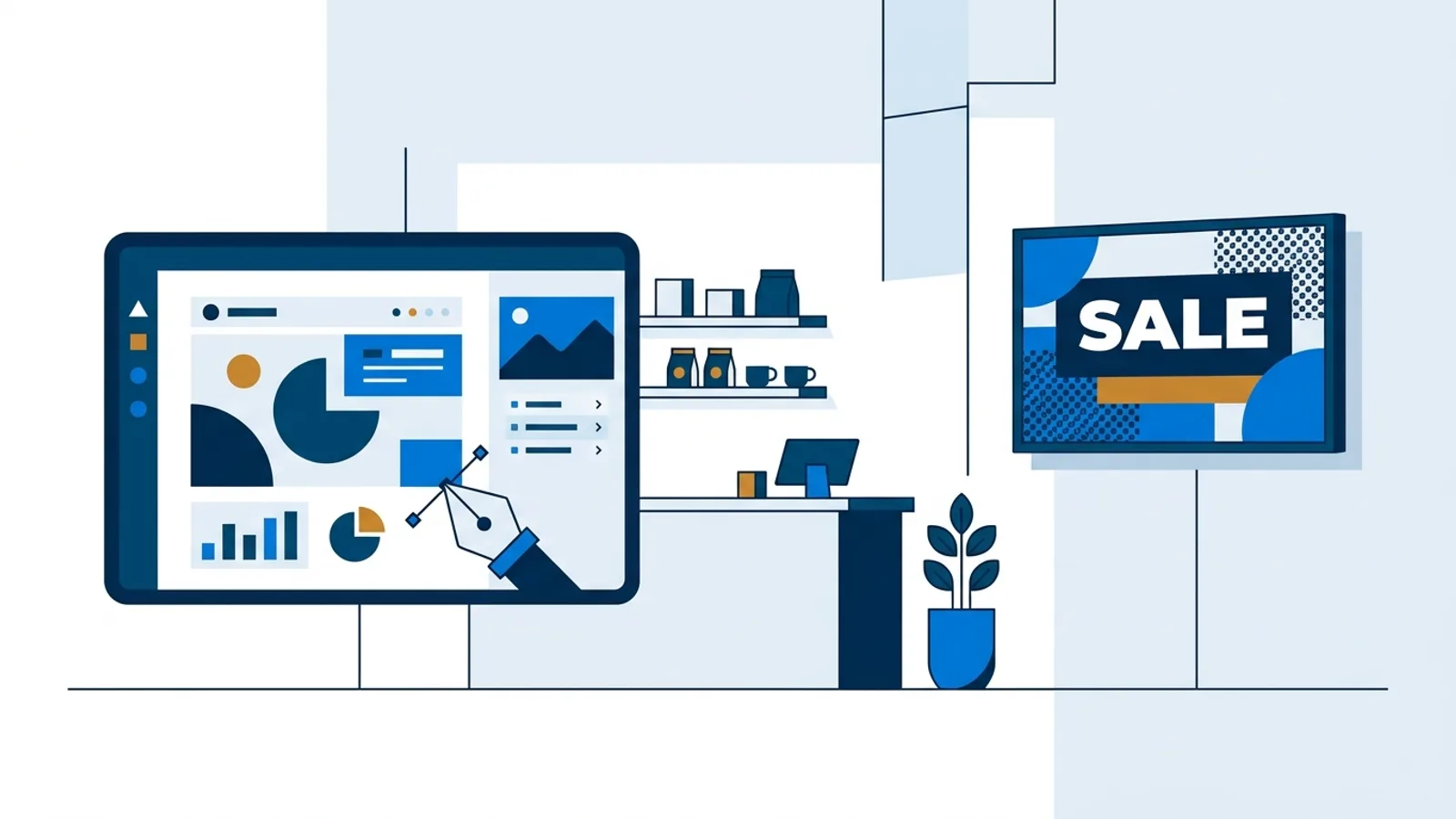
If you want to create a promotional display with AI instead of opening a design tool and staring at a blank canvas, the fastest route is a short text prompt fed into your signage dashboard. You describe the sale, event, or special in a sentence or two, the AI lays out a screen with headline, price or date, and a background that actually fits the message, and you push it to the TV. No stock photo hunting, no font juggling.
This matters most for the businesses that never had a design budget in the first place: the café with one TV by the register, the barbershop with a screen in the window, the gym that wants to promote a new class without paying someone $80 to make a slide. If your screen is running on a Raspberry Pi, the AI-generated screen plays the same way any image or web page would, no extra setup required on the hardware side.
How to Create a Promotional Display With AI (Step by Step)
The general flow is the same regardless of what you're promoting:
- Open AI Studio in your dashboard and pick a screen type (promo, menu, opening hours, welcome screen).
- Write a brief: what's on sale or happening, the price or date, and any tone words (bold, calm, festive).
- Generate. You'll get a designed screen with a headline, supporting text, and a background that matches the brief.
- Regenerate if the layout, color, or wording is off, or edit the text directly if the design itself is fine.
- Add it to a playlist and schedule it for the time slot that matters (happy hour, lunch rush, event day).
The part people get wrong is step 2. A vague brief gets a vague screen. A specific one gets something you can put on a TV without touching it again.
5 Prompt Recipes That Work
These are the prompt structures that consistently produce usable screens on the first or second try. Swap in your own details.
1. The Sale Announcement
"20% off all winter jackets this weekend only, bold and urgent, dark background, red accent color."
This gives the AI three things it needs: the offer, the timeframe, and a mood. Drop any of those and you'll get a generic "SALE" screen that could belong to any store on the street.
2. The Event Promo
"Live acoustic night, Friday 8pm, cozy and warm, wood-tone background, mention no cover charge."
Event screens live or die on the date and time being legible from across the room, so always spell those out in the prompt rather than leaving them for the AI to guess a placeholder. If the result buries the time in small text, that's your cue to regenerate with "time and date large and centered" added to the brief.
3. The Menu Special
"Today's special: grilled salmon with lemon butter, $18, appetizing food-photo style background, simple and clean."
For menu content, pair this with the broader guidance in 7 Digital Menu Board Design Mistakes to Avoid since price legibility and item count matter more than the visual polish of any single slide.
4. Opening Hours
"Holiday hours: closed Dec 25, open 10-2 on Dec 26, normal hours resume Dec 27, minimal and professional, white background."
Hours screens are the one category where accuracy beats aesthetics. List every exception explicitly rather than trusting the AI to infer "normal hours" means anything specific, because it doesn't know your normal hours.
5. Seasonal Refresh
"Autumn seasonal menu launch, warm orange and brown palette, falling leaves motif, friendly and inviting tone."
Seasonal prompts are where the mood words earn their keep. "Warm," "cool," "minimal," and "festive" each pull the generator toward a different palette and layout, so pick one and commit rather than stacking three conflicting adjectives.
What Makes a Good Prompt
A good AI Studio prompt has three ingredients, in roughly this order of importance:
- The fact: what's on sale, what's happening, what time, what price. Specific numbers and dates beat vague phrases like "great deals."
- The tone: one or two mood words (urgent, calm, festive, professional). More than two starts to confuse the output.
- The visual cue: a color, a texture, or a reference ("wood-tone," "dark and moody," "bright and clean"). Optional but useful when the default output feels generic.
Skip marketing fluff like "eye-catching" or "amazing" in the prompt itself. Those words don't map to anything visual, so they just get ignored while diluting the parts that actually do something.
When to Regenerate vs. Just Edit the Text
Regenerate when the layout, color scheme, or overall composition doesn't fit your space, like a screen that reads fine on a laptop but goes dark and hard to read under bright store lighting (worth cross-checking against Digital Signage Color Contrast: What Works on a Real TV). Edit the text directly when the design is right but a detail is wrong, like a typo in the price or a date that changed. Editing text is instant; regenerating gives you a new layout each time, so don't regenerate five times chasing a small wording fix.
If you're deciding whether AI generation or a fixed template suits your shop better long-term, that tradeoff is covered in more depth in Digital Signage Templates vs AI-Generated Designs.
AI Studio Access and Your Plan
AI Studio generation is included as one of the features on TVpilot's paid plans. There isn't a published per-generation price to track, so treat it as something included with your subscription rather than a metered add-on, and check your own dashboard if you want to confirm current limits before leaning on it for every single screen.
| Plan | Price | Screens | Storage |
|---|---|---|---|
| Free | €0/month | 1 | 250 MB |
| Starter | €5/month | 3 included, up to 10 | 2 GB |
| Pro | €29/month | 10 included, up to 100 | 10 GB |
| Business | €99/month | 25 included, up to 100 | 100 GB, with priority support |
Starter and Pro are described as including all features, which covers AI Studio. Business scales beyond that with custom terms.
When TVpilot Is (and Isn't) the Right Fit
TVpilot works well if you want a hosted dashboard that handles scheduling, playlists, and AI-generated screens without maintaining a server yourself, and if a Raspberry Pi or a browser-capable screen is an acceptable piece of hardware for your shop. It's a reasonable starting point covered in the small business signage guide too.
It's not the right fit if you need a fully offline system: the player needs an internet connection to pull content updates, though it recovers on its own once the connection returns. It's also not open source or self-hostable, and there's no dedicated native app for Android TV or Fire TV yet, those run through the browser instead. If any of those are dealbreakers, that's worth knowing before you set up a screen around it.
Getting Started
The quickest way to see whether AI-generated promo screens fit your workflow is to try one prompt on a real screen. Sign up, generate a screen from one of the recipes above, and see how it looks on your actual TV in your actual lighting before you build a whole rotation around it. You can start at /signup with the free plan and no credit card.
Frequently asked questions
Do I need design experience to make a promo slide with AI Studio?
No. You write a short brief describing the offer, event, or special plus a tone word or two, and AI Studio produces a laid-out screen with headline, supporting text, and background. Editing the wording afterward doesn't require design skills either since it's a text field, not a design tool.
What's the difference between regenerating a screen and editing its text?
Regenerating creates a new layout and design from your prompt, useful when the color scheme or composition doesn't fit your space. Editing text changes only the wording on the existing design, which is faster and better for fixing a typo, price, or date without disturbing a layout you already like.
Can I use AI-generated promo screens on a Raspberry Pi signage setup?
Yes. An AI-generated screen behaves like any other image or web page in a playlist, so it plays fine on a Raspberry Pi player, a smart TV browser, or any other supported device without extra configuration.
How many prompts should I write before giving up on a design?
Most usable results come from the first or second try if the prompt includes the specific fact (offer, date, price), one or two tone words, and optionally a color or visual cue. If the third attempt still misses, the brief is probably too vague rather than the tool being wrong for the job.