Digital Signage Best Practices: 12 Rules That Work
A screen nobody looks at costs the same in hardware, electricity, and wall space as one that works. That's the real argument for following digital signage best practices from day one, instead of hanging a TV, loading a few slides, and hoping people notice. Most of what makes a screen effective has nothing to do with design talent. It comes down to a short list of habits around content, timing, and maintenance that either get followed or don't.
This list applies whether you're running one screen behind a reception desk or a dozen across a retail chain. If you're still deciding on hardware, a Raspberry Pi is the cheapest reliable way to drive a screen, and most of the rules below matter more than the box you pick.
12 digital signage best practices for screens people actually read
1. Give each screen one job
A screen trying to show the menu, the wifi password, today's specials, a hiring ad, and a weather widget all at once ends up doing none of those things well. Pick the primary purpose of a screen (menu, wayfinding, welcome message, promotions) and build the rotation around that. Secondary information can appear, but it shouldn't compete for the same ten seconds of attention.
2. Write for a glance, not a read
People looking at a signage screen are usually walking past it, standing in a line, or half-watching it while doing something else. Sentences longer than about twelve words won't get finished. Cut copy down to a headline and one supporting line per slide. If you're unsure how large your text needs to be for your actual viewing distance, the font size guide has concrete numbers to work from.
3. Design for contrast first, style second
A screen that looks polished on a laptop can be unreadable under fluorescent lighting or direct sun through a window. Light text on a dark background, or the reverse, with a big enough gap between the two, reads correctly in more rooms than any clever color palette. See the color contrast guide for combinations that hold up on a real TV panel rather than a design mockup.
4. Keep the rotation short
Six to eight items per loop is a reasonable ceiling for most single-purpose screens. Beyond that, anyone who catches the screen mid-loop is unlikely to stick around long enough to see the slide meant for them. If you have more than eight things to communicate, that's usually a sign you need a second screen or a different format (a scrolling list on a menu board, for instance) rather than a longer loop.
5. Match dwell time to content type
A slide with one price and one product photo can hold for 6 to 8 seconds. A slide with a paragraph of hours-of-operation text, a QR code, and a phone number needs closer to 15 seconds, or it should be simplified instead of held longer. Video content should be allowed to play through, not cut off by a fixed timer.
6. Use motion sparingly
Animated transitions and moving backgrounds pull attention, which is useful for maybe one element per screen. Two or three moving things on the same layout compete with each other and tire people out faster than a static screen would. If everything moves, nothing stands out.
7. Test in the actual room, at the actual distance
A layout that looks fine on a monitor two feet from your face can fail completely once it's mounted eight feet up in a lobby. Stand where your audience actually stands (or sits), at the time of day they're actually there, and check the screen from that spot before calling the design finished.
8. Keep one source of truth for updates
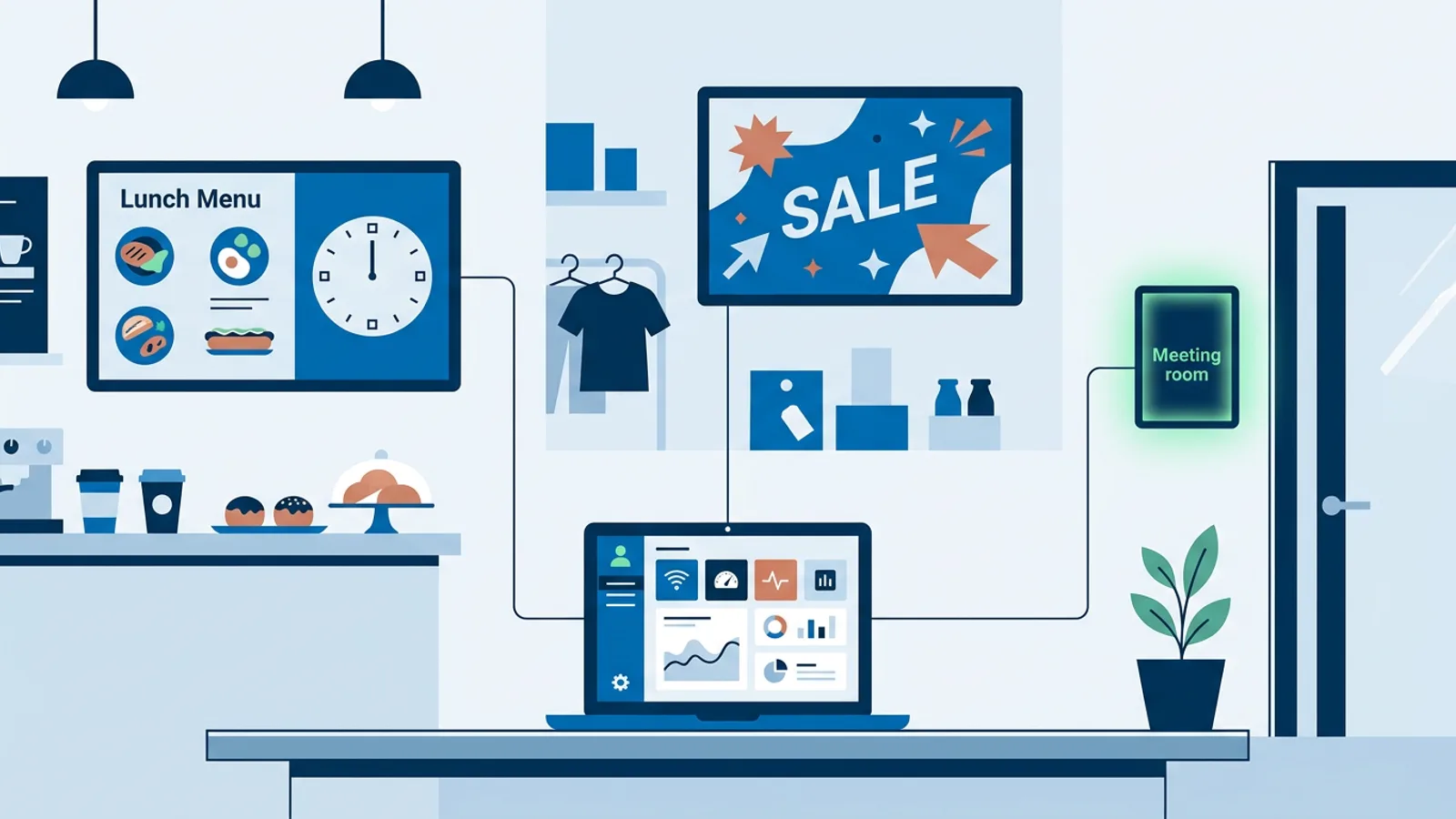
USB sticks passed between staff, or a shared folder someone forgets to check, are how outdated prices and expired promotions end up on screen for weeks. A dashboard that pushes updates to every screen at once removes the manual-file-copy step entirely, and it's one of the plainer reasons hosted signage tools exist rather than a folder of PowerPoint files on a laptop.
9. Monitor screens, don't wait for a complaint
Screens go dark for boring reasons: a Wi-Fi hiccup, a power blip, an HDMI cable working loose. Someone should know within the day, not when a customer mentions it. TVpilot's dashboard shows online/offline status and heartbeats for every screen, which turns "is the screen at the second location even on" into a five-second check instead of a phone call.
10. Automate the on/off schedule
A screen that stays lit overnight burns hours of panel life and electricity for zero audience. If your TV supports HDMI-CEC, and most sets from the last several years do, a scheduled on/standby routine handles this without a smart plug. The TV scheduling guide covers the setup in more detail.
11. Plan for the outage, not just the happy path
Internet drops and power cuts happen. What matters is what the screen does next: does it come back on its own, or does someone have to drive over and restart it? A player that reconnects and resumes automatically after an outage is worth more day to day than one with slightly more features but no self-recovery.
12. Put stale content on a calendar
A promotion that ended in March still playing in June is one of the most common signage failures, and it has nothing to do with software. Set a recurring reminder, weekly or monthly depending on how often content changes, to review every slide and cut anything that's expired, wrong, or just no longer relevant.
Where TVpilot fits, and where it doesn't
TVpilot is built around most of the rules above: scheduled playlists, HDMI-CEC power control on a Raspberry Pi, remote monitoring, and one dashboard for every screen instead of a folder of files. If you're running one to a hundred screens and want changes to show up everywhere without touching each device, that's the case it's built for. The free plan covers one screen with 250 MB of storage, no card required, which is enough to try the workflow before committing to anything.
It's a hosted service, not open-source software, so if your requirement is full control over the server or the ability to run everything offline indefinitely, a self-hosted option is a better match, and it's worth reading what that actually costs in time before choosing it. There's also no dedicated app for Android TV or Fire TV yet; those run through a browser instead, which works but isn't quite as polished as the native Raspberry Pi setup.
None of that changes what actually gets a screen read. A well-run screen on basic hardware following the rules above will outperform an expensive screen with a cluttered, unmonitored feed every time.
If you want to see how the scheduling, monitoring, and playlist tools work on your own screen, sign up free and connect one display, no credit card needed.
Frequently asked questions
What is the single most common digital signage mistake?
Overloading one screen with too many unrelated messages, a menu, a hiring ad, the wifi password, and the weather all in one rotation. Splitting content by purpose, or across more than one screen, fixes more readability problems than any font or color change.
How long should each slide stay on screen?
A simple slide with one image and a short line of text can hold for 6 to 8 seconds. Slides with more text, a QR code, or multiple details need closer to 15 seconds, or the content should be simplified rather than shown longer.
Do I need expensive hardware to follow digital signage best practices?
No. The rules that matter most, one job per screen, large readable text, high contrast, a short rotation, and a regular content review, apply equally to a Raspberry Pi running a browser and a high-end commercial display. Hardware affects video smoothness and reliability, not whether people actually read the screen.
How do I know if a screen has gone offline without someone reporting it?
You need a monitoring view that shows online/offline status for each screen, ideally with a heartbeat check so you know it's genuinely connected rather than just powered on. TVpilot's dashboard shows this status for every screen connected to an account.