Ecommerce Dashboard TV Display: Shopify & WooCommerce
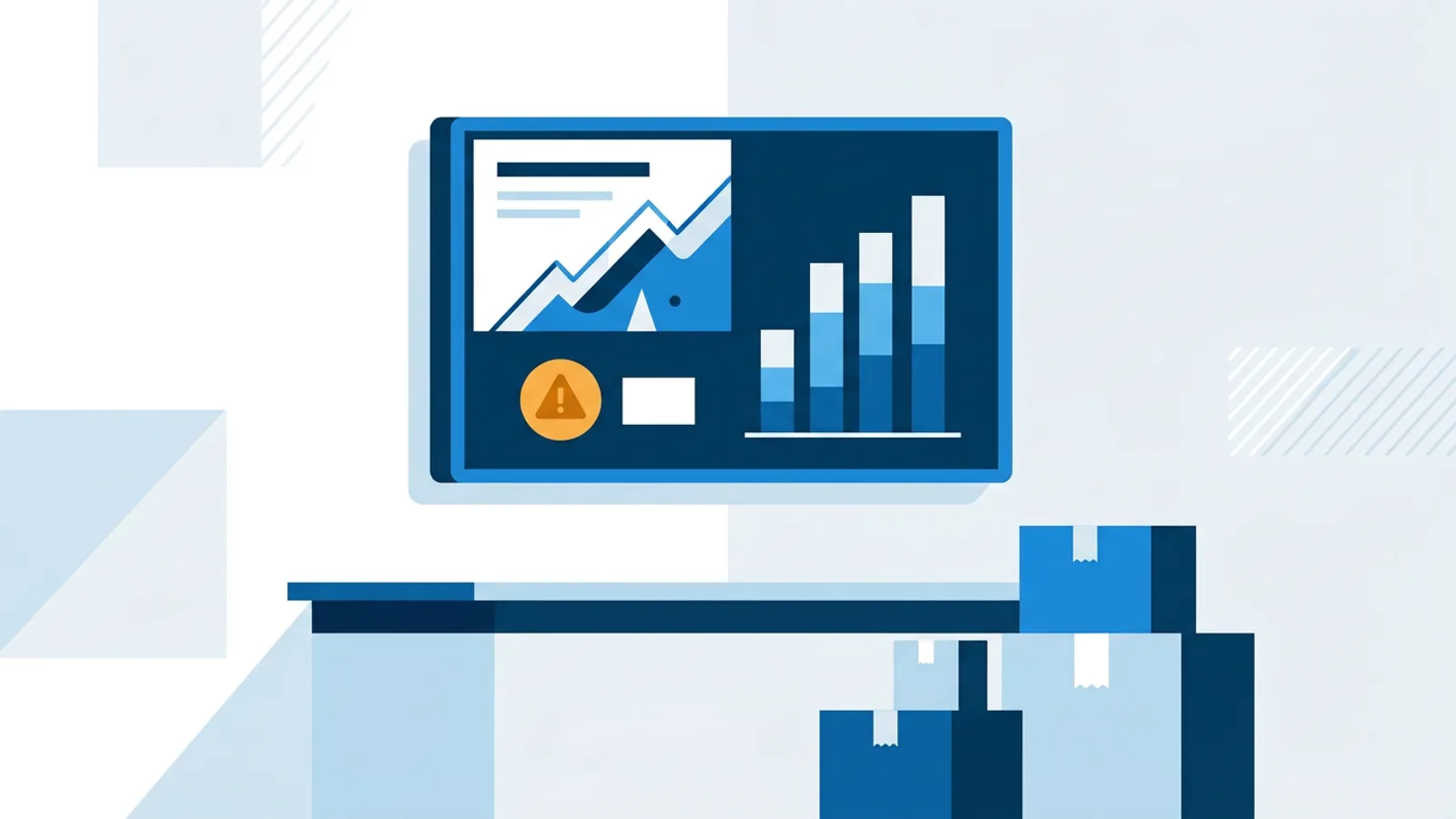
If you run a webshop, checking sales means opening a laptop, logging in, and clicking through a few pages. An ecommerce dashboard tv display skips all that: mount a screen in the office or warehouse, connect it to your store, and today's revenue, best sellers, and low-stock alerts stay visible without anyone touching a keyboard.
This matters more once a team grows past one person watching a dashboard alone. A shipping team glancing at open orders, a founder tracking today's revenue during a launch, or a small retail counter showing live sales next to the till, all of these are the same problem: getting store data onto a screen that stays on and updates itself. The cheapest way to run that screen is a Raspberry Pi, though a smart TV browser works too, more on that below.
What actually shows up on the screen
TVpilot connects directly to Shopify, WooCommerce, Magento (Adobe Commerce), and Lightspeed eCom (C-Series), and pulls in revenue for today, this week, and this month, best sellers, average order value, open orders, and low-stock alerts. Shopify stores also get visitor session counts. You pick which tiles show, so a warehouse screen can skip revenue and just show open orders and stock, while a founder's office screen shows the money numbers.
If your store checks out through Mollie or Stripe instead, or on a platform without a direct integration, a read-only API key gets you live turnover for today/this week/this month, payment volume, and average order value. Payment providers don't see products or stock, so those tiles aren't available there. Sellers on bol.com get their own dashboard: orders and revenue for today, yesterday, and this week, open orders, best sellers, and low LVB stock, with shorter revenue windows because the bol.com API prices orders one at a time rather than as a batch.
Quick comparison
| Source | Revenue windows | Best sellers | Stock alerts | Visitor sessions |
|---|---|---|---|---|
| Shopify | today/week/month | yes | yes | yes |
| WooCommerce | today/week/month | yes | yes | no |
| Magento | today/week/month | yes | yes | no |
| Lightspeed eCom | today/week/month | yes | yes | no |
| Mollie / Stripe | today/week/month | no | no | no |
| bol.com | today/yesterday/week | yes | yes (LVB) | no |
Picking hardware for the screen
A sales wallboard doesn't need much processing power since it's mostly static tiles that refresh on a timer, not video. A Raspberry Pi 4 or 5 running the dashboard's one-command installer is the cheapest reliable option, and it comes with a watchdog that restarts the player automatically if anything crashes, so nobody has to babysit it. If you'd rather not buy a Pi, any TV, old laptop, or tablet with a modern browser can point at the player URL and run the same wallboard. Fire TV Sticks and Android TV boxes work the same way through their built-in browser.
The practical difference: a Pi behind the TV is invisible and boots straight into the dashboard on power-up, which matters if the screen is somewhere staff can't easily reach a keyboard. A browser on an existing device is faster to set up if you already have spare hardware lying around. Neither choice affects which store data you can show, that part is identical.
Setting it up, step by step
- Create a TVpilot account (Free covers one screen) and add a screen from the dashboard.
- On a Raspberry Pi, run the install command shown in the dashboard, which includes a 6-character claim code; it sets up Chromium in kiosk mode with quiet boot and a hidden cursor. On any other device, just open the player URL in the browser.
- Go to Plugins, add the Shopify, WooCommerce, Magento, Lightspeed, Mollie, Stripe, or bol.com widget, and connect it. Shopify/WooCommerce/Magento/Lightspeed ask for store credentials or an app connection; Mollie and Stripe need one read-only API key; bol.com needs the Retailer API client id and secret from the seller account.
- Choose which tiles to display, then drop the plugin into a playlist alongside anything else you want on that screen (a clock, weather, or a countdown to a sale, for instance).
- Press "Push to screen." Draft edits never appear on the live display until you push, so you can tinker with layout without anyone seeing a half-finished screen.
From there the dashboard refreshes on its own. No daily login, no exporting a spreadsheet.
Where this fits into a bigger setup
A lot of stores don't want a dashboard as the only thing on screen all day. It's common to build a playlist that rotates the sales dashboard for 20 seconds, then a promo slide, then a countdown to a flash sale, then back to the dashboard. Per-slide scheduling means the sales tile can be set to only appear during work hours, and calendar scheduling can swap the whole playlist for something else on weekends.
If the screen sits in a shared office next to team KPIs or a meeting room panel, it's worth reading the office digital signage guide for ideas on mixing business metrics with the rest of team communication. And since the dashboard needs a live connection to refresh, check the bandwidth requirements guide if the screen is going somewhere with a weak or shared connection, though a wallboard's API polling is light compared to video playlists.
When this is, and isn't, the right fit
A TV wallboard connected to Shopify or WooCommerce makes sense when the numbers change often enough that someone benefits from seeing them without asking, and when there's a physical space (a warehouse floor, a shop counter, an open-plan office) where a screen is genuinely useful. It's overkill for a one-person shop that checks orders twice a day anyway; a phone notification does the same job for free.
It's also worth being clear about what this isn't: it's a read-mostly wallboard, not an inventory management tool or a replacement for your store's admin panel. You can't edit prices or fulfill orders from the screen. And because TVpilot is hosted software, not something you run on your own server, anyone who specifically needs a self-hosted setup should look elsewhere; the self-hosted signage checklist covers what that route involves.
On pricing: the Free plan covers one screen with no credit card required, which is enough to try this on a single dashboard before deciding whether to add more screens elsewhere in the shop. Paid plans start at €5/month on Starter, which includes three screens (expandable up to ten at €2/month per extra screen). Every plan includes the store dashboards and all standard plugins, so there's no upsell for connecting Shopify versus WooCommerce versus Mollie.
Getting started
Connecting a webshop to a screen takes longer to plan than to build: pick a spot for the TV, decide which tiles matter to the people who'll actually look at it, and connect the store. Sign up for a free account, add your Shopify, WooCommerce, or Mollie dashboard, and have the numbers on the wall within the hour.
Frequently asked questions
Does connecting Shopify or WooCommerce to a TV dashboard cost extra?
No. All store dashboard plugins, including Shopify, WooCommerce, Magento, Lightspeed, Mollie, Stripe, and bol.com, are included on every TVpilot plan, including the free one-screen plan. There's no separate fee for connecting a store.
Can I show a Mollie or Stripe dashboard if my store isn't on Shopify or WooCommerce?
Yes. Any webshop that checks out through Mollie or Stripe can connect with one read-only API key and show live turnover for today, this week, and this month, plus payment volume and average order value, regardless of what platform the store itself runs on. Product, stock, and visitor tiles aren't available through Mollie or Stripe because payment providers don't hold that data.
What hardware do I need to run the dashboard on a TV?
A Raspberry Pi 4 or 5 with the one-command installer is the cheapest dedicated option and boots straight into kiosk mode. If you already have a smart TV, Fire TV Stick, Android TV box, old laptop, or tablet, the same dashboard runs in its browser by pointing it at the player URL, no extra hardware needed.
Will the dashboard keep working if the internet drops?
The screen needs a live connection to refresh store data, so a dashboard tile won't update mid-outage. Other slides in the same playlist, like images or a backup playlist, keep playing normally, and the Raspberry Pi player reconnects and resumes updating automatically once the connection returns.