Office Digital Signage: Dashboards, KPIs and Team Comms
A wall of TVs showing live dashboards looks great in a demo and then breaks down two weeks later when nobody remembers how to update the slide about the new parking policy. Office digital signage works when someone owns the content calendar and the hardware boots itself back up after a Wi-Fi hiccup or a Monday morning power cycle. This guide covers both halves: what to put on the screens, and how to run them without a standing IT ticket every time a browser tab crashes.
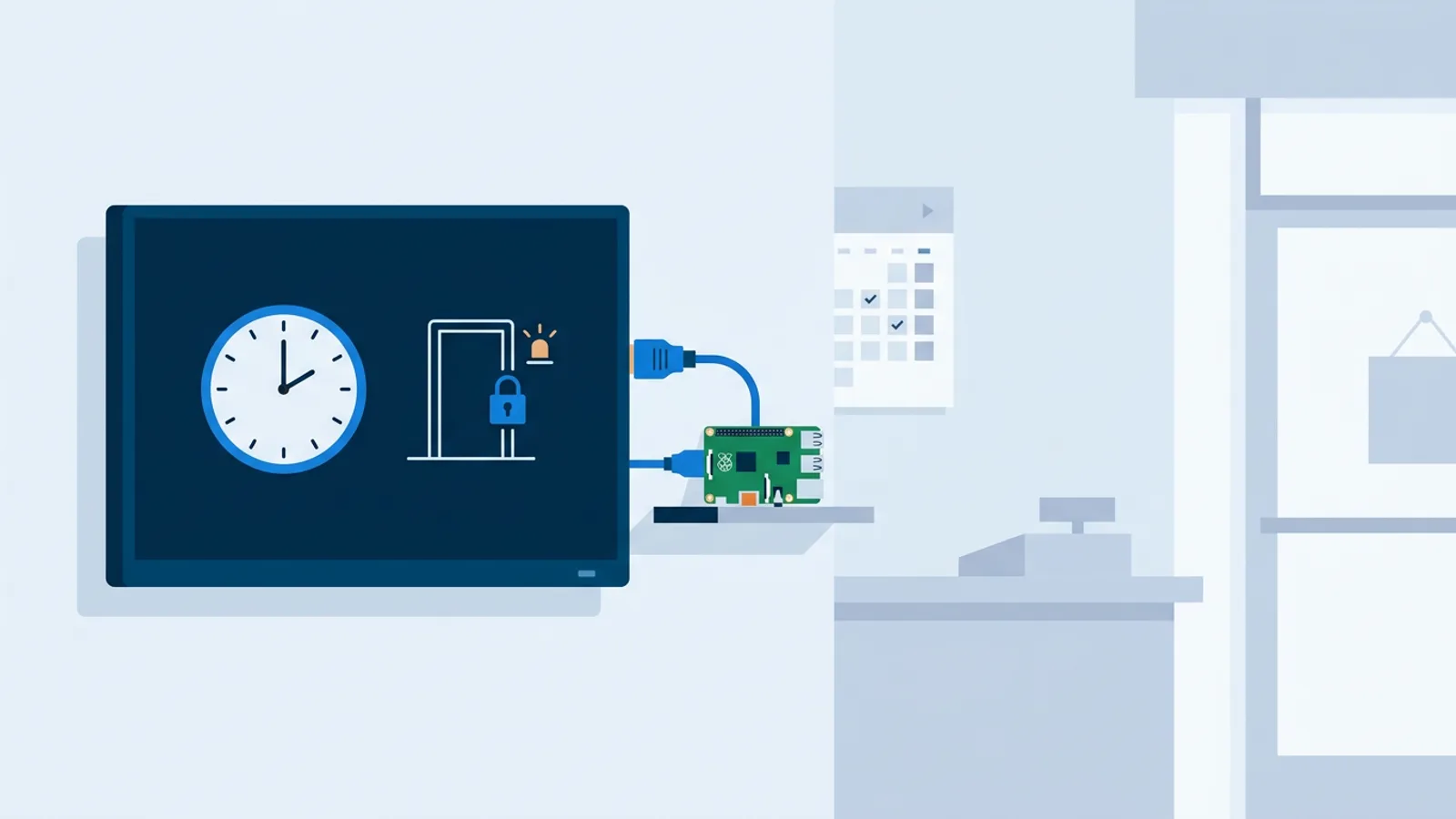
Most teams start with one spare TV in a hallway or kitchen and a laptop propped behind it running a browser tab. That works for a demo. For something that survives past week two, you want a small dedicated player. A Raspberry Pi digital signage setup is the cheapest way to get there: one board, a kiosk browser that locks to a single screen, and a watchdog that restarts the display if the page ever locks up.
What actually belongs on an office digital signage screen
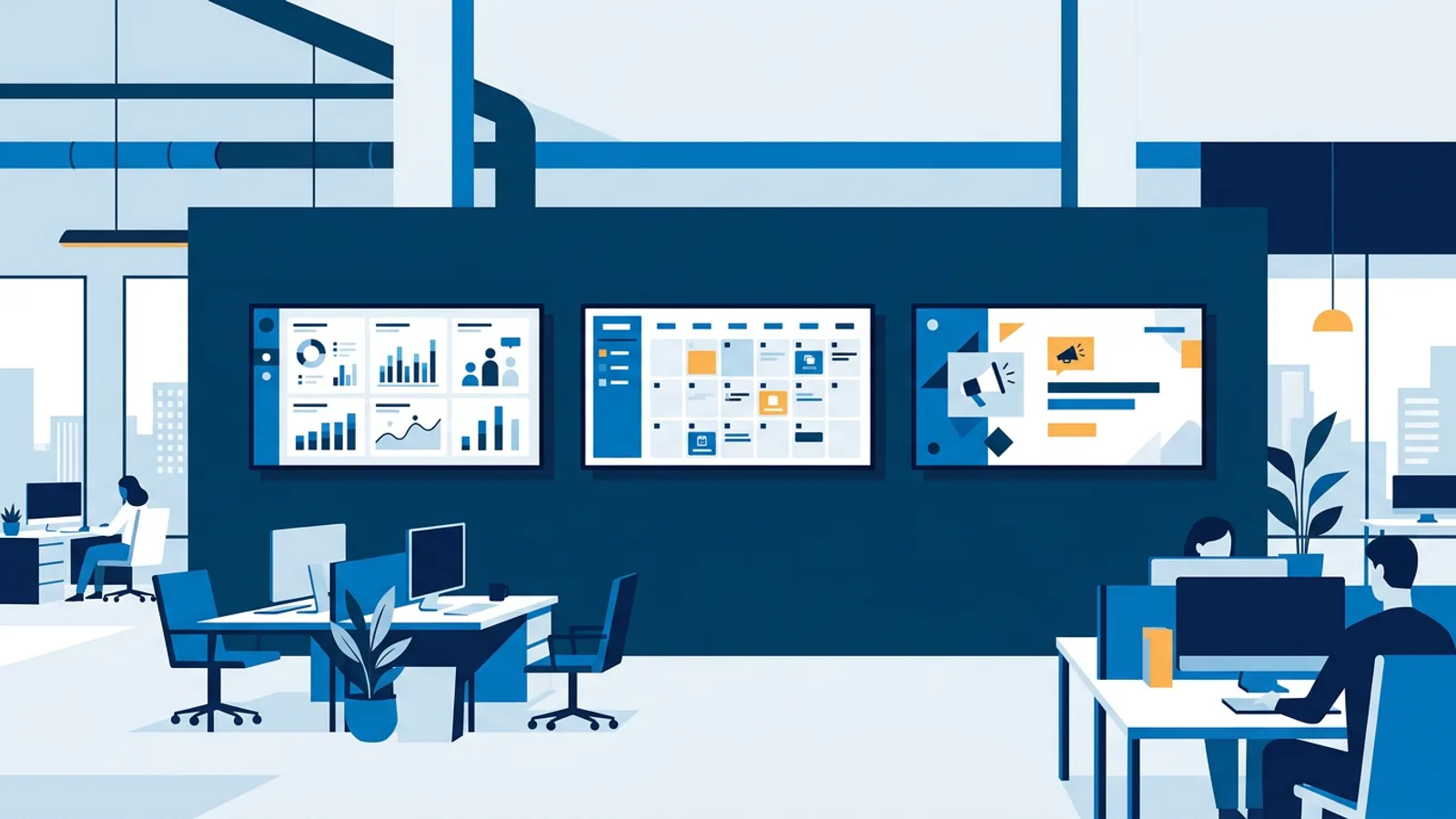
The failure mode isn't lack of content, it's too much of it. A screen with six widgets crammed into a 4K TV from across a room reads as noise. Pick two or three things people glance at and act on:
- A live dashboard from your BI tool or spreadsheet export, refreshed on a schedule
- Today's calendar highlights: meetings in the main room, who's out, who's visiting
- One rotating slide for internal comms: a policy update, a new hire, a safety reminder
- Weather and the date, mostly as a reading-speed anchor for the rest of the content
Rotate these on a timer rather than splitting the screen into panels. A single full-screen dashboard for 20 seconds, then a comms slide for 10, reads better from 15 feet away than four quadrants nobody can parse while walking past. If you want a longer list of what works across different office types, the content ideas guide has more specifics.
Dashboard on office TV: keep the update cycle honest
A dashboard on an office TV is only useful if the numbers on it are current. If your BI tool exports a live embeddable link, point the signage player straight at that URL and let it auto-refresh. If someone has to manually export a PNG every morning, that step gets skipped by Friday and the screen quietly goes stale. Prefer a live web page over a static image whenever the underlying tool supports it, and check that the page itself refreshes on an interval, not just on load.
Internal comms screens: separate the urgent from the ambient
Internal comms screens do two different jobs and mixing them causes trouble. Ambient content (weather, calendar, dashboard) can sit on a loop nobody has to think about. Urgent content (a building closure, a same-day schedule change) needs a way to jump the queue immediately, not wait for its slot in a ten-slide rotation. If your signage tool supports scheduling by time slot, set the urgent-message slot to override the normal loop rather than adding a fourteenth slide to an already long rotation.
Hardware: what to actually plug into the TV
There's no single right answer here, it depends on how many screens you're running and whether you already have hardware lying around.
| Option | Good for | Tradeoff |
|---|---|---|
| Raspberry Pi | Dedicated signage on 2+ screens | Small one-time hardware cost, but most reliable long-term |
| Fire TV Stick (browser app) | A quick single-screen setup | Runs via a browser app, no native signage app yet |
| Smart TV's built-in browser | Zero extra hardware | Browser quality varies a lot by TV brand and firmware version |
| Old laptop | Testing before committing to hardware | Bulky, and laptops aren't built to run 24/7 |
For anything beyond one screen, a small dedicated player earns its cost back in fewer 8am "the TV's frozen again" messages. General market pricing for boards like the Raspberry Pi has stayed low and stable for years, but check current retailer listings rather than trusting any number in a blog post, prices shift.
If you're going the Pi route, the setup itself is short: generate a claim code in the dashboard, run the one-line installer on a fresh Raspberry Pi OS install, and it sets up Chromium in kiosk mode with auto-start and a watchdog that restarts the player within about ten seconds if it ever crashes. The full walkthrough, including the exact commands, is in the Raspberry Pi digital signage guide.
Scheduling and power: the part people forget
An office screen doesn't need to run at 2am. Two problems come from leaving it on around the clock: wasted power, and a TV panel aging faster than it needs to. If your player supports HDMI-CEC, it can switch the TV on and into standby on a schedule without any smart plug involved, checking the schedule roughly once a minute and toggling the set accordingly. Set it to turn on 15 minutes before the office opens and go to standby at close. That single change removes the "who turns the TV on" chore entirely. More on scheduling approaches generally in how to schedule a TV to turn on and off automatically.
Where TVpilot fits, and where it doesn't
TVpilot is a hosted dashboard for managing what plays on office screens: playlists of dashboards, comms slides, images and PDFs, scheduled by time slot and day, with an AI Studio tool that builds a designed slide from a short text brief if you don't want to open a design tool for a one-off announcement. The Free plan covers one screen with 250 MB storage at no cost, which is enough for a single kitchen TV running a rotation of a few slides. Starter, at €5/month, covers up to five screens if you're rolling this out to more than one room.
It's not the right fit if you need to self-host on your own servers. TVpilot is hosted SaaS, not open source, so if a self-hosted stack is a hard requirement, look elsewhere and expect to run and patch that stack yourself, which is a real cost even if the software is free (the open source signage cost breakdown covers what that actually involves). It also doesn't have a dedicated native app for Fire TV or Android TV; those devices run signage through a browser app instead, which works fine but is a different setup path than the Raspberry Pi installer.
For a single office rolling out a handful of screens with dashboards, a calendar feed, and rotating comms slides, the setup is genuinely quick: claim a device, build a playlist, set a schedule, done. If you want the full list of what a modern signage tool should offer before picking one, the features checklist is a good side-by-side.
Start with one screen on the Free plan, connect it to a spare Pi or an existing office TV's browser, and see whether the team actually looks at it before rolling out five more. Sign up at /signup and you'll have a working screen before lunch.
Frequently asked questions
What's the cheapest way to set up office digital signage on one TV?
Use the TV's built-in browser if it has one, pointed at a signage player URL, or a Raspberry Pi if you want something more reliable long-term. A single-screen setup on a free signage plan costs nothing beyond the hardware you already have or a small board like a Pi.
Can I show a live dashboard from a BI tool directly on the office TV?
Yes, if your BI tool provides an embeddable or shareable link that refreshes automatically, point the signage player at that URL. Avoid manually exporting a static image on a schedule, since that step tends to get skipped and the dashboard goes stale.
How do I stop the office TV from running all night?
If your signage player supports HDMI-CEC power control, it can turn the TV on and off on a schedule without a smart plug, checking the schedule roughly every minute. Otherwise, a scheduled smart plug on the TV's power works as a simpler fallback.
Does TVpilot support Fire TV Stick or Android TV for office screens?
There's no dedicated native app for Fire TV or Android TV yet. Both run the signage player through a browser app on the device, which works but is a slightly different setup path than the one-command Raspberry Pi installer.