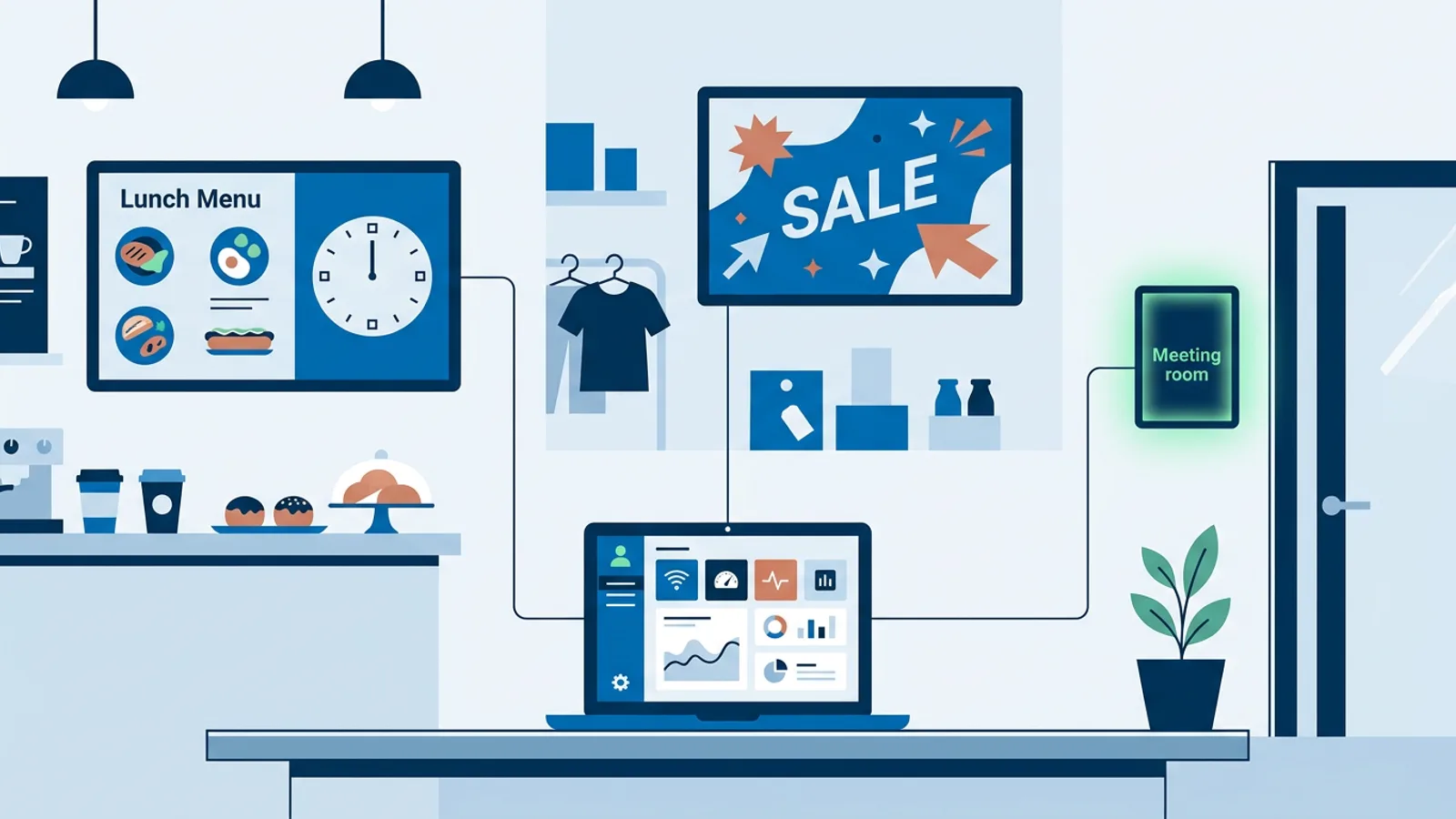
7 Common Digital Signage Mistakes to Avoid
Walk up to your own screen right now and watch it for sixty seconds. Is anyone actually looking at it, or has it become wallpaper? Most of the common digital signage mistakes to avoid aren't exotic. They're the same handful of problems, repeated at thousands of small businesses, and each one has a visible symptom you can spot without any analytics dashboard.
Each mistake below is diagnosed the way you'd diagnose it in person: what it looks like on the screen, why it's quietly losing you attention or money, and the specific fix. Whether you're running a dedicated media player, a stick, or just the browser built into a smart TV, the failure modes are similar, and only the fixes differ slightly by hardware.
7 common digital signage mistakes to avoid
1. The content hasn't changed in weeks
Three slides have been looping in the same order for a month, and regulars stopped glancing at the screen about two weeks in. The "20% off" banner is still running at full volume weeks after the sale ended. A screen nobody looks at trains customers to ignore that part of the room entirely, which is worse than a blank TV would be, and an expired promo that someone does notice costs you a small amount of credibility every time it happens.
Stale content is usually a process failure, not a laziness failure: someone has to remember to take the old slide down, and nobody owns that job. Stopping this means removing memory from the equation entirely. In TVpilot, individual slides can carry an expiry date, so a promo you upload today automatically drops off the playlist the day it ends, with no follow-up task required. Pair that with calendar scheduling so a whole playlist, not just one slide, swaps in and out on a schedule: weekday lunch specials at 11:00, event signage on a single date, a seasonal promo that starts and stops itself without anyone touching the screen. If your stale content is specifically about opening hours, there's a dedicated writeup on keeping hours current on screen.
2. The screen is in the wrong spot
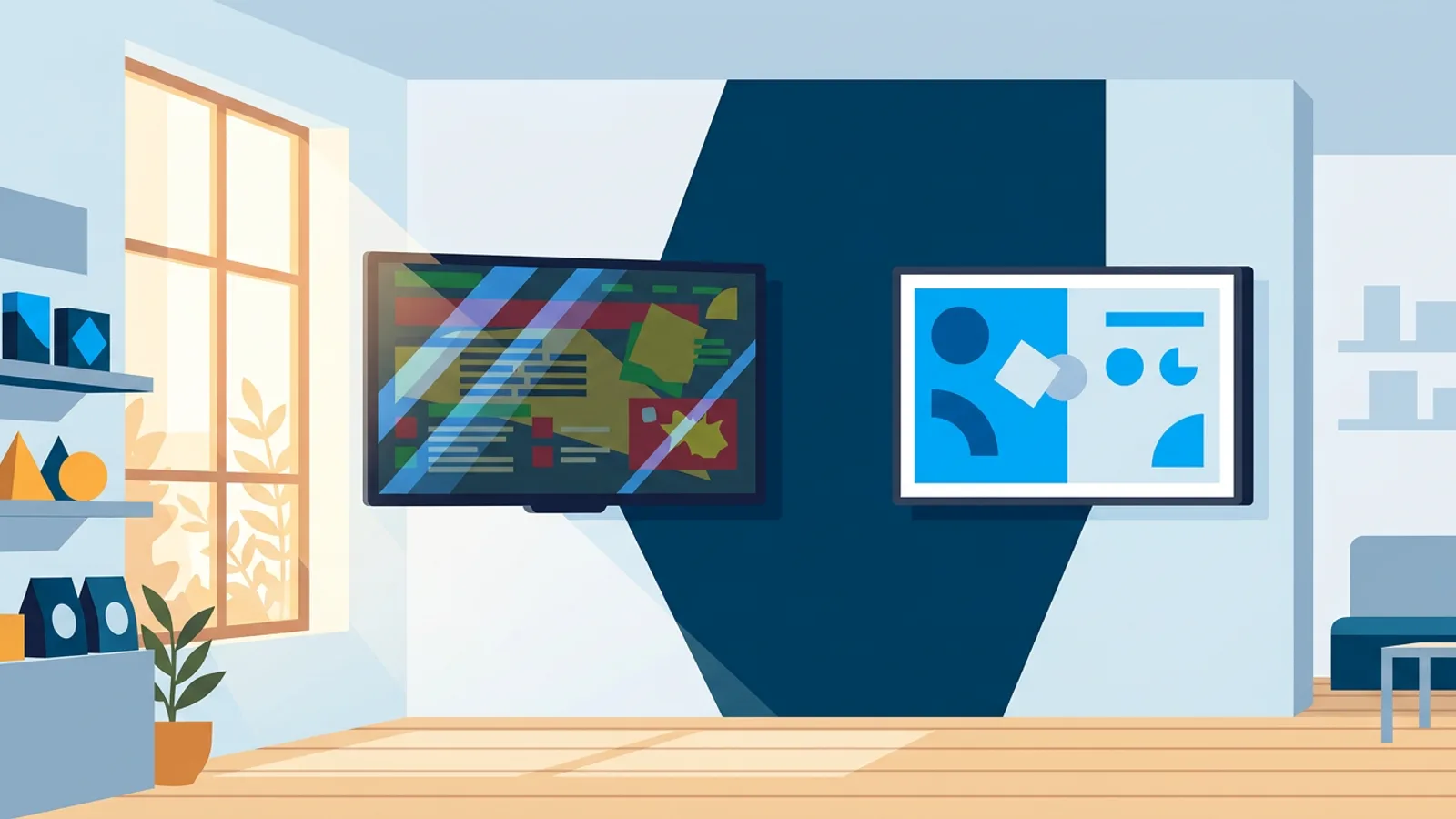
Customers squint, tilt their heads, or walk past without noticing the screen exists. Glare off a window turns half the display into a mirror by mid-afternoon. The TV is mounted at a height that only makes sense for someone standing directly underneath it. Placement problems cap the ceiling on everything else you do; well-designed content on a screen nobody can see comfortably doesn't get a second chance.
The physical fixes are mostly common sense: mount at eye level or slightly above for the typical viewing distance in that spot, angle away from direct light sources, and size text for the actual distance people stand or sit at, not the distance you stood at when you designed it. The full math on that is covered properly in the font size guide and the design best practices guide, so it won't be repeated here. A useful test: stand where your farthest customer stands and try to read the smallest text on screen. If you have to walk closer, so does everyone else, and most of them won't bother.
3. The design is unreadable
Light gray text sits on a near-white background, five competing offers are crammed onto one slide, and a busy background photo swallows the headline whole. A screen that requires effort to read gets skipped, especially in a lobby or checkout line where people give it maybe two seconds of attention.
Contrast and clutter are two separate problems with two separate fixes, covered in full elsewhere rather than compressed here: color contrast that actually holds up on a real TV and design best practices for readability. If you want one thing to fix today, pick one message per slide instead of five, and check that your text color and background aren't both mid-tone. TVpilot's built-in Designer has templates and a background-fade option (photo on one side, solid color on the other) built specifically to keep text legible without hiding the photo entirely.
4. Everything spins, flies, and fades
Every slide transition is a different flashy effect, text scrolls in from three directions, and a background video autoplays behind all of it. Someone glances at the screen and looks away almost immediately because there's too much to process. Motion draws the eye, but excessive animation exhausts it. A screen that never sits still for more than two seconds reads as chaotic rather than lively, and in places like waiting rooms or offices it can genuinely distract people trying to work or wait quietly nearby.
Pick one transition style and one slide duration, then apply that consistently instead of treating each slide as a chance to try a new effect. TVpilot's playlist editor has an "apply to all" option that pushes one duration and transition across an entire playlist in one action, which is the fastest way to undo a playlist that accumulated five different styles over time. If a slide already has moving video content, that's usually enough motion on its own; it doesn't also need a spinning transition into and out of it. Slower is almost always better: give people enough time to actually read before the slide changes.
5. Every location runs the exact same playlist
A business with three or five locations built one playlist and copy-pasted it to every screen. The lunch special is wrong for the location that closes earlier. A local promotion at one store shows up, confusingly, at a store across town that isn't running it. This is the mistake that's easiest to miss because the screens are technically working; they're just showing the wrong thing to the wrong customers, which erases the entire point of having local screens in the first place.
The underlying cause is almost always a setup shortcut: one playlist got built and applied everywhere because building five separate ones felt like five times the work. TVpilot assigns playlists and schedules per screen, not per account, so each location can run its own calendar, its own local promotions, and its own hours without duplicating the whole setup from scratch. You're editing per-screen assignments, not rebuilding content five times over. If you're running more than one location, the multi-location signage setup guide covers how to structure that without it becoming a maintenance headache.
6. Nothing shows up if a link or upload breaks
A video file gets corrupted during export, a linked feed times out, or a slide's source content quietly disappears. The screen goes black, or freezes on an error message, and stays that way until someone happens to walk by and notice. A dead screen is worse than a stale one because it advertises that nobody is minding the store, even if that's not actually true.
Planning for this before it happens beats reacting after a customer points out the black screen. TVpilot lets you set a backup playlist per screen, so if the assigned content is empty or unavailable for any reason, the screen falls back to that backup instead of going black. It's a small setup step, done once per screen, that removes an entire category of embarrassing dead air.
7. Nobody notices when a screen actually goes offline
A screen loses power, the network drops, or the player crashes, and it stays dark for hours or days before a customer mentions it. In a multi-location setup this is especially easy to miss: nobody at head office is physically walking past that screen every day, so an outage in one branch can run for a surprisingly long time before anyone reports it.
Catching an outage before a customer does means monitoring that doesn't depend on someone remembering to look. TVpilot's dashboard shows online/offline status and heartbeats for every screen, along with an optional email alert when a screen goes offline, so the first person to know about a dead screen is you, not a customer.
Quick reference
| Mistake | Visible symptom | Fix |
|---|---|---|
| Stale content | Same slides for weeks, expired promos still up | Per-slide expiry dates, calendar scheduling |
| Bad placement | Squinting, glare, missed angle | Reposition, resize text for real viewing distance |
| Unreadable design | Low contrast, cluttered slides | Simplify to one message, fix contrast |
| Excessive animation | Motion sickness, distraction | One consistent transition, apply-to-all |
| Copy-pasted playlist | Wrong hours or promos per location | Per-screen playlists and schedules |
| No fallback content | Black screen or error when something breaks | Backup playlist per screen |
| Silent outages | Screen dark for hours before anyone notices | Online/offline monitoring with alerts |
When TVpilot is (and isn't) the right fix
If your mistakes are mostly about process, content going stale because nobody owns the update, five locations running one playlist because separate ones felt like too much setup, or outages nobody catches until a customer mentions it, TVpilot's expiry dates, calendar scheduling, backup playlists, and screen monitoring address the root cause rather than just patching the symptom once. The Free plan covers one screen at no cost if you want to test this on a single location before rolling it out further.
It won't fix placement or glare, that's physical, and it won't make cluttered design good on its own; the Designer and templates help, but someone still has to choose one message per slide. If you need something self-hosted or fully open source, TVpilot isn't a fit since it's hosted SaaS; the open source signage cost breakdown is a fair place to compare that tradeoff honestly.
Check your own screen against this list, fix whichever mistake applies, and if it's stale content specifically, sign up free and set an expiry date on your next upload instead of relying on memory.
Frequently asked questions
What's the single most common digital signage mistake to avoid?
Stale content that nobody remembers to update is the most common one, because it's invisible to the business owner but obvious to every customer who walks past a promo that ended weeks ago. It's also the easiest to fix with per-slide expiry dates so old content removes itself.
How do I know if my screen placement is actually a problem?
Stand where your farthest regular customer stands or sits and try to read the smallest text on the screen without walking closer. If you can't read it comfortably from there, or glare from a nearby window washes it out at certain times of day, the placement is working against you regardless of how good the content is.
Can I run different content on screens at different locations without building everything twice?
Yes, if your signage software assigns playlists and schedules per screen rather than per account. In TVpilot each screen gets its own playlist and calendar, so a five-location business can set local hours and local promos once per screen instead of maintaining five separate copies of the same setup.
Does fixing excessive animation mean removing all motion from the screen?
No. Video content on a slide already provides motion, so it doesn't need a flashy transition layered on top. The fix is picking one consistent transition style and slide duration for the whole playlist, which TVpilot's playlist editor can apply to every slide at once, rather than removing motion entirely.