Digital Signage Opening Hours Schedule: Save Power
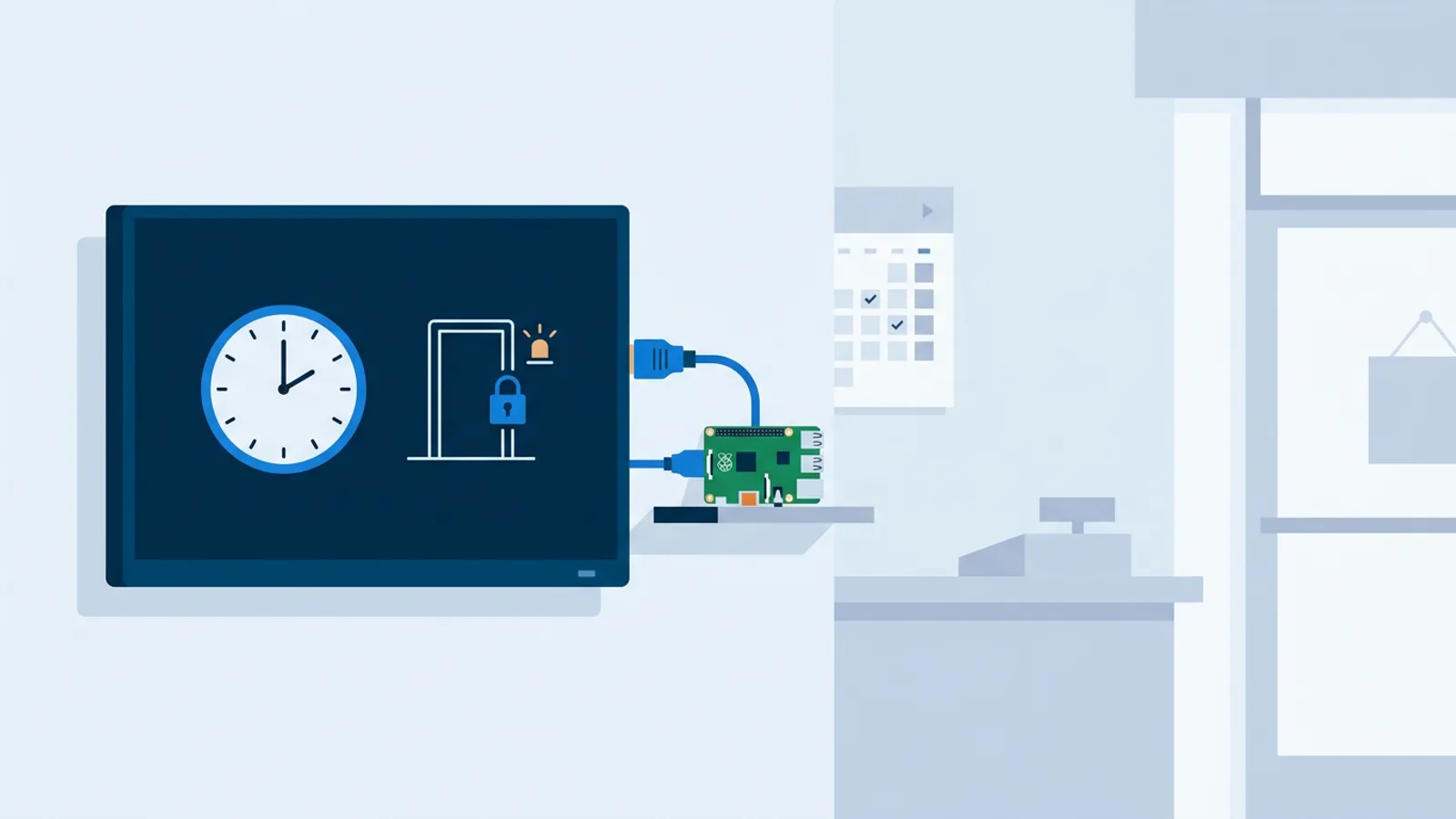
If your screens run 24/7 but the shop closes at 6pm, you're paying for electricity nobody benefits from and putting hours on a panel that nobody is watching. A digital signage opening hours schedule ties the TV's power state to when the business is actually open, instead of leaving it on a flat "always on" default or relying on someone to remember the remote. On a Raspberry Pi player, that schedule runs automatically once you set it, no daily babysitting required.
We've covered killing the glow at night for comfort in Turn Off Digital Signage at Night. This piece is about the cost and lifespan side: how many hours a year the panel draws power and burns backlight time for a closed store, and what that actually costs you.
Why running a screen 24/7 costs more than the bill shows
A commercial or consumer TV left on around the clock does two things you're paying for. First, it draws power the whole time, whether anyone is in the building or not. Second, the backlight and panel age with every hour of use, not just with calendar time. LED backlights dim gradually with total run hours, and static or high-contrast content left on screen for long stretches raises the risk of image retention on some panel types.
A store open 60 hours a week that leaves the screen on 168 hours a week is running the panel nearly three times longer than it needs to. Over a year that's a meaningful chunk of the panel's usable life spent showing a closed sign to an empty room.
Setting up a digital signage opening hours schedule
Most businesses don't run the same hours every day. A salon might open 9 to 6 on weekdays, 9 to 4 on Saturday, and stay closed Sunday. A gym might run early mornings and evenings on weekdays but shorter weekend hours. A flat "on at 8, off at 8" rule ignores all of that and either cuts the screen off too early or leaves it running when the doors are locked.
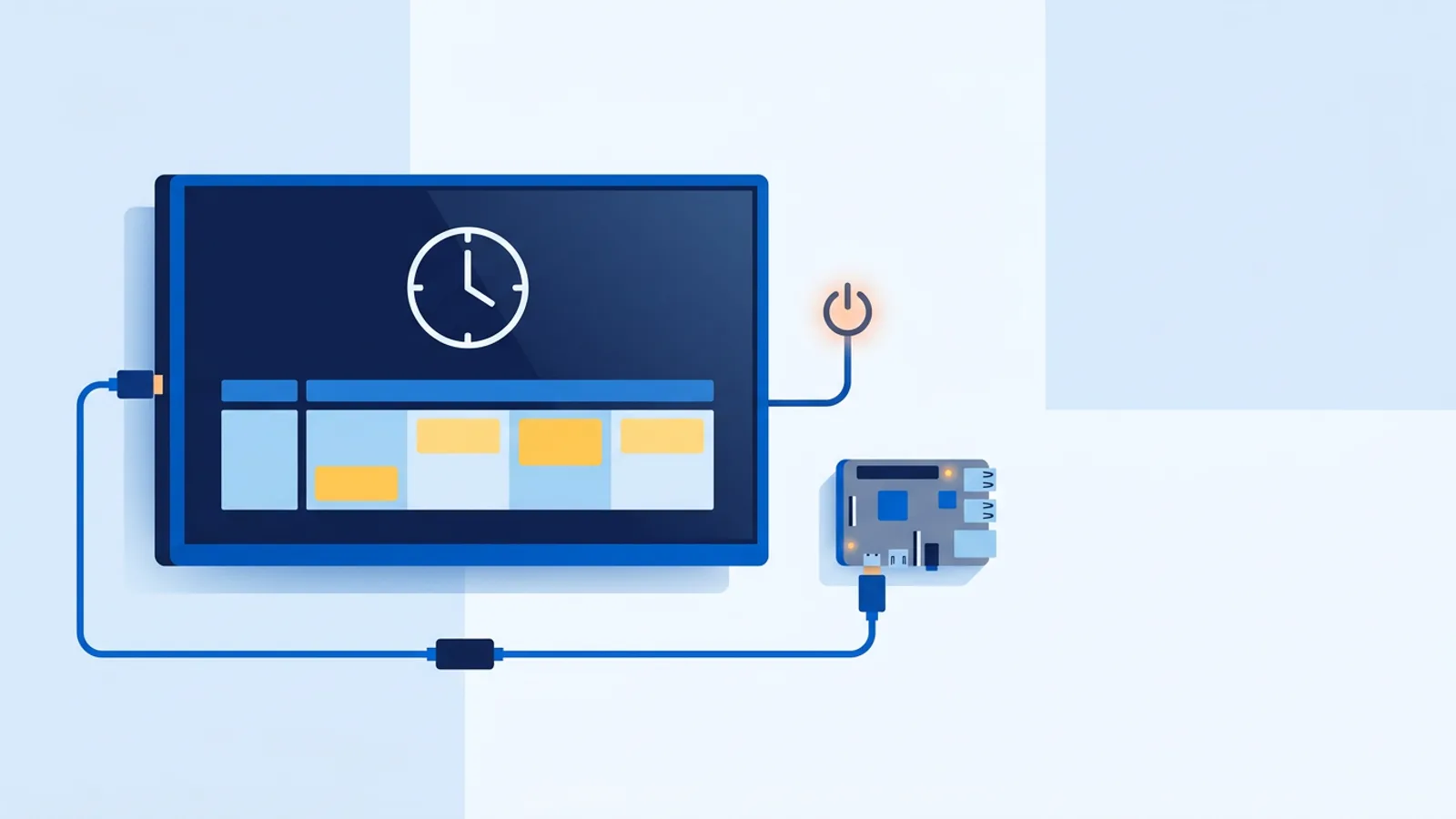
On TVpilot's dashboard, the Raspberry Pi player checks a power schedule every minute and switches the TV on or into standby over HDMI-CEC to match it. You set the schedule around the hours you're actually open, not a single on/off time that has to fit every day of the week. There's no smart plug, no manual remote press, and no separate app to remember to open.
This sits next to, but is separate from, the calendar-based playlist scheduling covered in Digital Signage Scheduling, which controls what plays and when. The power schedule controls whether the screen is even switched on in the first place.
Blackout dates and holiday presets for content, not power
Opening hours aren't the whole story. Every business also has days that don't fit a weekly pattern: public holidays, a one-off closure for renovation, a stocktake day at one branch. TVpilot's calendar-based Schedule page, the same one that controls which playlist plays and when (see Digital Signage Scheduling), lets Pro and Business plans add blackout dates, an "except on" list layered over a recurring weekly slot, including ready-made Dutch holiday presets. That's useful for keeping a lunch-menu playlist or a weekday-only slot from firing on a day you're closed. When a blackout date hits, the screen falls back to its default playlist instead.
Worth being precise here: blackout dates govern which playlist plays, not the physical power schedule. If you also want the TV to go into standby on a specific holiday that falls outside your usual weekly pattern, that's a separate edit to the power schedule itself, not something the blackout-date feature does for you. For a business already planning content a year out, it's still a real time-saver, especially across multiple branches (see Digital Signage System for Multiple Locations), just don't expect it to also flip the screen off. Plan limits scale with the tier: Free gives 1 calendar and 2 scheduled items, Starter 5 calendars and 20 items, Pro and Business 25 calendars and 200 items, enough headroom for a full year of exceptions across a multi-location account.
How HDMI-CEC power scheduling actually works
HDMI-CEC is the same protocol that lets your TV remote turn on a connected game console or soundbar. The Raspberry Pi player uses that same channel in reverse: the Pi tells the TV to power on or go to standby, based on the schedule stored in the dashboard.
The player checks that schedule once a minute. When the current time crosses into an "open" window, it sends the CEC power-on command; when it crosses into a "closed" window, it sends standby. No smart plug, no extra wiring, nothing plugged into a wall timer. If the TV supports HDMI-CEC (most modern sets do, sometimes under a brand name like Anynet+, Bravia Sync, or SimpLink), this works over the same HDMI cable the Pi already uses for video.
Browser-only signage setups don't get automatic power scheduling
Automatic CEC power scheduling is a Raspberry Pi player feature. If your signage runs through a smart TV's built-in browser app, a Fire TV Stick browser route, or another browser-only setup, there's no equivalent automatic power control today. Those setups can still follow content schedules and calendar scheduling fine, but switching the physical TV on and off has to be handled another way: a wall timer, a smart plug, or manually. If automatic power scheduling on business hours matters to you, that's a real point in favor of the Pi route over a browser-only device; see Smart TV vs Raspberry Pi Digital Signage for the fuller comparison.
A back-of-envelope energy savings example
You don't need exact utility numbers to see whether this is worth setting up, just hours saved per week multiplied by the TV's rough wattage.
| Hours/week | Notes | |
|---|---|---|
| Total hours in a week | 168 | 24 x 7 |
| Store open hours | 54 | e.g. Mon-Sat 9-6 |
| Hours saved by scheduling | 114 | screen in standby instead of on |
Say the TV draws around 100W while showing content. Standby draws far less, close enough to treat as negligible for a rough estimate. Multiply the 114 saved hours by 100W and you get roughly 11.4 kWh saved per week, around 45-50 kWh a month per screen. Plug your own electricity rate into that number to see the euro figure for your location. The rough math is enough to show that leaving a screen on for two-thirds of a week when it's dark and empty costs real money, whatever your local rate happens to be.
For a business running several screens, multiply again by the number of TVs. A five-screen shop fit-out doing the same math is saving on the order of 50-60 kWh a week just by matching power to opening hours, on top of whatever it's already doing to manage content efficiently (see Digital Signage Bandwidth Requirements if you're also curious about data costs).
Extending TV lifespan by cutting run time
Backlight wear and the risk of image retention both scale with hours of use, not with how long you've owned the TV. A panel that runs 54 hours a week instead of 168 is doing roughly a third of the work over its lifetime. That doesn't guarantee a specific extra number of years, panels vary, but it does mean the screen isn't quietly aging away every night and every closed Sunday for no reason. Pairing a sensible power schedule with content practices that avoid static high-contrast slides sitting on screen for hours (covered in Digital Signage Best Practices) is cheap lifespan insurance for a TV that's already installed.
When this fits, and when it doesn't
Automatic HDMI-CEC power scheduling on business hours makes sense if you're running, or willing to run, a Raspberry Pi player and you want the screen to track real opening hours, including different weekend hours, without touching a remote. It's a strong fit for retail, salons, gyms, and any multi-location business that also wants blackout dates for content planning.
It's not the right fit if your signage runs entirely through a smart TV app or a browser-only stick and you're not planning to add a Pi, since the automatic power control isn't available on that path yet; a plain wall timer or smart plug is the honest workaround there. It's also not the fit if you need a self-hosted, on-premise system: TVpilot is hosted software, not open source, so if that's a hard requirement, look at the options compared in Open Source Digital Signage: The Real Cost of Self-Hosting first.
If a Raspberry Pi setup with a power schedule tied to your real opening hours sounds like the right amount of automation, sign up and set one up for the first screen for free.
Frequently asked questions
Does HDMI-CEC power scheduling work on any TV?
It works on TVs that support HDMI-CEC, which is most modern sets, though manufacturers use different brand names for it such as Anynet+ (Samsung), Bravia Sync (Sony), or SimpLink (LG). The feature runs through the Raspberry Pi player, which sends the on/standby commands over the same HDMI cable already used for video, based on the power schedule set in the TVpilot dashboard.
Can I get automatic power scheduling with a Fire TV Stick or a smart TV app?
Not automatically today. HDMI-CEC power scheduling is a Raspberry Pi player feature that checks the dashboard schedule every minute and switches the TV on or standby. Browser-only setups, including smart TV apps and Fire TV Stick browser routes, can still run content and calendar scheduling normally, but turning the physical TV on and off needs a separate solution like a wall timer or smart plug.
Do blackout dates also turn the TV off on holidays?
No. Blackout dates and the Dutch holiday presets are part of the calendar-based Schedule page that controls which playlist plays and when, available on Pro and Business plans. They stop a recurring weekly playlist item from firing on an excluded date and let the screen fall back to its default playlist instead. They don't change the physical power schedule; if you also want the TV in standby on a specific holiday, that's a separate edit to the power schedule.
How much electricity can an opening-hours power schedule actually save?
It depends on your hours and the TV's wattage, but the math is simple: subtract your open hours per week from 168 to get hours saved, then multiply by the TV's rough wattage while active. A store open 54 hours a week with a TV drawing around 100W saves roughly 11.4 kWh a week per screen, before accounting for standby draw, which is small enough to treat as negligible for a rough estimate. Multiply by the number of screens for a multi-TV location.