Digital Signage for Franchises: Brand and Local Control
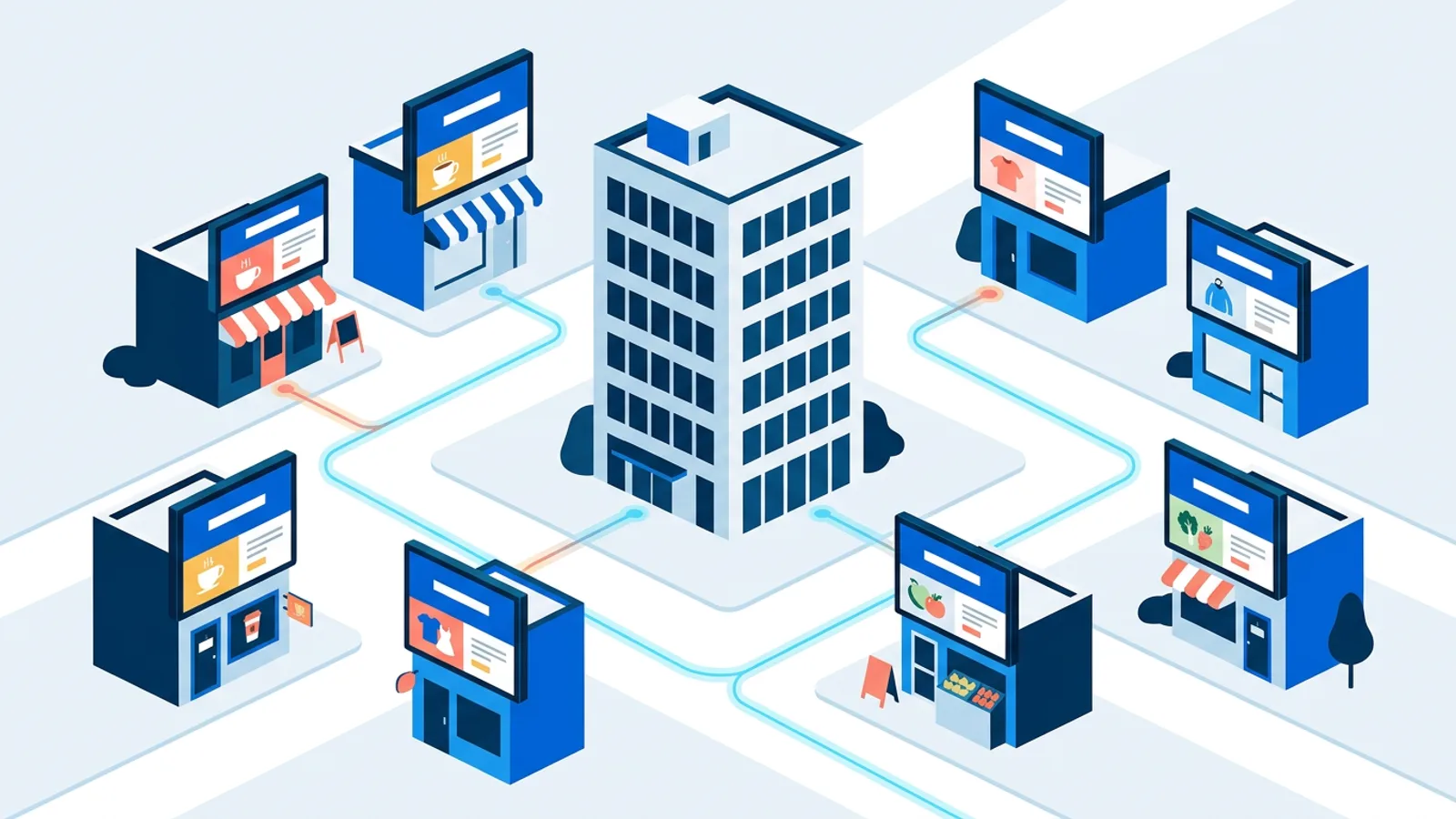
Digital signage for franchises works when head office owns the brand campaigns and each branch can still change its own local slides, without either side overwriting the other. In practice that needs three things in your software: locations with per-member access, roles that limit who can publish, and an approval step for anything that goes live.
This guide is for the franchisor or operations manager who has to roll screens out to five, twelve or forty branches and keep the brand consistent. It walks through how to split central and local content, who gets which access, how to schedule campaigns per branch, and what it costs when head office pays for everyone. If you are new to how hosted signage works, the overview on digital signage software for TVs covers the basics first.
The short decision rule: if a branch manager can change it, it is local content and lives in a local playlist. If only head office should change it, it is brand content and lives in a brand playlist that head office manages and locks against accidental edits, while each branch manager's access is scoped to their own location. Everything below follows from keeping those two apart.
What digital signage for franchises has to solve
A single café owner with one TV has one person deciding what plays. A franchise has at least two parties with different goals:
- Head office wants the national campaign live in every branch on the same morning, with the right logo, colours and legal text.
- The branch wants to show its own lunch special, the local football match, a staff vacancy or a note that the terrace is open.
With one shared login and full access for everyone, the summer campaign disappears from three locations because someone deleted it to make room for a birthday slide. If head office locks everything down instead, branches tape paper signs next to the screen.
How to split central and local content
A brand playlist and a local playlist per branch
In TVpilot, content lives in playlists of images, videos, web pages and PDFs, and each screen plays a playlist. The cleanest franchise setup has two layers:
- A brand playlist built at head office: the campaign, the core menu or product range, opening slides with the logo. Playlists can be locked, so they do not get edited by accident.
- A local playlist per branch, edited by that branch's own staff.
Because a screen plays one playlist at a time, you need to decide how a branch gets both layers. Three ways work, and you can combine them:
- Split by screen. If a branch has two screens, the window screen plays the brand playlist and the menu screen behind the counter plays the local playlist. This is the simplest setup and the easiest to explain to branch staff.
- Split by time on the Schedule page. Make the brand playlist the screen's default and add a weekly repeating slot for the local playlist, for example weekdays 11:30 to 14:00 for the lunch special. Outside that slot the screen falls back to the brand playlist. Several short slots through the day make the two layers alternate.
- Put brand slides inside the local playlist. If the campaign is a Canva design, its share link can be added as a slide to every local playlist, and edits head office makes in Canva still reach every branch (more on this below). In the Designer, a brand layout with a widget box can also carry a live local plugin, such as the branch's own Google reviews or local weather, so one slide shows brand design and local data together.
Edits save as a draft and only reach the screens when someone presses Push to screen, so half-finished work at head office never shows up in a branch mid-afternoon. Paid plans keep a playlist version history with restore, which matters the first time someone at a branch deletes a slide they should not have.
Shared designs that update in every branch
The weak spot of copying brand slides into each branch is that you then have twelve copies to update. Two features help here. If your marketing team designs in Canva, paste the public share link of the design as a slide: edits made in Canva appear on screens automatically, with no re-uploading. Change the price on the campaign design once and every branch that carries that slide shows the new version. The same works with Google Slides and PowerPoint embed links.
Inside TVpilot, files in the media library can be replaced in place, and on paid plans the newest 5 versions are kept, so a corrected poster can replace the old one without rebuilding playlists.
Scheduling campaigns per branch
The Schedule page decides which playlist plays on a screen, through a calendar with one-off items (a branch opening day) and weekly repeating slots (breakfast menu on weekdays 07:00 to 10:30). When nothing is planned, the screen falls back to its default playlist. One-off items beat weekly ones, so a national launch day can override the regular week without touching it. Pro and Business can add blackout dates, for example a branch that is closed on a local holiday.
For individual slides there is per-slide scheduling: show a slide only on chosen weekdays or between chosen times, with an optional expiry date after which it takes itself off screen. Set the expiry date to the last day of every promotion, so no branch is still advertising last month's offer.
Two more tools are useful at launch time. A scheduled change makes a screen download a new playlist in advance and switch at an exact moment, even if it is offline at that moment. Show now pushes any playlist to one or more screens immediately for 30 minutes up to indefinitely, after which the screen returns to its planning.
Who gets which access
TVpilot teams have four roles (owner, admin, editor and viewer) and locations (branches) with per-member access. That means a branch manager can be an editor whose access is limited to their own location.
| Person | Role | Location access |
|---|---|---|
| Franchisor or IT lead | Owner | All |
| Head office marketing | Admin | All |
| Branch manager | Editor | Own branch only |
| Area manager checking screens | Viewer | Their region's branches |
The common mistake is making branch managers admins because it is quicker on rollout day. Give editors the minimum and raise access later if a branch genuinely needs it. Two-factor authentication is available for each user on every plan, and Pro and Business can require it for the whole team, which is worth switching on once more than a handful of people can publish to public screens.
The Emergency alert (included in Pro and Business) can target a single location, so a branch with a burst pipe can show Temporarily closed on its own screens without affecting the rest. Editors and up can start it, and owners and admins get an email when it happens.
Approval: when four eyes help and when they slow you down
On the Business plan there is an approval workflow for playlists, uploads and schedule changes, with a four-eyes option. Branch edits wait until a reviewer approves them, so nothing off-brand goes live.
Decide up front who reviews and how fast. Approval protects the brand, but a branch that wants to post today's soup at 11:00 cannot wait until the marketing team checks the queue at 16:00. Practical rules:
- Name at least two reviewers, so holidays do not freeze every branch.
- Agree a response time, for example within two hours during opening hours.
- Give branches a set of approved templates in the built-in Designer (own logo placement, brand fonts, layout templates), so local slides look right the first time and approvals become a quick check.
If your franchise is small and branch managers are trusted, you may not need approval at all. Pro gives roles and locations without it.
Worked example: 12 branches, one invoice
Say you run a sandwich franchise with 12 branches. Each branch has two screens: a menu board behind the counter and a promo screen in the window. That is 24 screens, 12 branch managers and two people at head office.
- Plan: Business, because Pro tops out at 3 locations and 3 users.
- Screens: Business includes 25, so 24 fits with one spare.
- Users: 14 of the 25 included.
- Locations: unlimited on Business.
- Cost: €99 per month, or €990 per year (yearly gives 2 months free). That works out at about €8.25 per branch per month on monthly billing, excluding VAT.
TVpilot charges per plan with screens included, never per user or per device license, so the head office pays one subscription for the whole network. Each branch only buys its own TVs and players. A Raspberry Pi or an Amazon Signage Stick per screen works, and so does a smart TV with a browser.
Now the franchise grows to 20 branches with two screens each. That is 40 screens: 15 extra at €1.50 per month each, so €99 + €22.50 = €121.50 per month. Users are 22 of 25. At around 24 branches with one user each you hit the user limit, and above 100 screens you are in Custom territory (contact hello@tvpilot.app). Also check the scheduling limits: Business has 25 calendars and 200 scheduled items, so plan how many calendars you need before the network gets big. For a deeper look at how costs and management change as you add screens, see one screen vs multiple screens.
Where franchise signage rollouts go wrong
- Campaigns that never end. A promotion goes up nationally, nobody sets an expiry date, and branches show it for weeks. Fix: expiry dates on every promo slide.
- Screens nobody watches. A TV in branch nine has been off since Tuesday and head office finds out at the area manager's visit. TVpilot shows online and offline status, TV power state and screenshots per screen, and can email you when a screen goes offline and when it recovers.
- A blank screen at launch. If a branch's playlist is empty or unavailable, the backup playlist per screen plays instead of a black screen. Set a brand backup for every screen on day one.
- Players on old versions. Fleet-wide updates can reload every screen now, or tonight at 03:00 in each screen's own time zone, which suits a franchise across several countries.
- Internet outages. Players keep following the schedule during outages, but new content only arrives once the connection is back. Push launch content a day early with a scheduled change.
Franchise menu board software: same layout, local prices
Menu boards are where central and local collide most. The layout, photos and product names are brand content; prices and sold-out items are often local. A workable split is one menu design per branch built from a head office template, with the branch editor allowed to change prices and approval catching mistakes. If your tills or ordering system can send a web request, the Data API (Premium, included in Business) has a Menu feed with items, prices and categories, where sold-out items are struck through or hidden, so local data comes straight from the branch's system instead of being retyped. More on layouts and readability in the guide to digital menu boards.
When TVpilot fits, and when it does not
TVpilot fits a franchise of 2 to roughly 25 branches where head office wants one subscription, locations with separate access, and optional approval. Pro covers 2 to 3 branches without approval, as long as 3 user logins are enough. Business is the plan once you need approval, own branding or a fourth location. Business adds own logo and colours (white label, with "powered by TVpilot"), which helps if branch staff log into a dashboard that looks like your brand.
It is a weaker fit in a few cases. TVpilot is hosted SaaS, so if your IT policy requires self-hosted or open-source software, it is out. If each franchisee is a separate company that wants its own account and billing, look at the partner portal, which is built for resellers and agencies managing customer environments, and ask whether that model suits your structure. Very large chains above 100 screens need a Custom arrangement. And if every branch is fully independent with no shared campaigns, separate Free or Starter accounts per branch may simply be cheaper and easier.
Start with one branch
The safest rollout is a pilot: set up one branch with a brand playlist, a local playlist, an editor login for the manager and expiry dates on every promotion, then run it for two weeks before copying the setup to the rest. The Free plan runs one screen at no cost and needs no credit card, so you can build your brand playlist today. Move to Pro for 2 to 3 branches that do not need approval, and to Business when you need approval, own branding or a fourth location. Create your TVpilot account and set up your first location.
Frequently asked questions
Can a branch manager edit only their own branch's screens?
Yes. In TVpilot, locations (branches) have per-member access, so you can give a branch manager the editor role with access scoped to their own location. Head office keeps owner or admin access to all locations, and brand playlists can be locked against accidental edits. Locations and roles are on Pro (up to 3 users and 3 locations) and Business (up to 25 users and unlimited locations).
How does one screen show both brand campaigns and local content?
A screen plays one playlist at a time, so split the layers by screen (brand playlist in the window, local playlist on the menu screen), by time (the brand playlist as default with weekly Schedule page slots for the local playlist), or by adding brand Canva slides to each local playlist so head office edits still reach every branch.
Can head office pay for all franchise branches on one subscription?
Yes. TVpilot charges per plan with screens included, not per user or per device license. Business costs €99 per month (or €990 per year) excluding VAT and includes 25 screens, up to 25 users and unlimited locations. Extra screens cost €1.50 per month each, up to 100 screens; larger chains contact hello@tvpilot.app for a Custom arrangement.
Can head office approve branch changes before they go live?
On the Business plan, an approval workflow covers playlists, uploads and schedule changes, with an optional four-eyes check. Name at least two reviewers and agree a response time, so branches posting time-sensitive offers are not left waiting.