Digital Waiting Room Displays: What Patients Actually Read
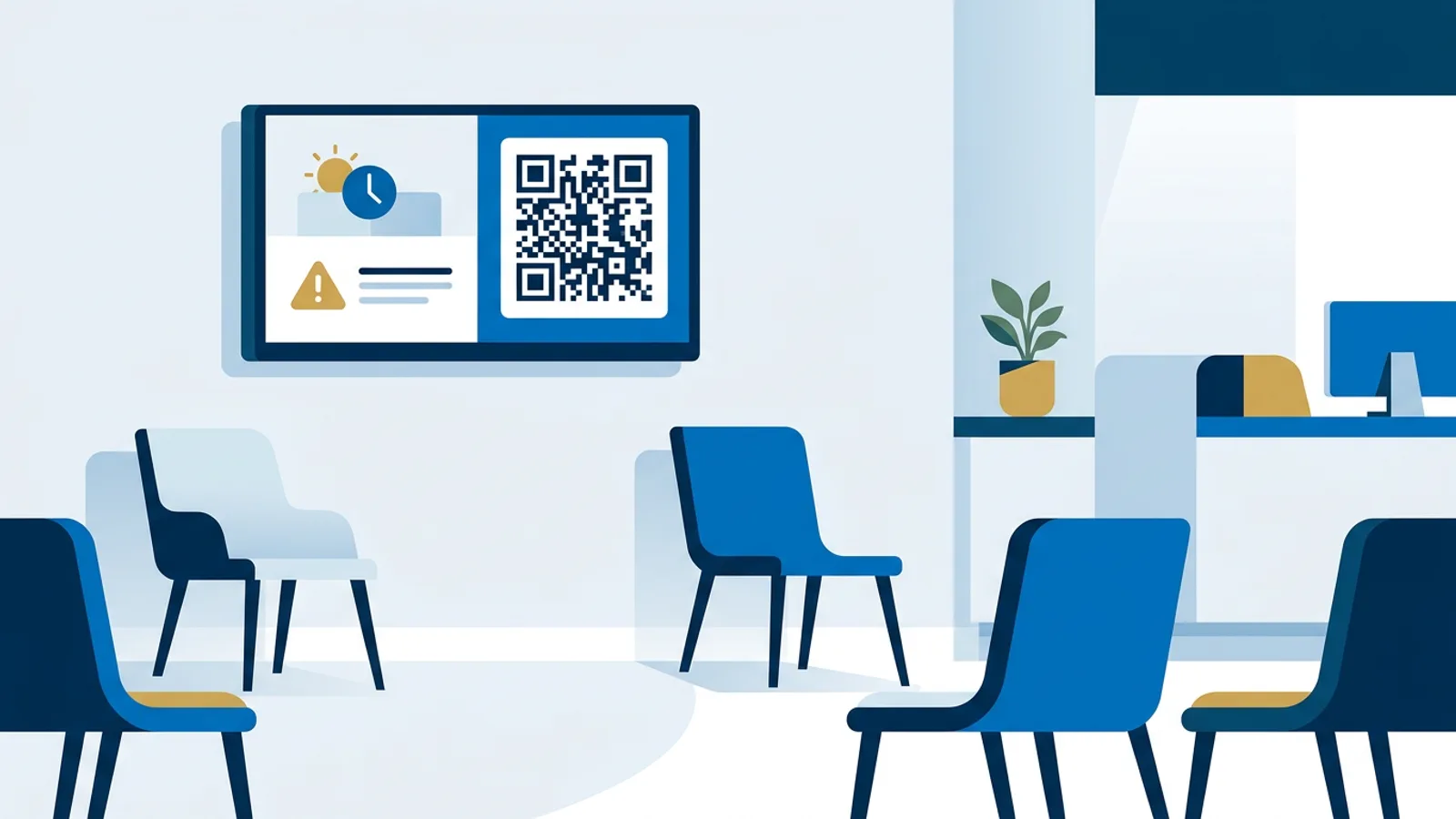
Digital waiting room displays in a dental or GP practice earn their place when they show four things patients look for: how long the wait is, opening hours and closures, one current piece of practice news, and a QR code to the patient portal. Long health-tip loops, stock footage and live TV news mostly get ignored, or they add stress for people who are already a bit anxious.
This guide is for the practice manager with one or two screens and no IT department. It covers what to put on screen, how long each slide should stay, why the sound stays off, how to keep patient names off the screen entirely, and how to run it from a web dashboard with digital signage software for any TV that you set up once and then mostly leave alone. Most patients look up from their phone for a few seconds at a time, so every slide has to make sense in one look.
What digital waiting room displays should show first
A patient who sits down checks two things almost immediately: am I in the right place, and how long will this take. Answer those before anything else.
1. Wait expectations
The most useful line on any waiting room TV is a short delay notice: "Dr. Patel is running about 15 minutes behind. Thank you for your patience." It cuts the number of people walking back to the desk to ask. TVpilot has an on-screen Messages bar for short text like this. When the delay changes, edit the message in the dashboard and press "Push to screen"; the slides themselves stay as they are.
Keep it to the clinician and the size of the delay. Never mention why someone is late or which appointment overran.
2. Opening hours and closures
Show regular hours plus the exceptions people get caught out by: the bank holiday closure, the afternoon the practice shuts for training, the out-of-hours number. This slide is the one patients photograph with their phone, so make the phone number large.
3. One piece of practice news
Pick one item per slide: flu vaccination clinic dates, a new hygienist starting, a change in how to order repeat prescriptions. If you have five news items, make five slides and rotate them, or better, show only the two that matter this month.
4. A QR code to the patient portal
A QR code that opens the online booking page or the portal sign-up does real work in a waiting room, because patients have their phone in their hand and nothing better to do. TVpilot's WiFi / QR plugin generates the code on the screen itself, with your logo in the middle and your colours, and it can carry a link, the guest Wi-Fi details or plain text. Put one sentence above it that says exactly what happens after the scan: "Scan to book your next check-up online."
What to leave off
Dense leaflets turned into slides, anything with small print, and clinical images that could upset children or nervous patients. If a slide needs a paragraph to explain, it belongs on the practice website, and the QR code can point there.
How long each slide should stay
A practical rule: give a slide 3 seconds plus 1 second for every 3 words of text, with a floor of 8 seconds. QR slides need longer than the rule gives, because people have to unlock a phone and open the camera.
| Slide type | Words on slide | Duration |
|---|---|---|
| Logo / welcome | under 6 | 8 s |
| Opening hours | 20 to 25 | 10 to 11 s |
| Practice news | 15 to 20 | 8 to 10 s |
| QR code with one sentence | about 10 | 15 to 20 s |
| Short muted video | n/a | 15 to 30 s |
Then check the total loop. Aim for a loop shorter than half your typical wait, so a patient who waits ten minutes sees every slide at least twice. In practice that means a loop of two to four minutes, which usually works out at 8 to 12 slides. If your loop runs to ten minutes, nobody sees the end of it, and the slides at the back may as well not exist.
In TVpilot you can set one duration for the whole playlist with "apply to all" and then lengthen just the QR slide.
Worked example: a two-surgery dental practice
Say you run a dental practice with a main waiting room and a small second waiting area upstairs. Two screens, one person (you) maintaining them, about 20 minutes a month to spare.
The main playlist has eight slides:
- Welcome with logo, 8 s
- Opening hours and emergency number, 11 s
- "Book online" QR code, 18 s
- New hygienist introduction, 10 s
- Children's check-up reminder, 10 s
- Short muted clip of the practice's new sterilisation room, 20 s
- Payment and insurance options, 11 s
- QR code repeated with "Leave us a review", 15 s
Total: 103 seconds, so a patient waiting 15 minutes sees the loop eight times. That is plenty; the repeat QR slide catches people who missed the first one.
Then the scheduling. The children's reminder is only relevant when parents with children are in the room, which in this practice means the after-school appointment slots. Per-slide scheduling shows it Monday to Friday between 15:00 and 17:30, and nowhere else in the week. The Christmas closure slide goes in at the start of December with an expiry date set to the last day the practice is closed, so it takes itself off screen once the practice reopens and nobody has to remember to delete it. On the Schedule page, a separate "Saturday clinic" playlist plays only on Saturday mornings via a weekly time slot; the rest of the week the screen falls back to the default playlist.
Cost: one screen fits the Free plan (1 screen, 250 MB storage, all standard plugins, 1 calendar). Two screens need Starter at €5 per month or €49 per year, which includes 3 screens. If the 20-second clip and a few images are all the video you use, 2 GB on Starter is ample.
Sound off, and what that means for video
Keep the waiting room TV silent. Patients take phone calls, receptionists discuss appointments at the desk, and a looping soundtrack wears down staff who hear it all day.
That changes how you choose video. Use clips that make sense without audio, and add captions or a single line of text on screen. TVpilot mutes per video, and YouTube links play muted and looping by default; YouTube decides whether a video carries ads, so use your own uploads or your own channel's videos to avoid an ad for something unsuitable appearing in a clinic. Vimeo links with sound off and loop on play without overlays.
The one sound worth considering is a short chime when a number is called, covered below.
Keeping patient names off the screen
Never put a patient's name, initials or appointment time on a public screen, even if it seems convenient. Someone in the room may know them, and a name next to "Dr. Lee, Room 2" can reveal more than the patient wants shared.
If you want the screen to call people, use numbers. TVpilot's Now serving plugin is a ticket number system included on every plan, Free too. Patients take a number from a paper ticket roll at the desk or scan a QR code for a digital ticket on their own phone, which shows how many people are ahead and an estimated wait. Staff press Next on a wireless button, a keyboard or their phone (a caller page protected by a PIN), and the number appears on screen with a chime and, optionally, a spoken call-out such as "Number A 42, to counter 3". Numbers reset every day. It suits walk-in clinics, blood test sessions and pharmacy counters better than appointment-based surgeries; the queue management page shows the setup.
Two other privacy checks. Do not embed a staff appointment calendar on screen: the Calendar widget shows any iCal feed live, which is great for a public events calendar of clinic days and dangerous for a clinician's diary. And preview every web page slide before pressing "Push to screen", in case the page shows a logged-in view or internal details. TVpilot saves edits as a draft until you press that button, which gives you the moment to review.
Old LED ticker signs versus a TV
Some practices still have a scrolling LED message sign above the desk. These LED information screens show one line of text and are fiddly to update. A TV with an on-screen Messages bar can carry the same one-line delay notice, and the rest of the screen adds hours, news and a scannable QR code. If your LED sign works and you only ever show one line, keeping it is reasonable. Once you want a QR code or more than one message, a TV is the simpler tool.
Running it without IT
The hardware that needs the least attention is a TV plus a small player that starts by itself. Three routes, from least to most technical:
- Amazon Signage Stick: plug it into the TV's HDMI port, set it up with the free Amazon Signage mobile app, choose TVpilot and enter the claim code from the dashboard. It starts TVpilot in kiosk mode on every boot, also after a power cut.
- Fire TV Stick with the TVpilot app from the Amazon Appstore, or a smart TV's browser pointed at the player URL.
- Raspberry Pi with the one-command installer. More setup, but the Pi can switch the TV on and to standby on a schedule via HDMI-CEC, so the screen is off when the practice is closed.
After that, the routine is small. Set a backup playlist so the screen shows your welcome slide instead of going black if something is missing. Turn on the offline email alert so you hear about a dead screen before a patient tells you. Put expiry dates on every time-limited slide. For more on what belongs at the front desk itself, see what to show on reception screens.
When TVpilot fits, and when it does not
TVpilot fits a practice that wants to update its waiting room screens from a browser, schedule slides around closures and clinics, and call numbers without buying a ticket machine. One screen costs nothing on the Free plan, and there is no free trial to run out: the plan is free for as long as it stays within its limits.
It is a poor fit if your policy requires software hosted on your own servers, since TVpilot is hosted SaaS and not self-hostable. It has no built-in connector for practice management or appointment software; the Premium Data API accepts data from systems that can send web requests, but wiring that up is a project for whoever supports your practice software. And players need internet to pick up content changes, so a site with unreliable connectivity will see updates arrive late.
Getting started
Start with one screen and four slides: hours, the delay message, one news item and a QR code to your booking page. Time the loop, watch a few patients glance up, and add slides only when you know they will be read. You can set that up on the Free plan in an afternoon; create a free TVpilot account and pair your first waiting room screen.
Frequently asked questions
What should a dental or GP waiting room screen show?
Start with four things: a short delay notice per clinician, opening hours with upcoming closures and the out-of-hours number, one current piece of practice news per slide, and a QR code to online booking or the patient portal. Leave off dense leaflets, small print and clinical images that could upset nervous patients or children.
How long should each slide stay on a waiting room display?
A workable rule is 3 seconds plus 1 second for every 3 words, with a minimum of 8 seconds. QR code slides need 15 to 20 seconds because people have to get their phone out. Keep the whole loop under half the typical wait, usually two to four minutes, so patients see each slide at least twice.
Can a waiting room screen call patients without showing their names?
Yes. Use ticket numbers instead of names. TVpilot's Now serving plugin, included on every plan including Free, lets patients take a paper ticket or scan a QR code for a digital ticket, and staff press Next on a button, keyboard or phone so the number appears on screen with a chime. No names or appointment times are shown.
How much does it cost to run one waiting room screen with TVpilot?
One screen runs on the Free plan at no cost, with 250 MB storage, all standard plugins and 1 calendar, and no credit card required. For two or three screens, the Starter plan costs €5 per month or €49 per year excluding VAT. You still need a TV and a player such as an Amazon Signage Stick, Fire TV Stick or Raspberry Pi.